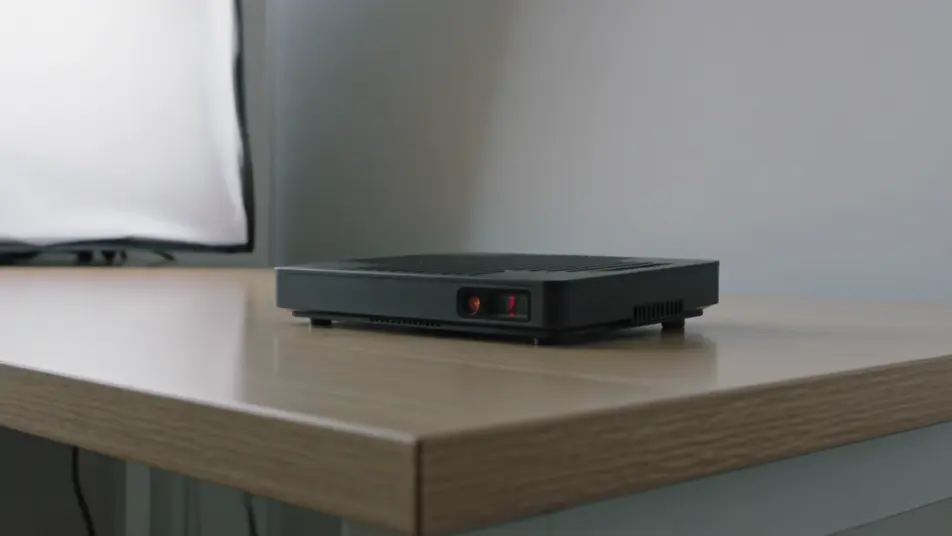
トラブルシューティング動画生成AI:症状から解決まで
サポートセンターに電話をかける前に、画面を見せて直せることは多いはずです。Morphicなら症状の一場面、手順を追った修理、操作部のクローズアップ、確認のカットまでを一本に組み立てられます。ナレーションはSpeechで加え、各パートをComposeでひとつのガイドにつなげます。
トラブルシューティングの場面を演出
トラブルシューティングの場面構成
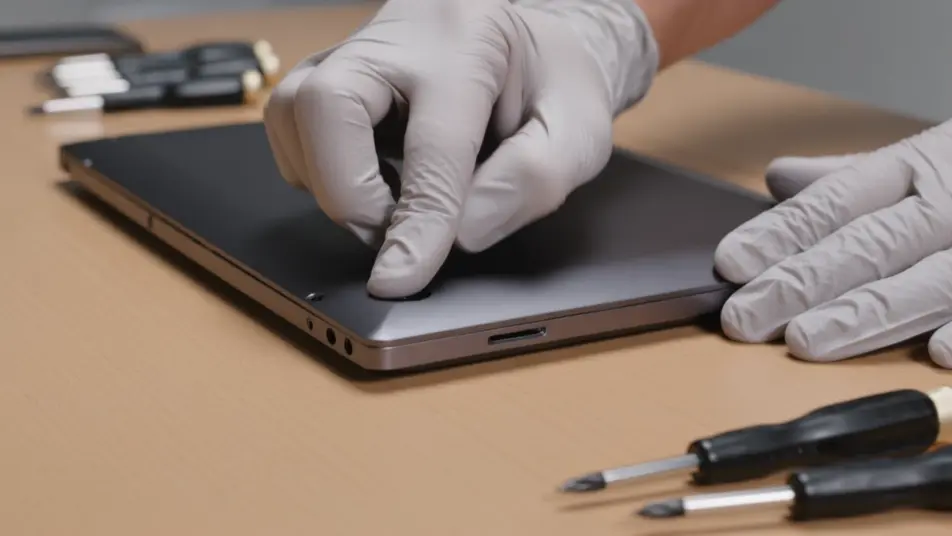
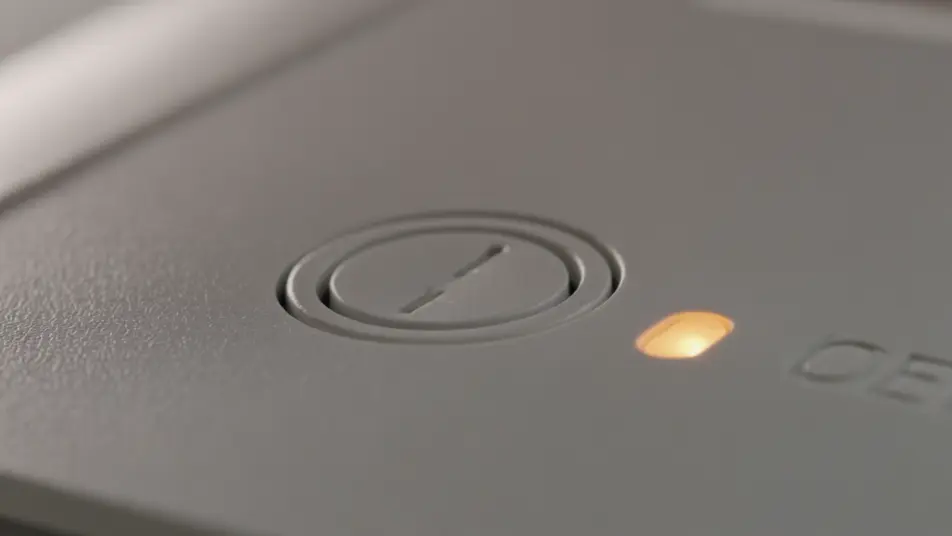
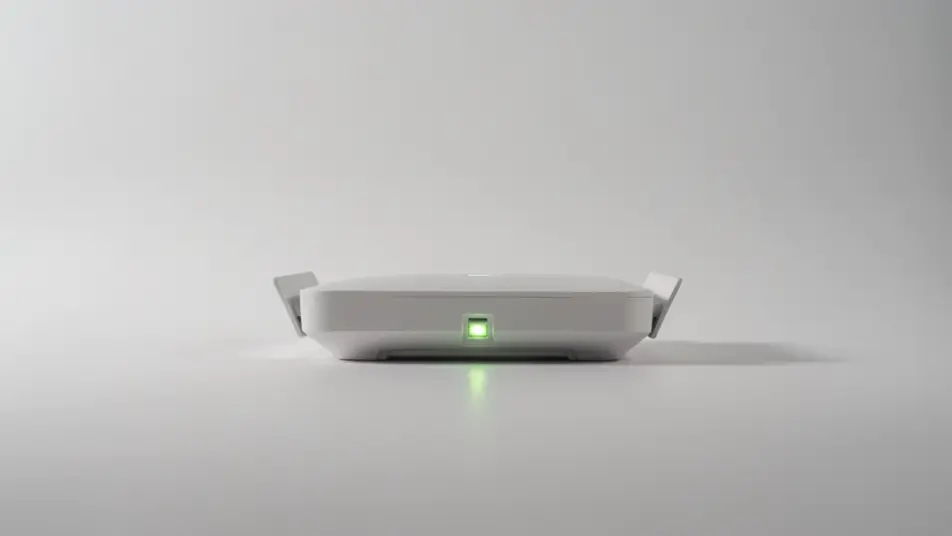
トラブルシューティング動画の動画を3ステップで作成
- 一
シーンを記述
作りたいトラブルシューティング動画のシーンを、わかりやすい言葉で記述します。
- 二
動画を生成
Morphicがキャンバス上に映画のようなクリップを数秒で生成します。
- 三
仕上げて共有
プロンプトを調整して再生成し、気に入ったショットを保存・共有します。

シネマティックシーンへのメッセージ
あらゆるテキスト会話を映画のようなマルチショットビデオにドラマ化します。
このワークフローを試す
タイムフリーズ効果
あらゆるシーンに使える、シネマティックなタイムフリーズ短編動画
このワークフローを試す

タイトルシーケンス
オプションでシネマティックアニメーションを追加できる、プロフェッショナルな映画タイトルカードをゼロから生成します。
このワークフローを試す
リノベーションのタイムラプス
不動産の写真は、建設SFXと音楽を使った映画のようなリノベーションのタイムラプスビデオになります。
このワークフローを試す
Cinematic scene
1枚の画像から9シーンのシネマティックビデオを作成します。
このワークフローを試す
映画の世界に入り込んでみよう
あなたの写真をドロップしてください。アニメーションとマッチしたサウンドトラックを備えた12秒の映画のようなムービーを入手してください。
このワークフローを試す
こちらもおすすめ
AIメンテナンスガイド動画
メンテナンスガイド動画を説明文から生成。点検と作業手順、リセットまでを紹介し、手順が変わったら該当パートだけ更新できます。
AI設置ガイド動画
開梱チェックや配線手順、動作確認をAIで生成し、Composeで一本のガイド動画にまとめます。無料で今すぐ試せます。
AI設備操作動画メーカー
設備操作の手順動画を数週間ではなく数分でAI制作。起動手順や操作パネル、安全な停止までブラウザで作成し、いつでも更新できます。
ヘルプセンター動画をAIで生成
ヘルプセンター動画をAIで生成。画面操作のウォークスルーやハウツー、質問への回答クリップをMorphicで作り、その日のスプリントで公開できます。
シンプルな料金体系
今すぐ無料で始めて、いつでもアップグレードまたはキャンセルできます。
Basic
$19/ 月
請求額は $0 年2400 月 クレジット
1 ユーザーのみ
すべてのモデル
ワークフロー
Standard
$24/ 月
請求額は $0 年3625 月 クレジット
1 ユーザーのみ
すべてのモデル
ワークフロー
Pro
$45/ 月
請求額は $0 年6350 共有 月 クレジット
1 ユーザー
+ 最大 4 名まで追加費用
すべてのモデル
ワークフロー
Max
$170/ 月
請求額は $0 年24650 共有 月 クレジット
1 ユーザー
+ 最大 9 名まで追加費用
すべてのモデル
ワークフロー
Enterprise
より高い制限のために
カスタム
料金と請求条件
大容量クレジット
カスタムシート制限
すべてのモデル
ワークフロー

Free
気軽に試したい方に
$0
ずっと無料
最大20クレジット
1ユーザーのみ
一部のモデル
ワークフロー
よくある質問
トラブルシューティング動画はどこで作れますか?
Morphicならブラウザだけで完結します。Text to Videoで症状や手順、確認のカットを説明し、一つずつ生成しましょう。Composeでつなげば、一本の分かりやすいガイドになります。
取扱説明書の代わりに動画を使っても問題ありませんか?
問題ありません。むしろ文字だけの説明書より、実際の手順を映した動画の方が伝わりやすいケースが多いです。生成した動画は商用利用にも対応しているので、サポートページにそのまま掲載できます。
トラブルシューティング動画に向いている構成は?
症状の一場面、手順ごとの修理、操作部のクローズアップ、確認のサインが基本の流れです。よくある間違いの注意を短く挟むと、問い合わせの多くを未然に防げます。
プロンプトを書くコツはありますか?
各手順を別々にプロンプトし、同じ清潔な照明を全体で保ちます。操作部の名前と手の動き、成功を示すサインを具体的に書きましょう。はっきりした画面が、迷わず追える動画につながります。
手順が変わったら動画も作り直しですか?
いいえ。各場面はプロンプトで作られているので、変わった手順だけを作り直せます。新しいボタンや画面をComposeで差し替えれば、撮り直しなしで最新の内容に更新できます。