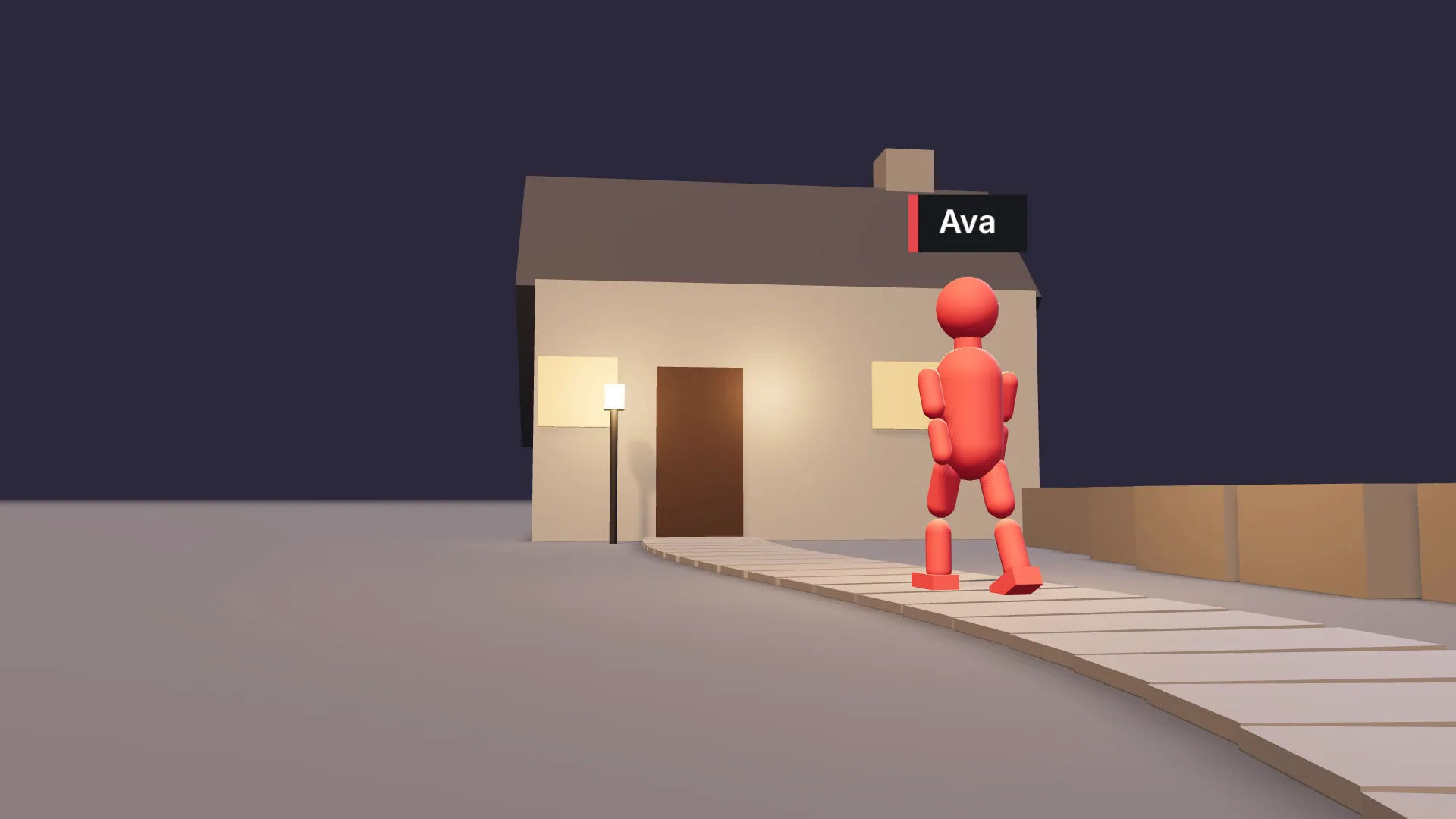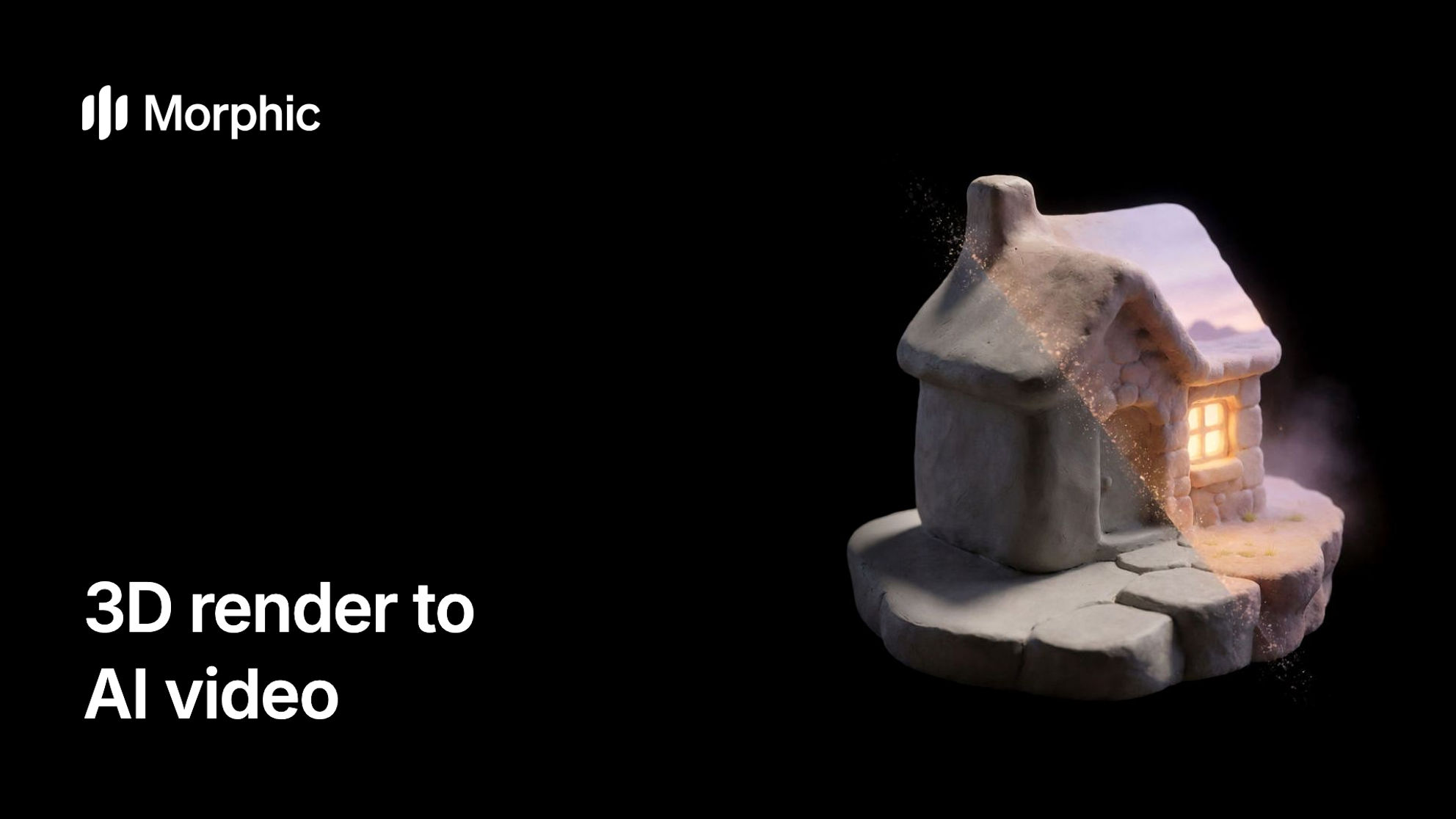
A Blender AI render workflow keeps Blender for layout, camera and timing, and hands the final look to an AI model. Render in Blender, send the render to Morphic with the Morphic for Blender add-on, then restyle the frame and generate video from it.
 Styled frame
 Blender clay render
 Styled frameBlender clay render
Where AI fits in a Blender workflow
AI fits at the end of the Blender job, once the set is built and the camera placed. Morphic picks up the render: it restyles a frame from a prompt, turns a still into a moving shot, and helps keep a character or location the same across shots.
The bridge is Morphic for Blender, a free add-on with a Morphic tab in the 3D viewport sidebar.
- ChatCopilot edits the scene with scripts you approve, one undo step each.
- Image and Video tabsGenerate inside Blender; a clip can start from the camera view. 3D tab on paid plans.
- Send renderYour last still or animation goes straight to your Morphic assets.
- One file per .blendEach .blend keeps its chats, generations and renders together.
The Blender AI render workflow
Render a still, a clay pass or an animation in Blender
A still suits a styled frame. A clay pass, every object in plain grey, gives clean shapes and light; an animation carries a camera move. Match the finished shot's aspect ratio.
Send the Blender render to Morphic
In the Morphic tab, Send render uploads your last still and Send animation an MP4, QuickTime or WebM file. Without the add-on, export and upload the file.
Generate a styled frame from the Blender still
Attach the render and describe the look. The render guides the framing; the prompt sets materials, light and mood. Try two image models side by side on the Canvas.
Keep the layout and the camera. Make the cottage weathered grey stone with a slate roof, warm light in the windows, low sea fog and a violet dusk sky.
Generate video from the Blender render
Animate the styled frame with image to video. When a Blender animation carries the move, attach it as a reference video with the styled frame and keep the take that follows it best.
Slow push in toward the door, lantern light flickering, fog drifting from left to right.
Cut the shots from Blender together in Compose
Trim, order, grade and add sound in Compose. Shots rendered from one Blender set share its geography, so the cuts start from one consistent space.
Keep the look consistent across shots with reference sheets
Reference sheets keep a character or place the same from shot to shot: the render places things, the sheets carry faces, costumes and materials.
Attach the same sheets every time
Attach a character sheet per recurring person and a location sheet per set to every generation, and describe each person in the same words each time.
Render the set from several cameras
Render one set from several cameras and restyle each with the same location sheet, so every angle shares one place.
When to skip Blender and block in Morphic instead
Skip Blender when the shot needs blocking more than modelling. See the 3D scene generator, turning a 3D scene into AI video, Blender alternatives, the 3D Scene product page, and 3D render prompts for rendered looks.
Block it in 3D Scene
For placing people, moving a camera and timing a cut, use Morphic's 3D Scene on the Canvas. Copilot builds the set, cast and camera from a description, or place them from the model library. The blocking video renders in your browser at no credit cost.
Keep Blender for the build
Keep Blender for sculpting, rigging and shaders. Export your models as .glb, .gltf or .obj and upload them into 3D Scene, textures included.