Hard-light studio chiaroscuro
A black studio: one gridded hard source raking across the subject, deep velvety shadow filling the rest of the frame, bright specular highlights, dramatic monochrome contrast.
Edit prompt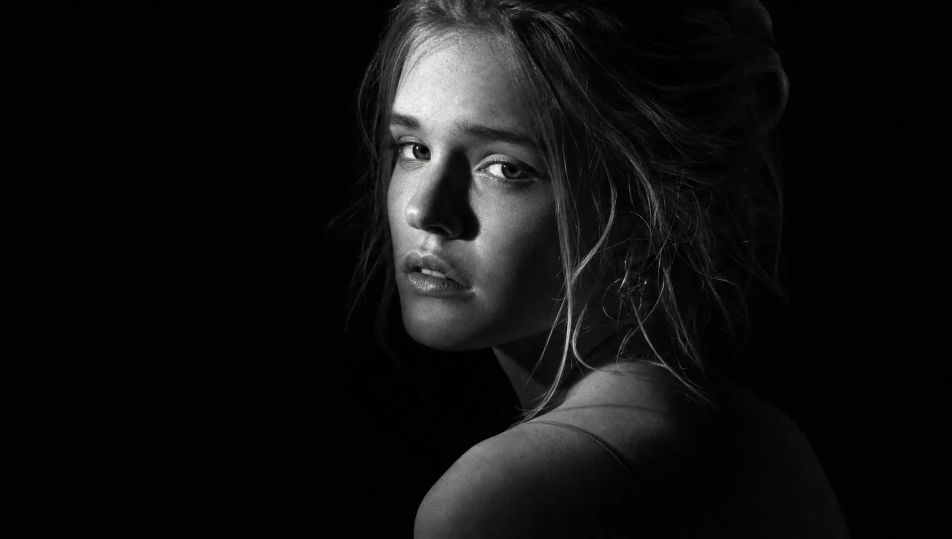
Create black and white portraits in your browser with Morphic's AI image generator. Generate a chiaroscuro bust, a soft fine-grain film study, or a documentary close-up with deep velvety blacks. Hold one face consistent with Character Lineup, then animate any frame with Image to Video.
A black studio: one gridded hard source raking across the subject, deep velvety shadow filling the rest of the frame, bright specular highlights, dramatic monochrome contrast.
Edit promptA quiet room with soft diffused window light, sheer curtain glowing, gentle grey gradation across the walls, fine analog grain, calm and contemplative monochrome mood.
Edit prompt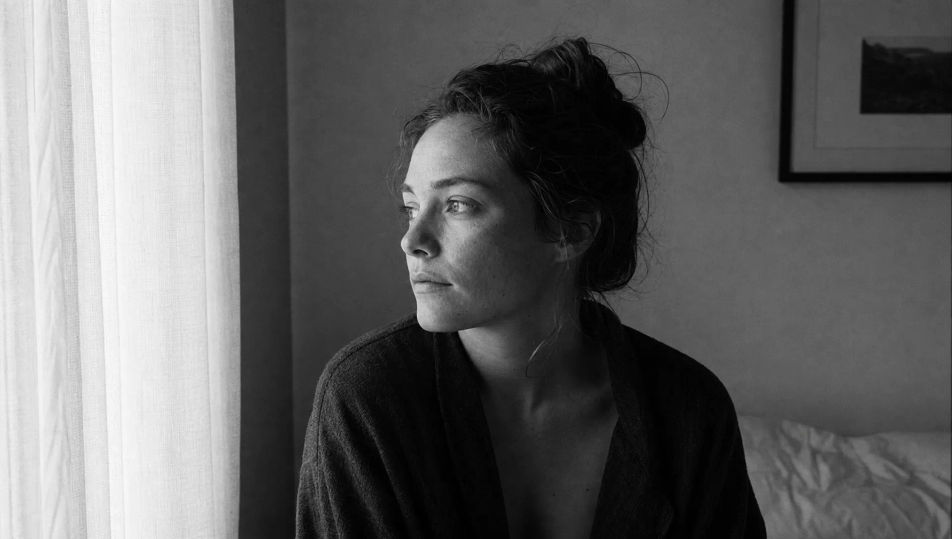
A candid street setting in monochrome: blurred passers-by, hard daylight and crisp shadow, full tonal range, grit and texture in the pavement, photojournalistic black and white.
Edit prompt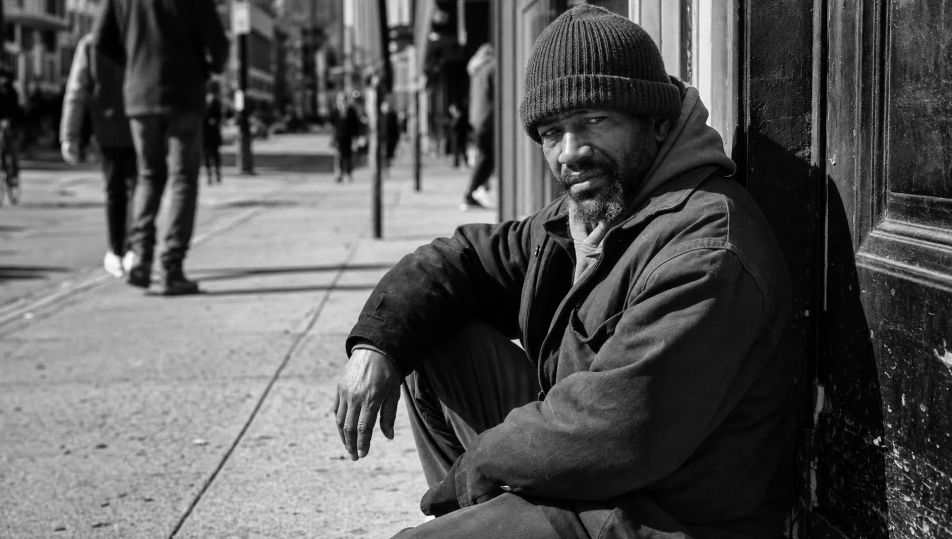
A luminous high-key set: pure white sweep, soft wraparound light, near-shadowless pale tones, the subject reading as fine dark lines against bright monochrome white.
Edit prompt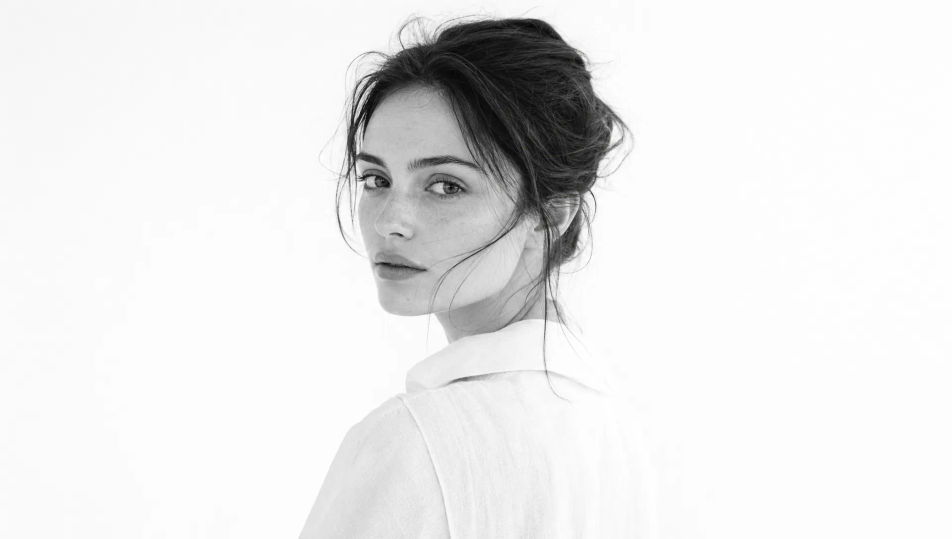
Describe the Black and White Portrait you want, in plain words.
Morphic generates a clean, ready-to-publish image on your canvas in seconds.
Tweak the prompt, regenerate variations, then download or share the frame.
Fix plastic-looking AI skin. Adds natural texture, pores, and imperfections for realism.
One selfie becomes a set of professional headshots. Studio-quality, multiple styles.
Convert any image to a new aspect ratio. Smart crop or extend the edges to fit.
Bring back any damaged, blurry, or low-res image. Get a sharp, detailed 4K version with natural clarity restored.
Full model photoshoot from one photo of you
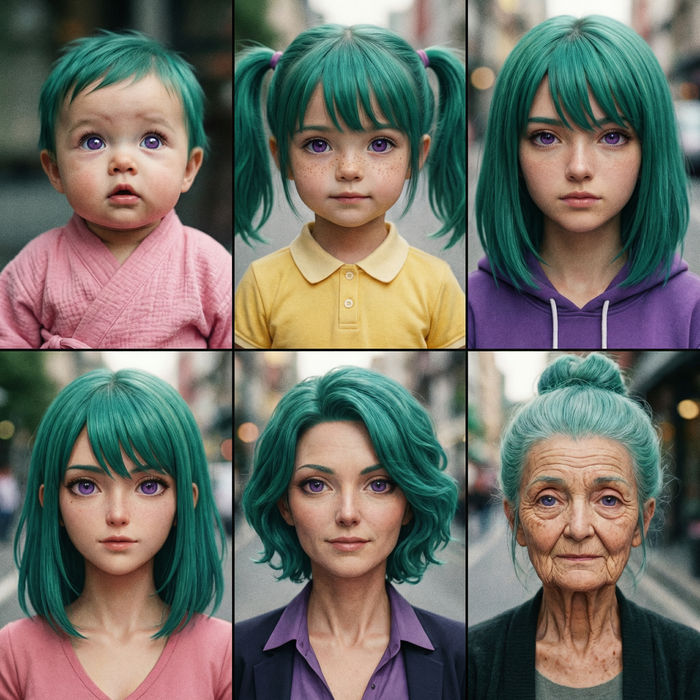
Upload a photo of a person or character and get a single grid image showing them at different life stages, from baby to elderly.
Portrait Photography AI Images
Generate studio-quality AI portraits from a prompt. Realistic lighting, skin texture, and lens looks. Free HD, no watermark.
Studio Portrait AI Images
Create AI Studio Portrait images with Morphic. Generate Studio Portrait shots, portraits, and visuals for any project in seconds.
Environmental Portrait AI Images
Create AI Environmental Portrait images with Morphic. Generate Environmental Portrait shots, portraits, and visuals for any project in seconds.
Headshot AI Images
Create AI Headshot images with Morphic. Generate Headshot shots, portraits, and visuals for any project in seconds.
Get started for free today, with the option to upgrade or cancel anytime.
Basic
2400 monthly credits
1 user only
All models
Workflows
Standard
3625 monthly credits
1 user only
All models
Workflows
Pro
6350 shared monthly credits
1 user
All models
Workflows
Max
24650 shared monthly credits
1 user
All models
Workflows
Enterprise
For higher limits
Custom
pricing and billing terms

Free
For playing around
$0
forever free