Workshop bench
A half-built robot on a bench in fine ink, panels laid out beside it, a ruled bench edge and small tools scattered across the surface.
Edit prompt
Describe the robot you want in Morphic's Image tool, from a friendly boxy figure to a heavily panelled industrial build, and get a finished drawing back. Set the body shape, the joint type, the surface wear, the medium and the paper, refine it on the Canvas, then download it in HD.
A half-built robot on a bench in fine ink, panels laid out beside it, a ruled bench edge and small tools scattered across the surface.
Edit promptOne robot drawn in four technical pen studies, the head, a shoulder joint, a hand and a foot, with hand-ruled margins and blank labels.
Edit prompt
A figure standing in a ruled corridor in ink line, a flat grey wash on the far wall and a hard shadow thrown back along the floor.
Edit prompt
Four builds lined up in graphite, a palm-sized helper, a domestic unit, a humanoid worker and a towering frame, on one ruled ground line.
Edit prompt
Describe the Robot drawing you want, in plain words.
Morphic generates a clean, ready-to-publish image on your canvas in seconds.
Tweak the prompt, regenerate variations, then download or share the frame.
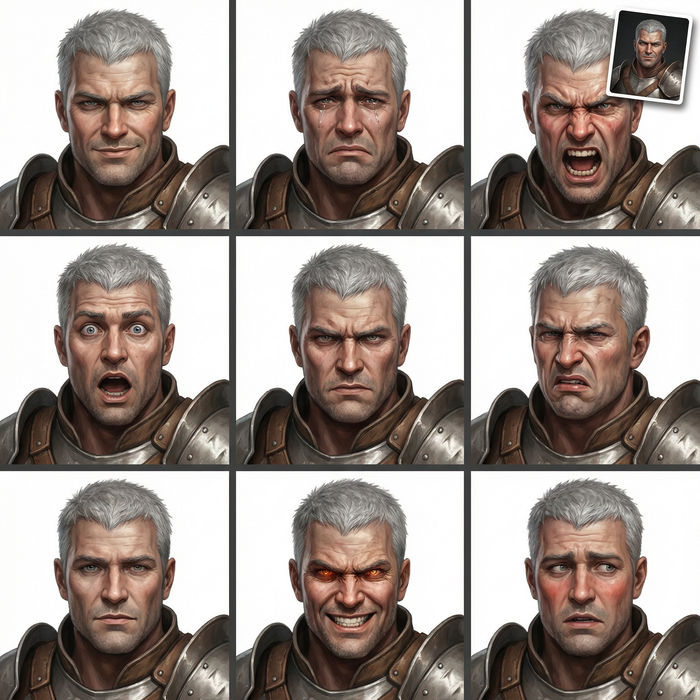
Take any character image and generate 6 distinct facial expressions on a single reference sheet.
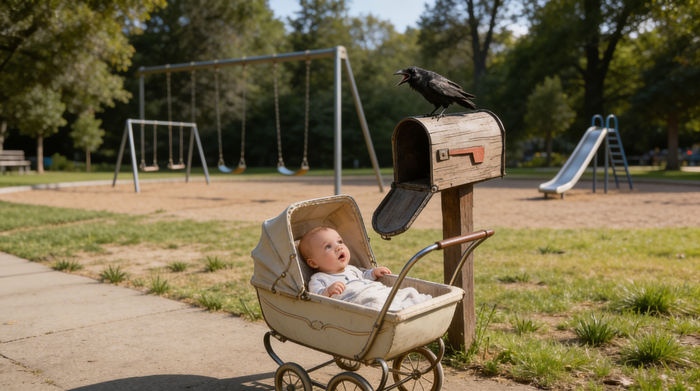
Share a scene description with character references. Get a full storyboard with shot angles and mood.
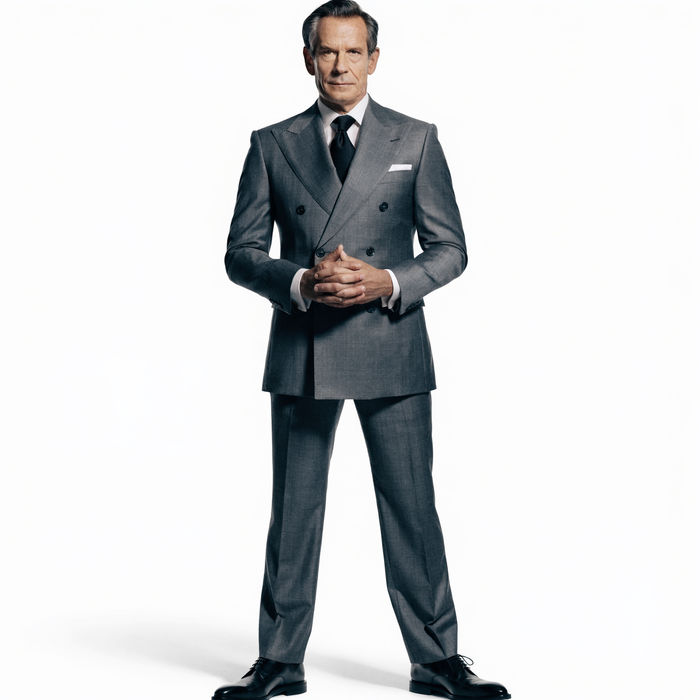
Turn any photo or description into an animated chibi sprite. Dance, jump, wave, attack, and more.
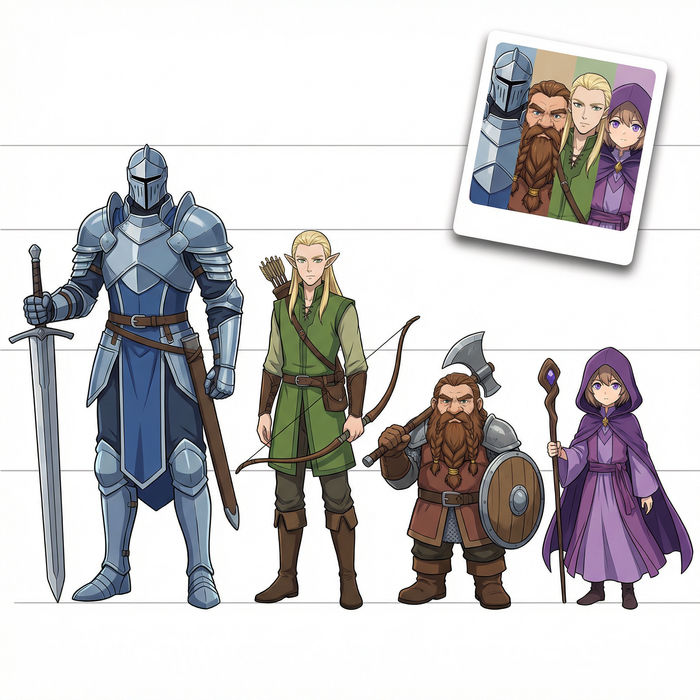
All your characters on a single lineup image, side by side with height comparison.
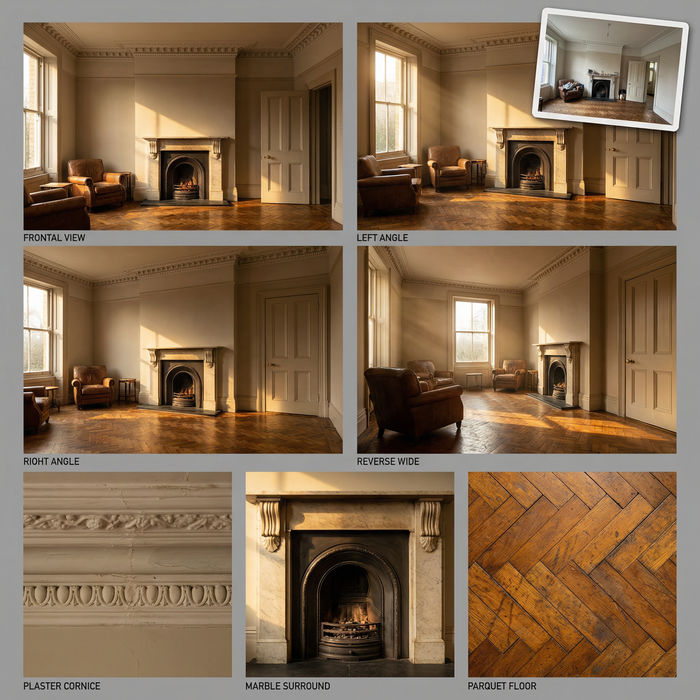
Professional 7-panel location reference sheet from a single photo.
Restyle any video in a completely new visual style. Every frame transforms, all motion stays intact.
Robot AI coloring pages
Create AI robot coloring pages with our robot coloring page generator. Find original robot coloring pages for any project in seconds.
Robot Character AI Images
Create AI robot character images on Morphic. Retro bots, sleek androids, battle droids, companion bots, and sci-fi scenes from plain-language prompts.
Spaceship drawing generator
Turn a spaceship drawing idea into a finished image in Morphic. Describe the line work and style, generate variations, then refine it on the canvas.
Demon AI Images
Create AI Demon images with Morphic. Generate Demon portraits, designs, and character art for any project in seconds.
Get started for free today, with the option to upgrade or cancel anytime.
Basic
2400 monthly credits
1 user only
All models
Workflows
Standard
3625 monthly credits
1 user only
All models
Workflows
Pro
6350 shared monthly credits
1 user
All models
Workflows
Max
24650 shared monthly credits
1 user
All models
Workflows
Enterprise
For higher limits
Custom
pricing and billing terms

Free
For playing around
$0
forever free