Neon-lit night alley
A narrow city alley at night: glowing magenta and cyan signage, wet reflective pavement, steam rising from a grate, cinematic neon mood, a moody streetwear backdrop.
Edit prompt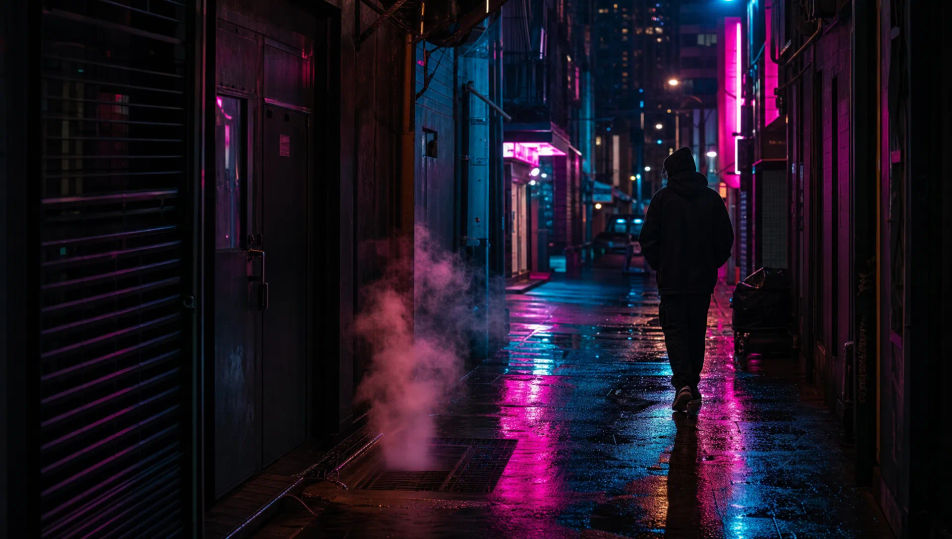
Create streetwear photography images in your browser with Morphic's AI image generator. Generate an oversized fit in a rain-slicked alley, a crosswalk frame at golden hour, or a low-angle sneaker hero. Keep one subject consistent with Character Lineup, then animate any frame with Image to Video.
A narrow city alley at night: glowing magenta and cyan signage, wet reflective pavement, steam rising from a grate, cinematic neon mood, a moody streetwear backdrop.
Edit promptA busy crosswalk at golden hour: warm low backlight, blurred passing traffic, long shadows on the asphalt, painted street lines, the candid energy of a street-style frame.
Edit prompt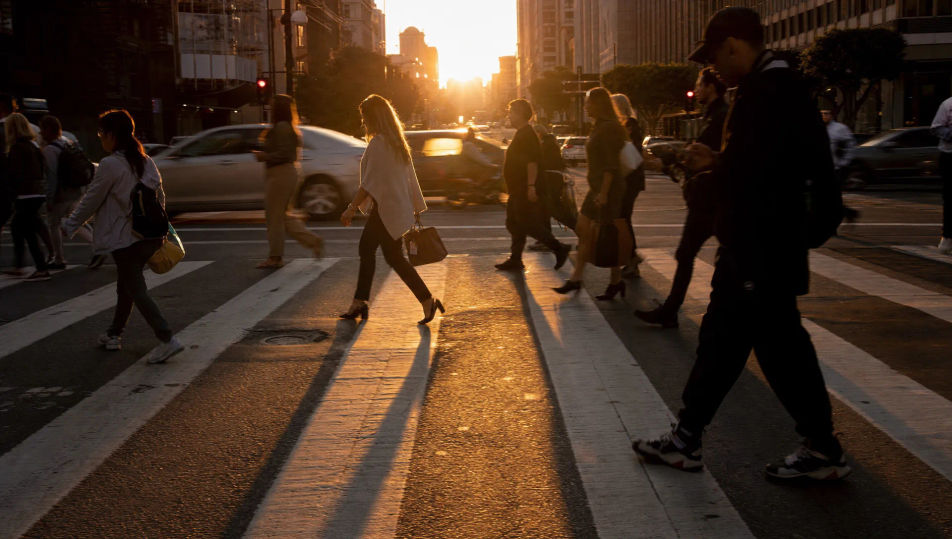
A raw concrete underpass: board-formed pillars, soft directional daylight at the mouth, graffiti tags on the walls, cool grey tones, a gritty minimalist streetwear set.
Edit prompt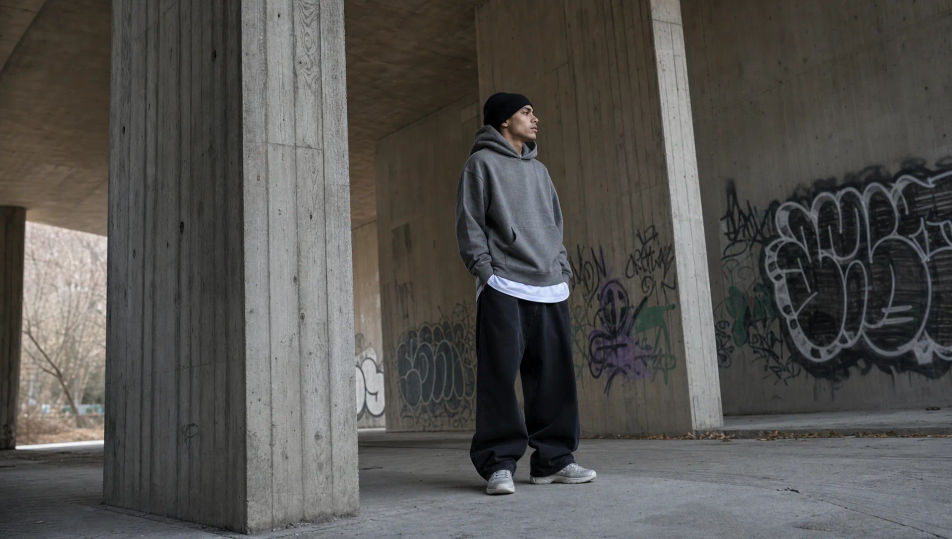
A city rooftop at dusk: a hazy skyline of distant towers, warm fading light, a low railing, soft purple-orange sky, the relaxed lifestyle backdrop of a streetwear drop.
Edit prompt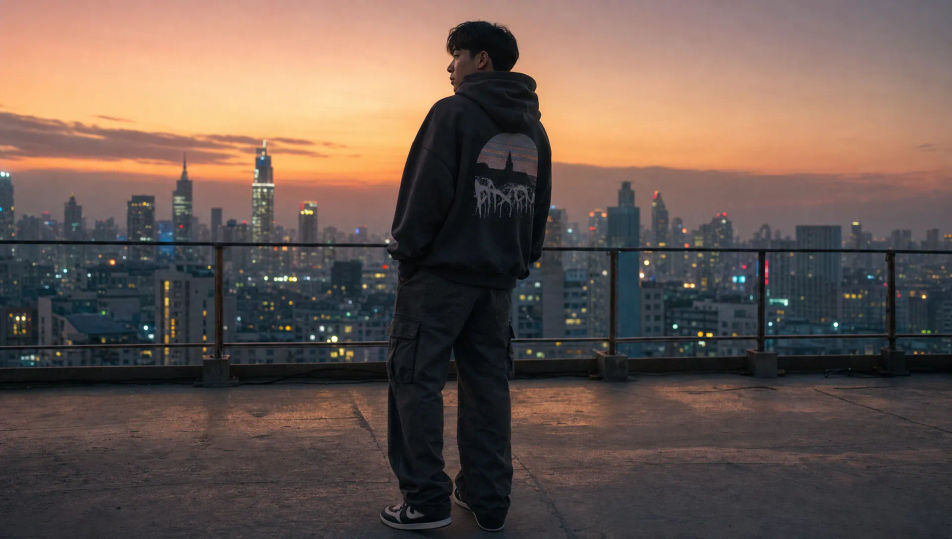
Describe the Streetwear Photography you want, in plain words.
Morphic generates a clean, ready-to-publish image on your canvas in seconds.
Tweak the prompt, regenerate variations, then download or share the frame.
Pair a garment photo with a person photo. See them wearing it, identity stays intact.
Get a runway walk video clip with virtual try-on built in from a garment photo and a model photo.
Multi-shot product pitch video from a still, a person, and a script.
Dramatic 5-second product reveal video with audio.
One product shot becomes a full campaign pack with hero shots, angles, and format variations.
Full model photoshoot from one photo of you
Fashion Photography AI Images
Create AI Fashion Photography images with Morphic. Generate Fashion Photography shots, portraits, and visuals for any project in seconds.
Editorial Fashion AI Images
Create AI Editorial Fashion images with Morphic. Generate Editorial Fashion shots, portraits, and visuals for any project in seconds.
Environmental Portrait AI Images
Create AI Environmental Portrait images with Morphic. Generate Environmental Portrait shots, portraits, and visuals for any project in seconds.
Portrait Photography AI Images
Generate studio-quality AI portraits from a prompt. Realistic lighting, skin texture, and lens looks. Free HD, no watermark.
Get started for free today, with the option to upgrade or cancel anytime.
Basic
2400 monthly credits
1 user only
All models
Workflows
Standard
3625 monthly credits
1 user only
All models
Workflows
Pro
6350 shared monthly credits
1 user
All models
Workflows
Max
24650 shared monthly credits
1 user
All models
Workflows
Enterprise
For higher limits
Custom
pricing and billing terms

Free
For playing around
$0
forever free