In-game overlay frame
A full 16:9 overlay with a webcam border, alert space, and a bottom info bar sized for a live gameplay layout.
Edit prompt
Create Twitch overlays with Morphic's AI image generator, right in your browser. Design neon cyberpunk frames, cozy pastel stream layouts, retro pixel borders, and clean minimalist webcam surrounds. Customize colors and leave space for your webcam and alerts, then download in HD.
A full 16:9 overlay with a webcam border, alert space, and a bottom info bar sized for a live gameplay layout.
Edit promptA full-screen holding scene with a central focal area and open space for a countdown or a welcome message.
Edit prompt
A set of matching panel graphics and an offline banner with room for section labels below the stream.
Edit prompt
A tight decorative border sized to sit around a webcam feed in the corner of the stream.
Edit prompt
Describe the Twitch overlay you want, in plain words.
Morphic generates a clean, ready-to-publish image on your canvas in seconds.
Tweak the prompt, regenerate variations, then download or share the frame.
Pick a reference image, apply its visual style to your own photo or artwork.
Convert any image to a new aspect ratio. Smart crop or extend the edges to fit.
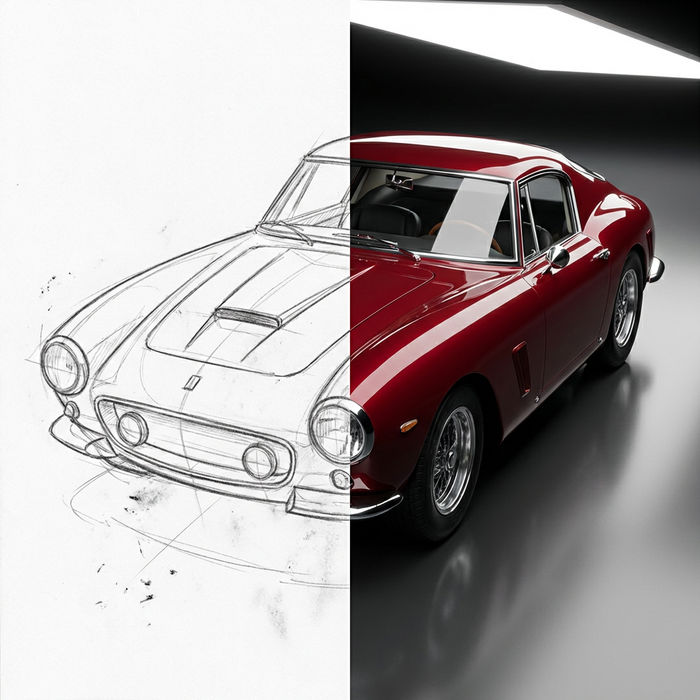
Turn any sketch or drawing into a finished render.
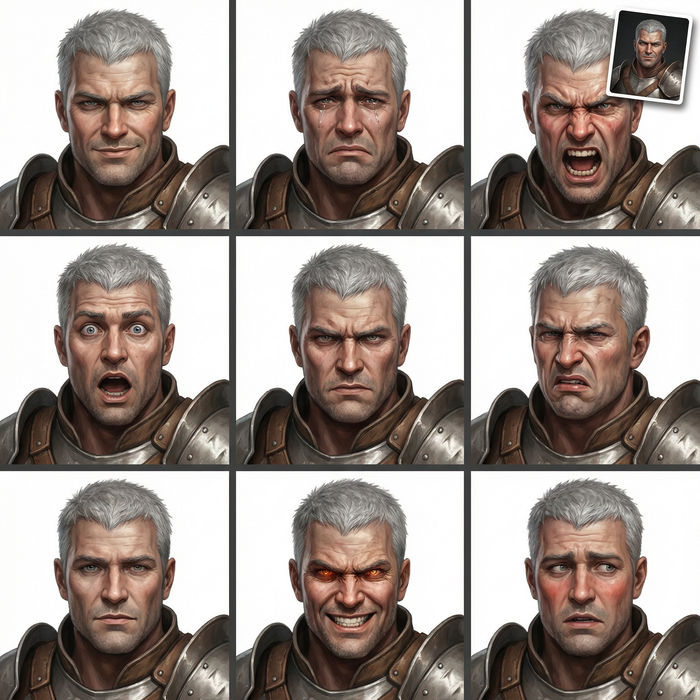
Take any character image and generate 6 distinct facial expressions on a single reference sheet.
Restyle any video in a completely new visual style. Every frame transforms, all motion stays intact.
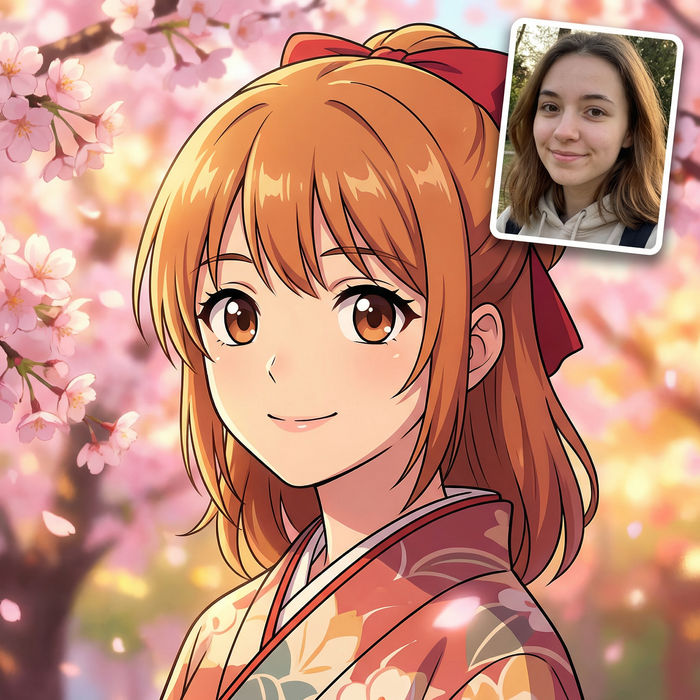
Pick any anime illustration as your style guide. Apply its look to any image.
Banner AI designs
Create AI banner designs with Morphic's banner design generator, custom, eye-catching graphics in seconds, right in your browser. No design skills needed: describe the look, then download HD banners for websites, ads, and socials.
Packaging Label Design AI Images
Turn a brief into packaging label design instantly. Set the trim size first so nothing needs reworking at proof stage. Commercial rights included.
Pain emoji maker
Generate pain emoji images in Morphic. Describe the expression, colour and style you want, generate options, then refine the prompt and download it.
Panic meme maker
Make panic meme images in Morphic. Describe the scene and the joke, generate versions to compare, then refine the prompt until the picture lands.
Get started for free today, with the option to upgrade or cancel anytime.
Basic
2400 monthly credits
1 user only
All models
Workflows
Standard
3625 monthly credits
1 user only
All models
Workflows
Pro
6350 shared monthly credits
1 user
All models
Workflows
Max
24650 shared monthly credits
1 user
All models
Workflows
Enterprise
For higher limits
Custom
pricing and billing terms

Free
For playing around
$0
forever free