Expansions you can make
Expand an image in three steps
- 01
Open Morphic
Sign up and start creating on a free-flowing, infinite visual canvas.
- 02
Set the new size
Choose how far to extend and in which direction.
- 03
Expand and download
Let AI paint the new area, then export the wider image.
Use cases
Fit a new aspect ratio
Reshape a photo for a banner, cover, or feed without cropping the subject. Extend the sides instead of cutting the important parts out.

Uncrop a tight shot
Rebuild space that was cut off so the subject has room to breathe. Give a tight shot the margins it needed in the first place.

Extend a scene
Continue a landscape or interior past the frame for a wider view. The new area matches the scene, so the join is invisible.
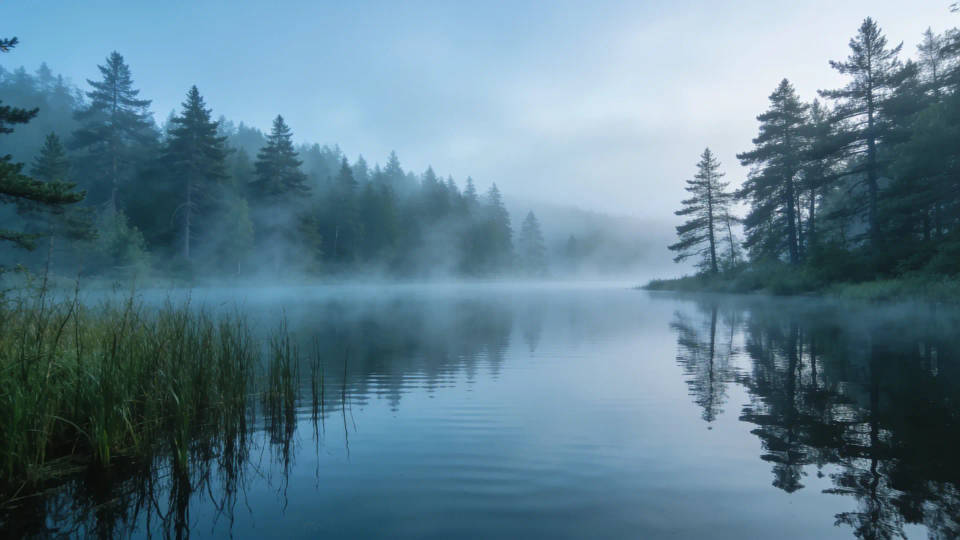
Make room for text
Add clean space around a shot for headlines or layout. Make room for text without shrinking or distorting the image.

Expansions you can make
Each starts from your own image. Open any prompt to tweak it and generate your own.



Uncrop a portrait
Uncrop this portrait, add head and shoulders room, match the studio light
Edit prompt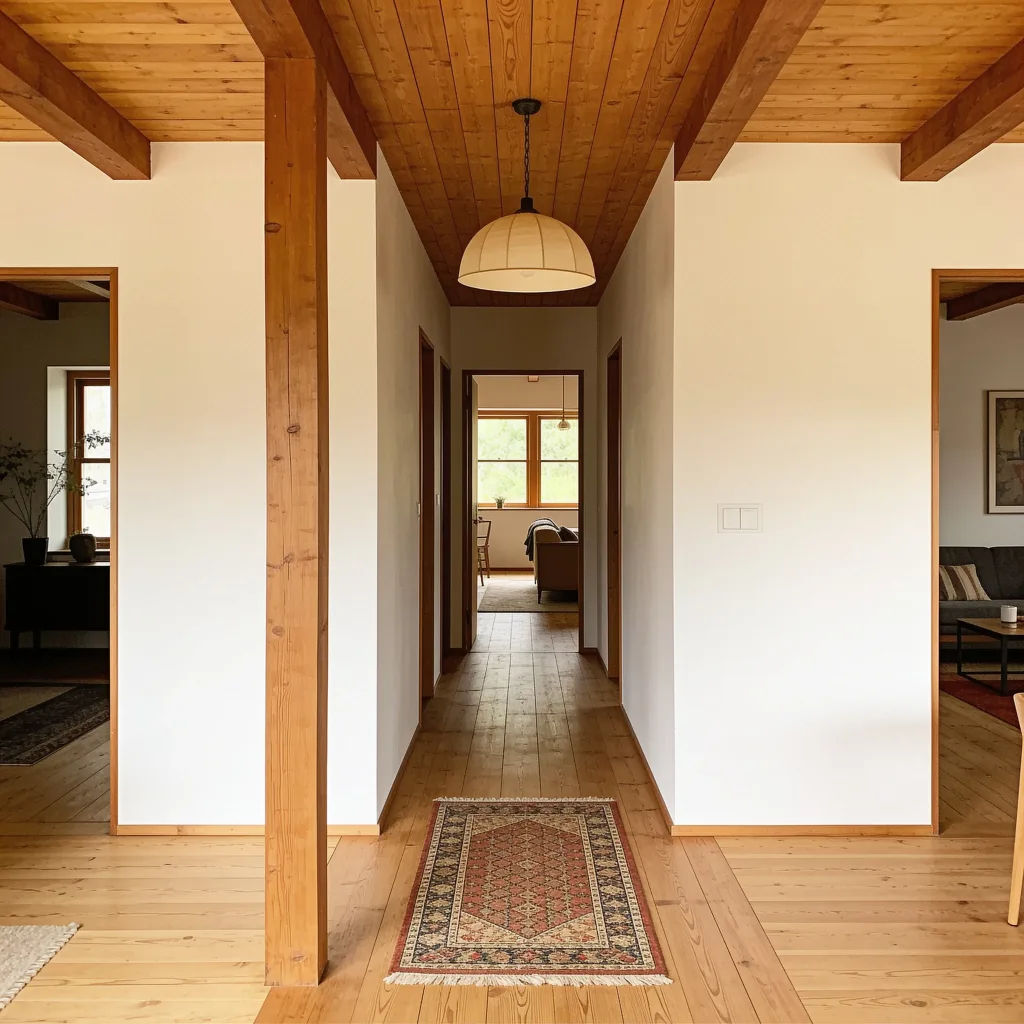

Aspect ratio
Convert any image to a new aspect ratio. Smart crop or extend the edges to fit.
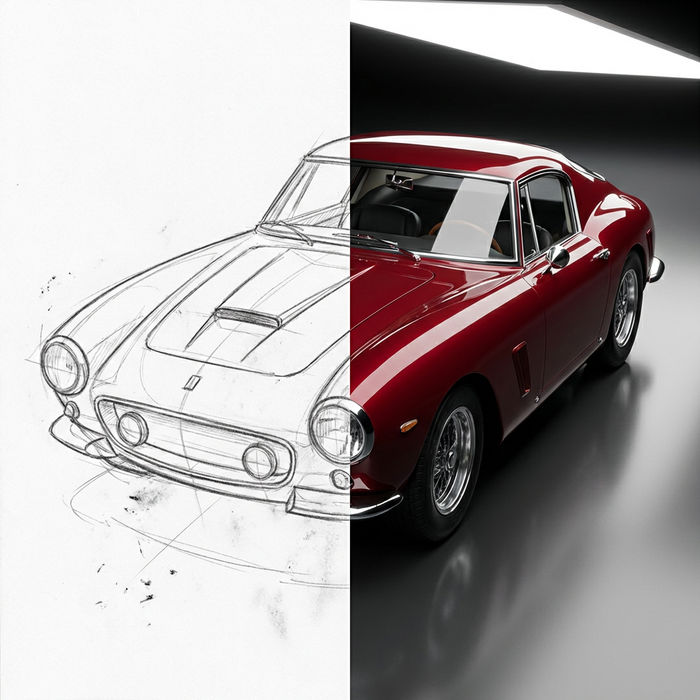
Sketch to render
Turn any sketch or drawing into a finished render.
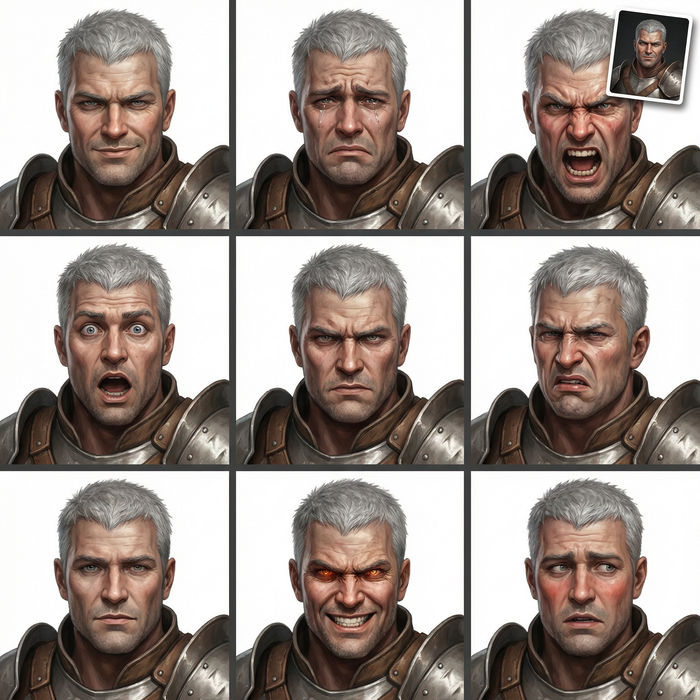
Expressions
Take any character image and generate 6 distinct facial expressions on a single reference sheet.
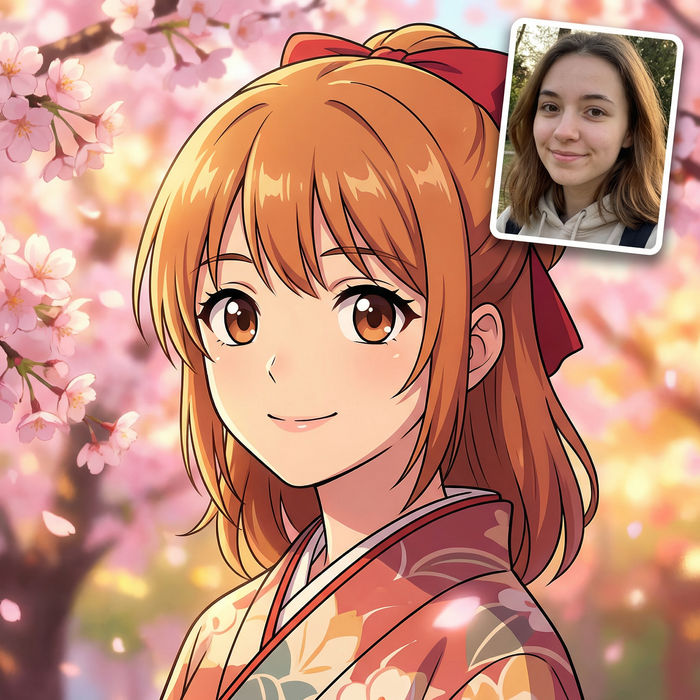
Anime style transfer
Pick any anime illustration as your style guide. Apply its look to any image.

Image reverse engineer
Get a detailed prompt extracted from a reference image, and then a fresh recreation.

Cinematic storyboard
Share a scene description with character references. Get a full storyboard with shot angles and mood.
All on Morphic
Every image, extended cleanly past its edgesModels
Nano Banana 2, Flux 2 Pro, Seedream 5, and more. Pick the model that extends scenes most cleanly, and swap anytime.
Matches the scene
New areas continue the original light, color, and perspective, so the join is invisible.
Any aspect ratio
Reshape for banners, covers, or feeds by extending instead of cropping.
Workflows
Save an extend-and-reframe recipe as a Workflow and run it across a set.
