Summoning circle activation
Top-down composition, protagonist falling through a glowing summoning circle, runes lit in concentric rings, robed mages chanting around the perimeter.
Edit prompt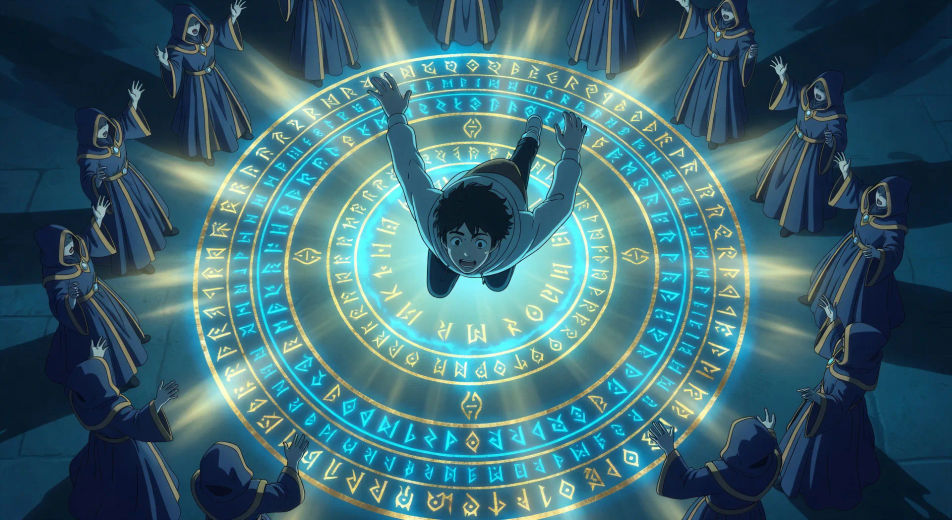
Direct another-world arrivals in your browser with Morphic's Isekai AI video generator. Generate a summoning circle in rune rings or a final-boss throne-room fight, add Speech and Music, and lock the medieval-RPG palette with Video Style Transfer.
Top-down composition, protagonist falling through a glowing summoning circle, runes lit in concentric rings, robed mages chanting around the perimeter.
Edit promptOver-shoulder framing, protagonist looking at a floating semi-transparent status panel: name, level 1, skill tree expanding, stat bars half-empty.
Edit prompt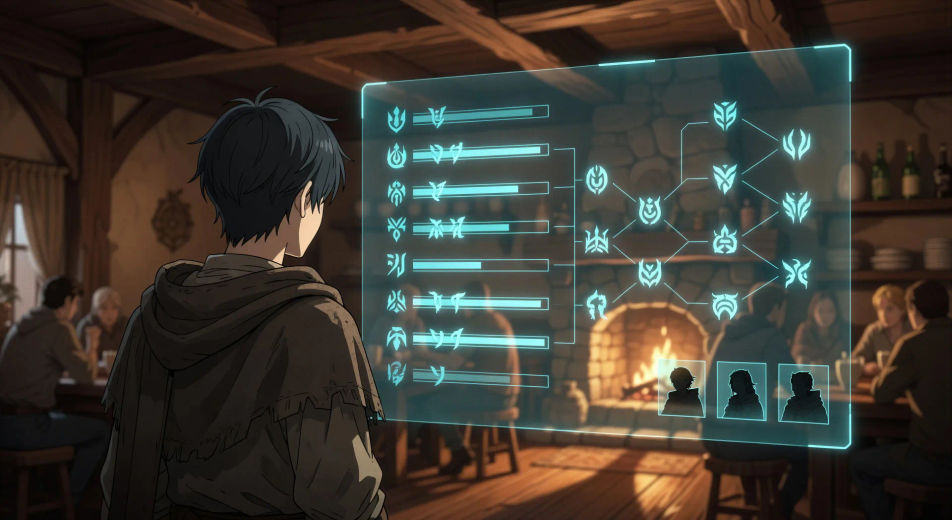
Low-angle hero shot, party of four standing in a sunlit tavern doorway: knight, mage, healer, beast-folk warrior, dust motes drifting in the light.
Edit prompt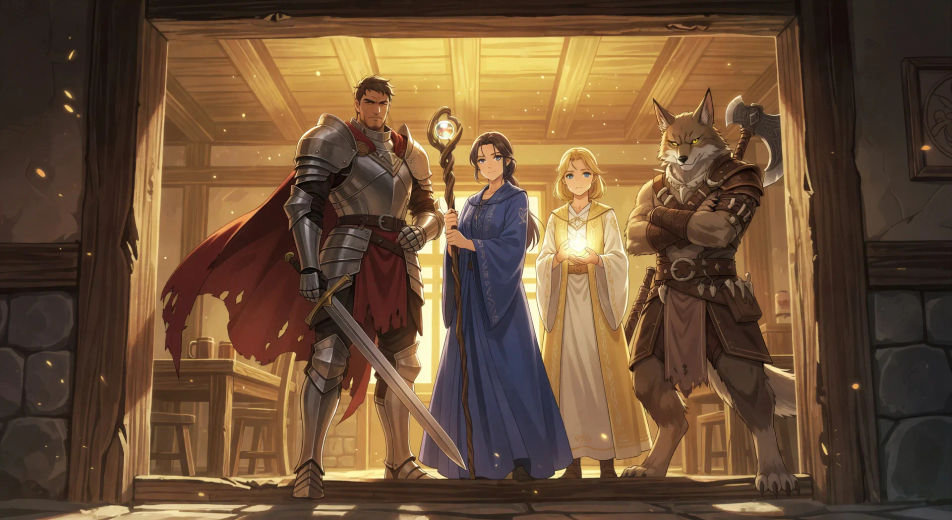
Wide shot of the party descending a stone dungeon staircase, torch flame catching the wet walls, glow-eyes visible in the darkness below the steps.
Edit prompt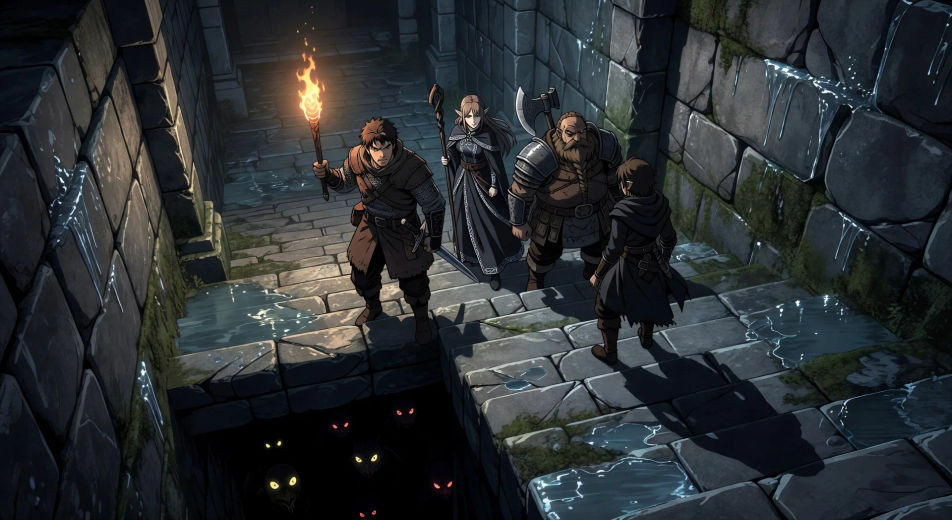
Write the Isekai scene you want, in plain words.
Morphic generates a cinematic, frame-ready clip on your canvas in seconds.
Tweak the prompt, regenerate variations, then download or share the shot.
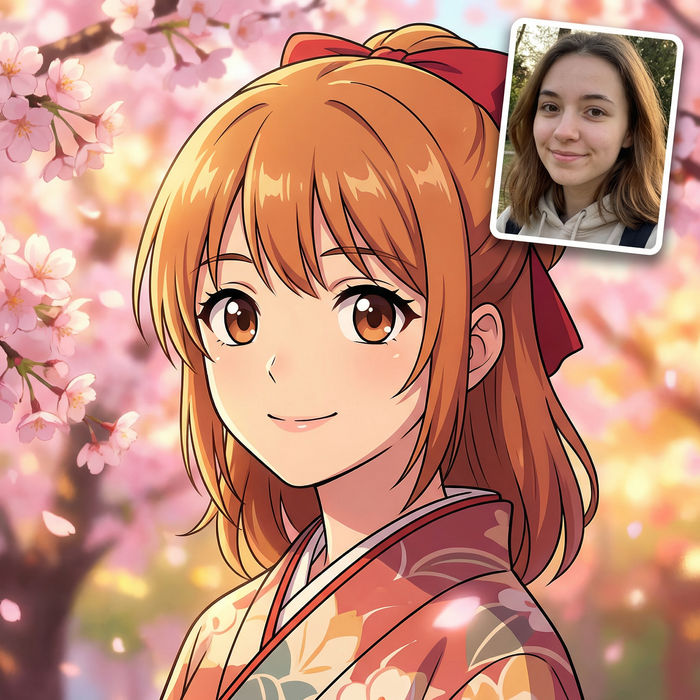
Pick any anime illustration as your style guide. Apply its look to any image.
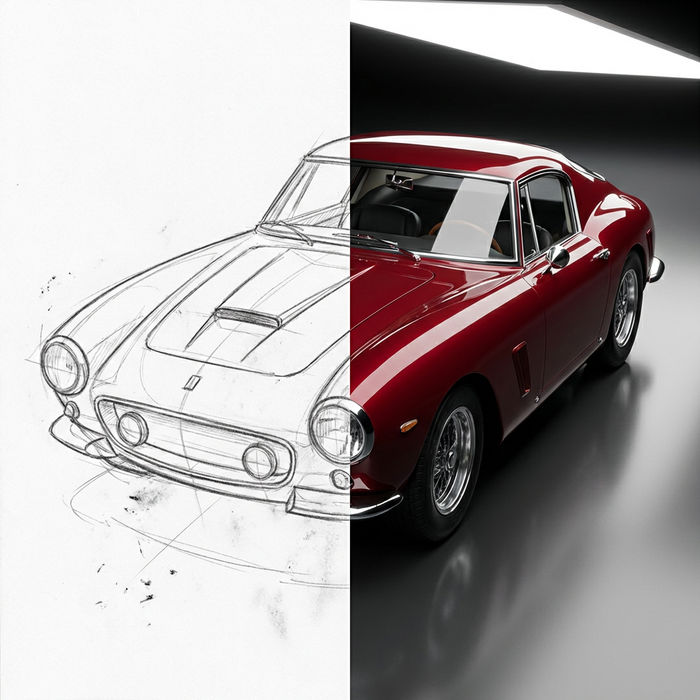
Turn any sketch or drawing into a finished render.
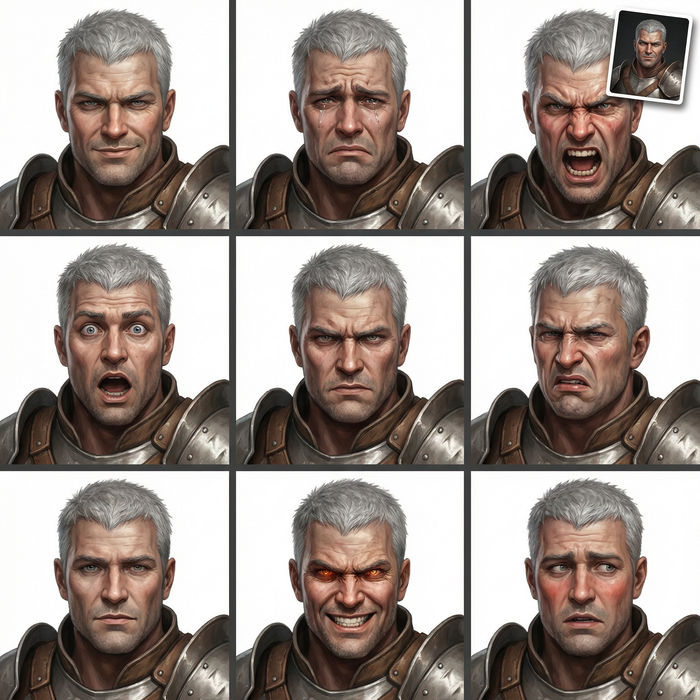
Take any character image and generate 6 distinct facial expressions on a single reference sheet.
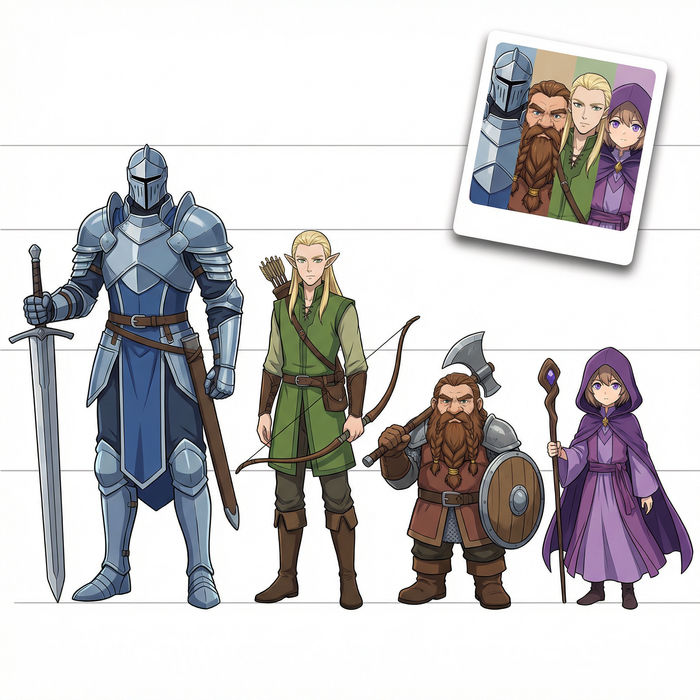
All your characters on a single lineup image, side by side with height comparison.

Turn any photo or description into an animated chibi sprite. Dance, jump, wave, attack, and more.
Upload a character image and make it dance in any style.
Anime AI Videos
Create Anime videos with Morphic. Slice-of-life scenes, Mecha shots, magical-girl transformations, and full Anime episodes generated from a single prompt.
Anime AI Videos
Create Anime fight scenes, sword duels, magic battles, and Mecha clashes with Morphic. Generate, animate, narrate, and score scenes from a single prompt.
Magical girl AI Videos
Create magical girl anime videos with Morphic. Transformation sequences, finishing moves, costume reveals, and full episodes generated from a single prompt.
Mecha AI Videos
Create Mecha anime videos with Morphic. Cockpit launches, hangar bays, city-scale battles, and pilot portraits generated from a single prompt.
Get started for free today, with the option to upgrade or cancel anytime.
Basic
2400 monthly credits
1 user only
All models
Workflows
Standard
3625 monthly credits
1 user only
All models
Workflows
Pro
6350 shared monthly credits
1 user
All models
Workflows
Max
24650 shared monthly credits
1 user
All models
Workflows
Enterprise
For higher limits
Custom
pricing and billing terms

Free
For playing around
$0
forever free