What you need
- One finished clip, up to 30 seconds. Cut a longer scene into shots and recast each one.
- One photo of each new person. Clear and front-facing, with the hair and wardrobe the scene needs.
- The rights to both. Releases from everyone in the footage, and permission from anyone whose photo you use.
- A Morphic paid plan. Morphic Recast is on paid plans; see pricing.
How do I replace a person in a video with AI?
Open Morphic Recast and add the clip
Open the Morphic Recast tool and add one shot. Pick a take where every person you plan to replace is clearly visible. You can also attach the clip in a Copilot chat and ask for the swap there in plain words.
Add one photo for each new person
Each person you replace gets exactly one photo. Three roles means three photos. Use the same photo again on every other shot of the scene, so the new person matches from cut to cut.
Name each swap by what you can see
Say who becomes whom, using position, clothing or hair, one sentence per person. For example: "Replace the woman in the yellow raincoat with the woman in the first photo." Then: "Replace the man in the denim jacket with the man in the second photo." Anyone you do not name and give a photo stays exactly as shot.
Compare takes and keep the best
Ask Copilot for a few recasts of the same shot and they arrive side by side. Watch each one through the fastest move in the shot, keep the take that holds, then send the next shot with the same photos. Put the finished shots back in order on the Compose timeline.
Replacing people in a video: two examples
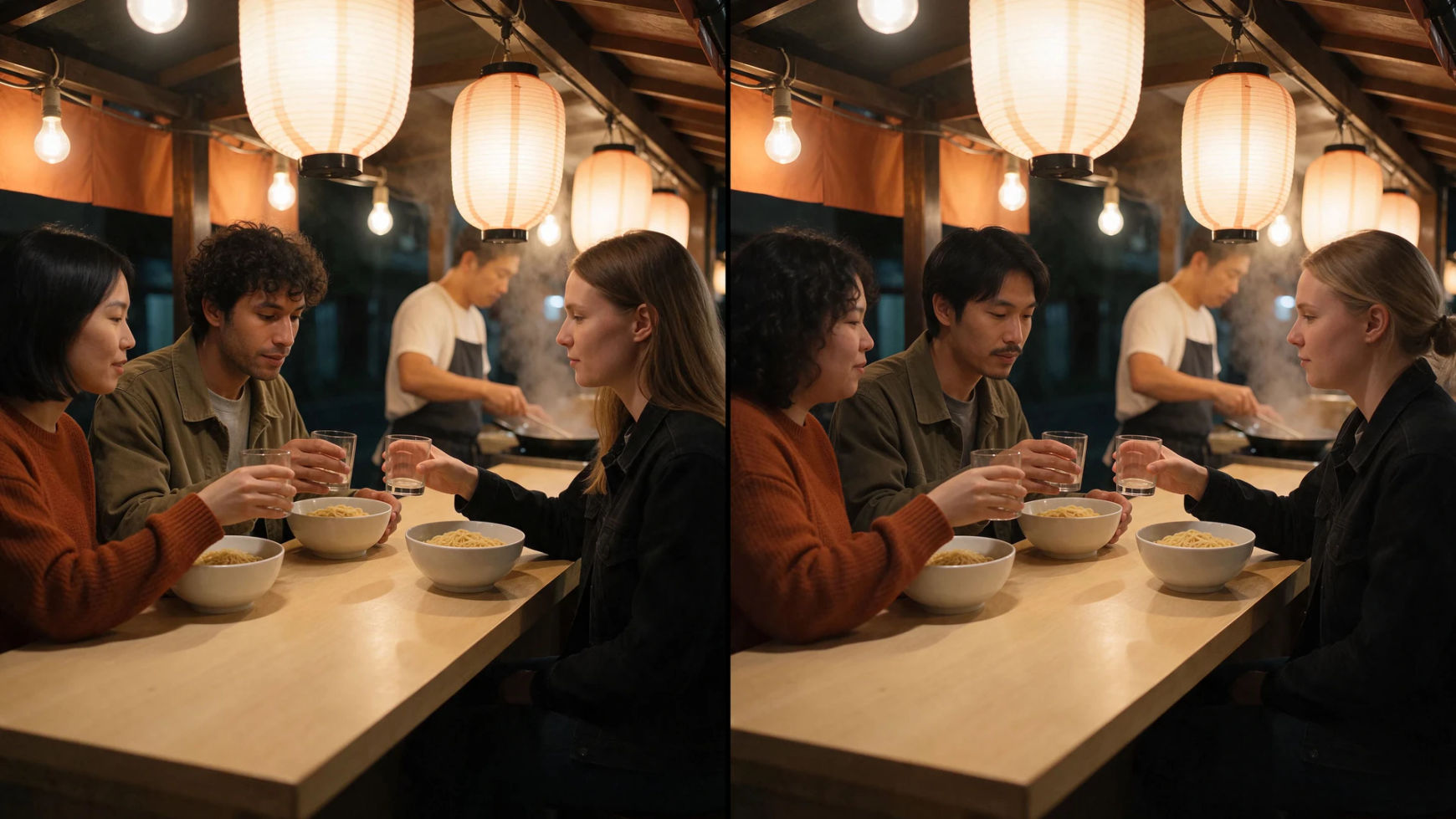
The original take next to the same take with new people in it. Each new person came from one photo.
Original
Morphic Recast
Three friends at the counter are replaced from three photos. The toast, the laugh and the lean back land on the same frames, and the cook behind them had no photo, so he stays as filmed.
Replacing people across a whole project? Let's build your custom workflow.
For studios, production companies and agencies. Tell us about your footage, your cast and your volume, and we'll design a custom Recast workflow with you, so every shot gets the right people and each character stays consistent.
Tips and common mistakes
- Name people by what the frame shows. Position, clothing and hair pick a person out, as in "the man on the left in the denim jacket". Character names from the script are not in the picture.
- Dress the photo for the scene. Give each new person a photo with the hair and wardrobe the shot calls for.
- Keep every shot at 30 seconds or less. Split a long take at its cuts and recast the parts with the same photos.
- Plan the sound separately. The soundtrack comes back as recorded, so the dialogue and music still fit the picture. For another language, run the recast clip through Morphic Dub as a next step.
- Reuse the cast. The same photo on every shot keeps a new person consistent. For a series, save each character as a Reference and add it by name, as in character consistency in AI video.
- Get the releases before you start. Recast footage you hold the rights to, and use photos of people who agreed to appear or characters you generated in Morphic.
Replace the person, or change something else?
| What should change | Use | What stays |
|---|---|---|
| Who is on screen | Morphic Recast | The performance, camera, cuts, background and soundtrack |
| The look, the setting or one detail | Video to video | The motion and the timing |
| The language the cast speaks | Morphic Dub | Each speaker's own voice, the music and the sound effects |
| A character image that needs movement | Motion transfer | The image's own scene |
Other ways to replace a person in a video
- A casting change after the shoot. The producer's checklist, with the releases and the reshoot decision, is in how to change casting after wrap.
- The same character, younger or older. Recast a role with a younger reference of the same person on the AI de-aging page, or an older one on the aging up page.
- A music video. Keep every move on the beat while the singer or a dancer changes, in how to replace a character in a music video.
- An ad for several markets. One spot, a lead for each audience, in how to recast an ad for every market.
- Stand-ins to final characters. Turn rehearsal footage into pitch or previz footage in how to recast a film scene.
- By scene type. The Recast library has worked examples, including a wedding scene with three roles replaced and a family dinner scene.
常见问题
Open Morphic Recast, add a clip up to 30 seconds and one photo of each new person, and say who replaces whom. Morphic Recast returns the same clip with the new people on screen, with the motion, expressions, lip movement, camera, cuts and soundtrack kept as shot.
Several people can be replaced in one clip. Name each of them by what is visible, such as clothing or position, and give each their own photo. Anyone without a photo stays as shot.
Yes. Morphic Recast works on finished footage and keeps the performance that was filmed. For the planning side of a late casting change, see how to change casting after wrap.
The soundtrack comes back as recorded: dialogue, music and room sound stay in place. A new voice or another language is a separate step after the recast, such as a dub of the recast clip.
Releases from everyone in the original footage, and permission from anyone whose photo you use for the new cast. For pitches and tests, use people you generate in Morphic.
Up to 30 seconds per clip. Replace people in a longer video shot by shot with the same photos, then cut the shots together on the Compose timeline.
Morphic Recast is on paid plans. Open it from the Recast tool, from the video edit options on the Canvas, or by asking Copilot.