Lomography AI Images

Shoot Lomography frames in your browser with Morphic's Lomography AI image generator. Generate Lomography shots like a heavily vignetted street frame with oversaturated colour, a cross-processed portrait with shifted green tones, or a light-leaked sunburst snapshot, and pair every frame with the Style Transfer workflow to lock the toy-camera look across the set. Use the Image to Video feature to set any lo-fi frame in motion.

Lomography looks you can shoot

Lomography scenes you can compose

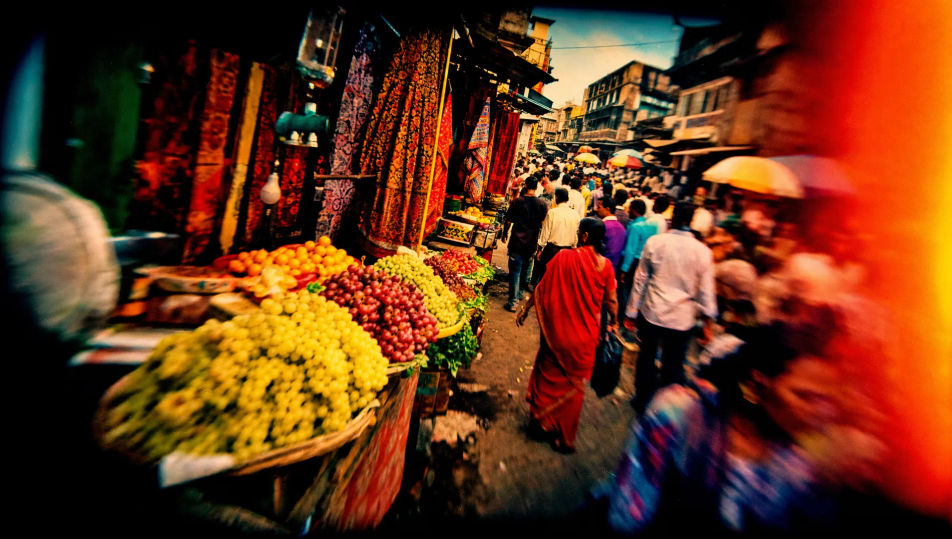
Saturated street-market frame

A busy street market on toy-camera film, oversaturated reds and yellows, heavy vignette, punchy contrast, a warm light leak across one edge, lo-fi optics, lively candid framing.

Edit prompt
Saturated street-market frame

Cross-processed park scene

A park scene cross-processed into surreal green-and-cyan tones, blown highlights, heavy vignette, crushed contrast, soft toy-camera focus, dreamlike colour crossover across the grass and sky.

Edit prompt
Cross-processed park scene

Light-leak beach sunburst scene

A beach scene split by a streaking warm light leak and a sunburst flare, oversaturated sky and water, heavy vignette, punchy contrast, lo-fi optics, spontaneous summer snapshot energy.

Edit prompt
Light-leak beach sunburst scene

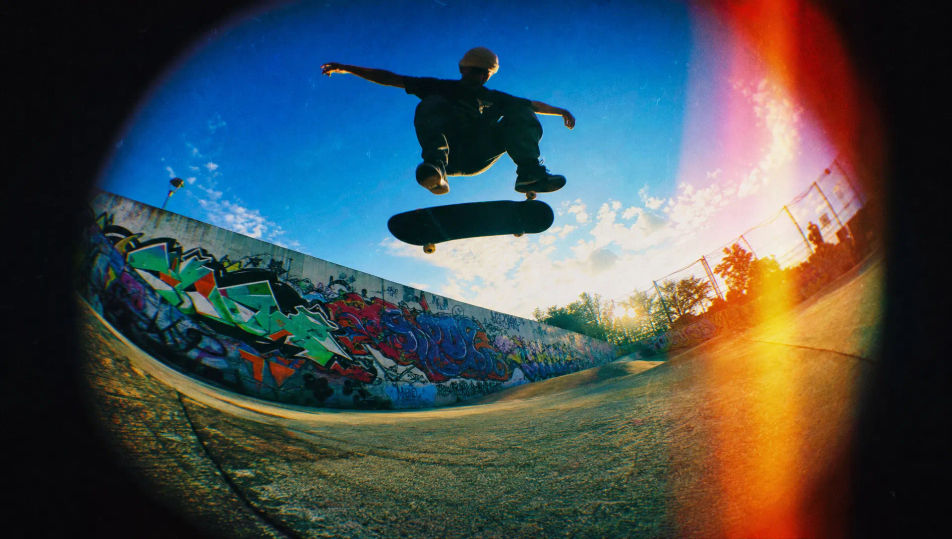
Fisheye skate-spot frame

A skate spot shot on a fisheye toy camera, curved barrel distortion bowing the ground, oversaturated colour, heavy vignette, deep contrast, dynamic low-angle lo-fi framing.

Edit prompt
Fisheye skate-spot frame

Make Lomography in three steps

  1. 01

    Describe your Lomography

    Describe the Lomography you want, including the subject, setting, and lighting.

  2. 02

    Generate the image

    Morphic generates a clean, ready-to-publish image on your canvas in seconds, no editing software required.

  3. 03

    Refine your Lomography

    Tweak the prompt, regenerate variations, then download or share the moment the frame lands.

Related workflows

你可能也喜欢

FAQs

Where can I make Lomography images with AI?
You can shoot Lomography frames directly in your browser on Morphic. Open the Image tool, describe the vignette, the oversaturated colour, and the light leak, and Morphic renders the frame. No toy camera and no cross-processing needed.
What defines a Lomography look at the prompt level?
Heavy vignetting, oversaturated colour, light leaks, cross-processed shifts, and lo-fi optics. Name the vignette, the colour treatment, and the artifacts in every prompt so the frame reads as a toy-camera shot rather than a clean digital capture.
How do I get the cross-processed colour right in a Lomography shot?
Specify it directly: call the colour crossover ("shifted green-and-cyan tones", "redscale warm cast") and the artifacts ("heavy dark vignette", "streaking warm light leak"). Reuse those cues across every frame so the lo-fi look stays matched through the set.
How do I keep a Lomography set feeling like one toy-camera roll?
Use the Style Transfer workflow to lock the vignette, the saturated colour shift, and the light-leak pattern, then reference that style card in every prompt. The full set then reads as one toy-camera roll across every frame.
Do I need a toy camera or cross-processing to shoot Lomography frames?
No. Morphic runs in your browser and you direct it with plain-language prompts. Anyone who can describe a vignette, oversaturated colour, and a light leak can produce a Lomography look. A toy camera and a darkroom are not required.