Archives
How to archive projects, files, assets, elements, workflows and chats, find them on the Archives page, and restore them or delete them.
Archives on Morphic keeps things out of the way without deleting them. Archiving hides an item from every list in your organization and moves it to the Archives page, where you can restore it or delete it. Nothing there expires on its own.
When to use it
- Tidy a busy Assets library or Projects page without losing anything
- Put a finished project away and bring it back for a revision
- Clear out chats, workflows or elements your team no longer uses
What you can archive
| Item | Where 'Archive' appears |
|---|---|
| Projects | The '...' menu or right-click on a project card, and the menu beside the project name |
| Files | The '...' menu or right-click on a file card, and the file menu at the top left of an open file |
| Assets | Right-click an asset on the Assets page, in a file's Assets panel, or in Compose's media panel |
| Elements | Right-click an element card on the Elements page |
| Workflows | The workflow menu, the workflow details window, and the menu in the workflow editor |
| Chats | The '...' menu on a chat card or in the chat history |
'Archive' replaces 'Delete' in these menus; you delete from the Archives page. Folders, voice references, elements shared with you, and personal workflows outside an organization can't be archived and still show 'Delete'.
Archive an item
-
Right-click the item, or open its '...' menu
-
Click 'Archive'
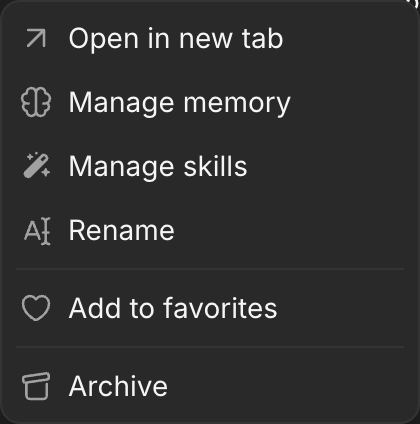
The item leaves the list and a message confirms it.
- To archive several assets, select them on the Assets page and click 'Archive' in the bar that appears
- Archiving a project hides its files, assets and chats too. They come back when you restore it
- You can't archive your only project
Open the Archives page
- Open the Dashboard
- Click 'Archives' at the bottom of the left sidebar
- Pick a tab: 'Projects', 'Files', 'Assets', 'Elements', 'Workflows' or 'Chats'
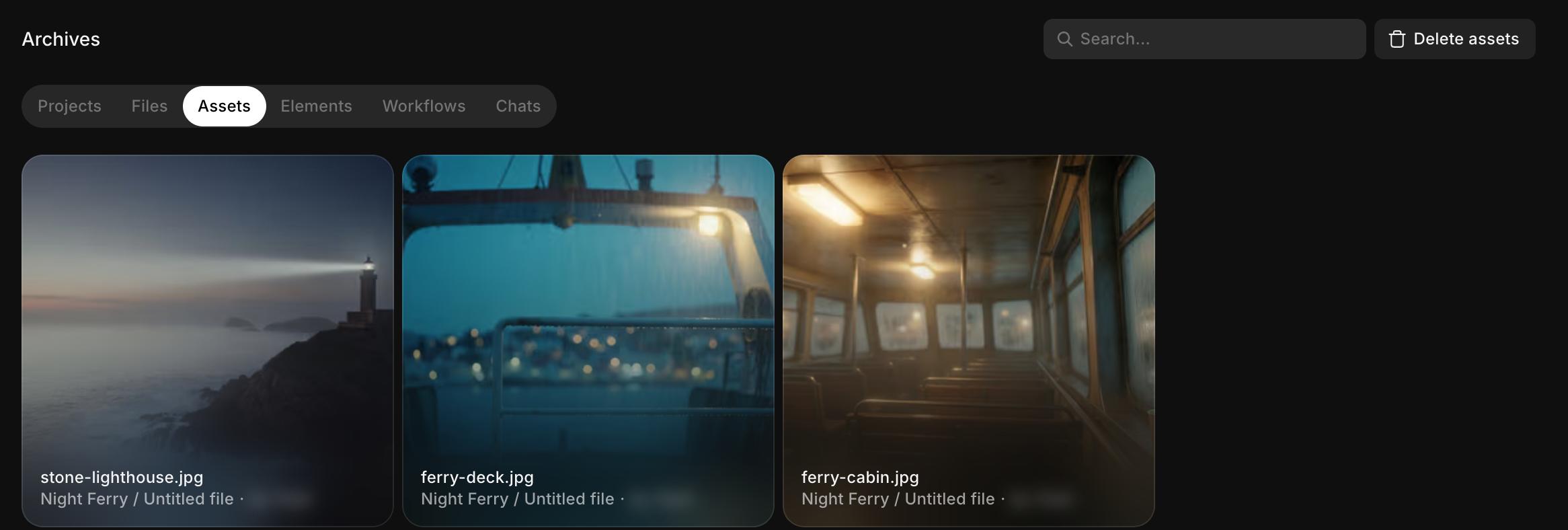
'Search...' in the top right finds an item by name. Archived items don't open when clicked; use their menu.
Restore an item
-
On the Archives page, right-click the item or open its '...' menu
-
Click 'Restore'
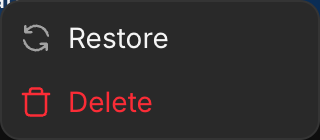
The item goes back to the same project or folder. To restore several assets, select them and click 'Restore' in the bar that appears.
Delete an item
- On the Archives page, right-click the item or open its '...' menu
- Click 'Delete'
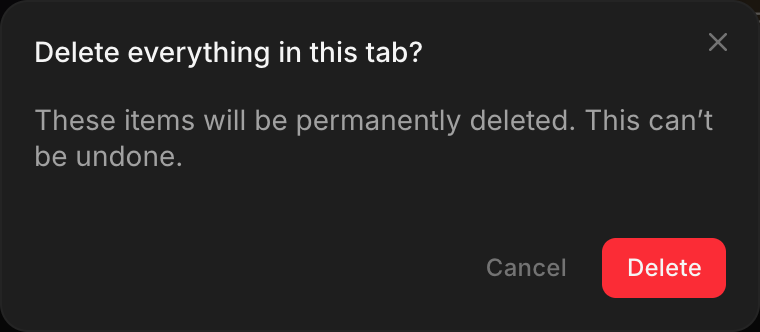
- Click 'Delete' again to confirm
Deleting can't be undone. Deleting a project also deletes its files and assets.
To clear a whole tab, click the delete button in the top right, for example 'Delete assets', then confirm. It is greyed out while the tab is empty or you are searching.
Who can archive and delete
- Anyone in the organization can archive and restore items they can open
- Archiving a workflow needs permission to edit workflows
- Deleting from the Archives page follows your organization's delete permissions. If 'Delete' is greyed out with "Ask an admin for delete access", ask an admin. See Groups
- On the Free plan, archived elements can be restored but not deleted
Troubleshooting
An item I removed from a canvas is not in Archives
Deleting an image or clip from a canvas only takes it off that canvas; the asset stays in your library. To archive it, right-click it on the Assets page or in the Assets panel.
Files from an archived project are not on the Files tab
Only the project is archived, so its files stay with it. Restore the project from the 'Projects' tab to get them back.
Delete all stopped and nothing was deleted
Clearing a tab deletes everything or nothing. If one item can't be deleted, for example a workflow someone else created, the tab stays as it was. Delete your own items one at a time, or ask an admin.
That's how you use Archives on Morphic. Use it whenever you want something out of sight but not gone.
If you have any trouble or have any questions, feel free to reach out. We're happy to help. Write to us at support@morphic.com.