Prompting
How to write image and video prompts on Morphic, use references in them, ask for changes, and direct Copilot through a longer job.
A prompt on Morphic is the brief for one shot. The model knows only what the prompt and its references tell it, and fills in the rest itself, so most retries come from detail that stayed in your head.
One look per project
Decide these before the first shot. Changing them halfway through is the most common reason clips stop matching.
- Choose one style, and add the same style reference to every shot
- Make every character's reference in that style. References in different styles give the model several looks to blend
- Use the same model for every shot. Models draw the same prompt differently, so clips from two models look mismatched when cut together
Parts of a prompt
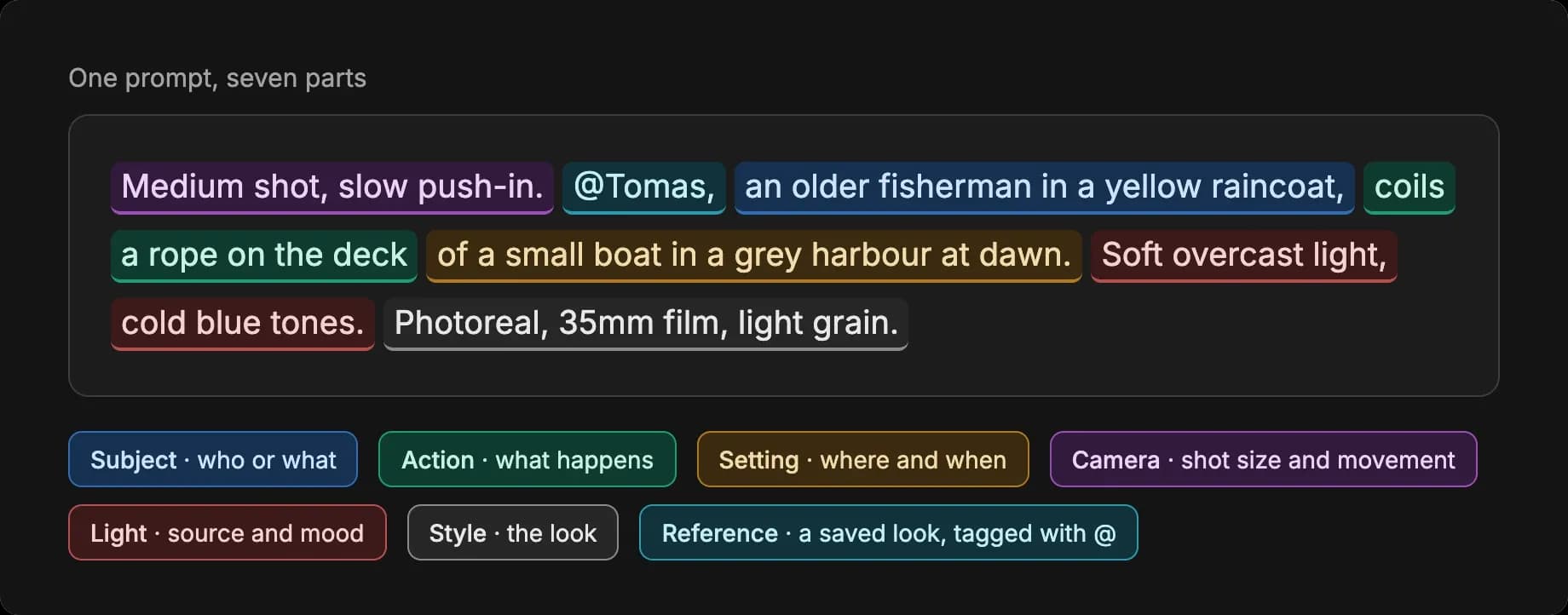
A strong first prompt covers each part. Leave one out and the model chooses it for you.
| Part | What it sets | Example |
|---|---|---|
| Subject | Who or what is in the shot | an older fisherman in a yellow raincoat |
| Action | What happens | coils a rope on the deck |
| Setting | Where and when | a small boat in a grey harbour at dawn |
| Camera | Shot size, angle and movement | medium shot, slow push-in |
| Light | Source, direction and mood | soft overcast light, cold blue tones |
| Style | The look | photoreal, 35mm film, light grain |
| Reference | A saved character, place or look | @Tomas |
References in a prompt
A reference sets how a character, place or style looks. The prompt sets everything else: the pose, the action and the place.
- Give each reference one job, and say what it is: face and costume, location, or style
- Say what to ignore in a reference, like people in a location photo
- Tag every person in the shot. Someone the prompt mentions without a tag, like "a man walks in", gets an invented face, which can change from shot to shot
- For a crowd, tag the main characters and describe everyone else as background
- Describe the action. A prompt that only names the character can copy the pose from the reference
- Remove references from the prompt that you no longer want
Instead of @img1 @img2 @img3 make them talk in the kitchen:
@Maya on the left and @Leo on the right, face and costume from each. @Kitchen for the location, ignore any people in it. Maya hands Leo a cup of tea and sits down across from him.When the reference and the prompt disagree, the reference often wins. If the reference shows a red jacket and the prompt asks for a blue suit, the jacket can stay. Use a reference that shows the outfit you want.
Image prompts
- Give the subject, setting, framing, light and style in the first prompt. A few words, like
a warrior, return a generic result and several rounds of "make it better" - Describe the look you want, not a list of looks you do not want. Words after "not" can still pull the image toward them. Keep exclusions to one or two
- Put text that must appear in quotes, and keep it to a few words. Add anything longer afterwards as subtitles or an overlay
- Leave dialogue and labels out of image prompts, or they may be drawn in as captions
- Set the aspect ratio and resolution in the prompt bar settings, not in the prompt
For example, instead of samurai:
Medium shot of an older swordsman in worn indigo armour, rain-soaked courtyard at dusk, low side light, photoreal.And for a sign:
Shop front at night. The sign above the door reads "ROSA'S BAKERY" in white serif capitals, centred.Video prompts
- Give each clip one action. A clip asked to cover a whole scene skips some actions or plays them out of order
- Describe the shot, not the script. Pasted narration or subtitles get skipped, mistimed or drawn on screen
- Say how the camera moves and how much the subject moves.
animate thisleaves both to the model - Ask for sound. Copilot adds audio only when the prompt asks for it: dialogue, a spoken line, music or a named sound
To fit several beats into one video in Copilot, write them as shots. Copilot keeps them in one video, and asks you first if the model cannot fit them all.
Shot 1 (4s): she wakes and sits up. Shot 2 (4s): at the window, she sees headlights in the drive. Shot 3 (5s): she runs down the stairs.For small movement, say exactly how small:
Locked-off camera. She breathes and blinks, and her hair moves slightly in the wind. No walking, no cuts.Dialogue
Give each line its speaker, in order, and keep to one or two lines per clip. Write the line in the language it should be spoken in.
Include audio. @Ravi, angry: "Where did the money go?" Then @Meera, quietly: "I don't know." Ravi speaks first.Copilot puts the spoken line into the video itself, with the mouth movement to match. It uses Lip Sync only when you attach an audio file.
- Write the dialogue in the video prompt for most scenes
- Use Lip Sync when you already have the audio, like a recorded voice-over or a line that must use one exact voice
Asking for changes
- Say what is wrong, where, and what it should become
- Change one thing per request, and name what must stay
- Edit the result instead of resending the whole prompt with one word changed. A full regenerate changes the face, background and light too. On the Canvas, use Precise image editing or Inpainting for one area
- For video, name the moment by its time in the clip
- Send a long list of fixes a few at a time, and check each batch
- After several edits on top of edits, go back to the best version and ask for all the changes in one request
Instead of fix the face:
Only the man on the right: his left eye droops. Make both eyes level and open. Change nothing else.Instead of no, regenerate it again:
At 0:05 she picks up the wine bottle, not the glass. Keep everything before that moment. Show me the prompt before you regenerate.Working with Copilot
- Set standing rules once, as a short list, and ask Copilot to confirm them. A rule mentioned in passing halfway through a job is easy to lose. Restate the list when you start a new batch
- Approve a plan with its scope: which items, in what format, and where they go. "Go ahead" leaves Copilot to decide
- Run a large job in batches, with a stop to review between them. To see the plan and cost before anything is generated, use 'Ask before generating' or 'Plan only' in Chat modes
- Correct Copilot while it works. Send the message straight away: Copilot reads it at its next step, without waiting to finish
- Keep long rules in a document and attach it, so each message carries only what is new for this shot. For a whole script, see Long scripts
Standing rules:
For every remaining shot in this episode: photoreal live action, 1:1, and she wears the red coat. Confirm these rules, then redo shots 4 to 9.A scoped approval:
Go ahead with scenes 2 and 3 only. Make separate clips, not one combined video, and list them here for review.A batch with a stop:
Generate shots 1 to 10 without asking between shots. Stop after shot 10 and wait for my OK before shots 11 to 20.Best practices
| When | Do this |
|---|---|
| A shot includes a character, place or look you have saved | Attach the reference before the first prompt. Adding it after a miss means generating the shot again |
| You approve a frame and more shots follow from it | Use 'Attach as reference' on that frame for the next shots, so they keep its look and light |
| A result might be used again | Save it straight away, to the Canvas, favorites or Assets. In a long chat it is hard to find later |
| You want to try another direction from a result you like | Continue in a new chat from that message. The new chat keeps the context, and the original stays as it was |
| You start work unrelated to the current chat | Start a new chat. Nothing from the old work carries in, and replies cost less |
| Shots will be cut together | Choose the model yourself and keep it for the project. On 'Auto', Copilot chooses for each request, and models draw the same prompt differently |
| You are exploring a single idea | Leave the model on 'Auto', and choose one once you know the look you want |
| You are not sure how to phrase a request | Start from one of the suggestions in a new chat to see how a request is put together, then add your own project's details |
That's how you write prompts on Morphic. Use the parts of a prompt for every new shot, and the section on changes when a result is close but not right.
If you have any trouble or have any questions, feel free to reach out. We're happy to help. Write to us at support@morphic.com.