> For the complete documentation index, see [llms.txt](https://morphic.com/docs/llms.txt). Markdown versions of documentation pages are available by appending `.md` to page URLs; this page is available as [Markdown](https://morphic.com/docs/jp/video/lip-sync.md).

# リップシンク

キャラクターの口を音声トラックに同期させる方法と、長さが異なる音声と動画を扱う方法。

MorphicでLip Syncを使う簡単なチュートリアルです：

1. Morphicに移動します。
2. 既存のファイルを開くか、'New file' をクリックしてプロジェクト内に新しいファイルを作成します。
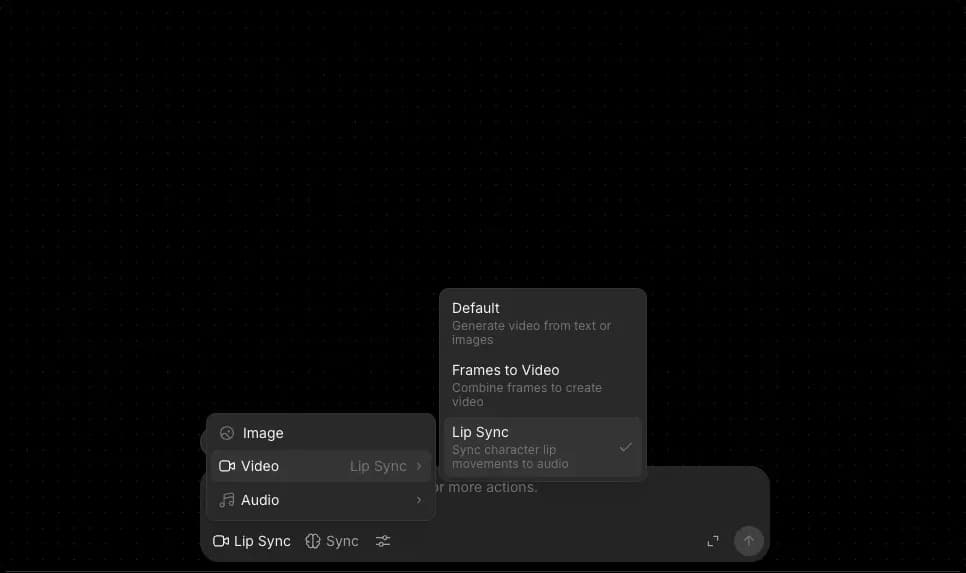
3. Canvas下部のグローバルプロンプトバーに移動し、モードをVideoに切り替えてからLip Syncを選択します。

<figure><img src="https://2982589234-files.gitbook.io/~/files/v0/b/gitbook-x-prod.appspot.com/o/spaces%2FoPhHCbNZdzW70rakoLhf%2Fuploads%2FphR686IhIdP84BABX9eU%2FCleanShot%202026-04-14%20at%2019.24.47.png?alt=media&amp;token=c0391088-6fc8-4155-a1f9-016df7c2a052" alt=""><figcaption></figcaption></figure>

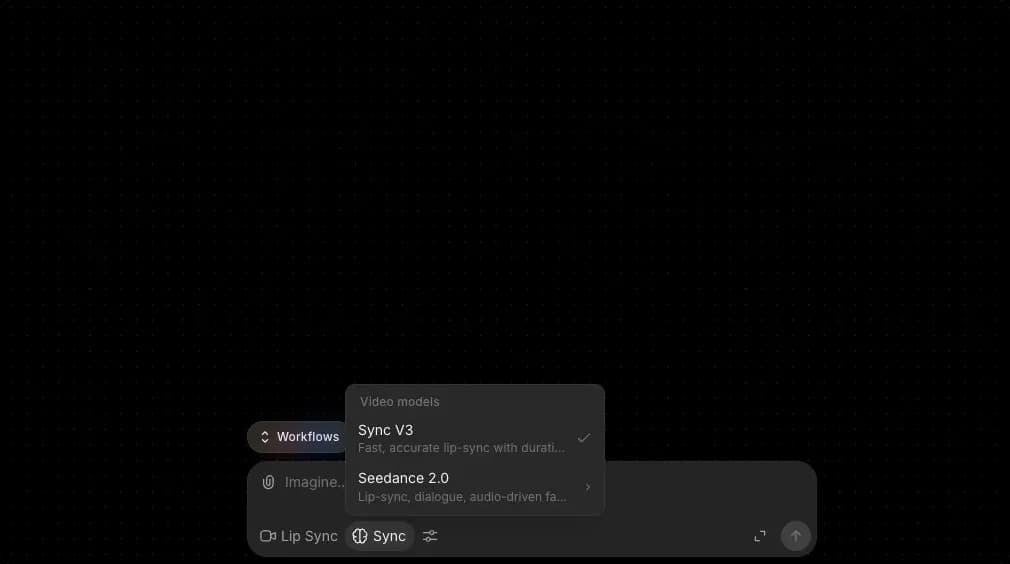
4. リップシンクモデルを選択します。表示されるモデルは、所属組織でリップシンクに対して有効化されている内容によって異なるため、同僚の一覧とは違う場合があります。参照： [モデルアクセス](/docs/jp/account-and-billing/settings/model-access.md).

<figure><img src="https://2982589234-files.gitbook.io/~/files/v0/b/gitbook-x-prod.appspot.com/o/spaces%2FoPhHCbNZdzW70rakoLhf%2Fuploads%2FwAt8cForpcqGRFgQFDBy%2FCleanShot%202026-04-14%20at%2019.25.11.png?alt=media&amp;token=ba457e20-d6d9-4bc2-bdaf-47f29239b911" alt=""><figcaption></figcaption></figure>

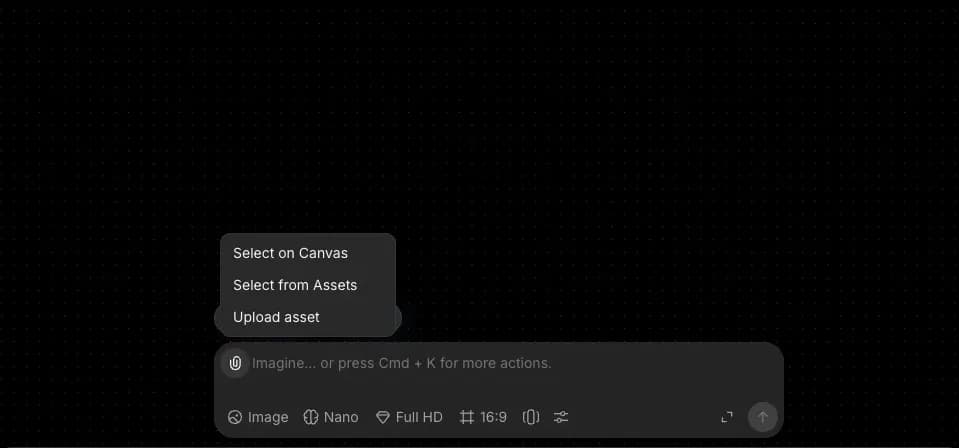
5. 紙クリップのアイコンをクリックして参照素材を添付します。次のことができます：

<figure><img src="https://2982589234-files.gitbook.io/~/files/v0/b/gitbook-x-prod.appspot.com/o/spaces%2FoPhHCbNZdzW70rakoLhf%2Fuploads%2FGXFLRIWRRfplbdZL8XoD%2FCleanShot%202026-04-14%20at%2019.35.50.png?alt=media&amp;token=7ed62e7c-1b05-4497-81c8-9db40c70a054" alt=""><figcaption></figcaption></figure>

* Canvas上で選択 - すでにCanvasに配置されている参照素材を選択
* Assetsから選択 - Assetsライブラリから選択
* アセットをアップロード - デバイスからファイルをアップロード

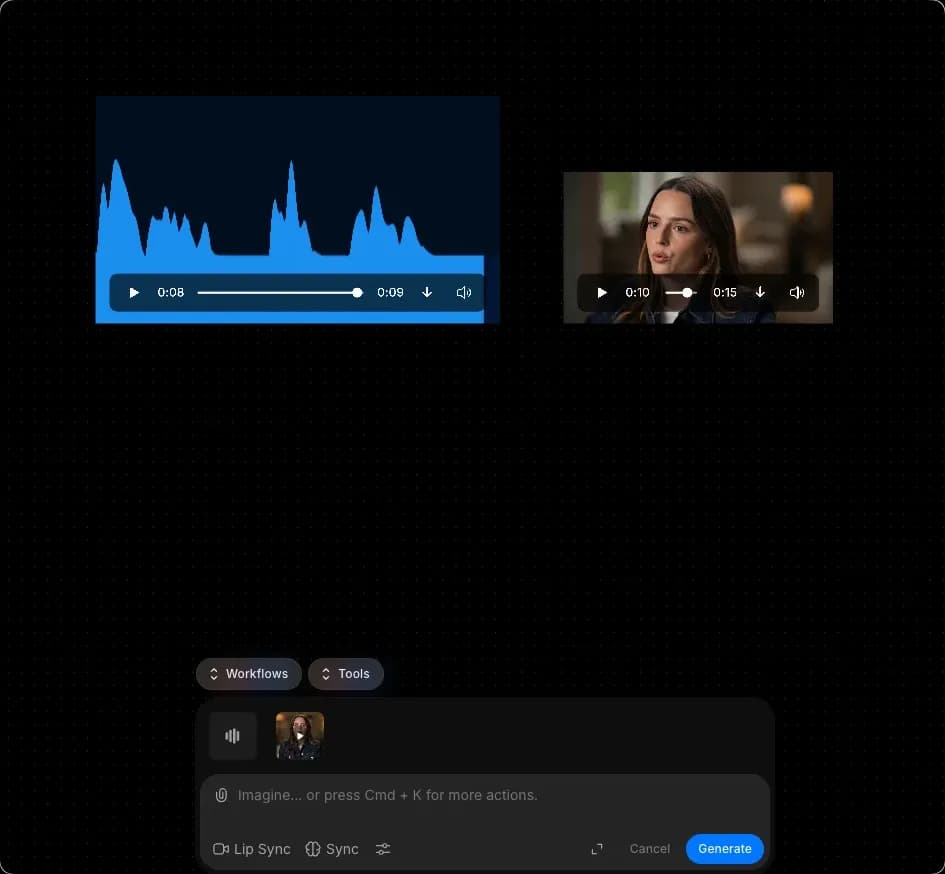
6. 同期させたい音声ファイルと一緒に動画を添付します。

<div data-full-width="false"><figure><img src="https://2982589234-files.gitbook.io/~/files/v0/b/gitbook-x-prod.appspot.com/o/spaces%2FoPhHCbNZdzW70rakoLhf%2Fuploads%2FXGoZGANTG2mRVZko60MB%2FCleanShot%202026-04-14%20at%2019.38.09.png?alt=media&amp;token=725a3565-3e3b-4202-a59e-405e90b6ed49" alt=""><figcaption></figcaption></figure></div>

7. 必要に応じて追加の指示を含むプロンプトを入力するか、プロンプトバーを空欄のままにします。
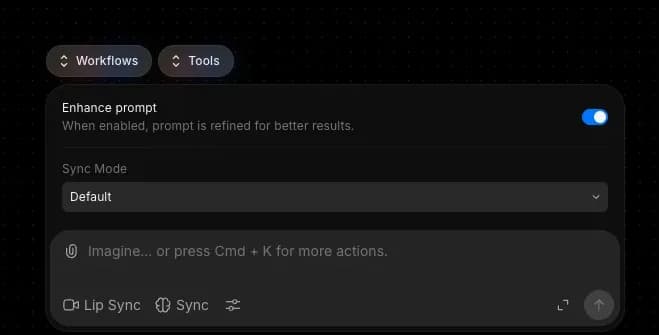
8. 必要に応じて、Preferencesアイコンをクリックして、Morphicが音声と動画の長さの不一致をどう処理するかを設定します。
9. プロンプトバーの青いボタンをクリックします。

注：一部のモデルは空のプロンプトでは実行されません。何も始まらない場合は、「create a lip sync」のような指示をいくつか追加してください。

### より良い結果を得るためのヒント

* キャラクターの顔がはっきり収まり、同期させたいクリップ全体で口が見えている動画を使ってください。
* クリアな音声を使用してください。背景ノイズ、話し声の重なり、またはセリフの背後に大きな音量の音楽があると、同期が弱くなることがあります。
* 音声のトーンをキャラクターに合わせてください。静的で中立的なポートレートにハイテンションな声を載せると、完璧なリップシンクでも不自然に見えることがあります。
* 音声と元クリップの長さはできるだけ近づけてください。大きな差があるとMorphicが伸縮、ループ、またはトリミングを行う必要があり、適切なPreferencesを設定していても最終結果がやや弱くなることがあります。
* 元動画では頭の動きを控えめにしてください。控えめで自然な動きのほうが同期はきれいに決まり、激しいカットや極端な角度は難しくなります。

### Preferencesの理解

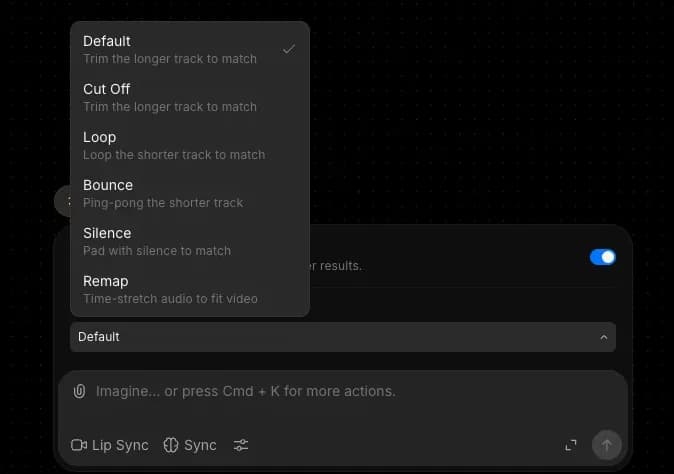
音声と動画の長さはしばしば一致しません。Preferencesでは、その不一致を出力でどう処理するかを制御します。

<div><figure><img src="https://2982589234-files.gitbook.io/~/files/v0/b/gitbook-x-prod.appspot.com/o/spaces%2FoPhHCbNZdzW70rakoLhf%2Fuploads%2FH0HHWxtMPMr6ZXfGBqqQ%2FCleanShot%202026-04-14%20at%2019.29.27.png?alt=media&amp;token=55b1fbe6-0465-46e9-8a6f-f5e4530d5b7b" alt="" width="375"><figcaption></figcaption></figure> <figure><img src="https://2982589234-files.gitbook.io/~/files/v0/b/gitbook-x-prod.appspot.com/o/spaces%2FoPhHCbNZdzW70rakoLhf%2Fuploads%2FwpbnY5Skk1ptVk7A5C6U%2FCleanShot%202026-04-14%20at%2019.29.34.png?alt=media&amp;token=f947e33b-469b-495f-a3d5-2e1c54871506" alt="" width="375"><figcaption></figcaption></figure></div>

| オプション | 機能                                                                |
| ----- | ----------------------------------------------------------------- |
| カットオフ | 音声または動画の長い方を短い方に合わせてトリミングします。                                     |
| ループ   | 動画が音声より短い場合、動画をループさせて音声に合わせます。                                    |
| バウンス  | 動画が音声より短い場合、動画を前方向に再生した後、逆再生して音声に合わせます。                           |
| 無音    | 動画が音声より長い場合、音声に無音を追加して動画に合わせます。                                   |
| リマップ  | 動画の再生速度を遅くしたり速くしたりして、音声の長さに正確に合わせます。再生速度を調整することで、両方の内容をそのまま保持します。 |

### 費用

リップシンクモデルはそれぞれ価格が異なり、ほとんどは出力1秒あたりで課金されます。各リップシンクモデルの現在の料金は [Plans & CreditsのLip syncテーブル](/docs/jp/pricing/plans-and-credits.md).

これでMorphicのLip Sync機能の使い方は以上です。キャラクター、広告、会話中心のシーン向けにAIリップシンク動画を生成したい映画制作者、アニメーター、マーケターに最適です。

***

ご不明な点やお困りのことがあれば、お気軽にご連絡ください。喜んでお手伝いします。以下までご連絡ください [**support@morphic.com**](mailto:support@morphic.com)**.**


---

# Agent Instructions
This documentation is published with GitBook. GitBook is the documentation platform designed so that both humans and AI agents can read, navigate, and reason over technical content effectively. Learn more at gitbook.com.

## Querying This Documentation
If you need additional information that is not directly available in this page, you can query the documentation dynamically by asking a question.

Perform an HTTP GET request on the current page URL with the `ask` query parameter, and the optional `goal` query parameter:

```
GET https://morphic.com/docs/jp/video/lip-sync.md?ask=<question>&goal=<endgoal>
```

`ask` is the immediate question: it should be specific, self-contained, and written in natural language.
`goal` is optional and describes the broader end goal you are ultimately trying to accomplish on behalf of the user. GitBook uses it to tailor the answer towards what is most useful for that goal.

The response will contain a direct answer to the question and relevant excerpts and sources from the documentation.

Use this mechanism when the answer is not explicitly present in the current page, you need clarification or additional context, or you want to retrieve related documentation sections.