# 도구 살펴보기

Morphic의 도구 라이브러리를 사용하면 AI 이미지 생성 및 비디오 제작부터 영상 재스타일링, 모션 제어, 립싱크 생성 등에 이르기까지 창의적인 작업들의 늘어나는 컬렉션에 접근할 수 있습니다. 이름으로 검색하고, 카테고리별로 둘러보고, 도구 탭에서 어떤 도구든 바로 실행해 보세요.

### 도구를 시작하는 방법은 다음과 같습니다:

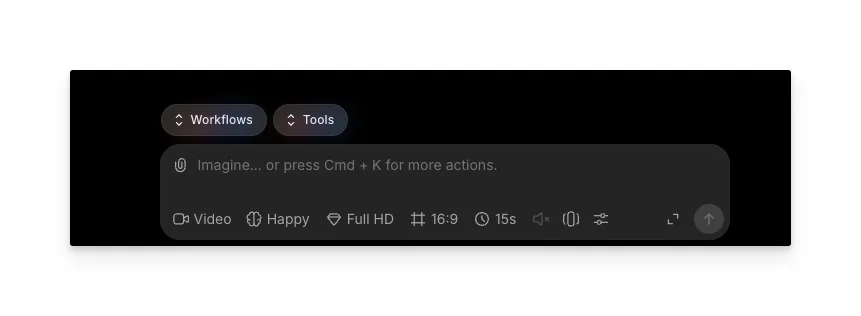
1. Canvas 또는 Copilot을 열고 프롬프트 바 위에 있는 도구 탭을 클릭하세요

<figure><img src="/files/c7622d73c7feb4f7655f92c6489b0e45885f8f41" alt=""><figcaption></figcaption></figure>

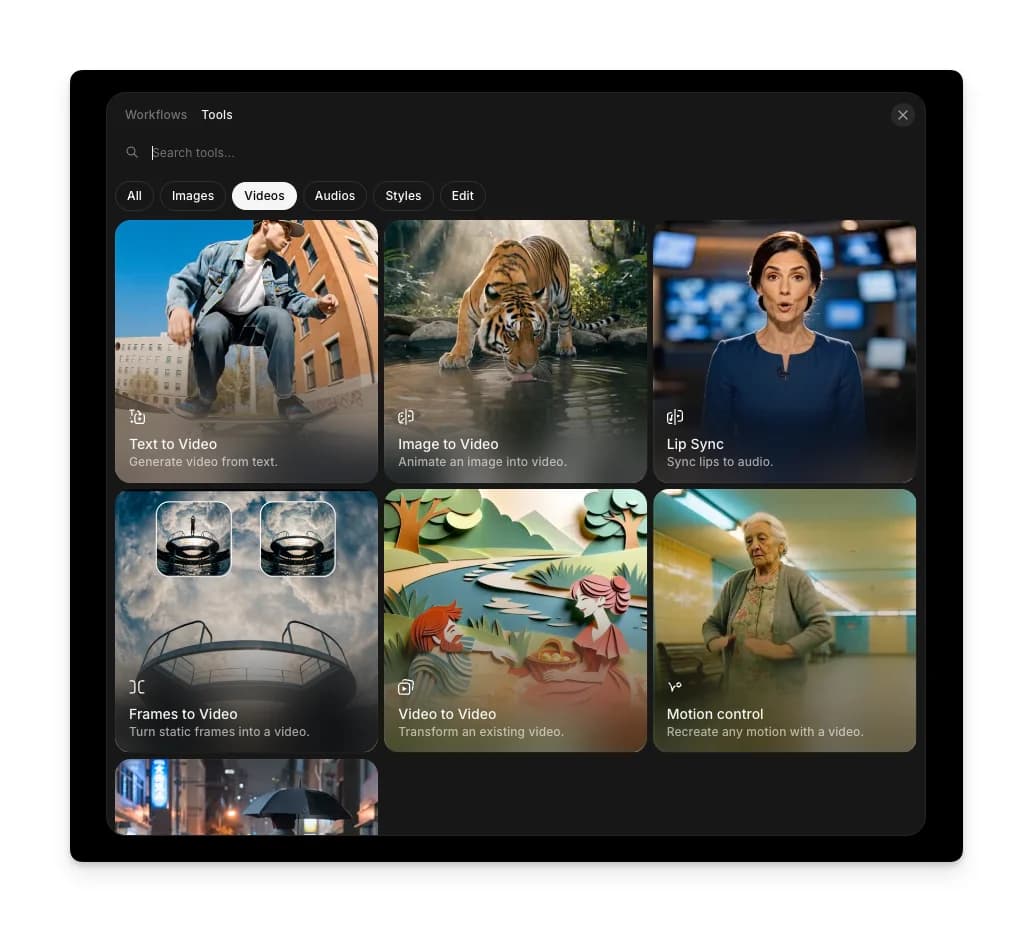
2. 도구 이름으로 검색하거나 라이브러리를 둘러보세요

<figure><img src="/files/0be45b2db9664529e598e5dc4e329cf806327d47" alt=""><figcaption></figcaption></figure>

3. 필터 탭을 사용해 카테고리별로 결과를 좁히세요
4. 도구를 선택하세요. 프롬프트 바가 해당 도구에 맞게 조정되며 필요한 입력이 무엇인지 안내해 줍니다
5. 프롬프트를 입력하고, 요청된 참고 자료를 첨부한 뒤 파란색 화살표를 누르세요

또는, 도구는 다음에서도 이용할 수 있습니다 [morphic.com/tools](https://morphic.com/tools)에서 전체 라이브러리를 둘러보고 어떤 도구든 바로 실행할 수 있습니다.

이렇게 Morphic에서 도구를 사용하면 프롬프트 바에서 바로 이미지, 비디오, 립싱크 등을 만들 수 있습니다.

***


---

# Agent Instructions: Querying This Documentation

If you need additional information that is not directly available in this page, you can query the documentation dynamically by asking a question.

Perform an HTTP GET request on the current page URL with the `ask` query parameter:

```
GET https://morphic.com/docs/kr/tools/explore-tools.md?ask=<question>
```

The question should be specific, self-contained, and written in natural language.
The response will contain a direct answer to the question and relevant excerpts and sources from the documentation.

Use this mechanism when the answer is not explicitly present in the current page, you need clarification or additional context, or you want to retrieve related documentation sections.