> For the complete documentation index, see [llms.txt](https://morphic.com/docs/llms.txt). Markdown versions of documentation pages are available by appending `.md` to page URLs; this page is available as [Markdown](https://morphic.com/docs/zh/account-and-billing/settings.md).

# 设置

在这里管理你的组织、计费和个人账户，并可链接到每个界面。

“设置”是您管理组织、计费与积分以及个人账户的地方。左侧边栏分为三个部分：“组织”、“计费与使用情况”和“账户”。

### 前往设置

您可以随时直接前往设置，网址为 [studio.morphic.com/settings/general](https://studio.morphic.com/settings/general)，或从您所在的任意页面打开。

**从 Canvas（登录后的默认视图）**

* 登录后，您默认会进入 Canvas。
* 要打开设置，请点击左上角的个人资料图标。这将打开组织/账户下拉菜单。
* 在下拉菜单中，选择“设置”。

**从 Canvas 前往仪表板**

* 在同一个下拉菜单中（点击 Morphic 标志打开），选择“返回仪表板”。
* 这会带您进入仪表板视图，在那里您可以看到所有项目文件。

**从仪表板**

* 在仪表板视图中，点击左上角的组织标志。
* 在下拉菜单中，选择“设置”。

### 每个设置页面

每个页面都有自己的链接，因此您可以直接前往，也可以分享给队友。

| 部分      | 页面     | 用途                | 直接链接                                                       |
| ------- | ------ | ----------------- | ---------------------------------------------------------- |
| 组织      | 常规     | 您的组织名称和基本详情       | [打开](https://studio.morphic.com/settings/general)          |
| 组织      | 成员     | 邀请队友、设置角色、移除成员    | [打开](https://studio.morphic.com/settings/members)          |
| 组织      | 方案     | 比较方案、升级或更改您的方案    | [打开](https://studio.morphic.com/settings/plans)            |
| 组织      | 模型访问权限 | 选择您的组织可使用哪些模型     | [打开](https://studio.morphic.com/settings/model-access)     |
| 计费与使用情况 | 套餐详情   | 您当前的套餐、付款方式和取消信息  | [打开](https://studio.morphic.com/settings/billing/plans)    |
| 计费与使用情况 | 积分     | 购买积分并查看积分活动       | [打开](https://studio.morphic.com/settings/billing/credits)  |
| 计费与使用情况 | 积分上限   | 限制每位成员可消耗的积分数量    | [打开](https://studio.morphic.com/settings/billing/limits)   |
| 计费与使用情况 | 发票     | 您的发票历史记录          | [打开](https://studio.morphic.com/settings/billing/invoices) |
| 账户      | 个人资料   | 您的姓名、电子邮件、头像和账户删除 | [打开](https://studio.morphic.com/settings/profile)          |
| 账户      | 偏好设置   | 您的默认聊天模式和浏览器通知    | [打开](https://studio.morphic.com/settings/preferences)      |
| 账户      | 安全     | 您的登录和安全选项         | [打开](https://studio.morphic.com/settings/security)         |

### 更改语言

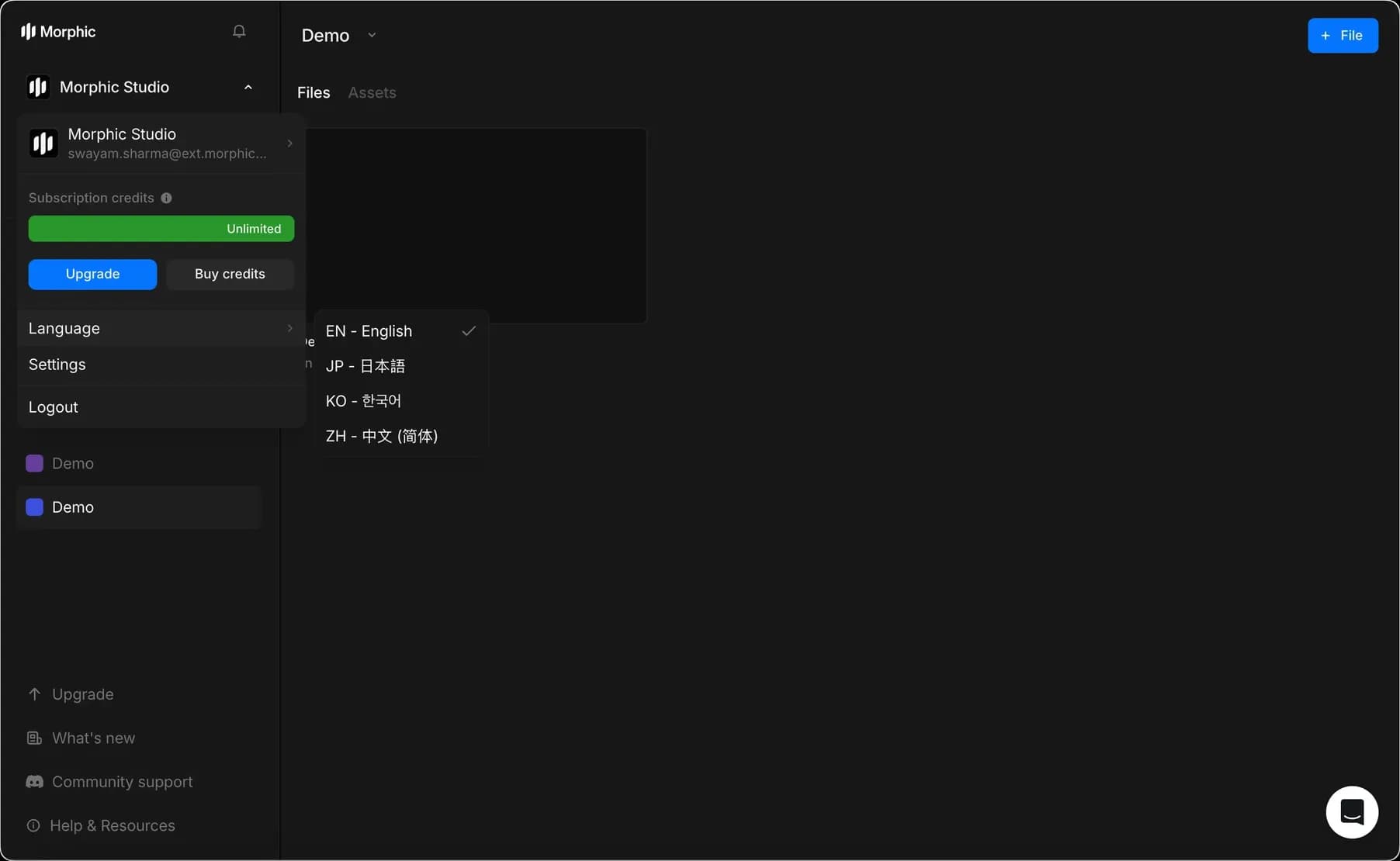
您可以在 Canvas 或仪表板中更改 Morphic 的界面语言。

Morphic 目前支持以下界面语言：

* EN – 英语
* DE – Deutsch（德语）
* FR – Français（法语）
* JP – 日本語（日语）
* KO – 한국어（韩语）
* ZH – 中文（简体）

**从 Canvas（登录后的默认视图）**

1. 在 Canvas 视图中，点击左上角的 Morphic 标志。这将打开组织/账户下拉菜单。
2. 在下拉菜单中，点击“语言”。
3. 从列表中选择您偏好的语言。
4. 界面将立即切换为所选语言。

**从仪表板**

1. 在仪表板视图中，点击左上角的组织标志。这将打开组织/账户下拉菜单。
2. 在下拉菜单中，点击“语言”。
3. 从列表中选择您偏好的语言。
4. 界面将立即切换为所选语言。

<figure><img src="https://2197859893-files.gitbook.io/~/files/v0/b/gitbook-x-prod.appspot.com/o/spaces%2FoPhHCbNZdzW70rakoLhf%2Fuploads%2Fgit-blob-06443da4d435c5b10dfac45fcf4a10de20d7e3bf%2FChange_language.gif?alt=media" alt=""><figcaption><p>更改界面语言</p></figcaption></figure>

<figure><img src="https://2197859893-files.gitbook.io/~/files/v0/b/gitbook-x-prod.appspot.com/o/spaces%2FoPhHCbNZdzW70rakoLhf%2Fuploads%2Fgit-blob-ea91235764adede6114aa8302ec30aace1984979%2FCleanShot_2025-09-11_at_16.31.172x.png?alt=media" alt="Language selection dropdown"><figcaption><p>语言选择选项</p></figcaption></figure>

这就是您在 Morphic 中浏览“设置”的方法。每个页面都有自己的链接，因此您可以直接前往所需页面，或将其发送给队友。

***

如果您遇到任何问题或有任何疑问，欢迎随时联系我们。我们很乐意为您提供帮助。请写信至 [**support@morphic.com**](mailto:support@morphic.com)**.**


---

# Agent Instructions
This documentation is published with GitBook. GitBook is the documentation platform designed so that both humans and AI agents can read, navigate, and reason over technical content effectively. Learn more at gitbook.com.

## Querying This Documentation
If you need additional information that is not directly available in this page, you can query the documentation dynamically by asking a question.

Perform an HTTP GET request on the current page URL with the `ask` query parameter, and the optional `goal` query parameter:

```
GET https://morphic.com/docs/zh/account-and-billing/settings.md?ask=<question>&goal=<endgoal>
```

`ask` is the immediate question: it should be specific, self-contained, and written in natural language.
`goal` is optional and describes the broader end goal you are ultimately trying to accomplish on behalf of the user. GitBook uses it to tailor the answer towards what is most useful for that goal.

The response will contain a direct answer to the question and relevant excerpts and sources from the documentation.

Use this mechanism when the answer is not explicitly present in the current page, you need clarification or additional context, or you want to retrieve related documentation sections.