What AI motion transfer does
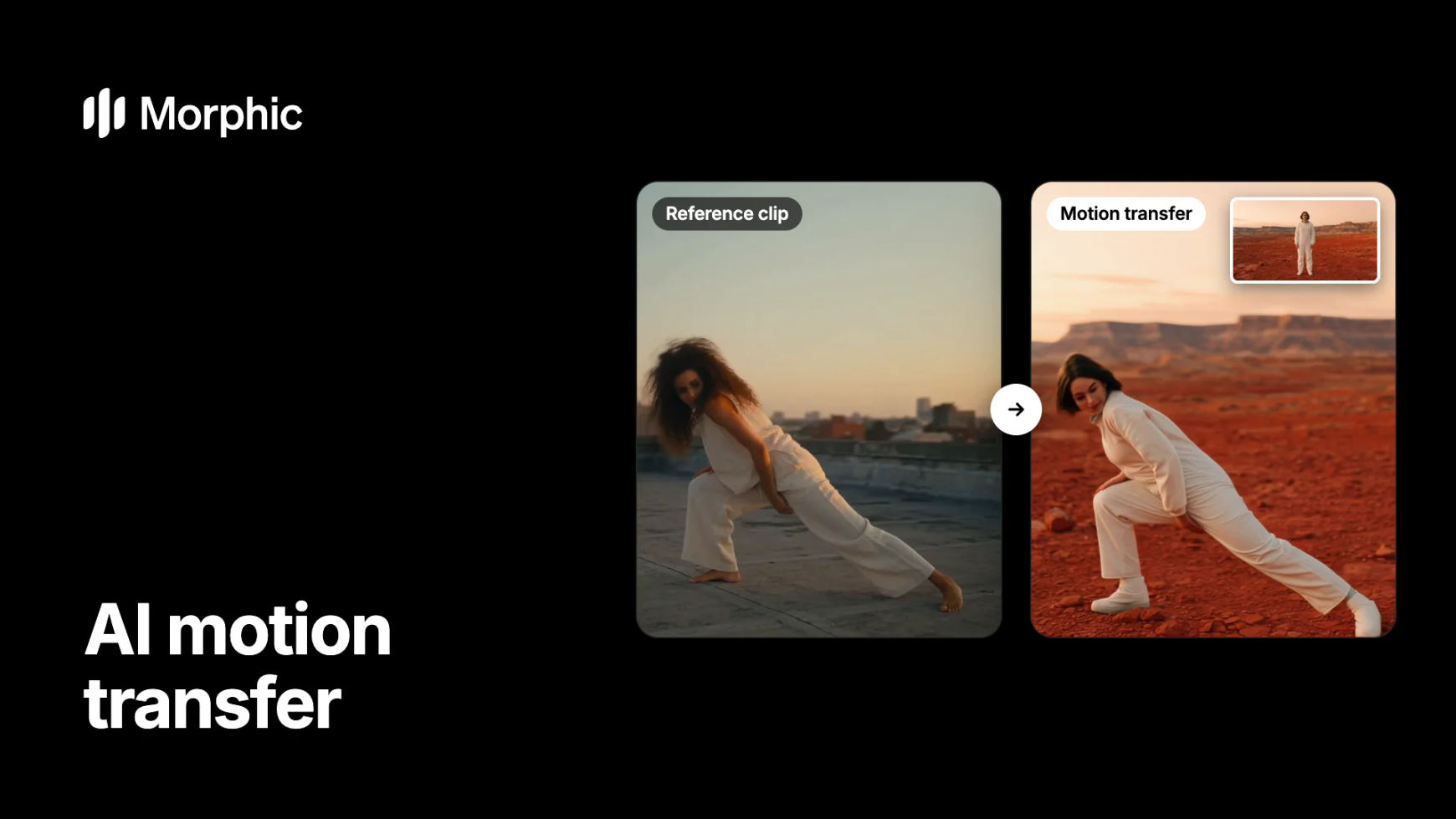
AI motion transfer takes the movement from one video and gives it to a different character. You supply a reference clip and a character image; the result is your character performing that exact motion.
Motion transfer reads the reference clip frame by frame and maps its movement onto your character:
- What it copies: pose, gesture, timing, the arc of a limb, the rhythm of a walk.
- What it keeps: your character's face, proportions and look, in the scene from your character image.
- Why it beats a prompt: "she walks confidently" can produce ten different walks. A reference clip removes the guesswork, so the motion reads as natural.
AI motion transfer examples
Take a look at the same reference dance going two ways. Motion transfer moves it onto the astronaut from a character image, in her own red desert. Morphic Recast keeps the original rooftop, camera and light, and swaps only the dancer.
Reference clip
Motion transfer
Morphic Recast
A walk is one of the cleanest motions to transfer. The pace and the glance back come from the reference; the man, his coat and the autumn park come from the character image.
Reference clip
Motion transfer
How to run motion transfer in Morphic
Motion control runs right on the Canvas, so the result sits next to your other shots, ready to trim, extend or score without exporting.
Open Motion control
Open the Motion control tool. The prompt bar asks for one character image and one motion reference video.
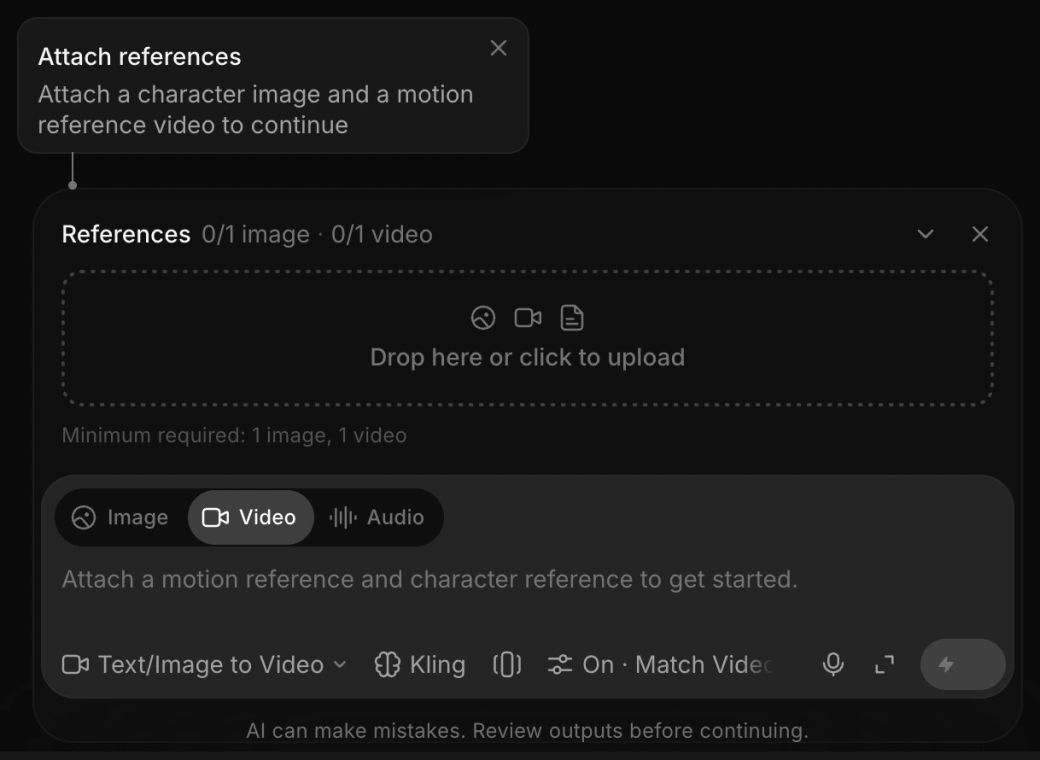
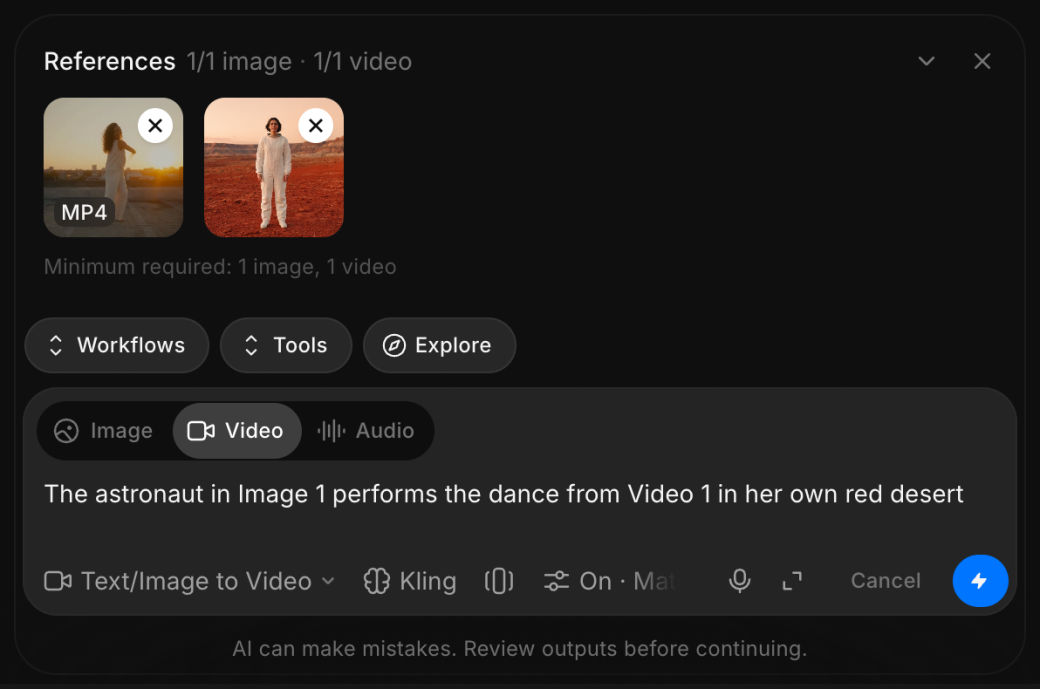
Add the clip and the character, then name them
Upload the reference clip and the character image. In the prompt, refer to each by name, for example "The astronaut in Image 1 performs the dance from Video 1 in her own red desert".
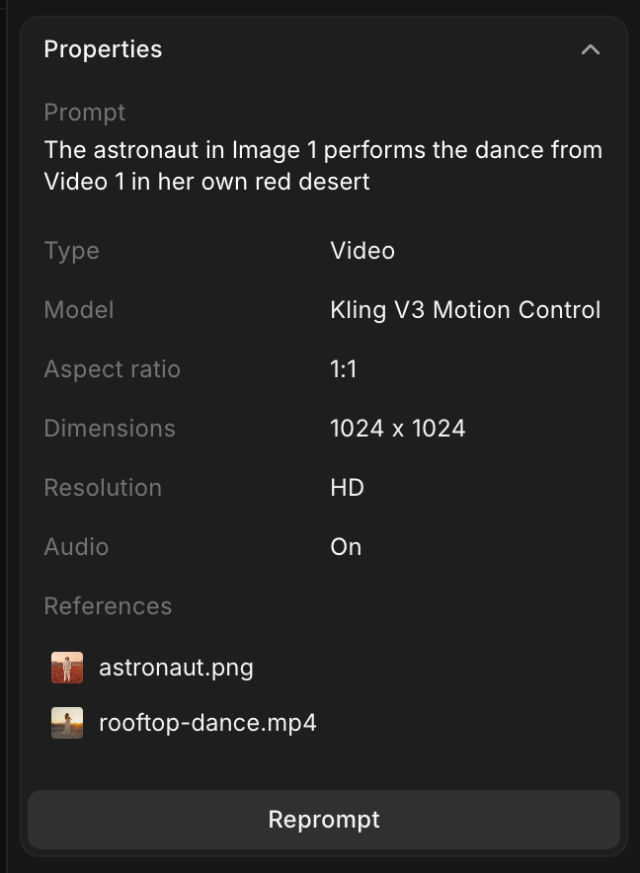
Generate and review on the Canvas
Generate. The new clip lands on your canvas, and its details keep the prompt and both references, so you can reprompt from the same setup.
Prefer to ask in plain words? Attach the same two files in Copilot and name them in your request. Copilot runs the motion transfer for you.

Need a custom motion transfer workflow? Let's build it with you.
For studios, agencies and game teams. Tell us about your characters, your reference clips and how you deliver, and we'll design a custom motion transfer workflow around them, from the first transfer to the finished, edited cut.
What transfers well in motion transfer, and what breaks
Holds up well
- Whole-body motion in full frame: walking, dancing, gesturing, a sports move.
- A steady rhythm: a sway, a stride or a wave gives the model a clean signal.
- A similar build: a character close in proportion to the reference subject keeps more of its identity.
Tends to break
- Occlusion: a cropped, hidden or turned-away subject forces the model to guess the pose.
- Fast, tiny detail: fingers, quick hand moves and subtle facial motion distort first.
- Mismatched forms: a four-legged animal driven by a human dance shows the strain.
- Long takes: identity can drift later in the clip, so short references hold better.
How to prep a clean reference for motion transfer
Frame the whole subject
Keep the moving body fully in frame from start to finish. A front-facing, well-lit subject on a plain background is the cleanest input.
Keep it short and continuous
A few seconds of one clear movement beats a long clip of several. Need two movements? Run two passes.
Match the character to the motion
Use a standing, front-facing character image with proportions close to the reference subject.
Judge motion and identity separately
Check the timing of the movement, then check the character looks like itself to the last frame. Fix motion with a cleaner reference and identity with a stronger character image.
Motion transfer, video to video or a recast?
Four tools work from motion or footage you already have. Pick by what has to stay.
| Tool | Keeps | Changes |
|---|---|---|
| Motion transfer | The movement in your reference clip | The character and scene, from your image |
| Morphic Recast | The scene, camera, cuts and sound | The people, from your photos |
| Video to video | The motion and timing | The look, era or setting |
| Image to video | Your still image | Motion, generated from a prompt |
Once a reference works, reuse it: ask Copilot to run the same clip on each new character. For a click-by-click version, see how to transfer video motion to an AI character.
FAQs
AI motion transfer reads the movement in a reference video, its pose, gesture and timing, and applies it to a different character, usually from an image. The character performs the reference motion while keeping its own look. Because the motion comes from real footage, it often looks more natural than the same action generated from a prompt.
A short clip of a few seconds with the moving subject fully in frame, well lit, on a plain background. Whole-body movement like walking, dancing or gesturing transfers cleanly. Avoid cropped, hidden or turned-away subjects.
Fast, fine detail distorts first: fingers, quick hand moves and subtle facial motion. Identity can also drift over a long clip. A short reference and a character close in build to the reference subject both help it hold together.
Yes, when the object's form suits the motion. A shape that can follow the movement works well; a small object asked to perform a human stride shows the strain. Match the motion to the target's build.
They keep opposite things. Motion transfer keeps the reference's movement and puts it on a new character. Video to video keeps your clip's motion and changes its look. Use motion transfer for a specific move, and video to video to restyle footage you already have.
Motion transfer places your character in the scene from your image, using the reference only for movement. A recast keeps the original video's scene, camera and sound, and swaps the people for the ones in your photos. If the shot itself matters, recast with Morphic Recast; if your character needs their own world, use motion transfer.
Yes. Run it once per character with the same reference clip. Each run gives that character performing the motion, a fast way to show one gesture across a whole cast.