What ChatGPT Images 2.6 adds
ChatGPT Images 2.6, also written GPT Image 2.6, is the image model OpenAI released on November 4, 2026. It adds looping GIFs, a complexity setting for how much the model plans, SVG export and saved reference images, and it holds characters and products steadier across edits.
This guide shows how to get each of those results on Morphic. ChatGPT Images 2.6 is not in the Morphic catalog yet, so every example here was made on Morphic with the closest live model, and each caption names it. To keep the examples connected, they all follow one invented brand: Ember & Oat, a small bakery.
Flare or Sunburst: which ChatGPT Images 2.6 model to use
ChatGPT Images 2.6 comes as two models, and Morphic already runs the same pair from 2.5.
| Flare | Sunburst | |
|---|---|---|
| Built for | Speed and fast iteration | Detail and precise edits |
| Strongest at | Drafts, posters, product shots | Keeping characters and products steady across edits |
| On Morphic today | GPT Image 2.5 Flare | GPT Image 2.5 Sunburst |
Start with Sunburst when the result has to be exact. Once it is, run the same prompt on Flare and keep whichever gets there faster. On the Canvas you can run both side by side and compare.
How to make a looping animation on Morphic, the ChatGPT Images 2.6 way
ChatGPT Images 2.6 can return a short looping GIF. On Morphic, ask Copilot for the loop in one message. It makes the still with an image model, then animates it with a video model, and the clip lands on your Canvas.
A still from GPT Image 2.5 Sunburst, animated with MiniMax H3 Max Turbo, with the end eased back into the start.
Copilot runs two steps, and these are the two prompts that made the loop above:
Editorial food photograph inside a small artisan bakery at dawn: a freshly baked round sourdough loaf with a deep scored ear rests on a flour-dusted oak bench, a thin curl of steam rising from it, soft side light from a tall window, a linen proofing basket and a brass scale softly out of focus behind, warm muted palette of oat, rust and charcoal, medium format film look, shallow depth of field, quiet and considered. No text, no logos.
Four habits make a loop that reads well:
- Fix the camera and the set. Say the camera is locked off and nothing but the motion changes.
- Keep the motion small. Steam, light, a blink or a wave loops cleanly; a walk across the frame does not.
- Close the loop. Ask for the clip to end where it starts. That join is where loops most often show a seam.
- Ban stray text. "No text, no logos" keeps labels out of every frame.
For a frame-by-frame look, like a hand-drawn sticker, ask for a sprite sheet instead: one image holding six frames in a grid, which is the shape OpenAI's own GIF examples use. Played in order, the frames become the loop.
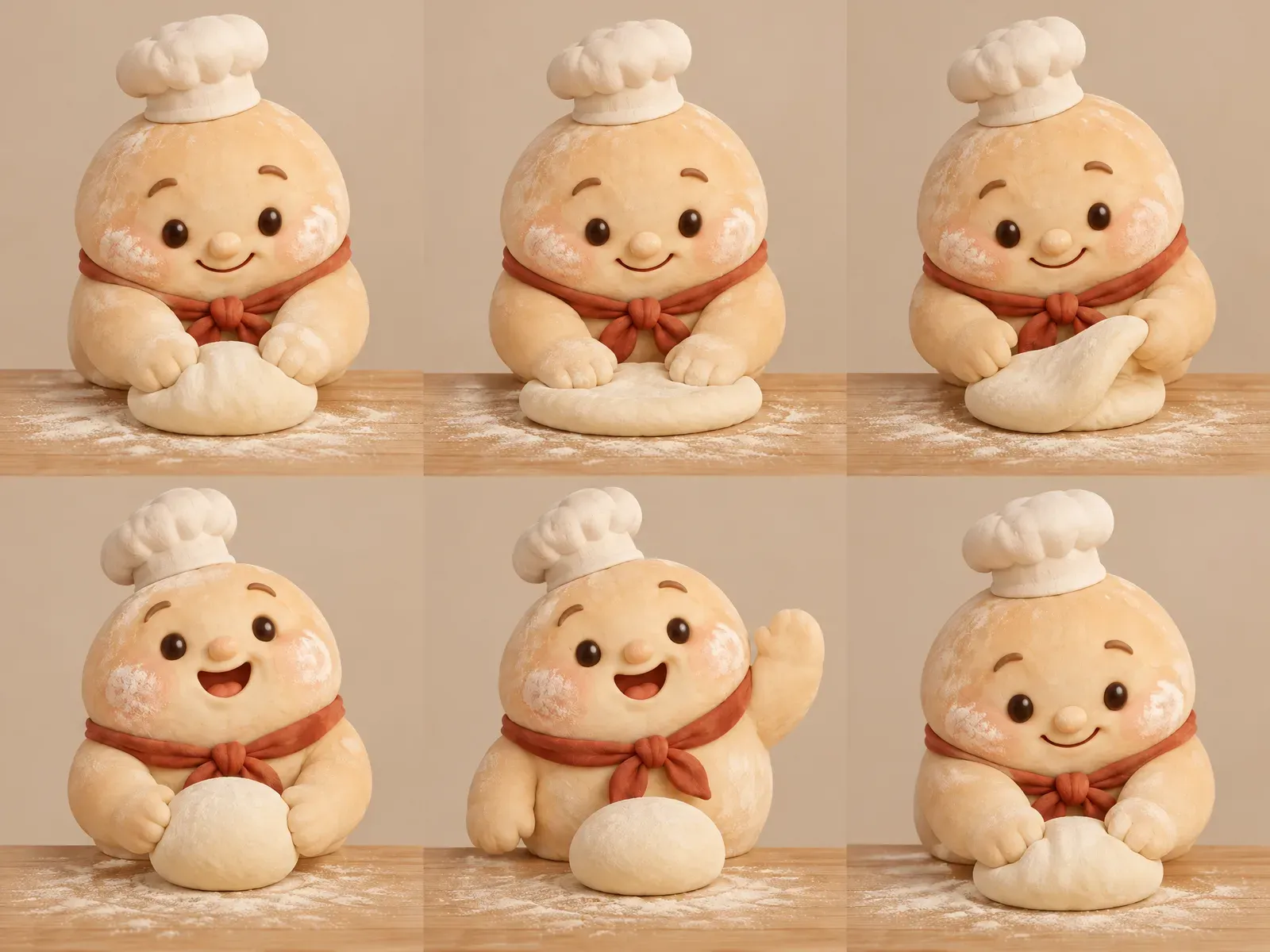
The same six frames, played in order.
One animation sprite sheet for a looping GIF of the dough baker mascot from the sheet, same hat, cheeks and rust-red neckerchief: exactly 6 frames in a 3-column by 2-row grid, every panel the same size. Sequence: kneads a ball of dough, presses, folds, looks up and smiles, waves, and the sixth frame leads back into the first. Fixed front three-quarter camera, the same oak counter and plain oat-colored background in every panel, the same soft clay-like 3D render. No text, no numbers, no borders, no gutters, no panel labels.
For more loop ideas, the AI GIF generator covers text-to-loop and photo-to-loop on Morphic.
Planning a busy scene with ChatGPT Images 2.6
ChatGPT Images 2.6 adds a complexity setting: low for quick edits, medium or high for busy layouts. Morphic does not show that setting, and you do not need it to get the same result. Write the plan into the prompt instead: name every area, give each label once, and say where text is not allowed.
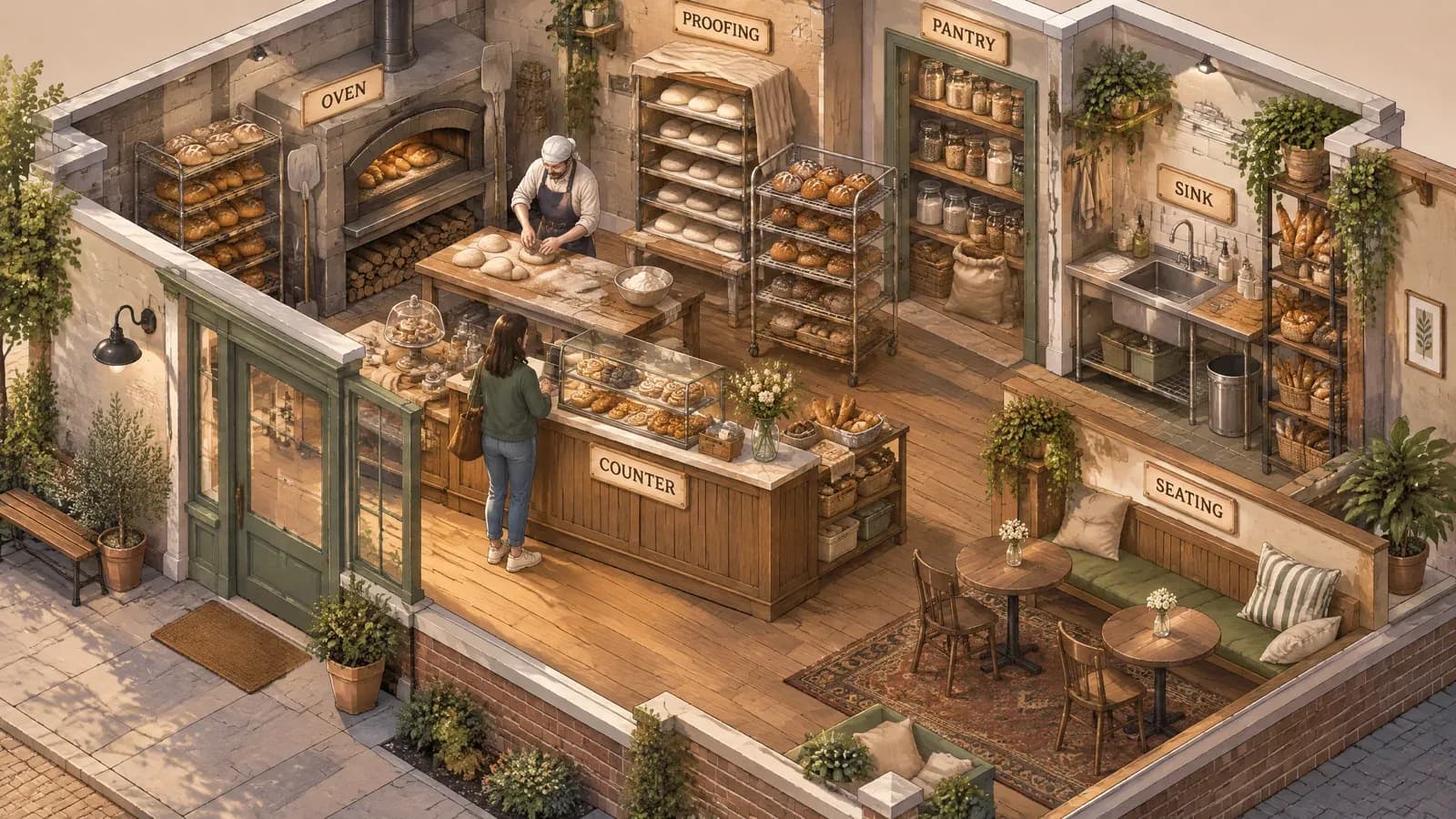
Isometric cutaway illustration of a small corner bakery seen from above at a 45-degree angle, the front wall removed. Six areas, each with one short label on a small plaque, exactly once each: OVEN, PROOFING, COUNTER, PANTRY, SINK, SEATING. A baker shaping loaves, a customer at the counter, trays of bread cooling on racks, warm pastel palette, clean line work, soft shadows, plenty of fine detail. Those six plaques are the only text in the image: the door, windows, boxes and walls carry no signs or writing. Every word spelled correctly, no logos.
The last sentence earned its place. A first take without it put a garbled sign on the door.
Editing one thing at a time, the ChatGPT Images 2.6 way
OpenAI built ChatGPT Images 2.6 for more control over editing rounds. Edits hold best when each round changes one thing and names what stays. On Morphic, open the image with image to image, or ask Copilot to edit it, and pick GPT Image 2.5 Sunburst for the steadiest results.
 Round 1
 Original
 Round 2Round 1
Drag each slider to see what changed. Made with GPT Image 2.5 Sunburst.
Tie a thin rust-red ribbon around the box. Keep the pastries, counter, light and framing.
If a part of the image has to stay exactly as it was, paste the approved change back into the original rather than asking again. ChatGPT Images 2.6 also lets you mark the spot on the image. On Morphic, name the spot in words instead, such as "the box front" or "the second sign from the left".
Keeping a character consistent, the ChatGPT Images 2.6 way
In ChatGPT, Images 2.6 lets you save a reference image once and call it back by name. On Morphic, make one reference sheet and attach it to every new image; GPT Image 2.5 takes up to 10 references in an edit.
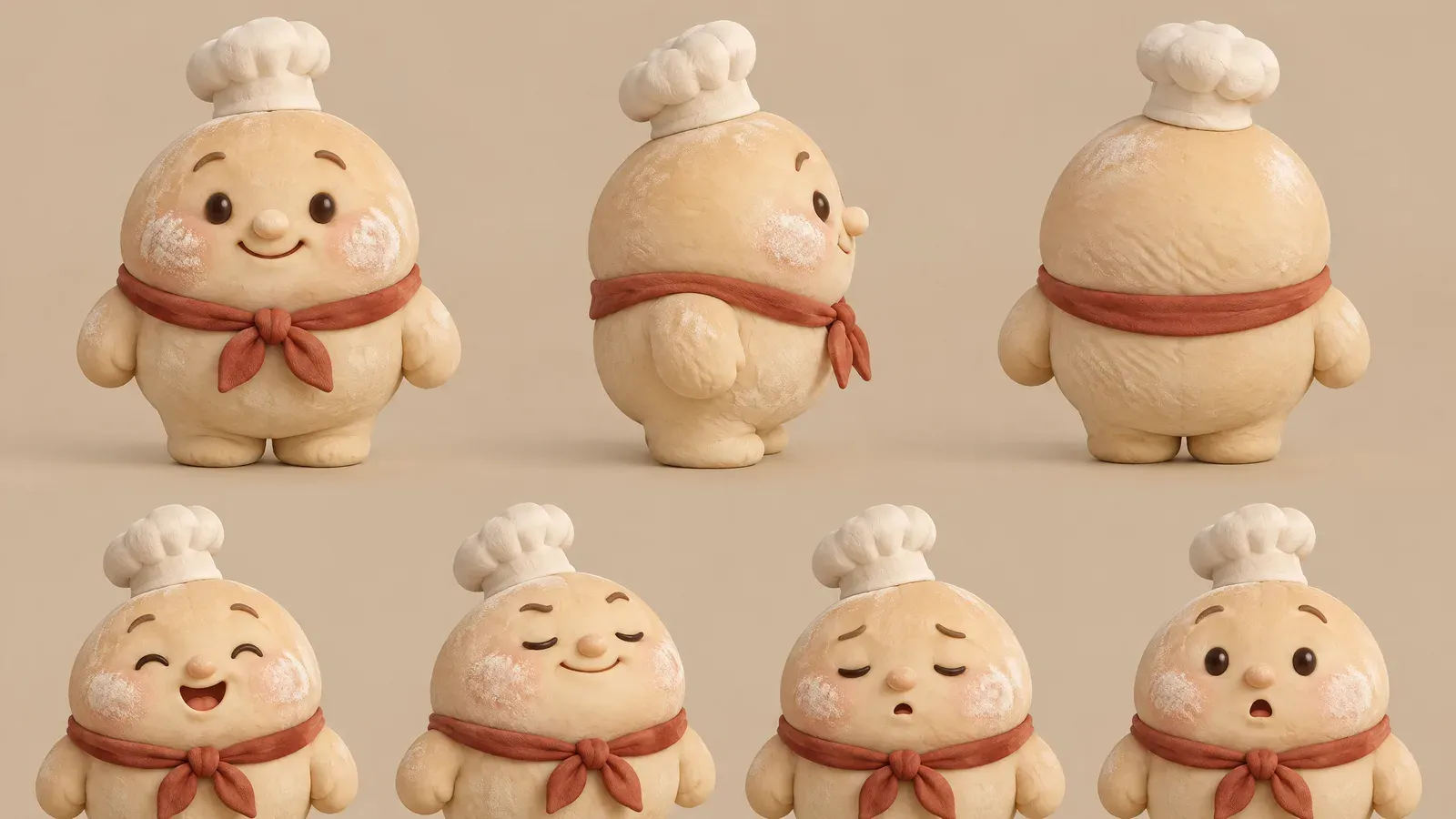
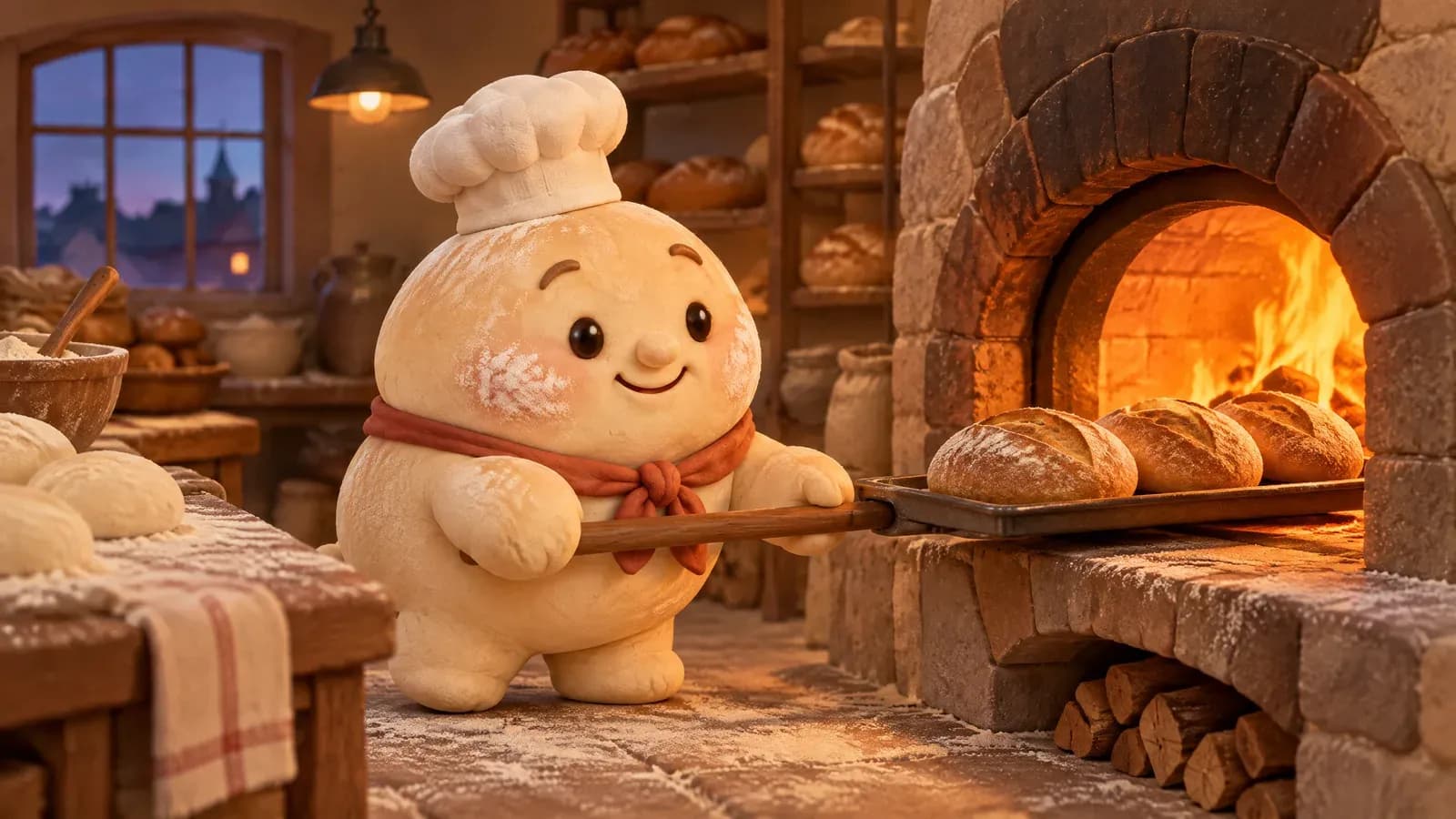
A character reference sheet for an invented bakery's mascot: a small round baker made of soft bread dough, with a tiny white chef hat, flour-dusted cheeks and a rust-red neckerchief, shown three times at the same scale, front view, side view and back view, with a row of four small facial expressions beneath (cheerful, proud, sleepy, surprised). Soft clay-like 3D render with visible fingerprint texture, warm even studio light, plain oat-colored background, identical proportions and colors in every view. No text, no labels, no logos.
Repeat the details that must not change in every scene prompt, even with the sheet attached. They tell the model which parts of the sheet matter.
Making vector logos and icons, the ChatGPT Images 2.6 way
ChatGPT Images 2.6 can return logos and icons as SVG files. On Morphic, Ideogram Vector makes SVG files today, ready to scale for web, apps and print.
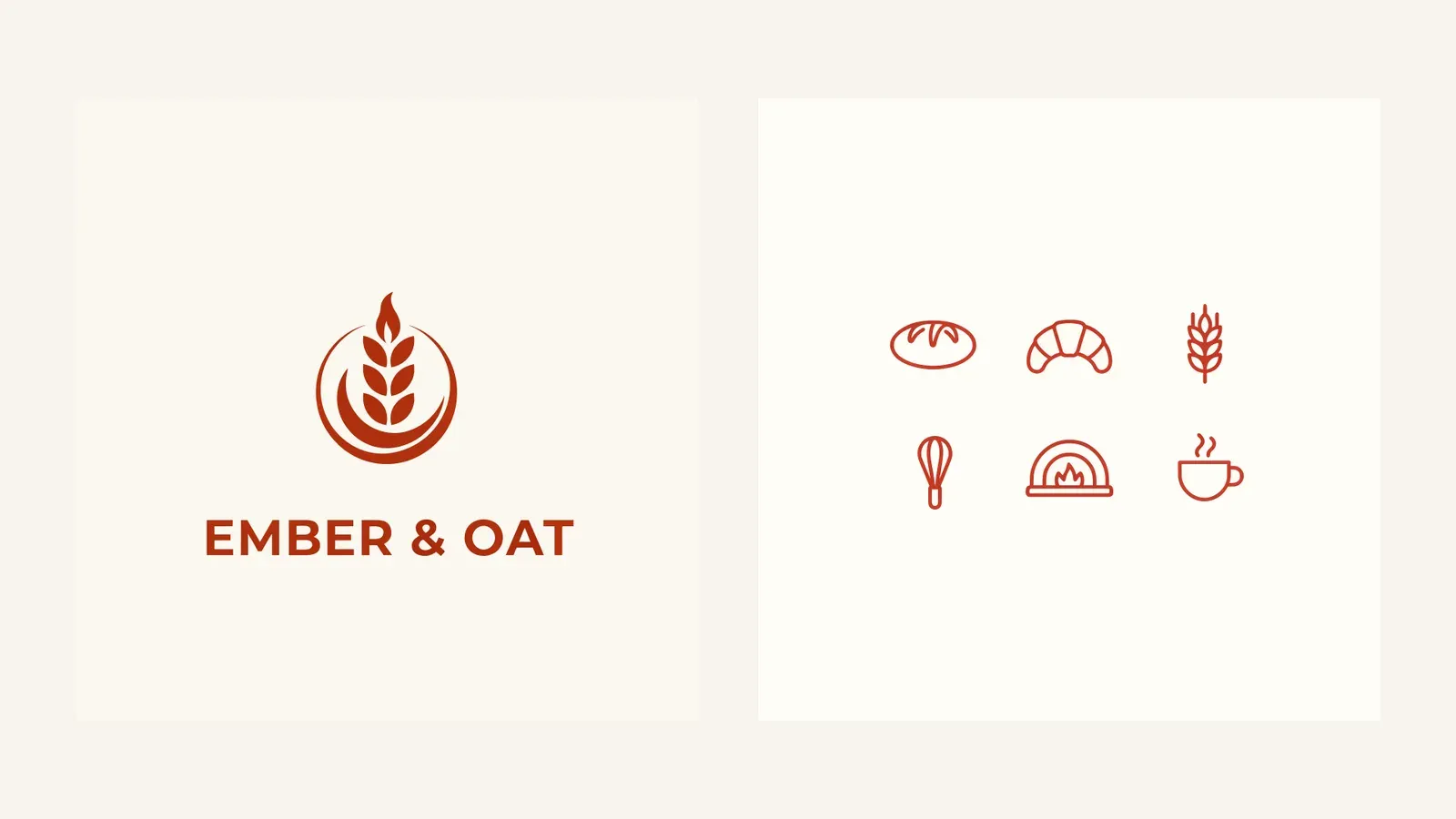
A flat vector logo for an invented artisan bakery called EMBER & OAT: a simple wheat stalk curving into a small flame, two colors, deep rust and cream, the name set beneath in a rounded geometric sans serif, centered on a plain cream background, clean geometric shapes, no gradients. Every word spelled correctly, no other text.
Vector works best on designs a person could draw with a pen tool: few colors, solid fills, clear edges.
ChatGPT Images 2.6 limits and good practice
- Check small text. Placement and spelling are better, not perfect, and a short word on a small sign is where edits most often slip.
- Expect a couple of takes on a loop. Early 2.6 tests found uneven steps between frames and a visible jump at the loop point.
- Allow time on big scenes. Complex prompts can take up to two minutes.
- Use a reference, not a longer description, for anything that has to look the same twice.
When ChatGPT Images 2.6 arrives on Morphic, these prompts run on it unchanged. Until then, open the Canvas and run them on GPT Image 2.5 Flare and Sunburst.