What you get out of it
| What changes | What it looks like | Why you care |
|---|---|---|
| The file passes delivery checks | Your export is accepted instead of bounced | Most broadcast and streaming specs refuse the 8-bit files most AI video models produce |
| Gradients survive a grade | A sunset holds together when you push it instead of breaking into stripes | New banding is the most common thing that makes good footage look cheap |
| Bright areas keep their detail | Highlights that still hold detail stop sharing one flat step | Detail that survived into the conversion is detail you can grade later |
| A compositor can use the shot | Your AI clip sits in the same scene as live action | Without it, generated footage can only be cut next to real footage, never combined with it |
How it works, in plain terms
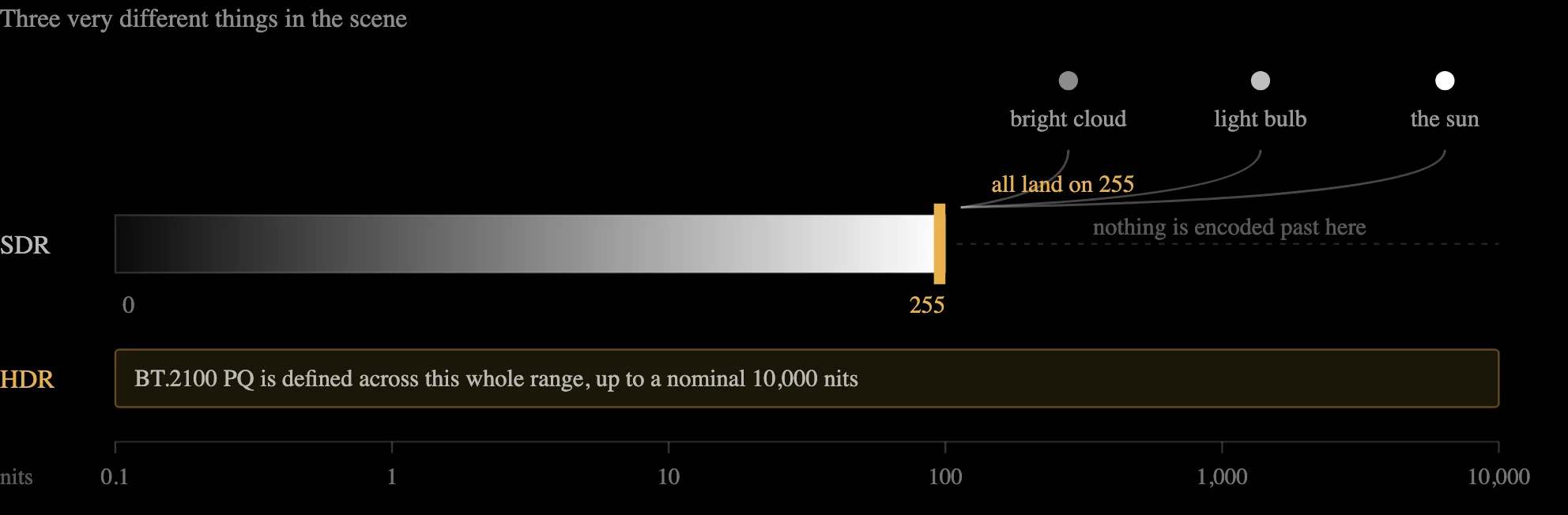
An ordinary video file has 256 brightness steps per color, and everything brighter than a certain point simply gets flattened to white. A cloud, a lamp and the sun all end up as the same value. That is why a sunset bands, and why a bright window is a white rectangle.
Hyperion works on each frame and, in Topaz's words, "automatically redistributes luminance and color information across highlights, midtones, and shadows while preserving fine detail". It then writes the result into a much bigger container, expanding the colour and luminance range along the way.
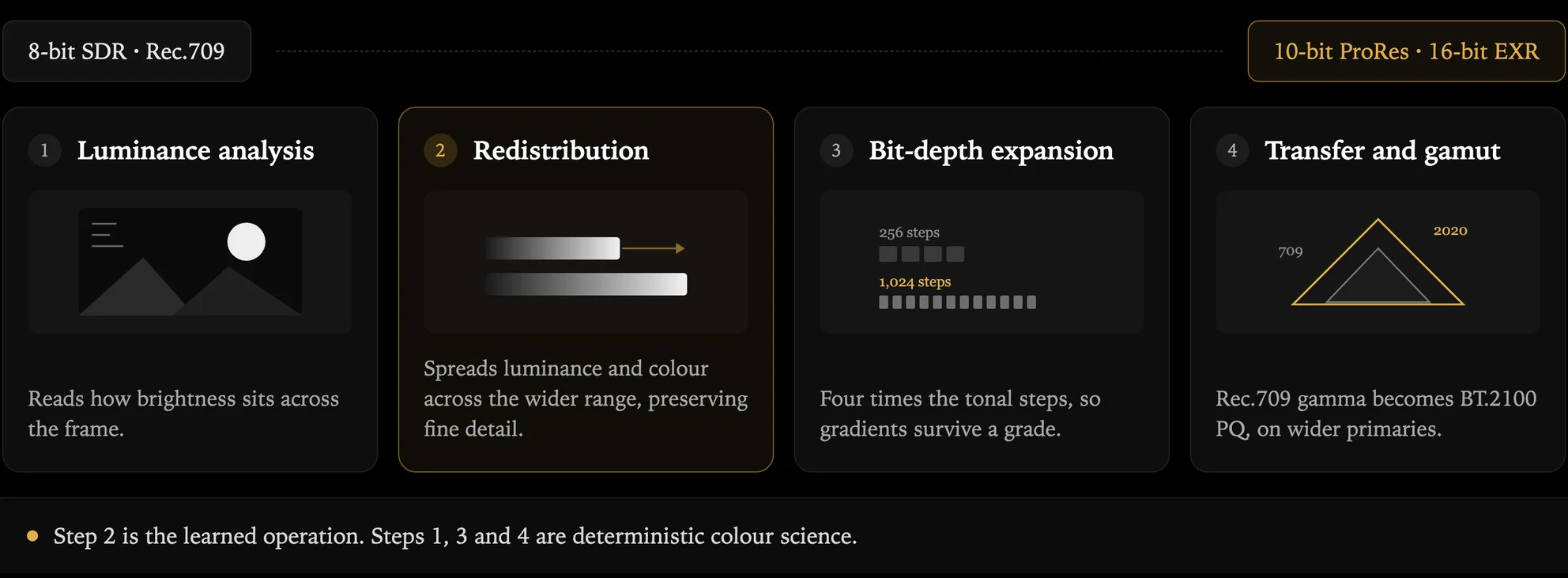
Widening the container and switching the color standard are fixed math. Deciding how the brightness in a given frame should be spread across the range that opens up above it is the part the model does, and it is what separates a real conversion from simply brightening the picture.
Worth being straight about the limit. Values that were clipped when the file was first made are gone, and nothing can read data that was never written. Topaz is direct about this too: their own guidance calls the result "faux HDR", and warns that on video that is "too bright and blown out" there may be "too little range to build upon". So the conversion rewards footage that still holds detail in its highlights, and gets weaker on footage that does not.
What to send it
The conversion amplifies whatever you give it, so a few minutes here saves a wasted render.
| Check | What you want | If it is wrong |
|---|---|---|
| Quality of the copy | The original export, not a re-download | Compression blocks get magnified along with the real detail |
| Exposure | Bright areas that fade rather than go flat white | Expect weaker results in those areas, and lower your expectations |
| Scan type | Progressive, not interlaced | Deinterlace first. Interlaced footage converts badly |
| Order of work | Clean up and upscale before converting | Doing it afterwards means processing far bigger files for a worse result |
Which file to ask for
Three answers cover almost everything. Ask for ProRes if a person is going to edit or grade it. Ask for EXR if it is going to a visual effects artist. Ask for H.265 if someone is just going to watch it.
The full breakdown, including why the file you work in should not be the file you deliver, is on ProRes vs EXR vs H.265.
There is a second SDR to HDR model on the roster, and it accepts and delivers different things. Runway Ruby vs Hyperion 2.5 covers which suits which footage.
When it will not help
- Very dark or very blown-out footage. There is almost nothing left for the model to work from.
- Interlaced footage that has not been deinterlaced first.
- Heavily compressed downloads. Go back to the original file if you can.
- Shots where the lighting swings around a lot, which can shimmer slightly between frames.
Your HDR export will probably look grey and flat when you open it. That is almost always the player, not the file: most browsers, QuickTime and editing timelines cannot display HDR properly. Check it on an HDR screen in a player that supports it before deciding something went wrong.
FAQs
It turns ordinary video into HDR video. Topaz describes it as automatically redistributing luminance and colour across highlights, midtones and shadows while preserving fine detail, then expanding the available colour and luminance range. The result is saved in a format with far more room for brightness and colour, and it is a genuine HDR file rather than a brightened copy of the original.
No. Grading is a creative choice about how footage should look, made by a person. This is a technical change to what the file can hold. A converted file still needs grading, and it grades better than the original because there is more to work with.
Not the part that was clipped. Those values were deleted when the file was first saved, and no model can read data that was never written. What the conversion does is redistribute what survived into a much wider range, which gives the highlights that still hold detail room to separate. Topaz puts the limit plainly: on footage that is too bright and blown out there can be "too little range to build upon".
No. It runs automatically with no sliders to balance. The only real choice is which file format you want out, and that depends on where the footage is going next.
Clean, well-exposed, progressive footage straight from the original export. Higher quality in means better results out, because compression damage gets magnified along with everything else. Run any cleanup or upscaling before the conversion, not after.
Because most AI video models return a standard range file that professional delivery specs will not accept. Converting is what lets generated footage go into a real edit, a real grade, or a real visual effects shot instead of stopping at a preview.