Why replace a character in a music video with AI
A music video is built on timing, and every gesture lands on a beat. Replacing the person on screen, for a new artist version, a featured dancer or a remix visual, used to mean a reshoot. Ask Copilot for the swap and Morphic Recast keeps every move, lip movement and cut where it was.
Music video character swap examples
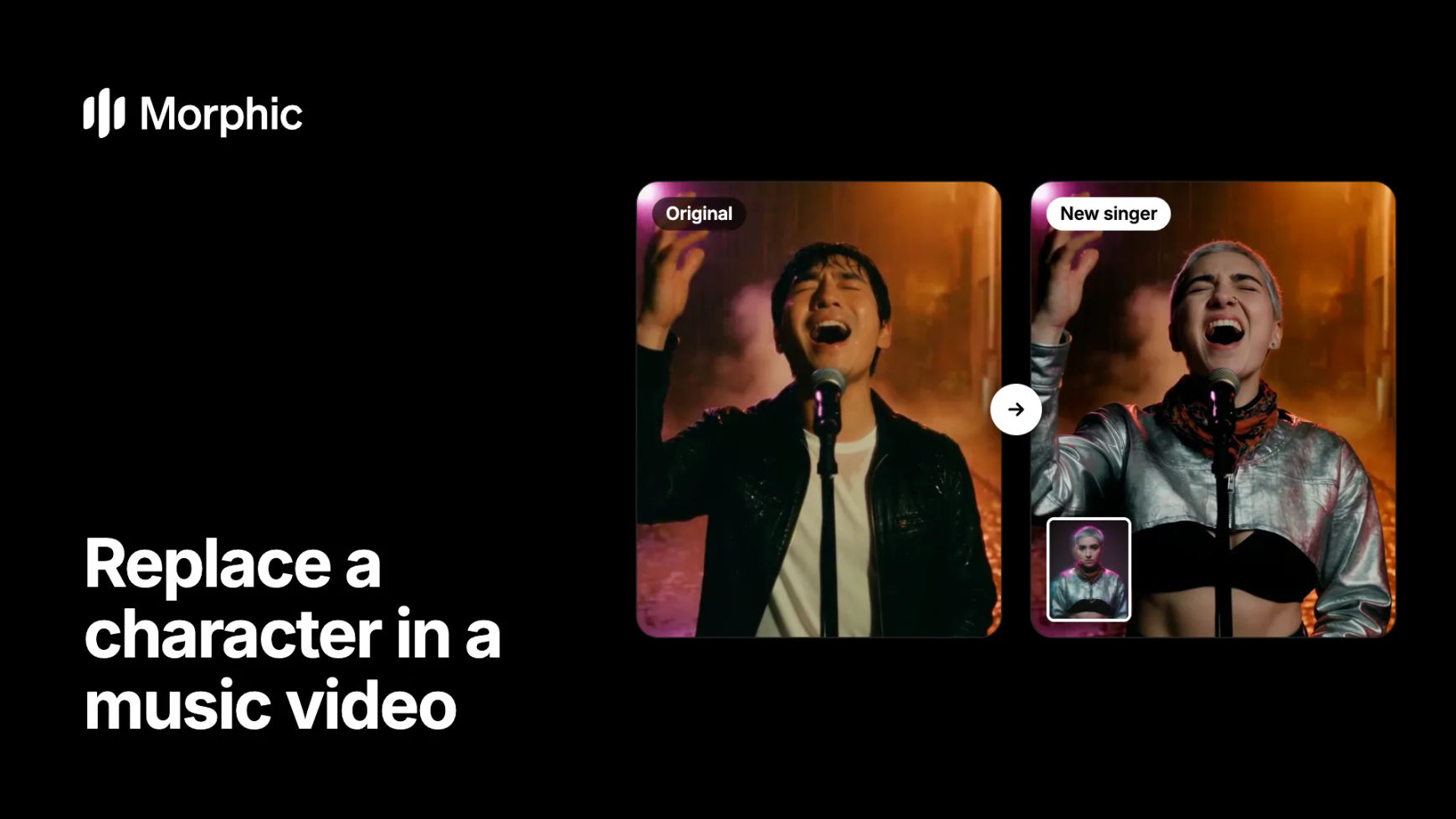
One photo of the new character, one request to Copilot. The performance and the timing stay on the beat.
Original
New singer
The rain, the neon and the push-in stay as shot. The singer becomes the woman in the corner photo, with the same raised hand and the same high note.
How to replace a character in a music video with Copilot
Attach the clip and the new character
Open Copilot and attach the music video shot (up to 30 seconds) and one clear, front-facing photo of the new character. Each attachment gets a name you can use in your request: the clip is Video 1, the photo is Image 1.
Ask for the swap in plain words
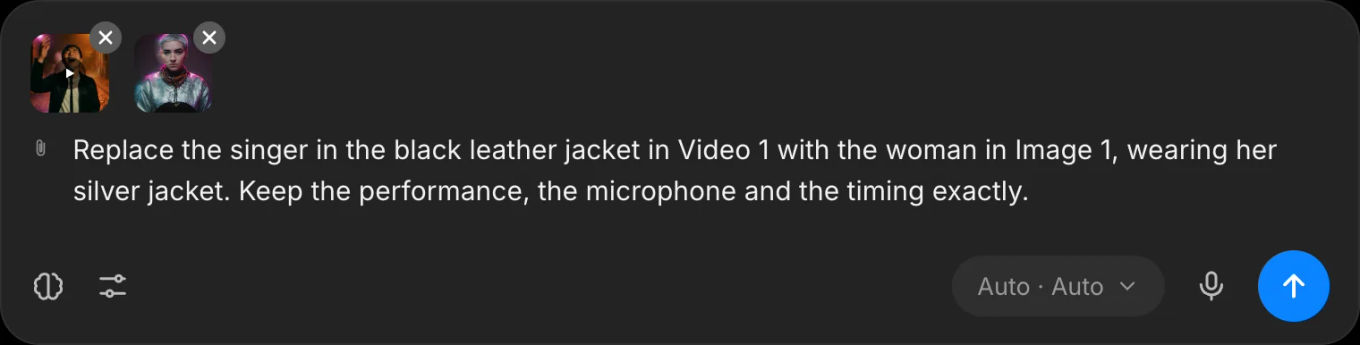
Say who to replace and what to keep, for example "Replace the singer in the leather jacket in Video 1 with the woman in Image 1. Keep the performance and the timing." Copilot runs Morphic Recast for you.
Compare takes and keep the best
Ask for three takes at once and they arrive side by side. Keep the one where the face holds through the fastest moves, then send the next shot with the same photo so the character matches across the video.
Making alternate music video versions at scale? Let's build your custom workflow.
For labels, music video studios and agencies. Tell us about your artists, versions and release dates, and we'll design a custom recast workflow with you that turns one shoot into every version you need.
Tips for swapping a character in a music video
- Pick shots where the face is visible. Performance close-ups and medium shots recast most cleanly. A dancer seen mostly from behind still swaps, but the face carries less.
- Keep the audio separate. The track plays as shot, so swap the people on screen and leave the song untouched. New vocals or a new language are a separate pass.
- Match the energy in the photo. A photo with the right hair, wardrobe and attitude for the video gives the recast the look you want.
- Work shot by shot. Recast each shot up to 30 seconds with the same photo, then assemble the cut on the Compose timeline against the track.
- Use rights you hold. Recast your own footage, and use photos of people who have agreed or characters you generated.
Recast the character or restyle the whole video?
| Goal | Use | What stays |
|---|---|---|
| A new person on screen | Morphic Recast | The performance, camera, cut and track |
| A new look, such as anime or film grain | Video to video | The motion and timing |
| A brand new music video | AI music video generator | Your track and your idea |
| New mouth movement to a vocal | Lip sync | The face and the scene |
Planning the whole video from scratch? Start with how to make an AI music video, then use recasts for alternate versions.
FAQs
Yes. Attach the shot and a photo of the new singer in Copilot, and ask for the swap. Morphic Recast keeps the performance, the lip movements, the camera and the cut, and puts the new person on screen.
Yes. The recast follows the original clip frame for frame, so every gesture and cut lands exactly where it did. The soundtrack plays as shot.
Yes. Name the dancer by what is visible, such as their outfit or position. Only the person you name changes; everyone else stays as filmed.
No. You can also open Morphic Recast directly from the tools library, add the clip and the photo, and write the same request in the prompt. Copilot is the quickest way to ask for several takes at once.
No. Only use photos of people who have given permission, or characters you generate in Morphic. Recasting someone's likeness without consent is not allowed.
Up to 30 seconds per shot. Recast the video shot by shot, then assemble it on the Compose timeline against the track.