Expression row
Five glossy emoji faces in a row running from a small smile to a wide laugh, one shared palette, even spacing on plain white.
Edit prompt
Generate iOS-style emoji art in the Image tool on Morphic, with the rounded shapes, glossy highlights, and saturated colour that look at home in a chat thread. Set the expression, the palette, and the backdrop, then download a smooth icon that stays sharp when a feed shrinks it.
Five glossy emoji faces in a row running from a small smile to a wide laugh, one shared palette, even spacing on plain white.
Edit promptOne rounded yellow emoji face filling the frame, smooth gradient shading, a crisp highlight on the upper curve, soft shadow beneath.
Edit prompt
The same emoji face repeated in four colourways, yellow, mint, coral and lilac, matched lighting and gloss across all four.
Edit prompt
A small tray of glossy object icons including a heart, a star, a coffee cup and a paper plane, arranged loosely on cream.
Edit prompt
Describe the iOS-style emoji you want, in plain words.
Morphic generates a clean, ready-to-publish image on your canvas in seconds.
Tweak the prompt, regenerate variations, then download or share the frame.
Pick a reference image, apply its visual style to your own photo or artwork.
Convert any image to a new aspect ratio. Smart crop or extend the edges to fit.
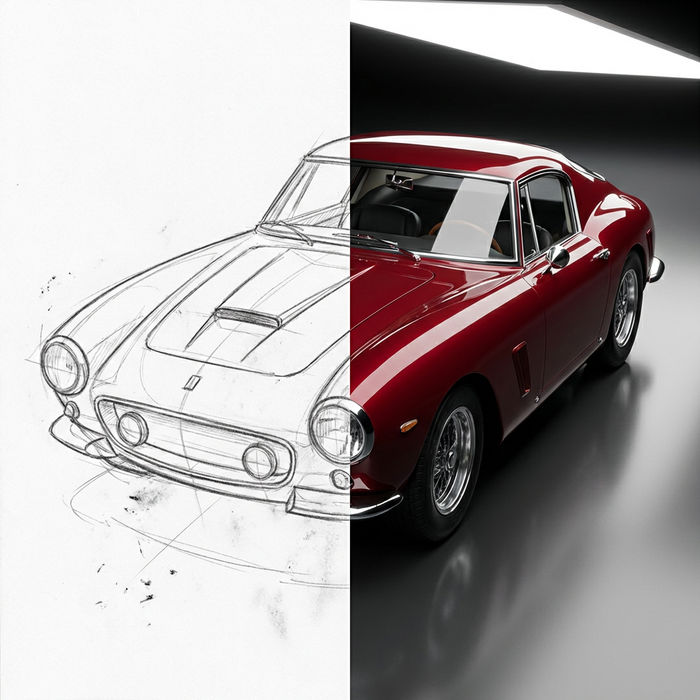
Turn any sketch or drawing into a finished render.
Restyle any video in a completely new visual style. Every frame transforms, all motion stays intact.
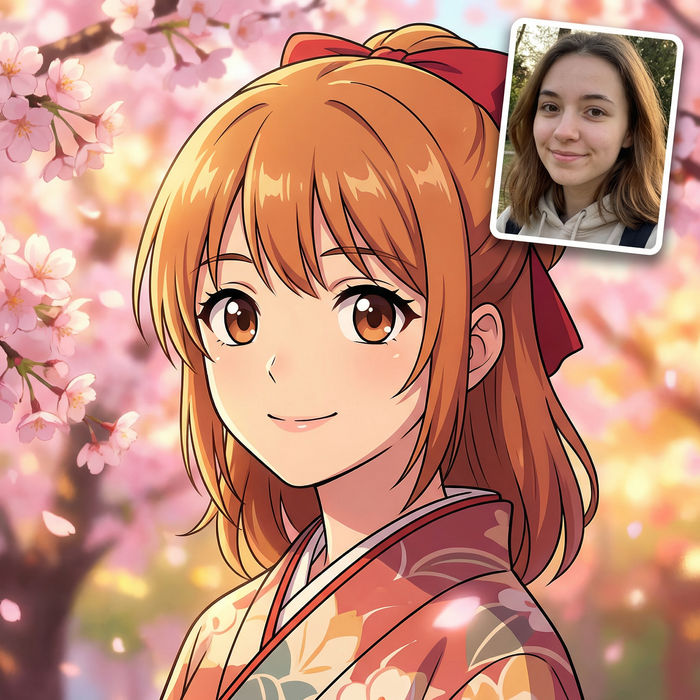
Pick any anime illustration as your style guide. Apply its look to any image.
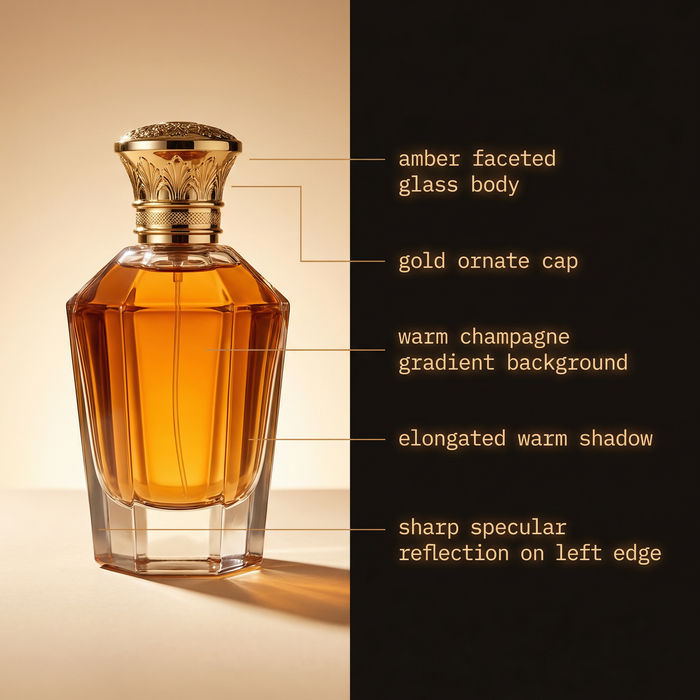
Get a detailed prompt extracted from a reference image, and then a fresh recreation.
Emoji design AI images
Make emoji design AI images in your browser: glossy face sets, custom reactions, outlined sticker emoji. Build a matched pack fast. Start creating.
Emoji faces generator
Generate faces emoji images in Morphic. Describe the expression, colour and style you want, generate options, then refine the prompt and download it.
Goofy emoji generator
Generate goofy emoji images in Morphic. Describe the expression, colour and style you want, generate options, then refine the prompt and download it.
Music festival poster AI Images
Create AI music festival poster images with Morphic. Generate authentic music festival poster artwork, scenes, and visuals for any project in seconds.
Get started for free today, with the option to upgrade or cancel anytime.
Basic
2400 monthly credits
1 user only
All models
Workflows
Standard
3625 monthly credits
1 user only
All models
Workflows
Pro
6350 shared monthly credits
1 user
All models
Workflows
Max
24650 shared monthly credits
1 user
All models
Workflows
Enterprise
For higher limits
Custom
pricing and billing terms

Free
For playing around
$0
forever free