A shape in the fog
A wall of low forest fog with a vast dark shape moving slowly behind it, never fully resolved, the trees bending faintly as it passes.
Edit prompt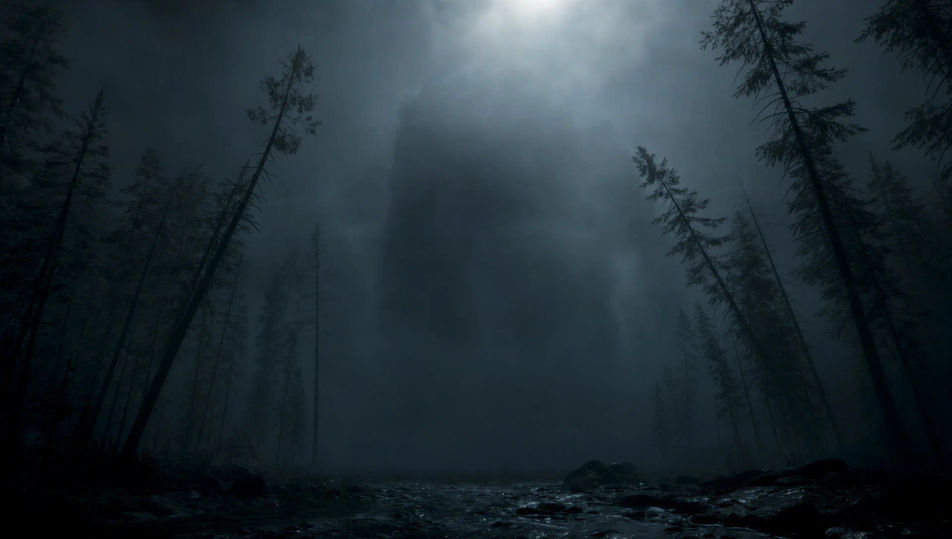
This page covers mature themes for adult audiences making film, games and other creative work.
Direct creatures in your browser with Morphic's monster AI video generator. Generate a shape moving through the fog, a thing surfacing from a black lake, or claw marks raking a ruined wall. Score the dread with Speech and Music, then stitch the shots into a full monster short on the Canvas.
A wall of low forest fog with a vast dark shape moving slowly behind it, never fully resolved, the trees bending faintly as it passes.
Edit promptA still black lake under a low moon, a long ripple cutting the surface toward a small boat, the water otherwise glassy and silent.
Edit prompt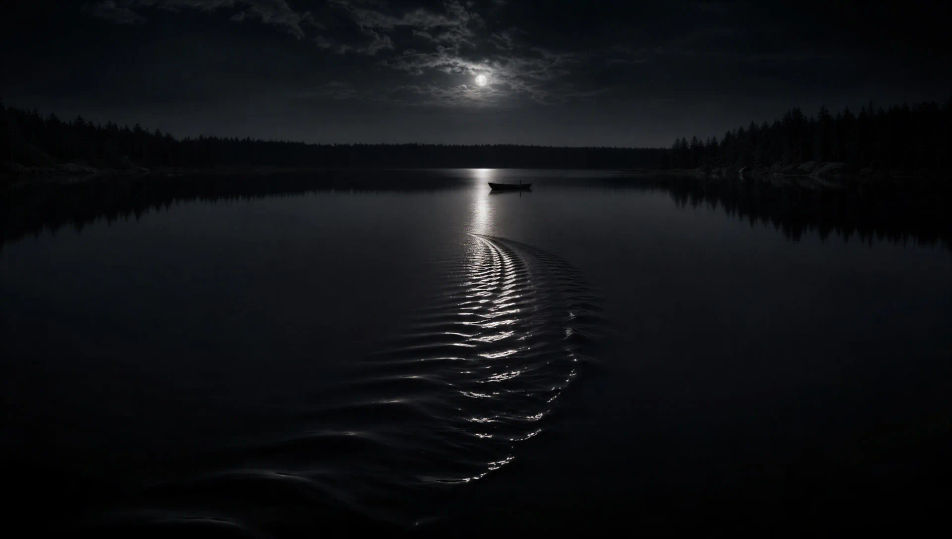
A jagged cave entrance in a rock face, torchlight reaching a few metres in, deep scratches around the opening, total black beyond.
Edit prompt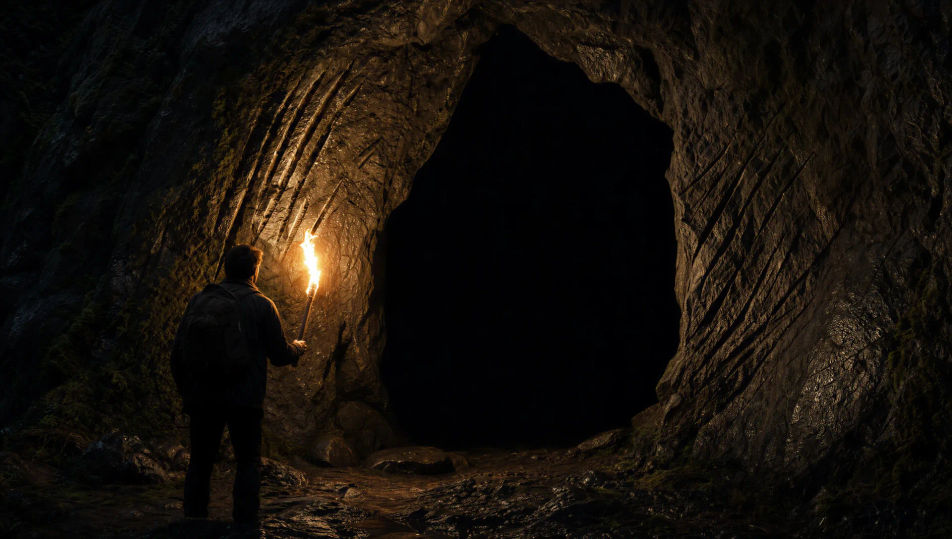
A wrecked interior in grey daylight, four deep parallel gouges raking a plaster wall, furniture overturned, the room otherwise empty.
Edit prompt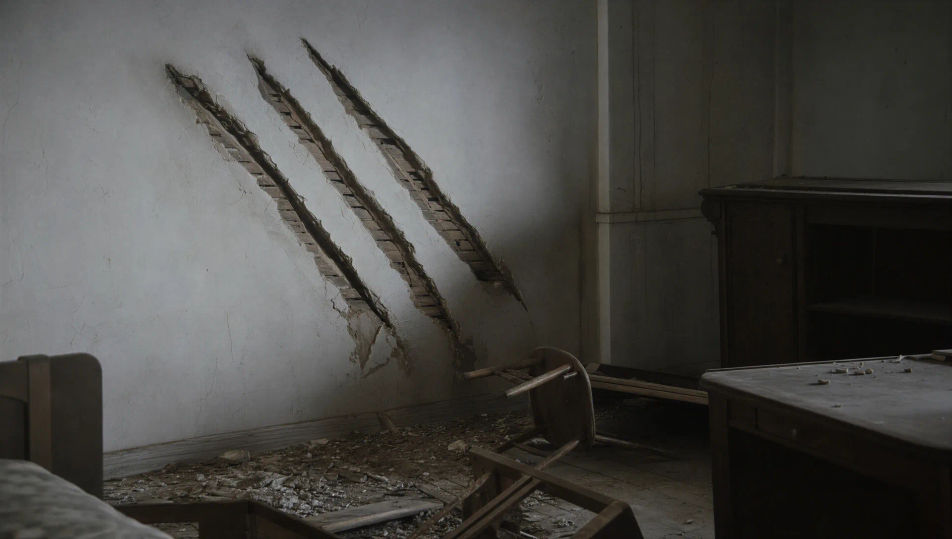
Write the Monster scene you want, in plain words.
Morphic generates a cinematic, frame-ready clip on your canvas in seconds.
Tweak the prompt, regenerate variations, then download or share the shot.
Cinematic time-freeze short film for any scene
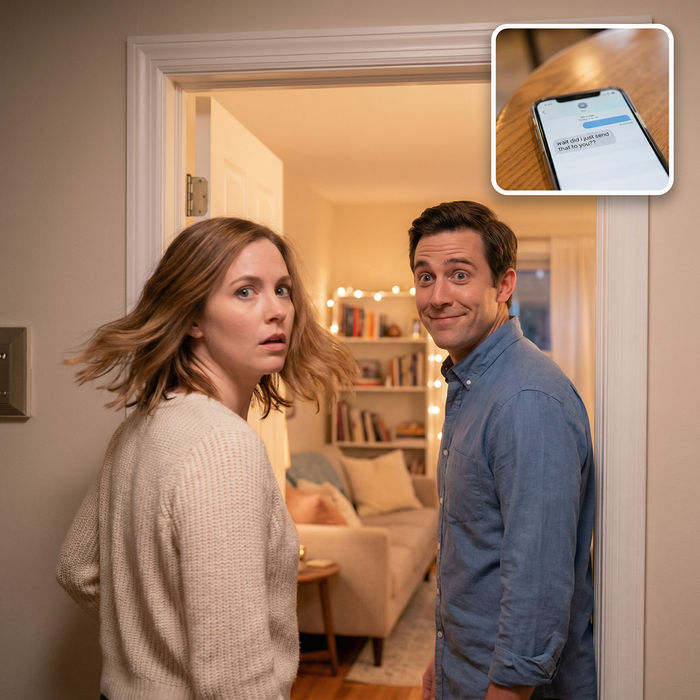
Dramatize any text conversation into a cinematic multi-shot video.
One image to a 9-scene cinematic video.
Drop in a photo of yourself. Get a 12-second cinematic movie with animation and a matched soundtrack.

Share a scene description with character references. Get a full storyboard with shot angles and mood.
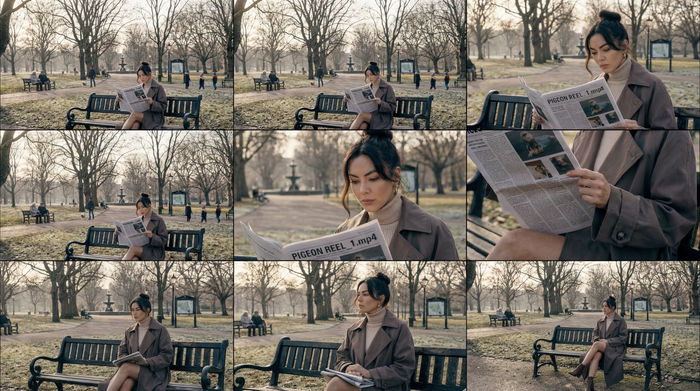
Feed in a single image. Get 9 cinematic beats laid out as a 3x3 storyboard grid.
Horror AI videos
Generate horror videos on Morphic. Haunted houses, fog-bound forests, flickering hallways, and slow-burn dread scenes from plain-language prompts.
Kaiju AI Videos
Generate kaiju videos with Morphic. City-scale apex creatures, suitmation slow-mo destruction, JSDF reaction shots, and IP-safe original creature design.
Bigfoot AI Videos
Create powerful AI Bigfoot videos with our Bigfoot video generator. Find unique, cinematic Bigfoot scenes for any project in seconds.
Fantasy AI videos
Generate fantasy videos on Morphic. Castles, dragons, enchanted forests, and epic-battle scenes from plain-language prompts, no software needed.
Get started for free today, with the option to upgrade or cancel anytime.
Basic
2400 monthly credits
1 user only
All models
Workflows
Standard
3625 monthly credits
1 user only
All models
Workflows
Pro
6350 shared monthly credits
1 user
All models
Workflows
Max
24650 shared monthly credits
1 user
All models
Workflows
Enterprise
For higher limits
Custom
pricing and billing terms

Free
For playing around
$0
forever free
Everything on this page is fictional depiction for film, games and creative work. It does not depict real events, and does not place real, identifiable people in them.
Results vary by model. Some models apply stricter content policies than others, so a shot one model declines may generate on another.