A shape between the gum trees
A stand of tall pale gum trees at dusk, a hulking dark hairy shape barely resolved between two far trunks, cicada-loud bush around it, the handheld frame drifting and refocusing.
Edit prompt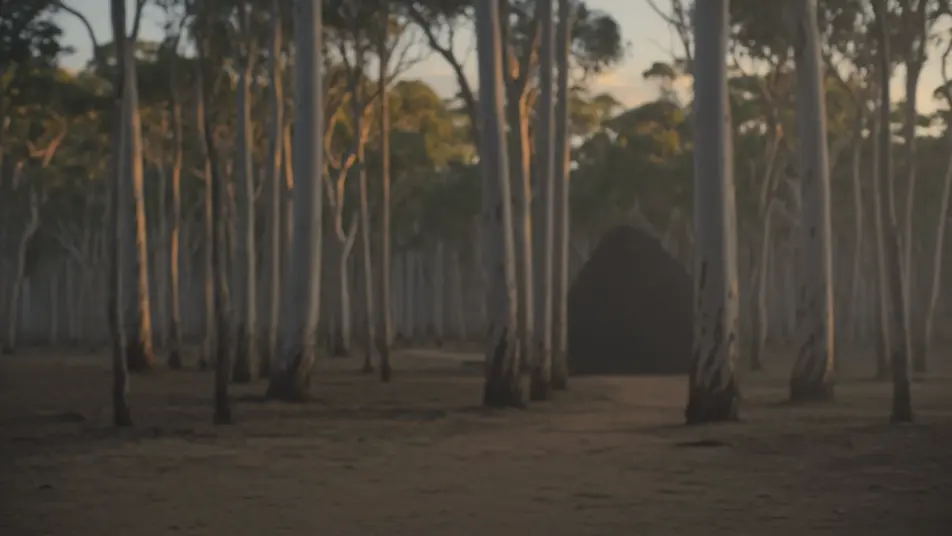
Direct cryptid footage in your browser with Morphic's Yowie AI video generator. Generate a tall hairy shape between the gum trees, a trail-cam frame at a waterhole, or a ridge silhouette at first light. Score the tension with Speech and Music, then stitch a full Yowie short on the Canvas.
A stand of tall pale gum trees at dusk, a hulking dark hairy shape barely resolved between two far trunks, cicada-loud bush around it, the handheld frame drifting and refocusing.
Edit promptA fixed low trail-camera view of a muddy bush waterhole in fading light, timestamp implied, a tall broad shape crossing the far edge of the frame, eyes flaring in the infrared.
Edit prompt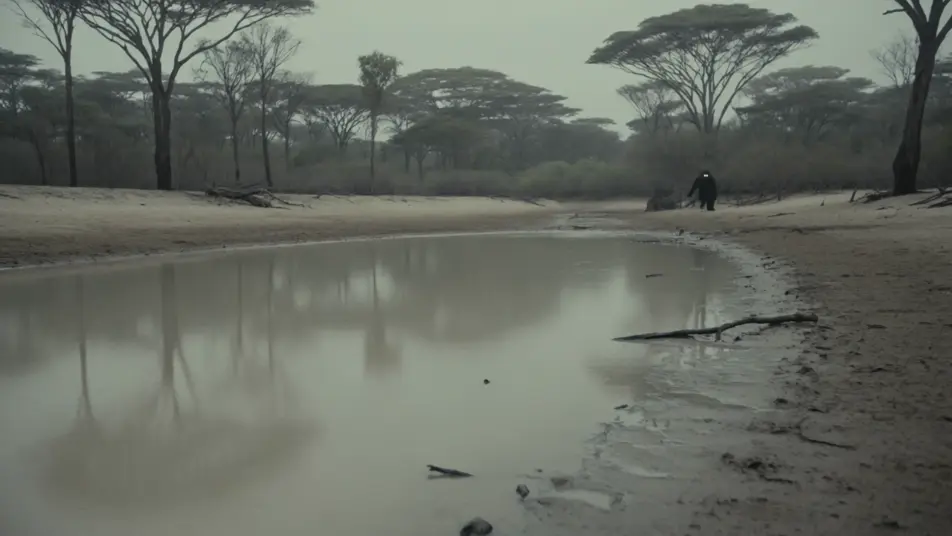
A rocky bush ridgeline against a pale dawn sky, one tall upright hairy shape standing motionless on the crest, the gullies below still in shadow, the rest of the ridge empty.
Edit prompt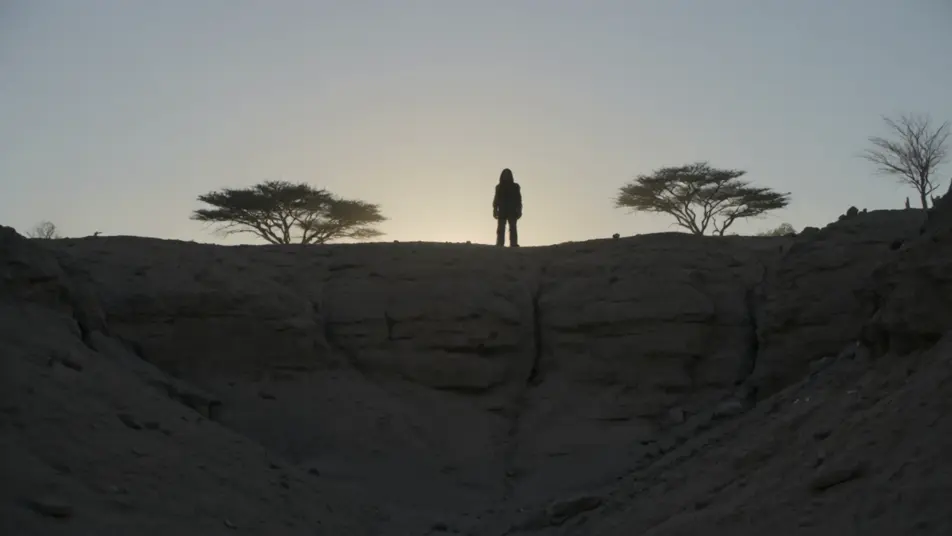
A fresh oversized footprint pressed deep into red outback dirt beside a dry creek, a hand entering frame for scale, dry leaves and bark scattered around the track.
Edit prompt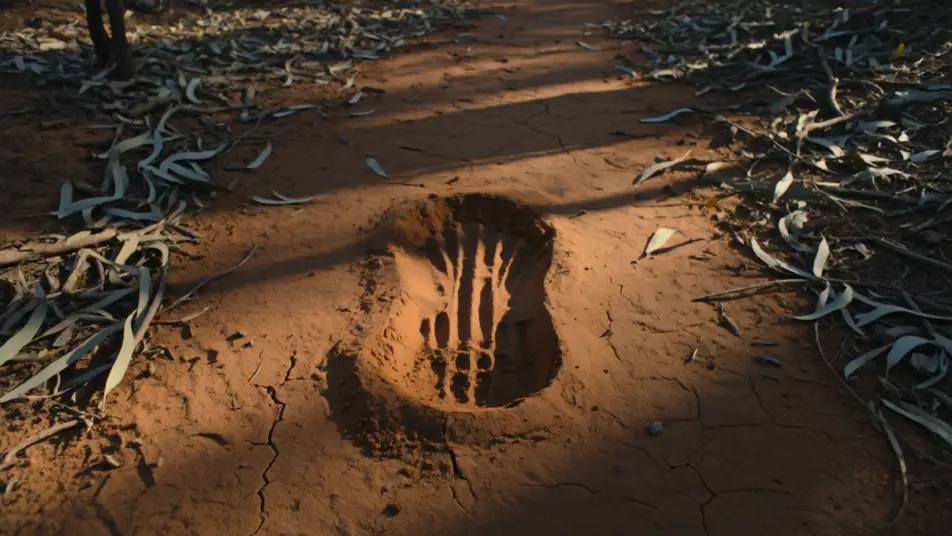
Write the Yowie scene you want, in plain words.
Morphic generates a cinematic, frame-ready clip on your canvas in seconds.
Tweak the prompt, regenerate variations, then download or share the shot.
Cinematic time-freeze short film for any scene

Dramatize any text conversation into a cinematic multi-shot video.
One image to a 9-scene cinematic video.
Drop in a photo of yourself. Get a 12-second cinematic movie with animation and a matched soundtrack.

Share a scene description with character references. Get a full storyboard with shot angles and mood.

Feed in a single image. Get 9 cinematic beats laid out as a 3x3 storyboard grid.
Bigfoot AI Videos
Create powerful AI Bigfoot videos with our Bigfoot video generator. Find unique, cinematic Bigfoot scenes for any project in seconds.
Chupacabra AI Videos
Create powerful AI Chupacabra videos with our Chupacabra video generator. Find unique, cinematic Chupacabra scenes for any project in seconds.
Mothman AI Videos
Create powerful AI Mothman videos with our Mothman video generator. Find unique, cinematic Mothman scenes for any project in seconds.
Monster AI videos
Generate monster videos on Morphic. Original creatures, fog-bound beasts, lake monsters, and lurking-threat scenes from plain-language prompts.
Get started for free today, with the option to upgrade or cancel anytime.
Basic
2400 monthly credits
1 user only
All models
Workflows
Standard
3625 monthly credits
1 user only
All models
Workflows
Pro
6350 shared monthly credits
1 user
All models
Workflows
Max
24650 shared monthly credits
1 user
All models
Workflows
Enterprise
For higher limits
Custom
pricing and billing terms

Free
For playing around
$0
forever free