> For the complete documentation index, see [llms.txt](https://morphic.com/docs/llms.txt). Markdown versions of documentation pages are available by appending `.md` to page URLs; this page is available as [Markdown](https://morphic.com/docs/br/getting-started/assets/upload-assets.md).

# Enviar assets

As quatro maneiras de trazer seus próprios arquivos para o Morphic e para onde eles vão depois disso.

O Morphic permite que você envie seus próprios ativos para usar em seus projetos. Seja trabalhando no Canvas ou no Copilot, você pode trazer arquivos usando um atalho de teclado, o painel de Assets, arrastar e soltar ou o menu do botão direito. Tudo o que você enviar aparece na sua biblioteca em [studio.morphic.com/library](https://studio.morphic.com/library).

### Veja como você pode enviar ativos no Morphic:

A maneira mais rápida de enviar ativos em qualquer lugar no Morphic é com um atalho de teclado. Pressione `Cmd + O` (Mac) ou `Ctrl + O` (Windows) tanto no Canvas quanto no Copilot para abrir o seletor de arquivos e, em seguida, selecione os arquivos que deseja enviar.

### No Canvas

Você tem mais três maneiras de enviar ativos ao trabalhar no Canvas:

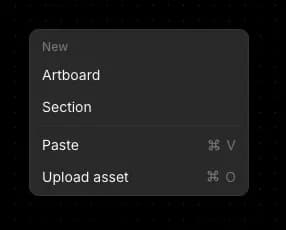
* Menu de contexto: clique com o botão direito em qualquer área em branco do Canvas e selecione 'Enviar ativos.'

<div align="left"><figure><img src="https://1968187911-files.gitbook.io/~/files/v0/b/gitbook-x-prod.appspot.com/o/spaces%2FoPhHCbNZdzW70rakoLhf%2Fuploads%2Fklb7yXIZRWarxYBhBJoe%2FCleanShot%202026-05-02%20at%2017.19.19.png?alt=media&amp;token=b0dc4ddf-bd9b-4745-a876-db8359d1dcae" alt=""><figcaption></figcaption></figure></div>

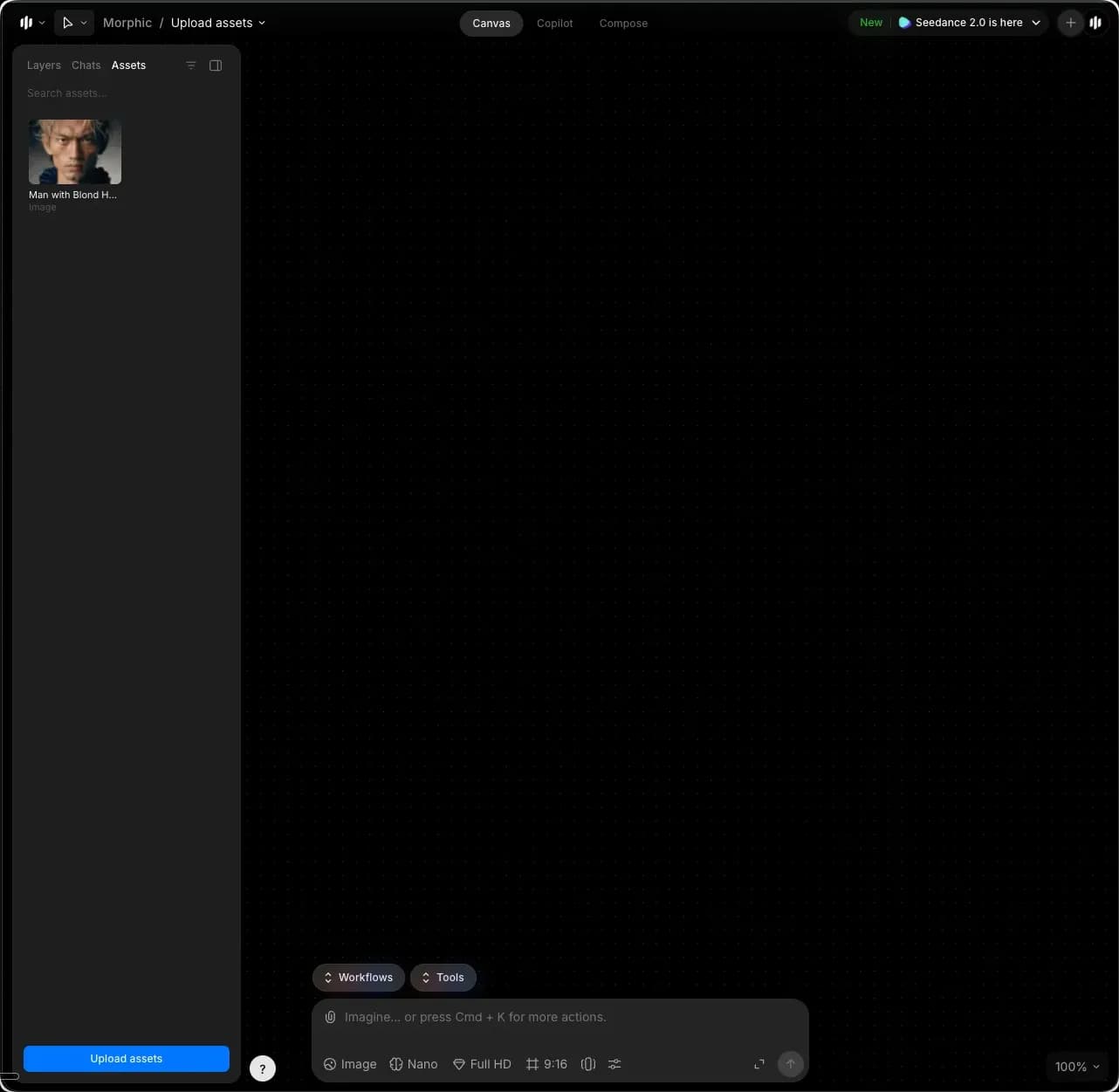
* Painel de Assets: clique na aba Assets na barra lateral esquerda e clique em 'Enviar ativos' na parte inferior do painel.

<figure><img src="https://1968187911-files.gitbook.io/~/files/v0/b/gitbook-x-prod.appspot.com/o/spaces%2FoPhHCbNZdzW70rakoLhf%2Fuploads%2FzjHLYeb2juHDBw3kMXMk%2FCleanShot%202026-05-02%20at%2017.20.19.png?alt=media&amp;token=c7260b36-8af6-4061-b011-140d2f0e7f77" alt=""><figcaption></figcaption></figure>

* Arrastar e soltar: abra a pasta no seu computador que contém seus arquivos, selecione um ou mais e arraste-os para o Canvas.

Seus ativos enviados aparecerão no Canvas e na aba Assets na barra lateral esquerda.

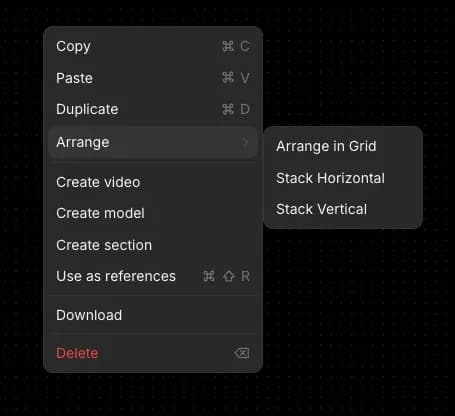
Dica: para organizar os ativos enviados de forma organizada no Canvas, selecione todos os ativos, clique com o botão direito e passe o mouse sobre 'Organizar'. Você pode escolher entre:

* Organizar em grade
* Empilhar na horizontal
* Empilhar na vertical

<div align="left"><figure><img src="https://1968187911-files.gitbook.io/~/files/v0/b/gitbook-x-prod.appspot.com/o/spaces%2FoPhHCbNZdzW70rakoLhf%2Fuploads%2FmLK0jYOr4yUQIhk711Om%2FCleanShot%202026-05-02%20at%2017.22.51.png?alt=media&amp;token=d756ef7a-54ed-43d6-bbf8-7e00d1df04bd" alt=""><figcaption></figcaption></figure></div>

### No Copilot

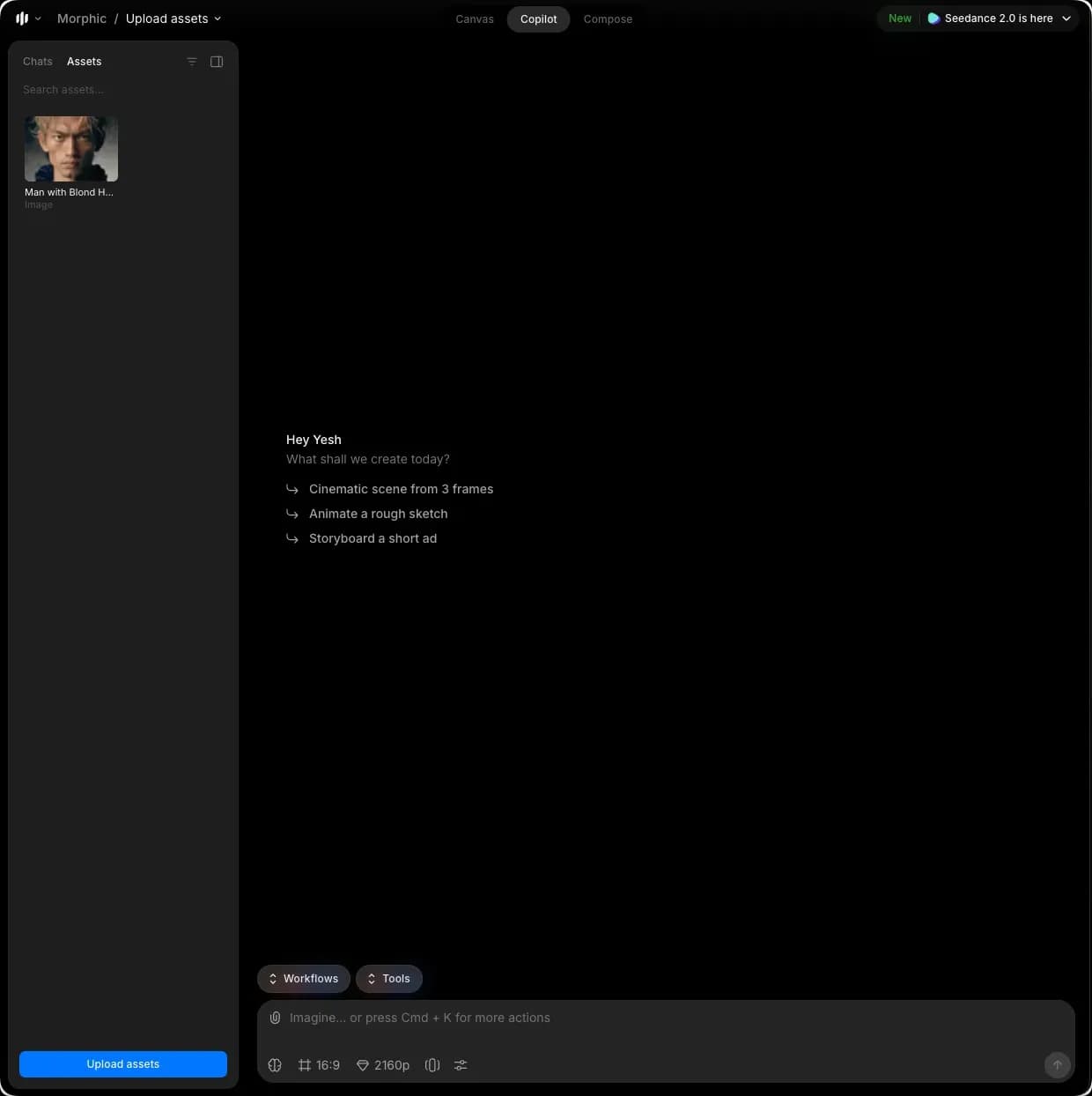
O Copilot tem uma maneira adicional de enviar ativos além do atalho de teclado:

* Painel de Assets: clique na aba Assets na barra lateral esquerda e clique em 'Enviar ativos' na parte inferior do painel.

<figure><img src="https://1968187911-files.gitbook.io/~/files/v0/b/gitbook-x-prod.appspot.com/o/spaces%2FoPhHCbNZdzW70rakoLhf%2Fuploads%2FK4VjTRcvLTWKQwH6kIpv%2FCleanShot%202026-05-02%20at%2017.23.35.png?alt=media&amp;token=e12eea6a-24db-4bed-83b2-7a9305b5ab4e" alt=""><figcaption></figcaption></figure>

Seus ativos enviados aparecerão na aba Assets na barra lateral esquerda.

***

Se você tiver algum problema ou alguma dúvida, entre em contato. Teremos prazer em ajudar. Escreva para nós em [**support@morphic.com**](mailto:support@morphic.com)**.**


---

# Agent Instructions
This documentation is published with GitBook. GitBook is the documentation platform designed so that both humans and AI agents can read, navigate, and reason over technical content effectively. Learn more at gitbook.com.

## Querying This Documentation
If you need additional information that is not directly available in this page, you can query the documentation dynamically by asking a question.

Perform an HTTP GET request on the current page URL with the `ask` query parameter, and the optional `goal` query parameter:

```
GET https://morphic.com/docs/br/getting-started/assets/upload-assets.md?ask=<question>&goal=<endgoal>
```

`ask` is the immediate question: it should be specific, self-contained, and written in natural language.
`goal` is optional and describes the broader end goal you are ultimately trying to accomplish on behalf of the user. GitBook uses it to tailor the answer towards what is most useful for that goal.

The response will contain a direct answer to the question and relevant excerpts and sources from the documentation.

Use this mechanism when the answer is not explicitly present in the current page, you need clarification or additional context, or you want to retrieve related documentation sections.