Add your media
Get clips, sound, graphics and newly generated media onto the timeline.
The panel on the left is the media browser. Its tabs are where everything on your timeline comes from.
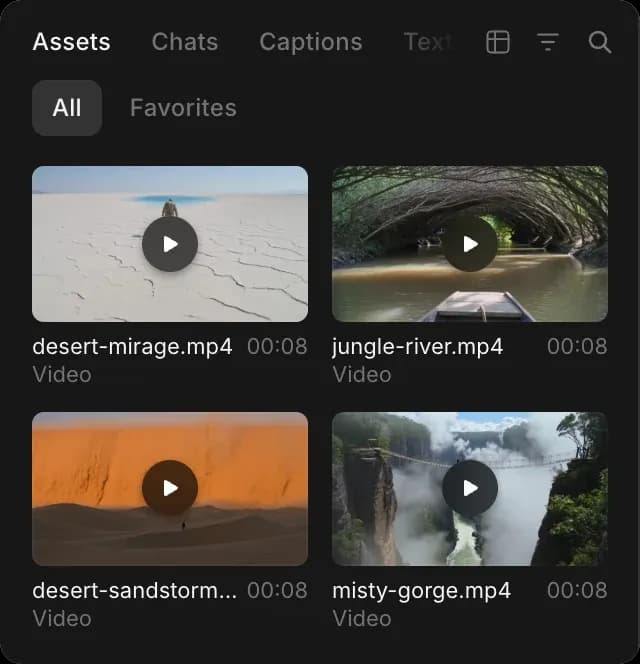
| Tab | What is in it |
|---|---|
| Assets | Your project's library, including everything generated in this file |
| Chats | The file's chats, so you can pull a result straight out of one |
| Captions | Subtitles made from the speech on your timeline |
| Text | Title styles. See Text and captions. |
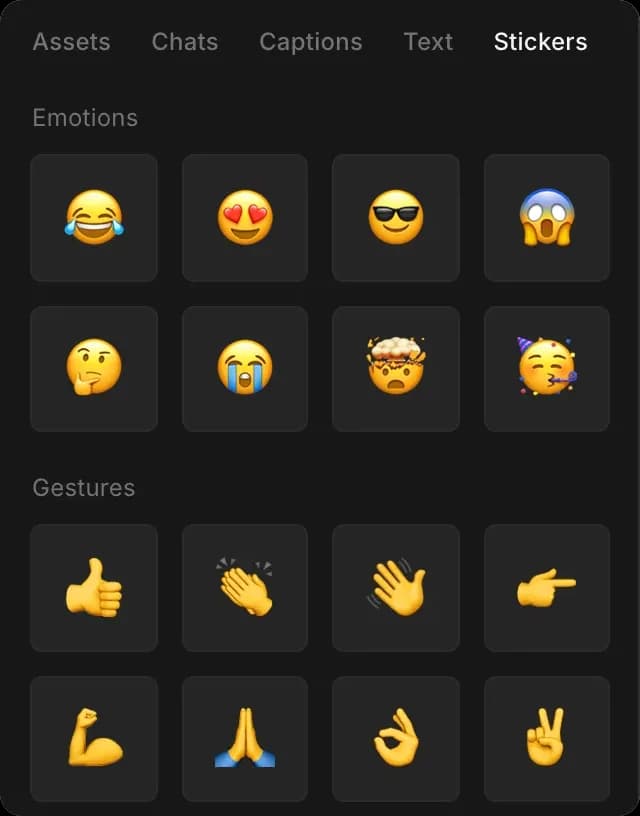
| Stickers | Emoji graphics, grouped into emotions, gestures and symbols |
Add a clip
- Open the 'Assets' tab, or 'Chats' for something made in a chat here
- Click 'Upload assets' if the file is on your computer
- Drag it onto the timeline
Drop it where you want it. Left is earlier, right is later.
Use 'Search assets...' to find something by name, 'Favorites' to narrow to the ones you starred, and 'Filters' and 'Layout' to sort through a large library.
A video's sound plays from an audio lane, so a video and its sound are two joined clips. Dragging a video onto the timeline places both, and so does asking Copilot to place it.
Generate new media
The chat in the right panel is a full Copilot chat, so you do not have to go elsewhere to get a shot you are missing.
- Click 'Chat' at the top right, next to 'Export'
- Describe the clip, image, music or voiceover you want
- Ask for it on the timeline once it is made
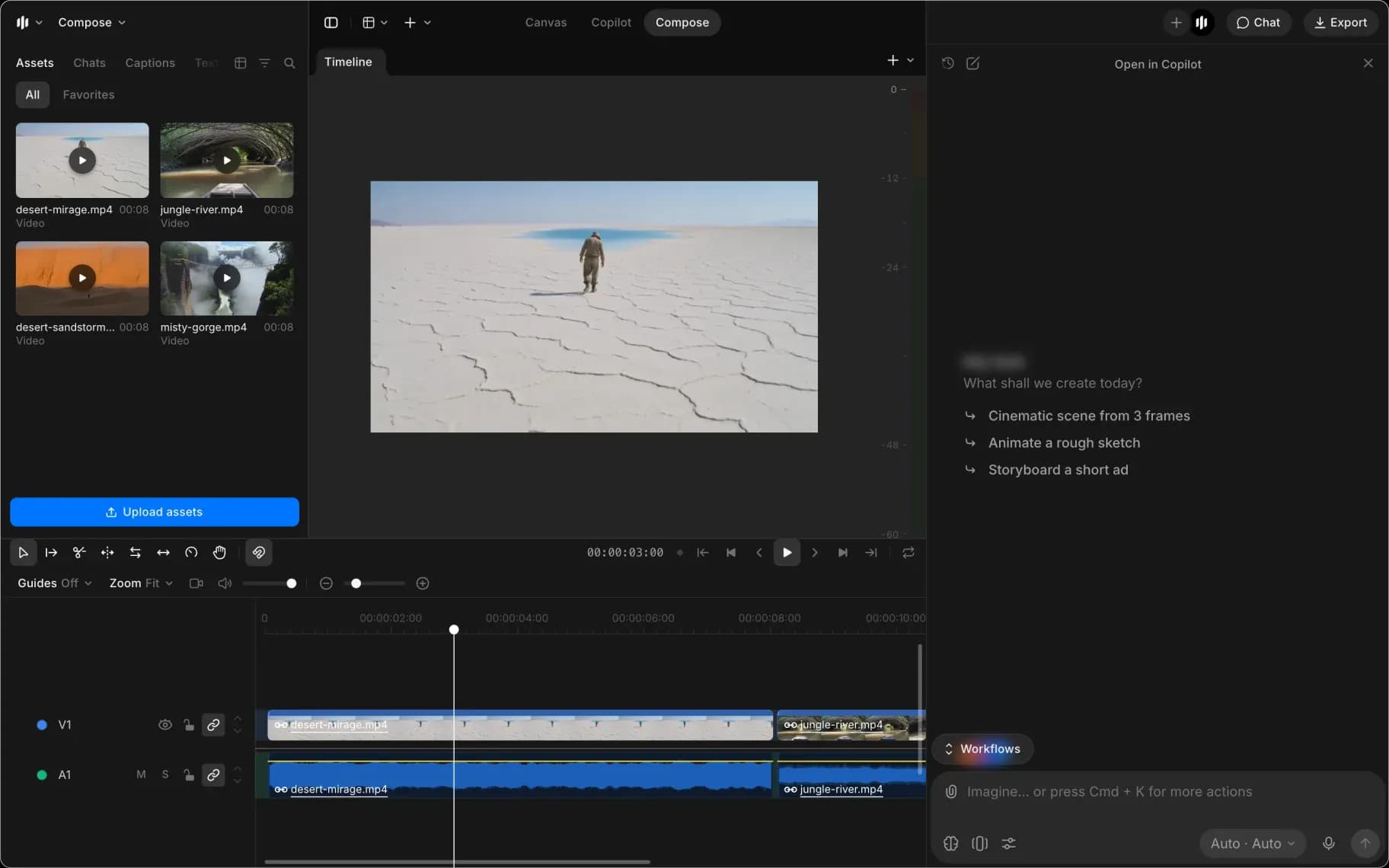
Generating is charged at that model's usual rate. See Edit with Copilot.
Stickers
Open the 'Stickers' tab and drag one onto the timeline. It behaves like any other clip: drag its ends to change how long it shows, and use Motion and framing to place and size it.
Using Copilot
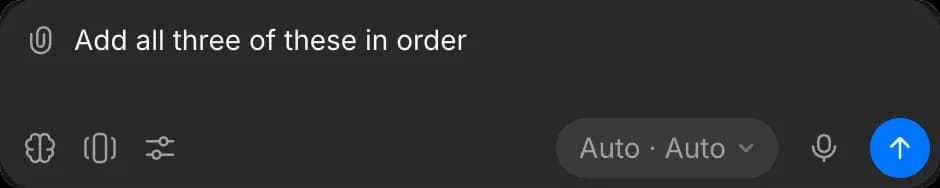
Attach a file in the chat and ask for it on the timeline, and the picture and its sound go on together, joined. Try 'put this on the end', 'add all three of these in order', or 'replace the second clip with this take'.
See Edit with Copilot.
Tips
- Attach a file in the chat rather than uploading it twice. Copilot can place whatever the chat is holding.
- Footage already on the timeline can be transcribed, upscaled or enhanced without re-uploading it. Ask in the chat.
- Sound files always land on an audio lane, wherever you drop them.
That's how you get media into Compose on Morphic. Gather more than you think you need, then cut it down.
If you have any trouble or have any questions, feel free to reach out. We're happy to help. Write to us at support@morphic.com.