> For the complete documentation index, see [llms.txt](https://morphic.com/docs/llms.txt). Markdown versions of documentation pages are available by appending `.md` to page URLs; this page is available as [Markdown](https://morphic.com/docs/id/video/frames-to-video.md).

# Frame ke Video

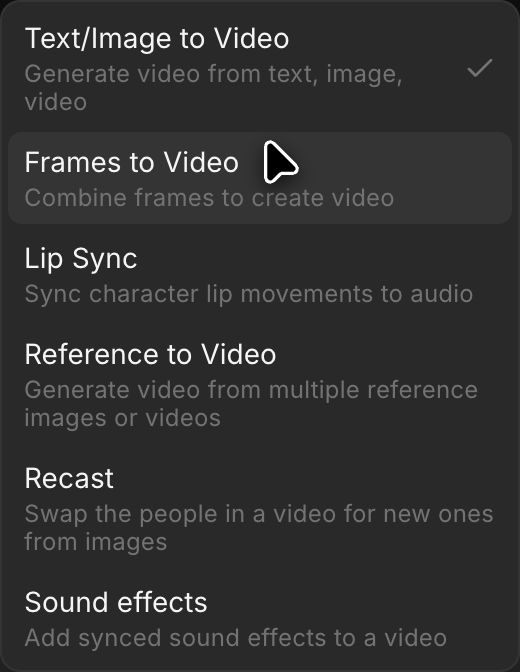
Berikut tutorial singkat tentang cara menggunakan Frames to Video di Morphic:

{% embed url="<https://youtu.be/rWCsRwSeUI0>" %}

1. Unggah atau buat gambar Anda di Canvas
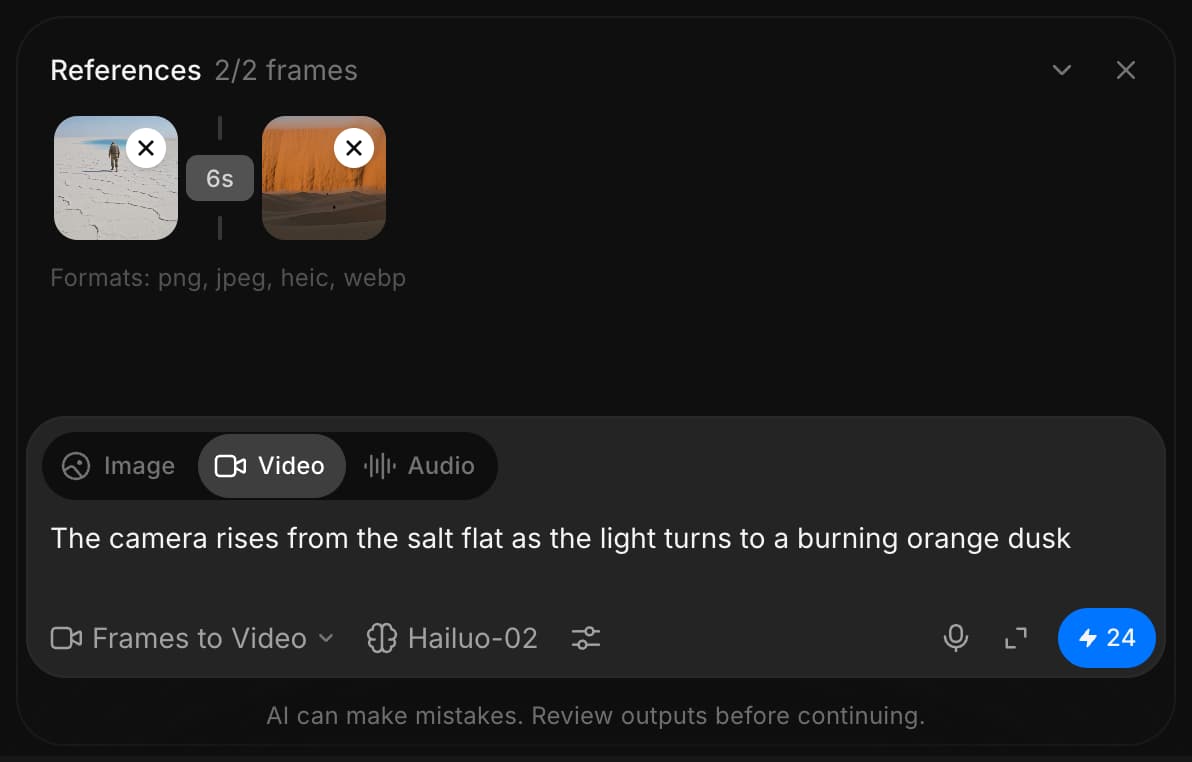
2. Ubah mode dari ‘Image’ ke ‘Video’ di bilah prompt di bagian bawah
3. Pilih gambar dari Canvas, impor dari aset
4. Pilih 2-5 frame atau gambar untuk disertakan
5. Tulis prompt yang menjelaskan gerakan atau transformasi di antara frame
6. (Opsional) Gunakan Kontrol Waktu untuk menyesuaikan timing di antara frame
7. Klik ‘Generate’

Begitulah cara Anda menggunakan fitur Frames to Video di Morphic. Ini adalah cara cepat untuk mengubah frame statis menjadi video yang halus dan mengalir dengan AI.

***

Jika Anda mengalami kendala atau memiliki pertanyaan, jangan ragu untuk menghubungi kami. Kami dengan senang hati akan membantu. Tulis kepada kami di [**support@morphic.com**](mailto:support@morphic.com)**.**


---

# Agent Instructions
This documentation is published with GitBook. GitBook is the documentation platform designed so that both humans and AI agents can read, navigate, and reason over technical content effectively. Learn more at gitbook.com.

## Querying This Documentation
If you need additional information that is not directly available in this page, you can query the documentation dynamically by asking a question.

Perform an HTTP GET request on the current page URL with the `ask` query parameter, and the optional `goal` query parameter:

```
GET https://morphic.com/docs/id/video/frames-to-video.md?ask=<question>&goal=<endgoal>
```

`ask` is the immediate question: it should be specific, self-contained, and written in natural language.
`goal` is optional and describes the broader end goal you are ultimately trying to accomplish on behalf of the user. GitBook uses it to tailor the answer towards what is most useful for that goal.

The response will contain a direct answer to the question and relevant excerpts and sources from the documentation.

Use this mechanism when the answer is not explicitly present in the current page, you need clarification or additional context, or you want to retrieve related documentation sections.