Mode fokus video
Mode fokus video di Morphic memungkinkan Anda melakukan edit berbasis prompt pada video apa pun menggunakan AI. Jelaskan perubahan yang Anda inginkan, dan Morphic menerapkannya secara konsisten di semua frame.
Berikut panduan singkat tentang cara menggunakan mode fokus Video di Morphic:
- Unggah atau buat video di Canvas
- Pilih video yang ingin Anda ubah
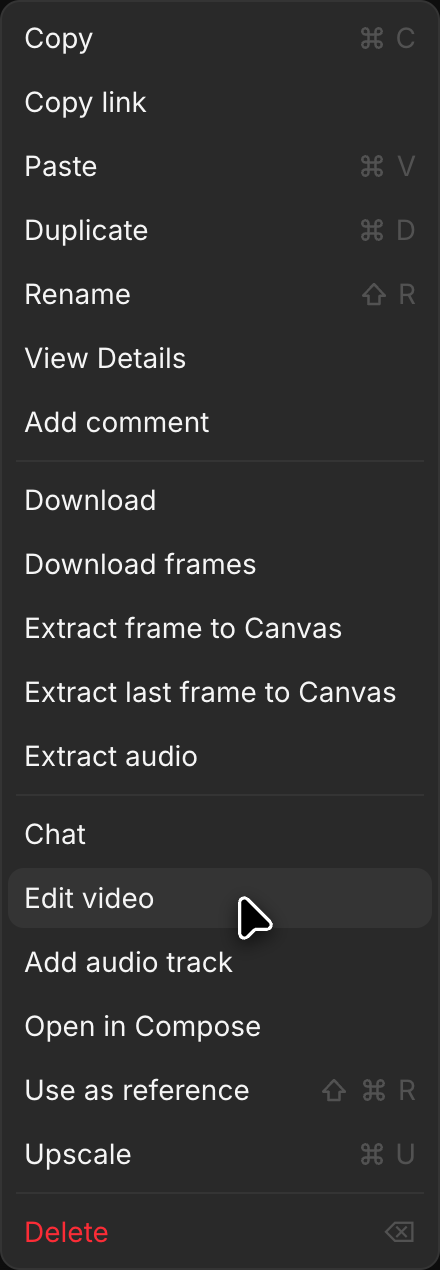
- Klik 'Edit video', di bawah 'Detail' > 'Alat' di bilah sisi kanan atau di menu klik kanan video. Video akan masuk ke 'Referensi' di atas bilah prompt
- Klik pemilih mode di kiri bawah bilah prompt dan pilih 'Teks/Gambar ke Video'
- Klik pemilih model, yang mungkin sedang memilih model lain, lalu pilih model yang dapat mengedit video. Model yang punya beberapa versi membuka daftar singkat saat Anda mengarahkan penunjuk ke model itu. Arahkan penunjuk ke 'Morphic' dan pilih 'Morphic Edit' untuk edit cepat langsung pada klip yang mempertahankan durasinya. Arahkan penunjuk ke 'Kling' dan pilih 'Kling 4.0' untuk mengedit klip hingga 30 detik dengan tetap mempertahankan potongan serta gerakannya
- Tulis prompt yang menjelaskan perubahan yang ingin Anda buat (misalnya, "ubah warna kuda menjadi putih" atau "ubah latar belakang menjadi suasana musim dingin bersalju")
- Klik tombol biru di bilah prompt
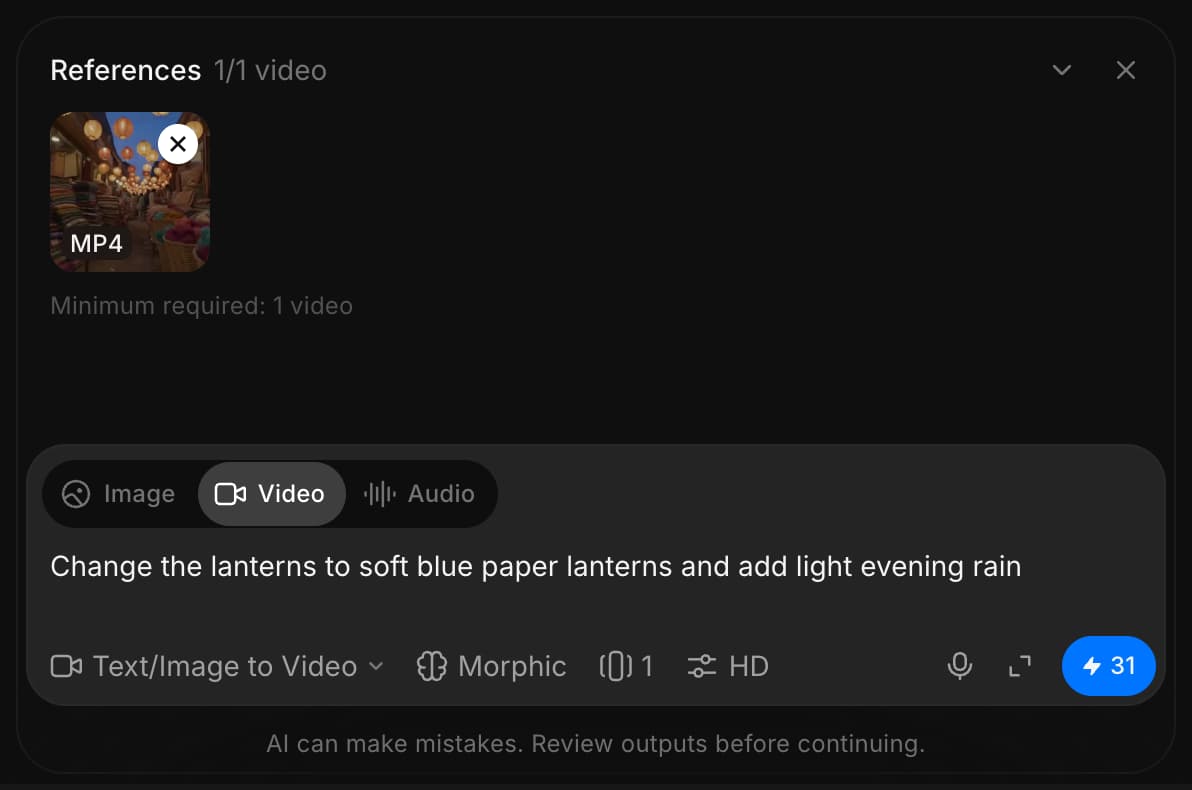
Morphic mengubah video berdasarkan prompt Anda dan menerapkan perubahan secara konsisten di seluruh frame.
Itulah cara Anda menggunakan mode fokus Video di Morphic. Ini adalah cara cepat untuk melakukan pengeditan bertenaga AI seperti mengganti karakter, mengubah lingkungan, menyesuaikan pencahayaan, atau menghapus elemen yang tidak diinginkan.
Jika Anda mengalami kendala atau memiliki pertanyaan, jangan ragu untuk menghubungi kami. Kami dengan senang hati akan membantu. Tulis kepada kami di support@morphic.com.
Efek suara untuk video
Cara menambahkan efek suara dan foley yang selaras ke video yang sudah ada di Morphic, dengan dialognya tetap dipertahankan.
Audio
Hasilkan ucapan, musik, dan efek, ubah satu suara menjadi suara lain, dubbing ke bahasa lain, pisahkan trek menjadi stem, dan transkripsikan yang Anda miliki.