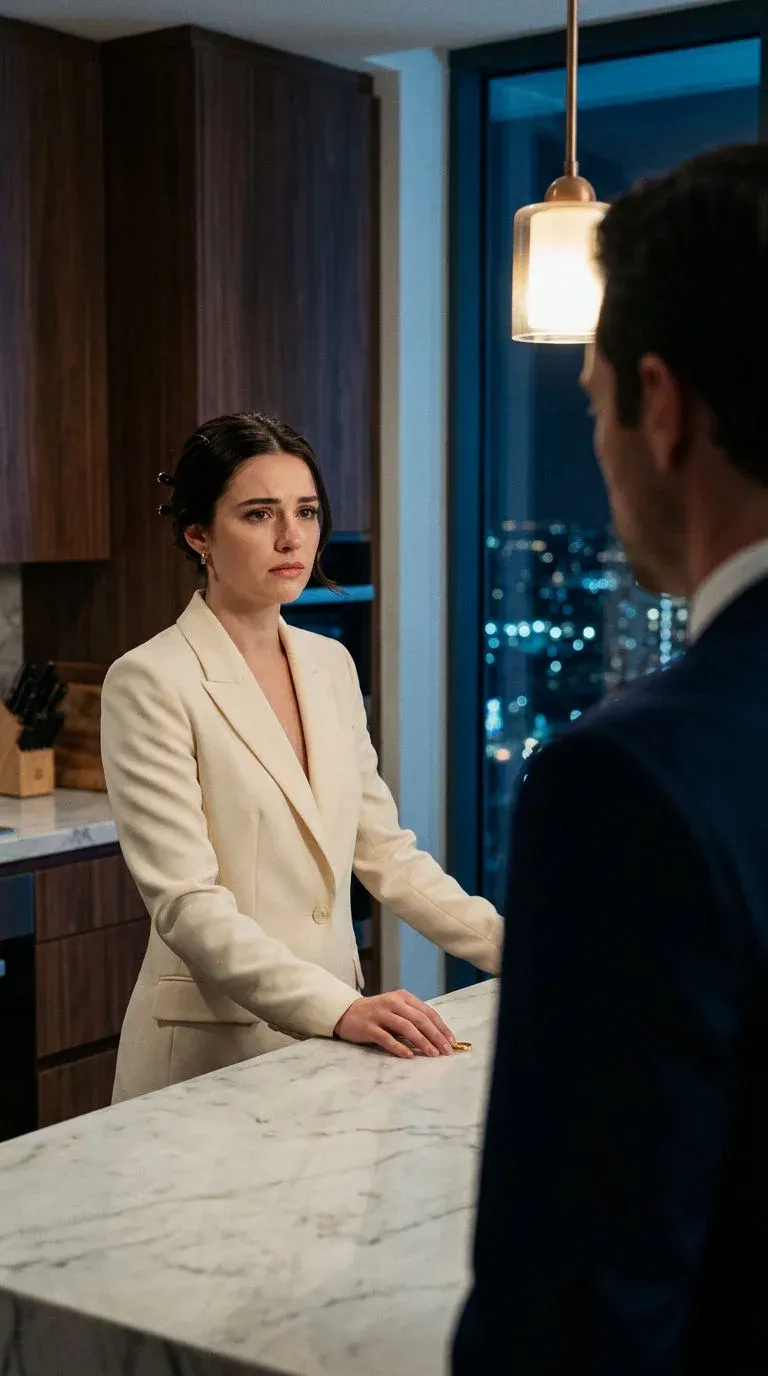
A micro drama dialogue scene has to cut the same way in every episode. Blocking it in 3D fixes where everyone stands, which way they face and where each camera sits. In Morphic you stage it once in 9:16, check the line, and generate every episode's shots from that plan.
Why staging drifts across micro drama episodes
Each generated shot is made on its own. "She confronts him across the island" does not say which side she is on, so the next shot can swap her.
Staging in film solves this with blocking, one plan every camera shares, and a 3D scene gives a generated series that plan.
Block a dialogue scene in 9:16: vertical two-shot, over-the-shoulder, reverse
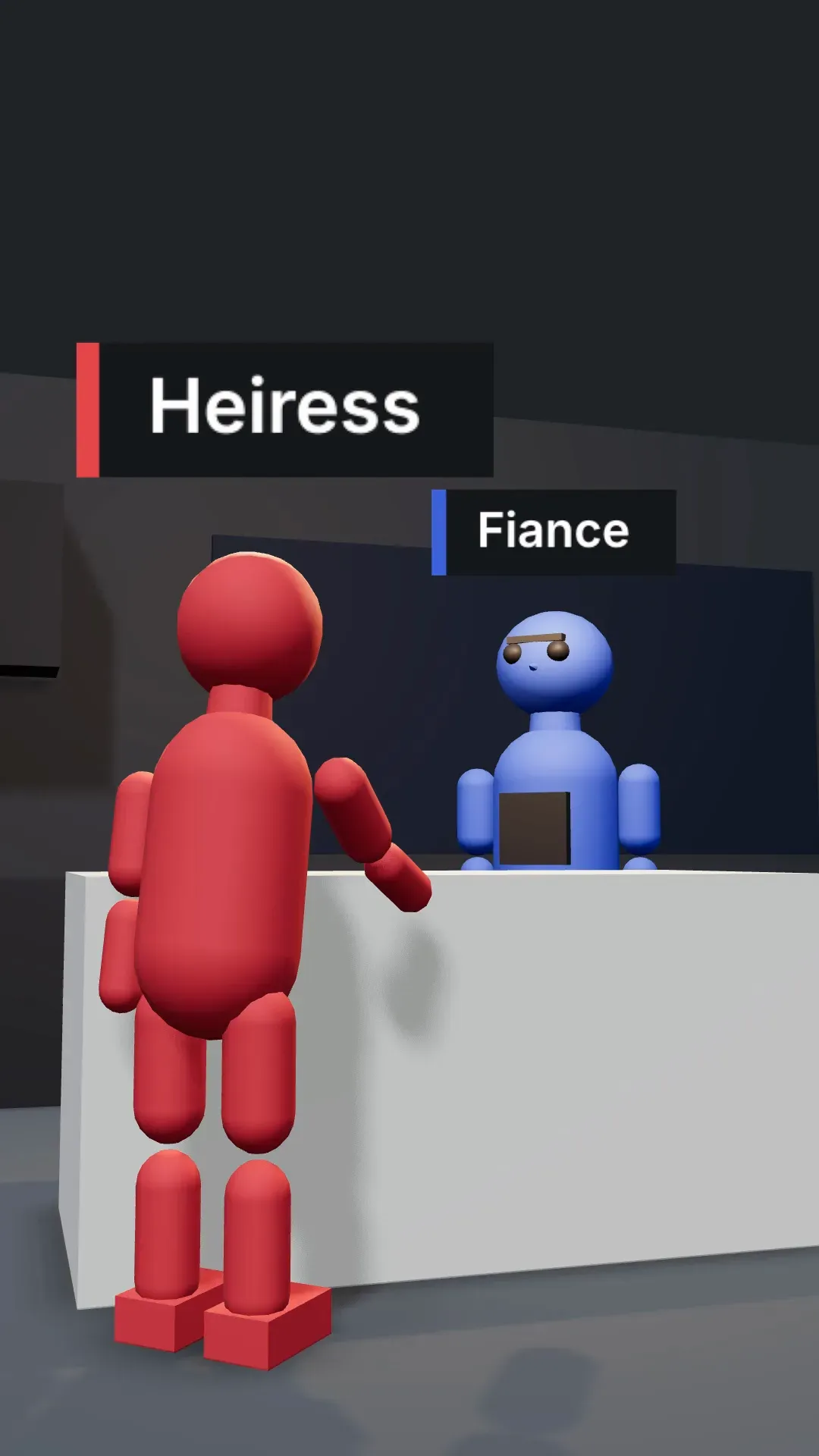
Tall-frame dialogue coverage uses three shots from one side of the line; see the vertical two-shot and over-the-shoulder vertical guides. In 3D Scene, place the characters, the island and one camera per shot, or hand Copilot the shot list. The one-click Two-shot, Over the shoulder and Reverse angle give a first framing to refine. The 9:16 blocking renders in the browser at no credit cost.
- Vertical two-shotBoth characters, one near and one deeper in the room, to set the geography.
- Over-the-shoulderA thin strip of shoulder at the edge, so the other face fills the frame.
- ReverseThe matching shot from the other character's side of the island.


Keep the 180-degree line across micro drama episodes
The 180-degree rule keeps every camera on one side of the line, so the person on the left stays left, looking right. In a series it holds across episodes: if the heiress sat left of the island in episode three, she sits there in episode four.
The editor flags a camera that crosses the line. Fix it in the scene, where it costs nothing, and every generated shot starts from the correct side.
Cast the dialogue scene by colour so every character lands in the right spot
Give each recurring character a colour and a name label for the whole series: red for the heiress, blue for her fiancé. Set each figure's height and body width to match the character it stands for, and name every figure by colour in the prompt. Colour tells the model who is who; the blocking guides where each person stands and faces.
The red figure is a young woman in a cream blazer. The blue figure is a man in his forties in a navy suit.
Reuse a set and a Formation across micro drama episodes
Build each recurring room once.
Reuse the set
Every 3D scene stays in the project library, so a copy starts the next episode with set, lights and cameras in place. Between projects, export the scene file and use Import scene file under Quick start.
Save a Formation
Save the cast's arrangement, say the family at dinner, as a Formation and place it again whenever the scene returns.
Generate the micro drama episode shots
Render each dialogue camera in 9:16
Set Format to 9:16, then in Export choose Video, render each camera and choose Add video to canvas. Press P for a snapshot when one frame is enough.
Attach the blocking and the reference sheets
Attach the blocking video and each character's reference sheet, and write the prompt by colour.
The red figure is the heiress. The blue figure is her fiancé. She slides the ring across the island; he leaves it. Keep the staging and camera from the reference.
Generate, compare and keep the take that follows the blocking
Generate two versions with a video model that accepts a reference video, keep the closer one, and cut the episode in Compose.
The micro drama workflow and the Morphic micro drama page cover the series end to end, how to make a micro drama goes from premise to season, and the dialogue scene prompt library helps with the lines.