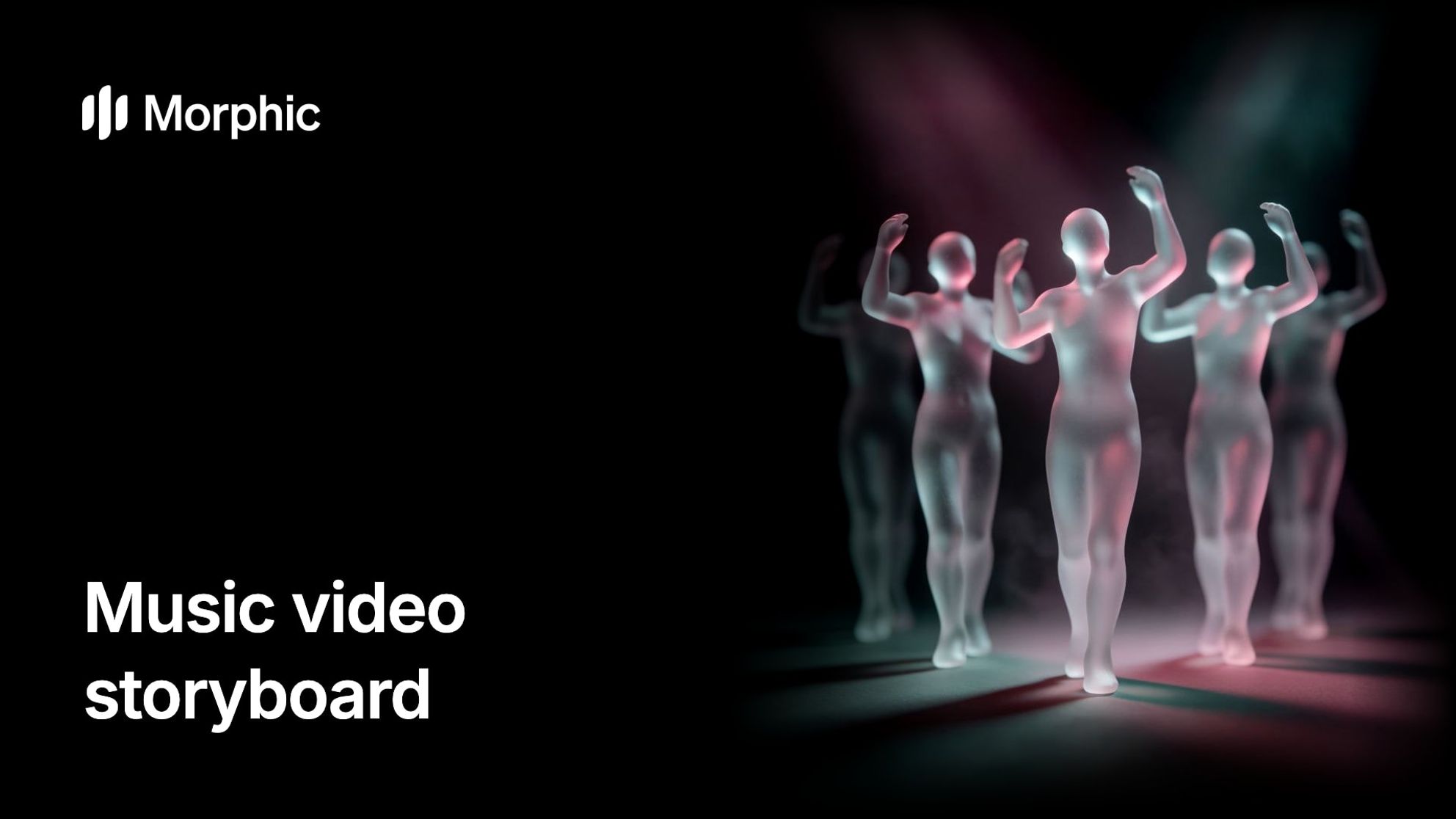
A music video storyboard turns a song into a plan: the shots for each section, where the performer and dancers stand, and how the camera moves. In Morphic you board each section, stage it in 3D, generate the shots, then cut them to the track.
The music video storyboard workflow
Break the track into sections for the music video storyboard
Mark the structure (intro, verse, chorus, bridge, outro) and each section's length, which sets how many shots it holds. Give each section a job; music video ideas is a good starting list.
- VerseStay close on the performer.
- ChorusOpen wide on the full group.
- BridgeDrop to a single figure in one light.
Board each section (script, references or 3D)
Board from a script, mood references or a grid of framings with the AI storyboard generator. Board choreography and camera moves in 3D, since a flat frame cannot show them.
Stage the performer and dancers in 3D
Describe the set to Copilot in 3D Scene, or add the dancers with Group action. Colour and label each figure, set their height and body width, and save the chorus arrangement as a Formation to reuse when the chorus returns.
A rooftop at night, a performer at the front, four dancers in a V behind her, city lights beyond.
 Generated shot
 3D Scene blocking
The dance formation maker goes deeper on staging a group.
Plan the music video camera moves
Add a camera per setup and set a Camera style for the feel of the rig: smooth on the verse, loose and shaky in the chorus. Light the set with a Light setup or Mood, and add fog for haze.
Export the blocking and generate the music video shots
Render the blocking video at your delivery aspect ratio, in your browser at no credit cost, and attach it to a video model that accepts a reference video. Add the performer's character sheet and name each figure by colour.
The red figure is the singer in a silver jacket. The other figures are dancers in black streetwear. Keep the formation and the handheld camera from the reference.
3D blocking: a handheld move through the dancers to the singer
Generated take: a push-in from the front
The blocking guides the generation, and a model can still reinterpret the move: this take ends close on the singer but comes in from the front. Generate a couple of takes and keep the closest; turning a 3D scene into AI video covers the handoff.
Assemble the music video against the track in Compose
In Compose, put the song on its own audio lane and drop a coloured marker at each section change. Trim the shots by hand so the cuts land on the beat, then grade and export.
Common music video storyboard problems
For the full route from a song to a finished video, see how to make an AI music video, the AI music video generator, and making a music video from lyrics.
| Problem | Fix |
|---|---|
| Every section looks the same | Give each section its own lens, light and distance. |
| The dancers drift between shots | Place the saved Formation again in every section that repeats it, and name each dancer by colour. |
| The performer changes face | Attach the same character sheet to every generation of the singer. |
| A camera move fights the song | Keep fast moves for loud sections and slow or locked-off ones for quiet sections. |
| Shots run too short or too long | Check each section's length from step one before you time the blocking. |