Dance formation maker in 3D

Points of soft light arranged in a sweeping arc on a dark stage floor, seen from above, the cover for the Morphic dance formation maker

Stage a whole dance cast in 3D. See every formation from any seat.

What a formation maker is for

A formation maker plans who stands where, and how the group travels to the next picture. Paper charts show the floor from above, but miss what the audience sees: a hidden back row, or a soloist lost behind the group.

Morphic's 3D Scene puts the cast on a real floor in 3D, so you check each formation from any seat. Below is one formation as the plan and as a generated frame.

Generated performance frame of a contemporary dance group in a V formation on a dark stage, the lead dancer in red at the point under a warm top lightGenerated performance
3D Scene blocking of a dance formation on an open stage: colour-coded figures in a V shape with a red figure at the point, seen from a wide front camera3D formation plan

Plan a dance formation in three steps

  1. 01

    Stage the cast

    Add the whole cast with Group action, or describe the stage and dancers to Copilot.

  2. 02

    Shape each formation

    Move any dancer, redraw their path, retime it, and save the picture as a Formation.

  3. 03

    Check it from every seat

    Look from the audience, from above and through a camera, then render a video to share.

Stage, shape and retime every dance formation

Stage the whole dance cast in one step

Group action adds a whole cast already moving, every performer editable. Give each dancer a colour, a name label, and a height and body width to match the company.

Start from ready-made movement

Keep what suits the piece: swap a pose preset, pose any body part, or save a motion as a clip and reuse it so a phrase repeats exactly.

Save and reuse Formations

Save a picture that works under Formations and place it again later in the piece.

Move and retime any dancer

Drag a dancer, redraw their path, and set the exact frame they leave and arrive. The editor flags speeds that will read as wrong.

See the formation from the audience, top view or a camera

The audience's seat

Place a camera where the audience sits. A back-row dancer hidden behind a taller one, or a diagonal that flattens from the front, shows up here first.
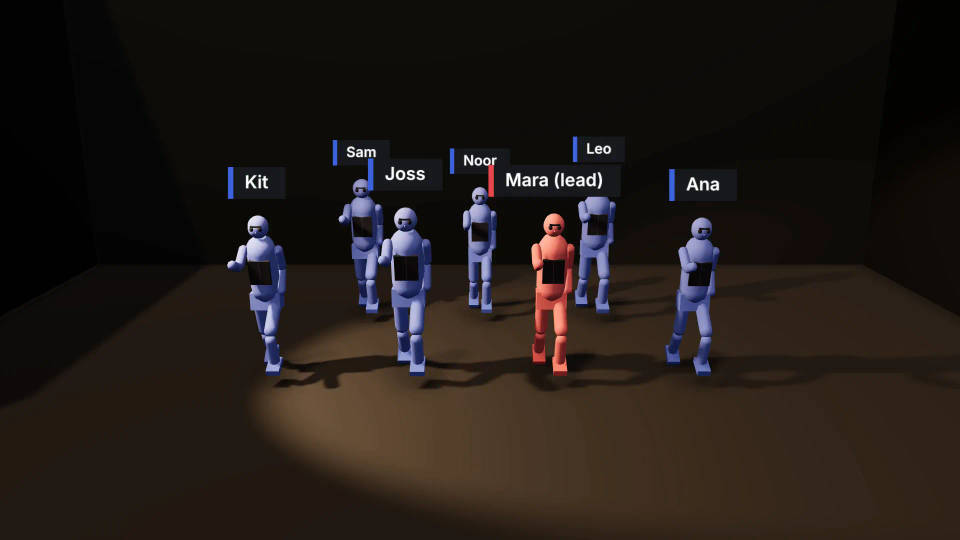
Front view of a 3D Scene stage from audience height: colour-coded figures in two staggered rows, each with a name label above them

The top view of the formation

Switch to the view from above for the classic floor chart: spacing, lines and diagonals, ready to compare with the next formation.
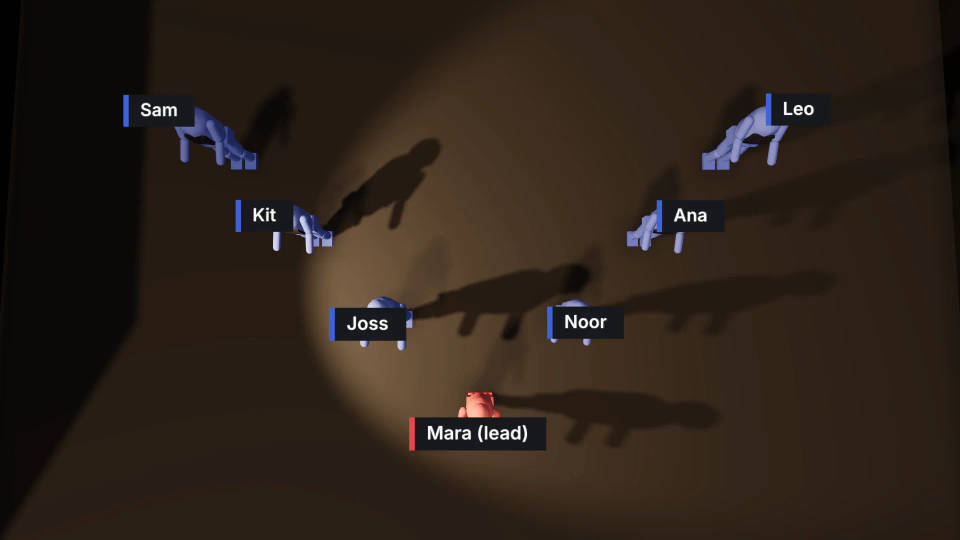
Top view of the 3D Scene stage showing colour-coded figures with name labels in a V formation, the red lead at the point nearest the audience

Through a camera, for a dance video

Add cameras where a crew would stand and cut between them. A one-click angle gives a quick overhead or low frame, and Follow keeps a travelling soloist in shot.
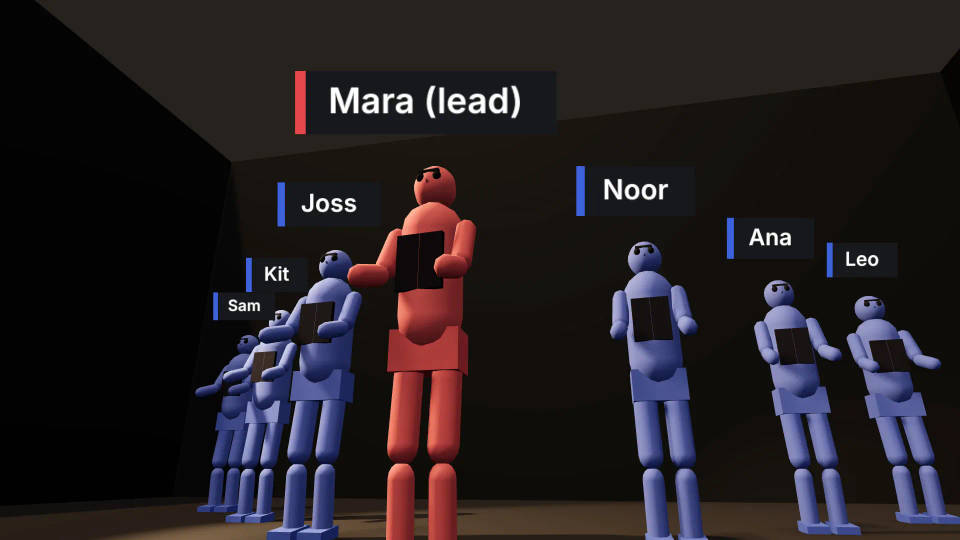
Low camera at the edge of the 3D Scene stage looking up at the red lead figure, the rest of the colour-coded cast behind in formation

Turn the dance formation plan into a music video shot

Cast the dancers by colour

Attach the blocking video to a shot and name each dancer by colour: the red figure is the lead in a crimson slip dress. The blocking guides the staging and camera; the 3D scene maker covers the editor.

Generate and cut to the track

Generate with the AI music video generator or the AI dance video generator, then sync the shots in Compose. Plan the whole video with the music video storyboard guide and how to make an AI music video.

All on Morphic

From the floor plan to the video

Simple pricing

Get started for free today, with the option to upgrade or cancel anytime.

Basic

$19/ month
billed as $228 per year

2400 monthly credits

1 user only

All models

Workflows

Standard

$24/ month
billed as $288 per year

3625 monthly credits

1 user only

All models

Workflows

Pro

$45/ month
billed as $540 per year

6350 shared monthly credits

1 user

+ up to 4 more at extra cost

All models

Workflows

Max

$170/ month
billed as $2040 per year

24650 shared monthly credits

1 user

+ up to 9 more at extra cost

All models

Workflows

Enterprise

For higher limits

Custom

pricing and billing terms

High-volume credits
Custom seat limits
All models
Workflows
Pricing Gradient

Free

For playing around

$0

forever free

Up to 20 credits
1 user only
Limited models
Workflows

FAQs

Can I plan dance formations for a large group?
Yes. Group action adds a whole cast with ready-made dance movement in one step, and you can add, duplicate and group more figures by hand. Give each dancer a colour and a name label, then save the arrangement as a Formation so the same picture can be placed again in the next section of the piece.
Can I set counts or timing in the formation maker?
Yes, timing to the frame. Each move sits on a timeline that zooms to single frames, so you set when a dancer leaves a spot and when they arrive. Mapping those moments to musical counts is your call, since the editor has no beat grid. Sync the rendered video to the track in Compose.
Can I share the formation plan with dancers?
Yes, two ways. Invite the team into the same 3D scene and edit it together live, with markers showing who is working where. Or render the plan as a video, or a still frame of each formation, and send that to dancers who just need to learn their spots and paths.
Can I export the dance formations?
Yes. Export a Video as an MP4, a Still frame as a PNG, or a Scene file. Video and stills render in your browser at no credit cost, at 720p or 1080p, in 16:9, 9:16, 2.39:1, 4:3 or 1:1, so a vertical rehearsal clip and a widescreen plan come from one scene.
Do I need 3D experience to use the dance formation maker?
No. Describe the stage and the cast and Copilot builds them, or start with Group action and adjust from there. Moving a dancer is a drag on the floor, and every figure, path and camera stays editable. If you already know Blender or Maya, switch the view navigation to those keys.
Can I plan formations on my own stage or venue?
Yes. Build the space from the model library and basic shapes, or upload a .glb, .gltf or .obj model of the venue with its textures. A set-up step fixes its size and orientation, so the dancers stand on a floor sized like the real one.

You might also like