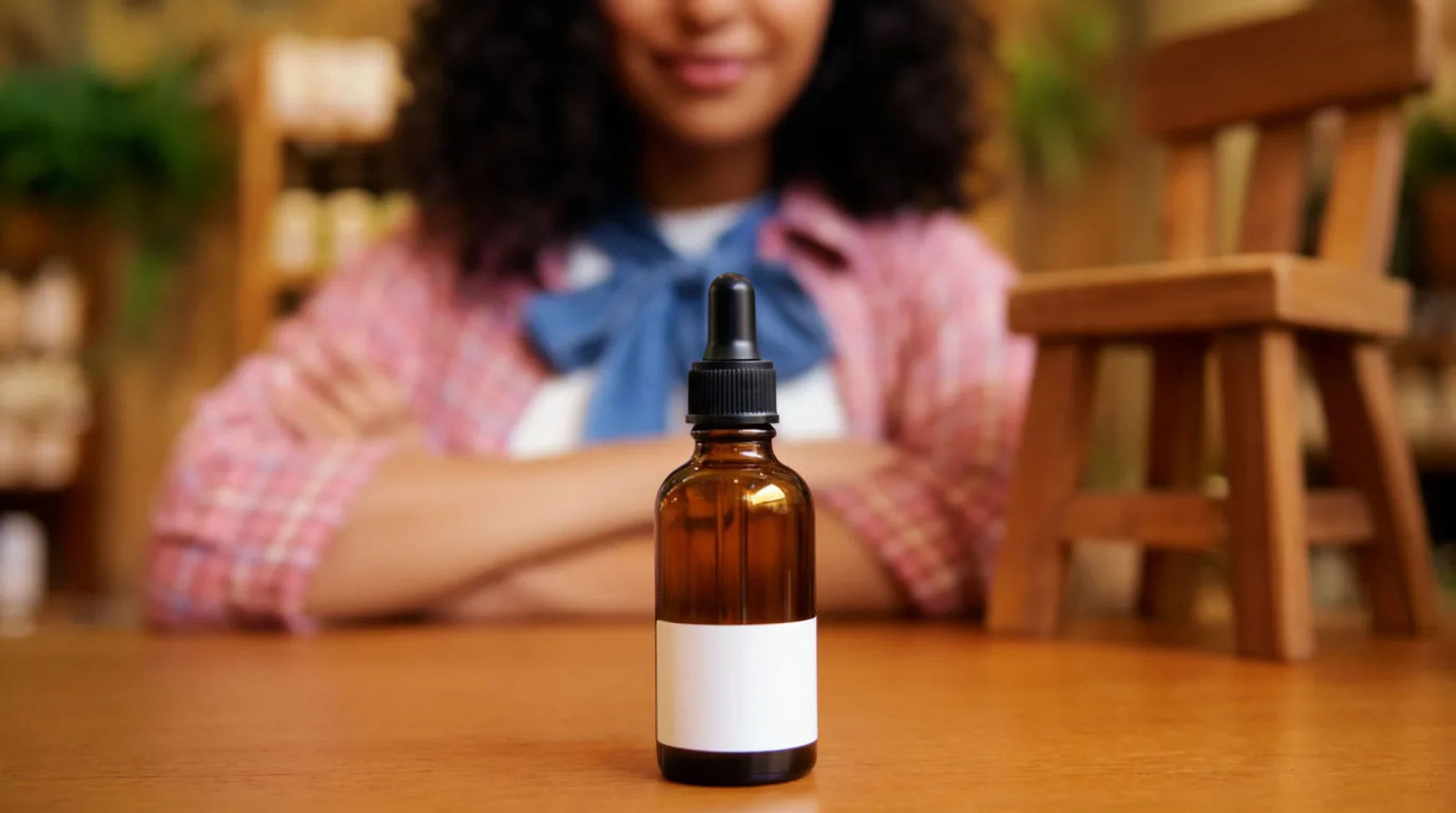
With AI, a Shopify store turns one clean product photo into a month of content: product shots in any scene, short launch and product reels, ad variants to test, and captions in a second language, in roughly that order. The one rule holds throughout. The product stays the product; every scene is generated around your real item, never in place of it.
What you need
- One clean, well-lit photo of the real product
- Your brand colours and a line on the mood you want
- A Morphic account
What a Shopify store needs every month
Most of a store's content is the same short list of assets, repeated. Mapping them once shows where AI saves the most time: the jobs you repeat weekly, from one product shoot.
| Asset | Where it runs | How often |
|---|---|---|
| Product shot in a scene | Product page, feed, email | Every new product |
| Short product reel | Reels, TikTok, product page | Weekly |
| Launch reel | Reels, ads, email header | Every drop |
| Ad variants | Meta, TikTok paid | Every test cycle |
| Localised captions | Second-market reels | Per market |
| Site and email banners | Homepage, email | Every campaign |
The six jobs
Each job starts from the same product photo and hands AI the repetitive part. The six below are the recurring work; a store can run any of them on its own.
Product photos in any scene
Put the real product in a setting you did not shoot. You lift the product off its background and save it as a reference, then generate the scene around it, so the label and shape stay exact while the world behind changes.
- Upload the product photo and lift it off its background on the Canvas
- Save the cut-out as a reference so the item holds its look
- Describe the scene (surface, light, props) and generate variations
Tool: AI product background generator. Workflow: Product-in-scene.
Launch and product reels
Turn a still into motion for a drop or a product page. Image-to-video animates one product shot into a short clip, and you direct the motion in plain words rather than keyframing it by hand.
- Pick the product still you want to move
- Describe the motion (slow push-in, gentle rotation, a soft reveal)
- Generate, then export the clip for a reel or product page
Tool: AI product video generator. Full walk-through: how to make a product launch video.
Ad variants
Test more creative without reshooting. From one approved product shot and a few scene ideas, you ask for every variant you want to test and they arrive together, side by side, named and ready for the ad manager.
- Start from the approved product shot
- List the scenes and hooks you want to test
- Generate the batch and export each variant labelled
Tool: AI ad generator. Workflow: Ad variants.
Reformatting one master
Make one hero asset fit every placement. A single master reframes to a square feed post, a vertical story and a wide banner, so the set matches instead of being rebuilt per size.
- Make the hero image or clip once
- Reframe it to each aspect ratio you need
- Export the set for feed, story and banner
Workflow: Reformat.
Captions in a second language
Ship the same reel in another market. Morphic transcribes the speech, translates it, and burns styled captions onto the clip for Latin-script languages; for other scripts it returns a subtitle file you add on upload.
- Upload the finished reel
- Translate the transcript to the target language
- Burn or attach the captions and export
Tool: add subtitles to a video. Workflow: Localise.
Keeping the look consistent
Stop re-describing the product in every prompt. Save the product, the set and the palette as reference sheets, pass them into each generation, and the look holds from one campaign to the next.
- Save the product, set and palette as references
- Call them by name in every generation
- Reuse the same references for the next drop
Workflow: Drop kit.
A worked week
One shoot feeds a full week. The order below is how the jobs stack in practice.
- Monday: lift the product, save it and the palette as references
- Tuesday: generate product shots in three scenes for the product page and feed
- Wednesday: animate the best still into a short product reel
- Thursday: batch ad variants from the approved shot and export them named
- Friday: reformat the hero for banners, and localise the reel for a second market
What AI should not do here
AI does not replace the one real photograph. You still shoot the product cleanly once, because that shot is the reference everything else is built on. Keep claims honest too: show the product accurately and avoid results or efficacy claims you have not tested, especially in regulated categories. The generated world around the product is fair game; the product itself and what you say about it are not where you improvise.
Plan and access
Everything here runs in one workspace in the browser. You can try the jobs on a single product to start, and paid plans unlock longer, higher-resolution clips and more throughput for a full catalogue. There is nothing to install.
For the weekly marketing version of this, see how to use AI for small business marketing. To watch the whole cycle run once on a real drop, read how a small brand runs a collection drop with AI.