One subject in six styles
One peacock drawn six ways across the frame, in pencil, ink, charcoal, coloured pencil, vector line and pixel art, so the styles compare directly.
Edit prompt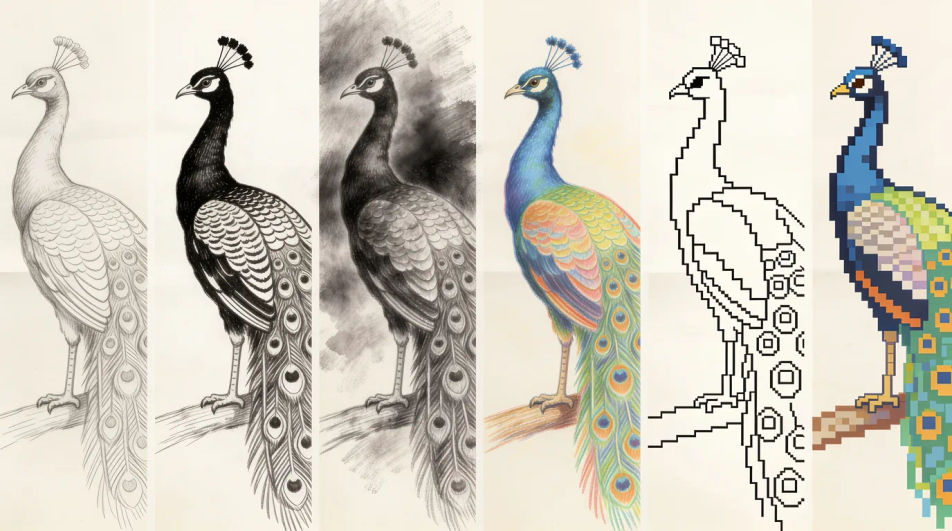
Type what you want drawn into Morphic's Image tool and get a finished drawing back, in pencil, ink, charcoal, coloured pencil or flat vector line. Name the subject, the medium and the line weight, generate a few versions, adjust the one you like on the Canvas, then download it in HD.
One peacock drawn six ways across the frame, in pencil, ink, charcoal, coloured pencil, vector line and pixel art, so the styles compare directly.
Edit promptA clear bold outline drawing of a banyan tree with plenty of white space and no shading, blank ruled callout lines left beside it for your own notes.
Edit prompt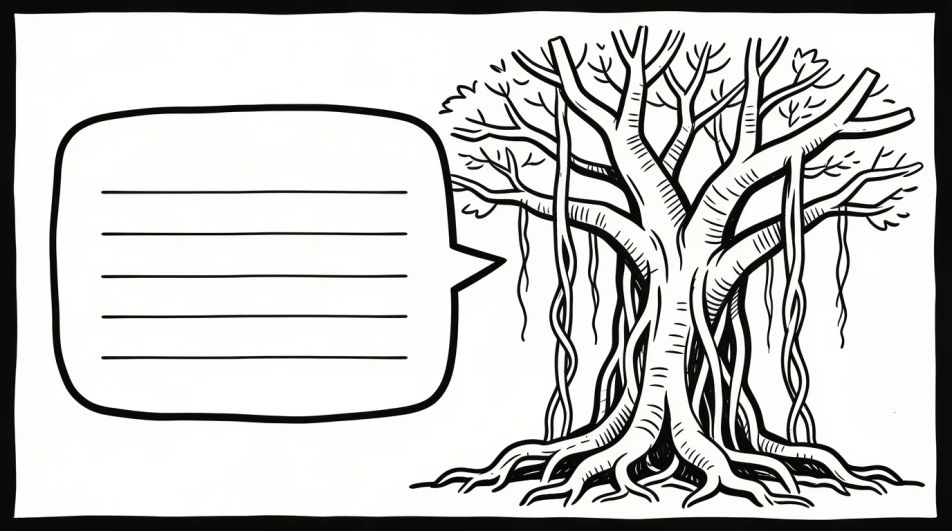
Several loose pencil studies of one peacock arranged on a single page at different angles and sizes, with the page edge and a little smudging visible.
Edit prompt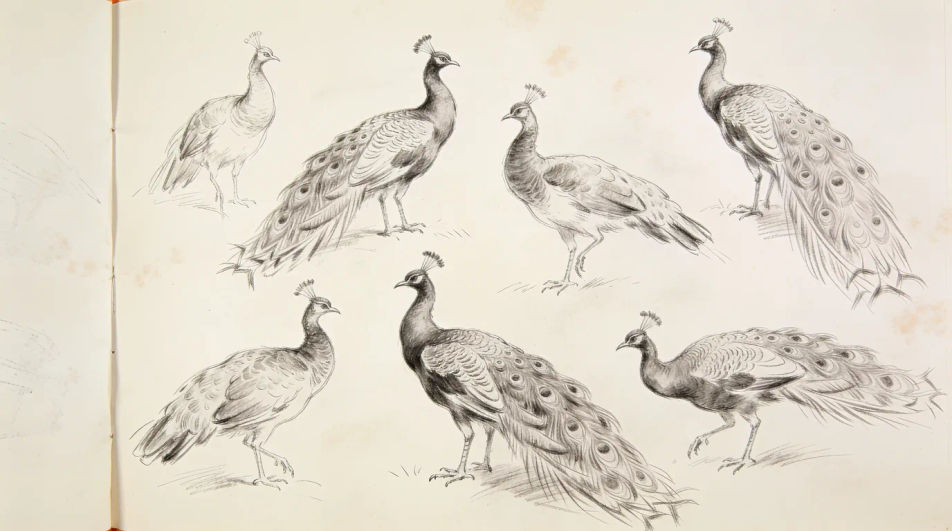
One temple oil lamp drawn four times in four different design idioms, from geometric minimalism to bold poster shapes, all in flat line.
Edit prompt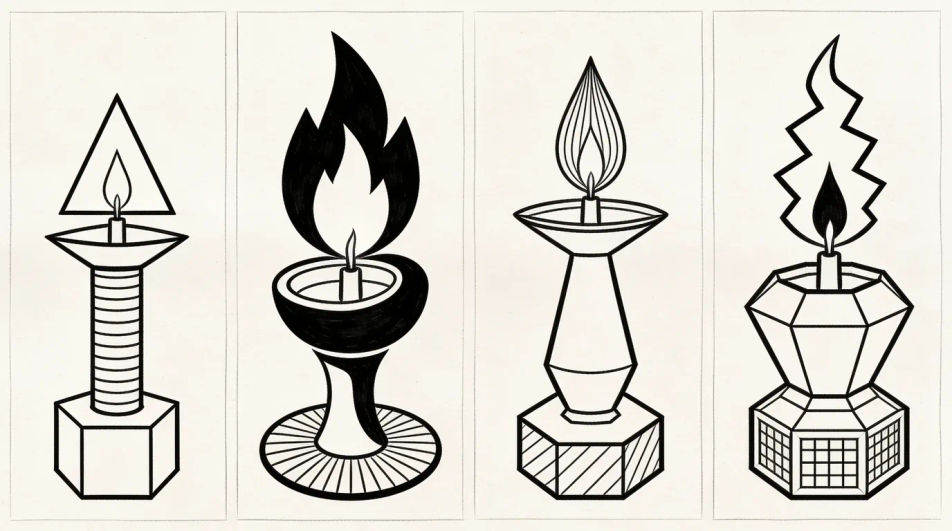
Describe the AI drawing you want, in plain words.
Morphic generates a clean, ready-to-publish image on your canvas in seconds.
Tweak the prompt, regenerate variations, then download or share the frame.
Pick a reference image, apply its visual style to your own photo or artwork.
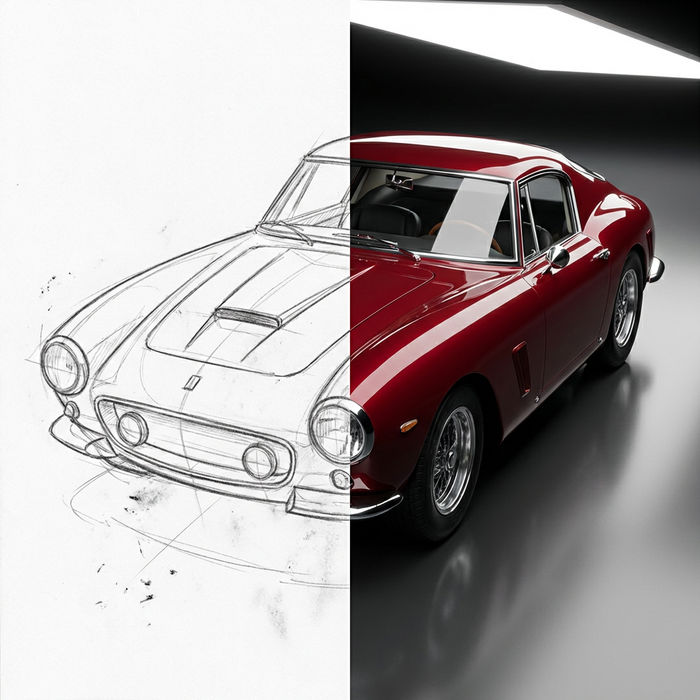
Turn any sketch or drawing into a finished render.
Convert any image to a new aspect ratio. Smart crop or extend the edges to fit.
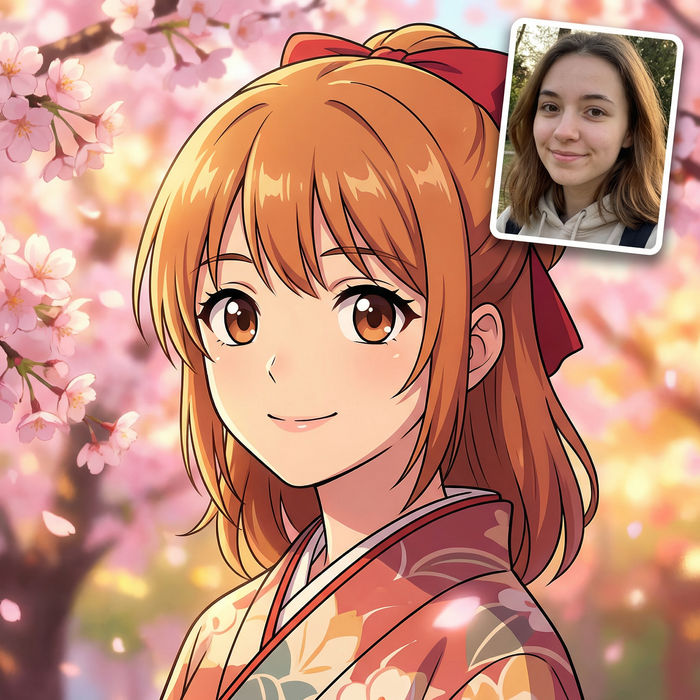
Pick any anime illustration as your style guide. Apply its look to any image.
Restyle any video in a completely new visual style. Every frame transforms, all motion stays intact.
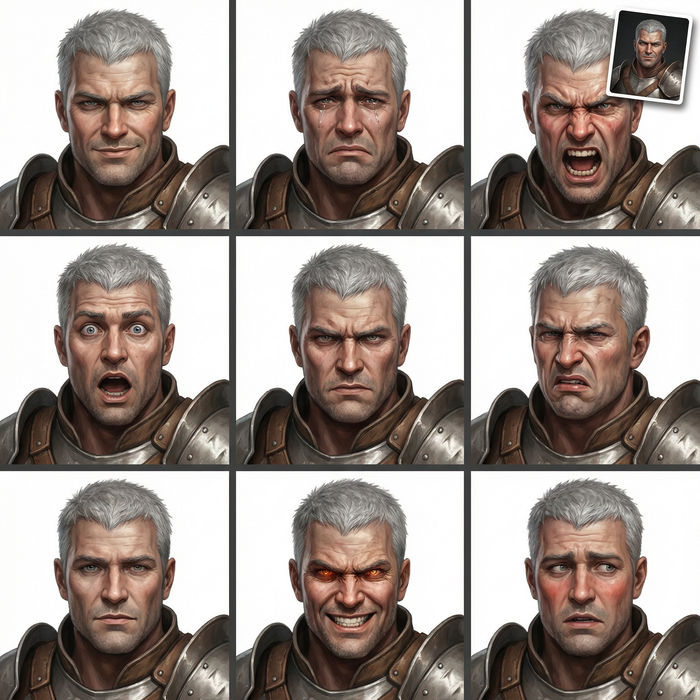
Take any character image and generate 6 distinct facial expressions on a single reference sheet.
Pencil drawing generator
Turn a pencil drawing idea into a finished image in Morphic. Describe the line work and style, generate variations, then refine it on the canvas.
Realistic drawings and graphite studies
Turn a realistic drawing idea into a finished image in Morphic. Describe the line work and style, generate variations, then refine it on the canvas.
Cartoon drawing generator
Turn a drawing idea into a finished image in Morphic. Describe the line work and style, generate variations, then refine it on the canvas.
Blue pen drawing maker
Turn a blue pen drawing idea into a finished image in Morphic. Describe the line work and style, generate variations, then refine it on the canvas.
Get started for free today, with the option to upgrade or cancel anytime.
Basic
2400 monthly credits
1 user only
All models
Workflows
Standard
3625 monthly credits
1 user only
All models
Workflows
Pro
6350 shared monthly credits
1 user
All models
Workflows
Max
24650 shared monthly credits
1 user
All models
Workflows
Enterprise
For higher limits
Custom
pricing and billing terms

Free
For playing around
$0
forever free