Car edits you can create
Edit a car photo in three steps
- 01
Open Morphic
Sign up and start creating on a free-flowing, infinite visual canvas.
- 02
Add your car photo
Drop in a real shot of the car, even a quick phone photo from the lot.
- 03
Describe the edit
Name the background, paint color, or light. Your exact car stays the same while the scene changes.
Before and after the edit
 Edited
 Original
Use cases
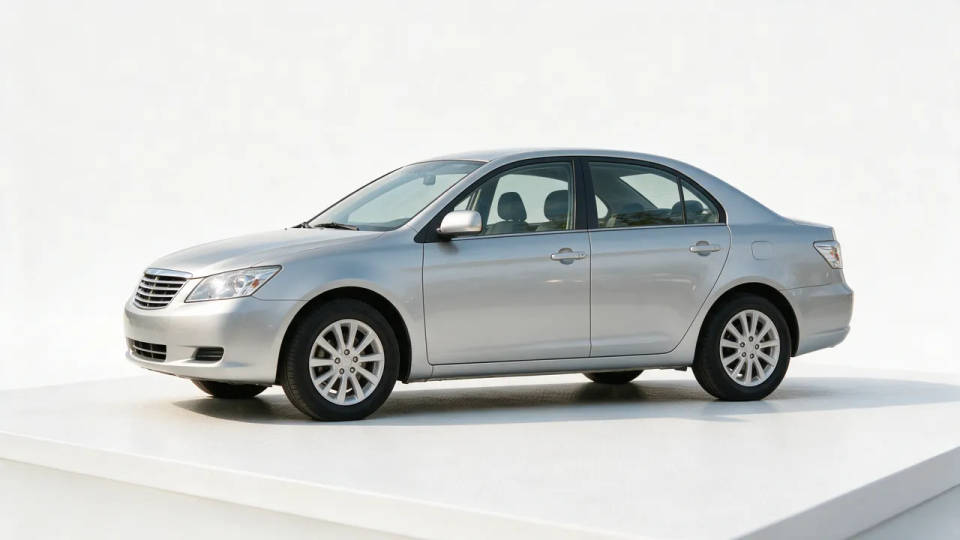
Parking-lot shot to clean listing
Start from a phone photo taken on the lot and get a tidy listing shot. The model keeps the exact car and drops the background to a clean white wall or a showroom floor.
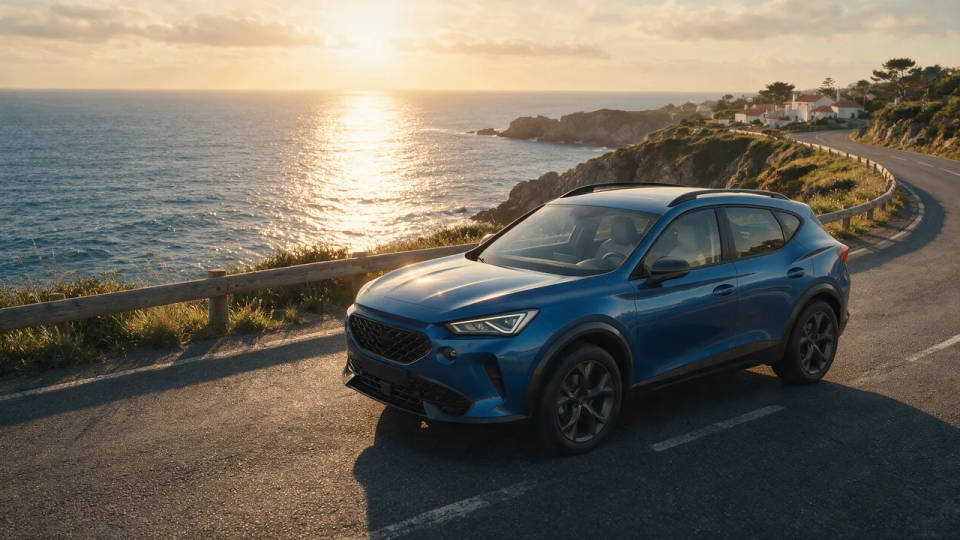
Swap in a scenic drive
Place the same car on a coastal road at sunset, an alpine pass, or a desert highway. The vehicle stays as shot while the setting becomes a scene buyers want to picture themselves in.
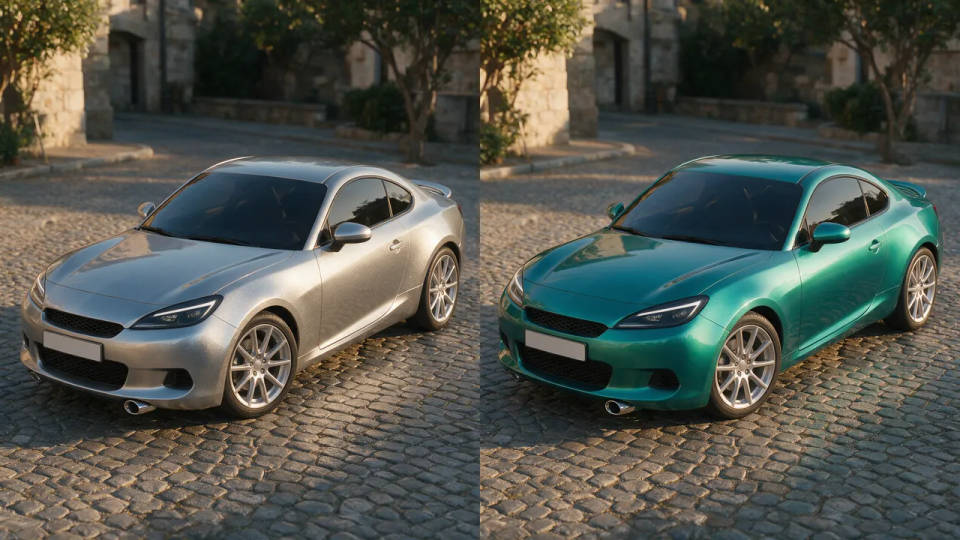
Preview a different paint color
Recolor the body to show a buyer another finish without a repaint. Same car, same angle, a fresh color, so shoppers can compare options before they visit.
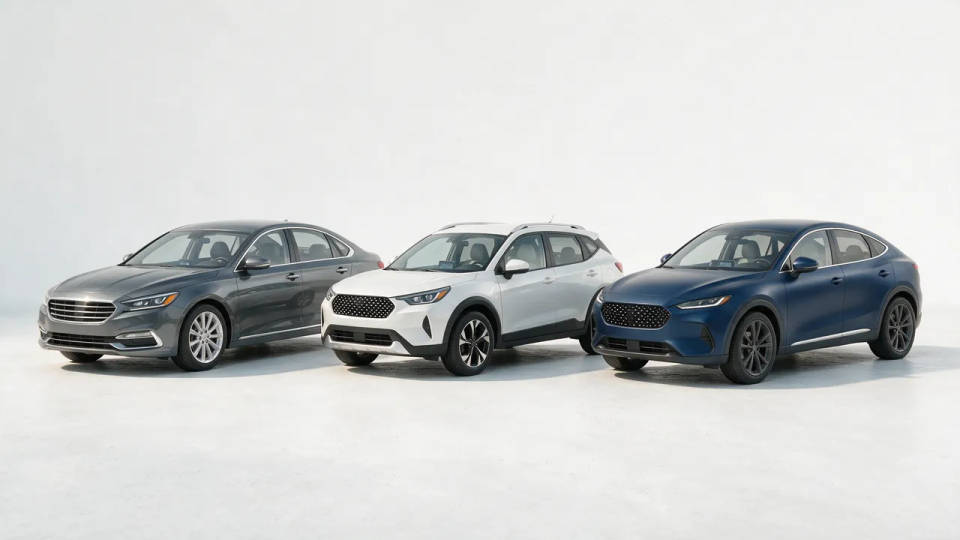
A consistent set for the whole lot
Give every vehicle the same clean backdrop and light so the inventory reads as one shoot. Save it as a Workflow and rerun it on each new car.
Car edits you can create
Different backgrounds, paint, and light, all keeping your real car. Open any prompt to tweak it and generate your own.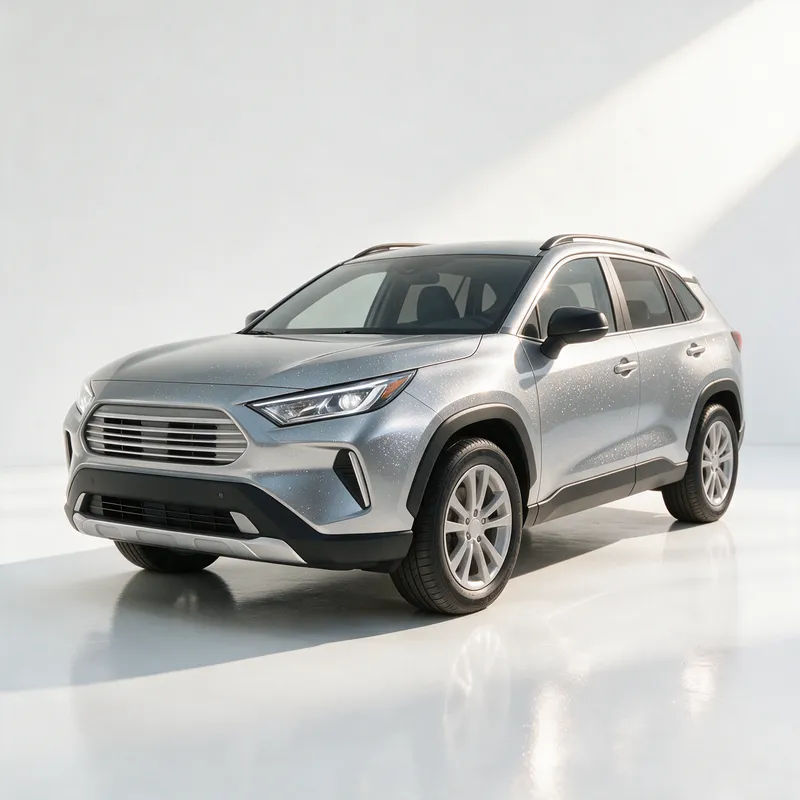
Clean white studio
Put my car on a clean white studio backdrop, soft even light, subtle floor reflection, sharp listing shot
Edit prompt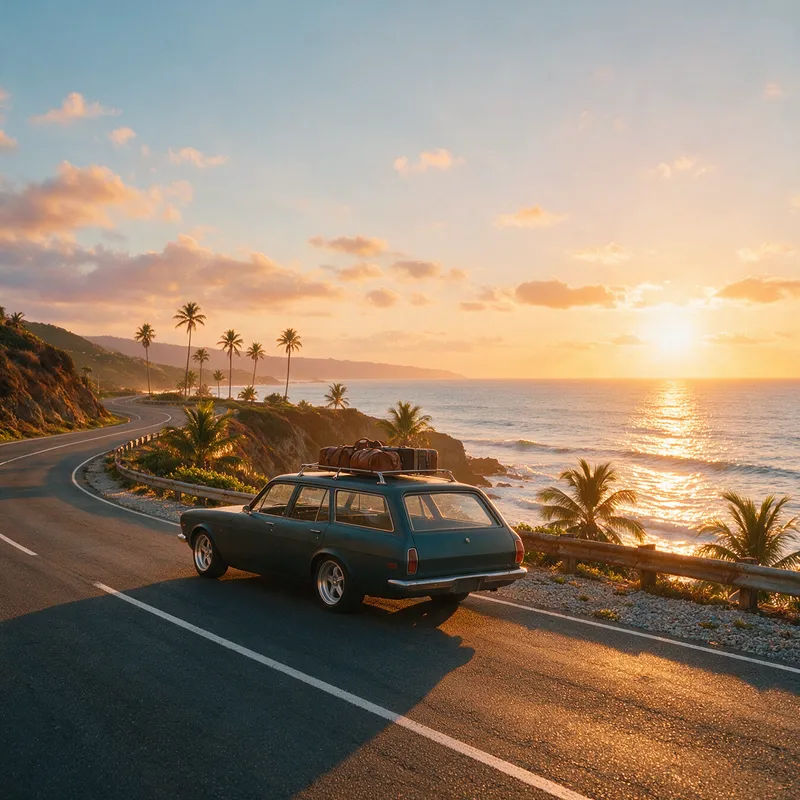
Coastal sunset road
Move my car to a coastal road at sunset, warm golden light, ocean behind, calm cinematic mood
Edit prompt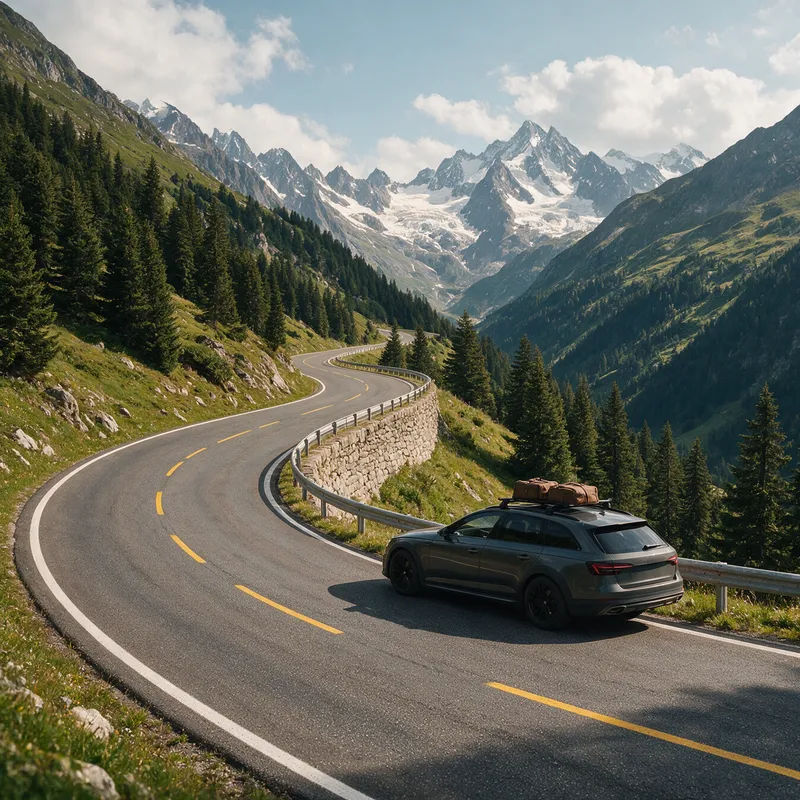
Alpine mountain pass
Place my car on a winding alpine mountain pass, crisp daylight, distant peaks, clear open road
Edit prompt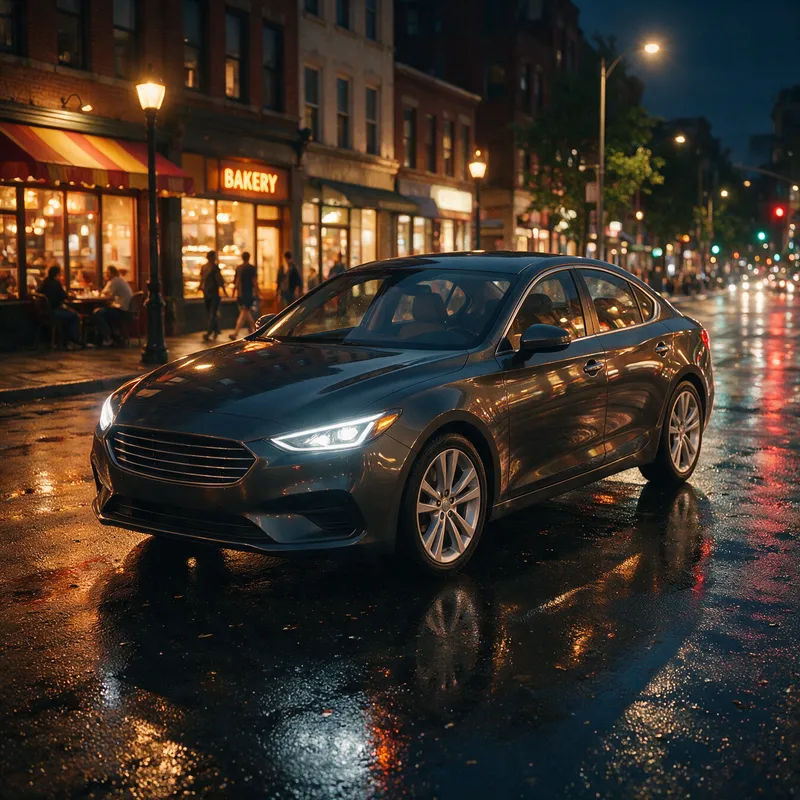
Neon city night
Put my car on a wet city street at night, motivated neon storefront light, reflections on the paint
Edit prompt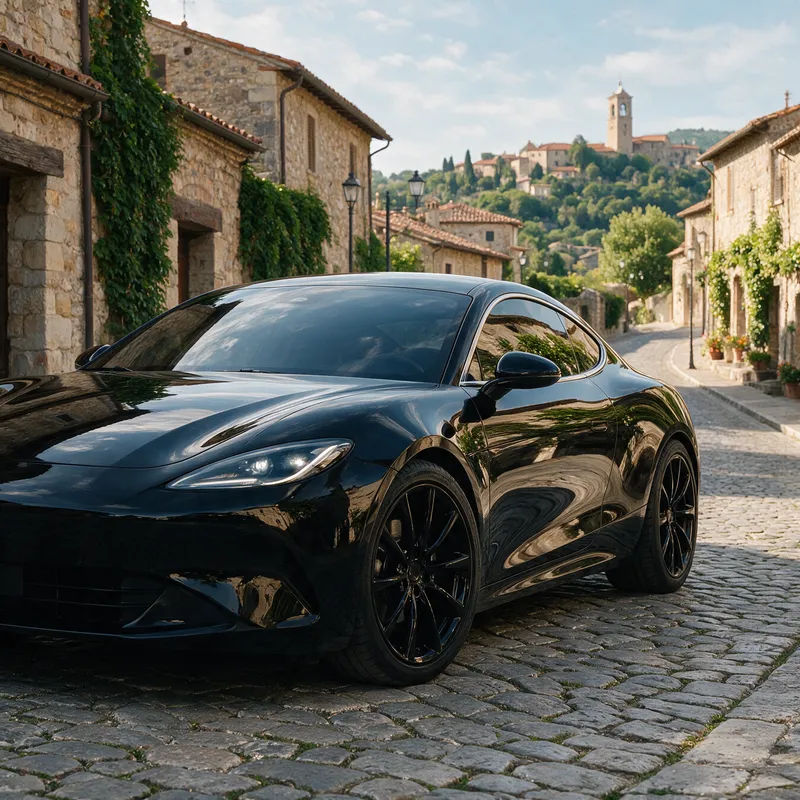
Paint-color change
Keep my car the same, recolor the body to deep gloss black, matching light and reflections
Edit prompt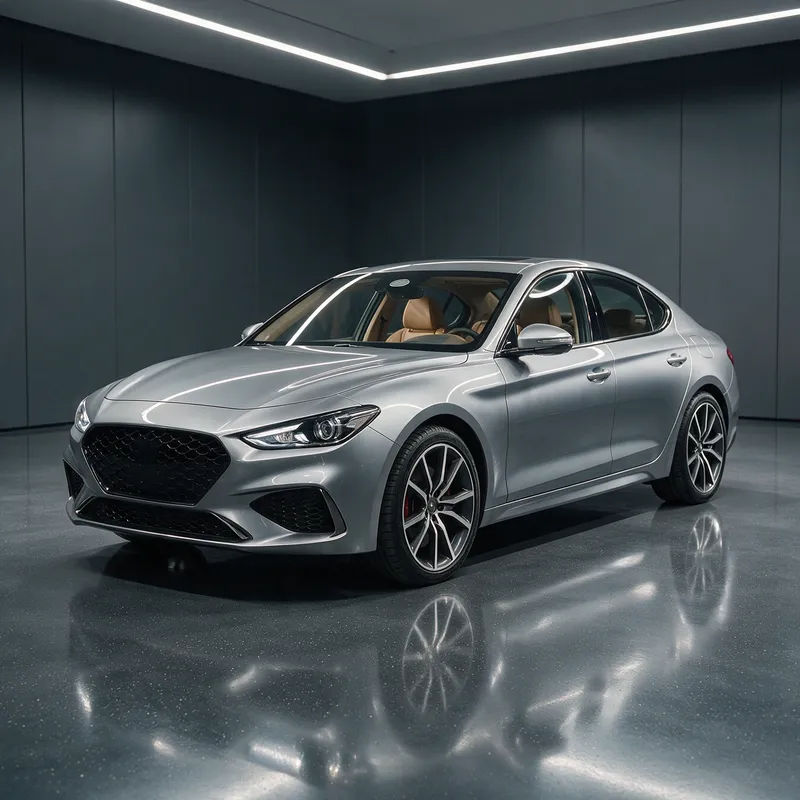
Showroom rim-light hero
Move my car onto a polished showroom floor, dramatic rim light along the body, dark clean backdrop
Edit prompt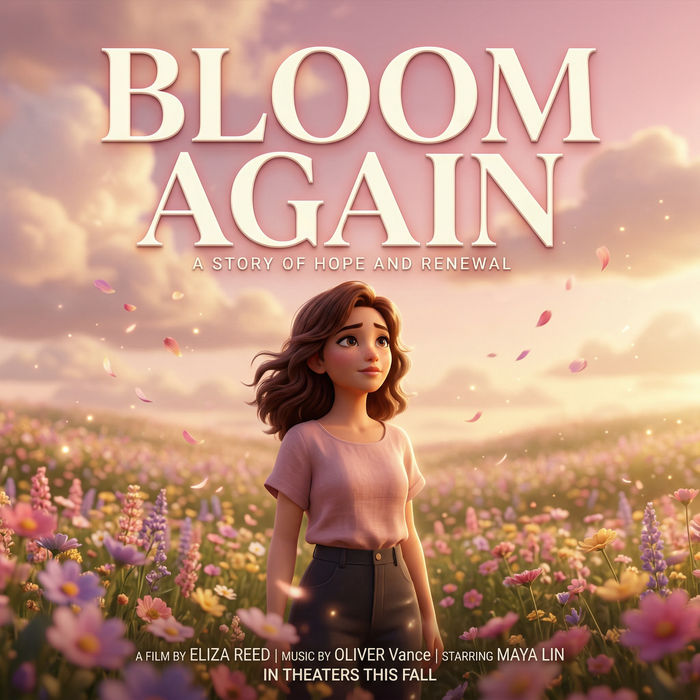
Title sequence
Generate a professional film title card from scratch, with optional cinematic animation.

Cinematic storyboard
Share a scene description with character references. Get a full storyboard with shot angles and mood.
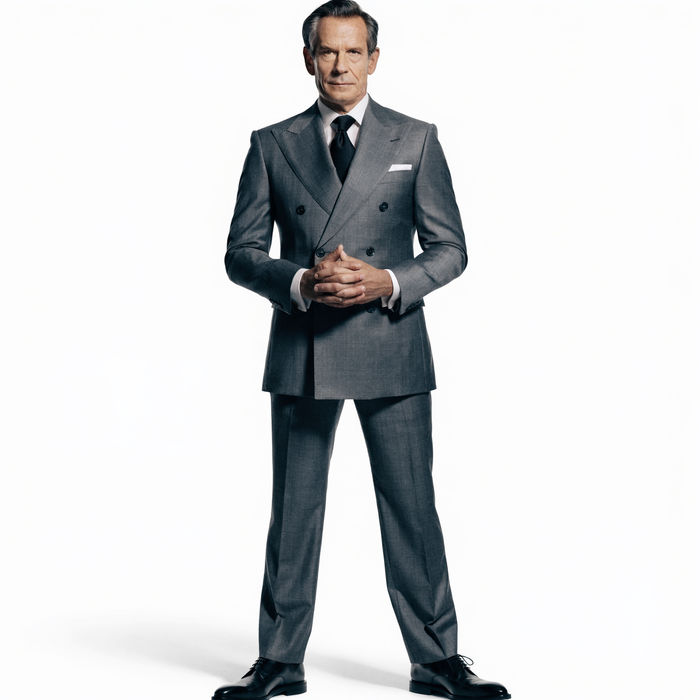
Chibi sprite animation
Turn any photo or description into an animated chibi sprite. Dance, jump, wave, attack, and more.

Messages to cinematic scene
Dramatize any text conversation into a cinematic multi-shot video.
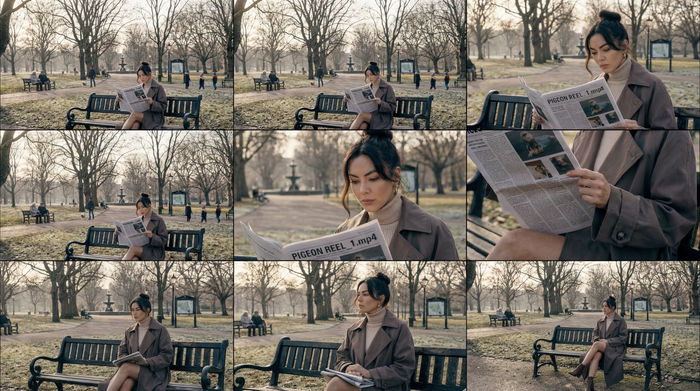
3x3 storyboard
Feed in a single image. Get 9 cinematic beats laid out as a 3x3 storyboard grid.
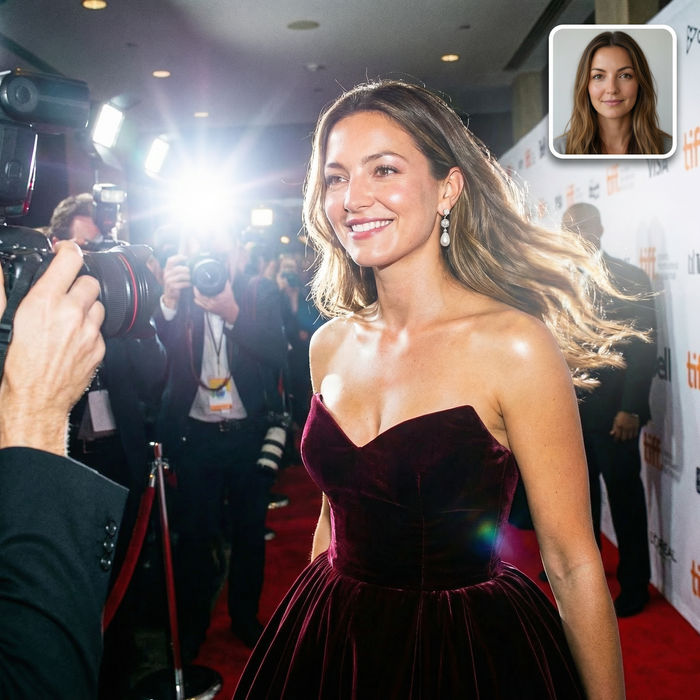
Paparazzi scene
Put anyone on a red carpet with paparazzi flashes, animated into a celebrity entrance video.
All on Morphic
Your complete car-photo toolkitModels
Nano Banana 2, Flux 2 Pro, ChatGPT Images 2.0, Grok Imagine, Recraft V4 Pro, Seedream 5, and more. Pick the one that renders paint and reflections best, and swap mid-project.
Same car held consistent
Start from a real photo with image-to-image, so the body lines, wheels, and badges stay recognizable. It reads as the same car in a cleaner scene, not a different vehicle.
Backgrounds and paint
Swap the setting, recolor the body, relight the shot, or blur the plate without a reshoot. Cluttered lot to clean studio, factory finish to a new color, same car every time.
Workflows
Lock a car-edit recipe into a Workflow. Rerun it on the next vehicle, share the link, or favorite it, so the whole inventory shares one look.
General AI photo editor
The same prompt-based editing for any subject, not just vehicles. Backgrounds, light, colour, and clean-up on any photo.
