Video verlängern
Wie du eine Einstellung länger machst, als eine Generierung erlaubt: den Clip mit Seedance 2.5 verlängern oder an einem seiner Frames weitermachen.
Jedes Videomodell in Morphic hat eine maximale Cliplänge. Für eine längere Einstellung oder eine Szene, die weiterläuft, verlängerst du den vorhandenen Clip mit Seedance 2.5 oder startest einen neuen Clip ab einem seiner Frames und fügst die Clips in Compose zusammen.
Mit Seedance 2.5 verlängern
Seedance 2.5 setzt einen Clip über sein letztes Frame hinaus fort und behält Figur, Bewegung und Stil bei. Es kann auch den Moment vor dem ersten Frame erzeugen.
- Klicke auf der Canvas auf die Modusauswahl unten links in der Promptleiste, bewege den Mauszeiger über 'Video' und klicke dann auf 'Reference to Video'
- Klicke auf die Modellauswahl, bewege den Mauszeiger über 'Seedance' und wähle 'Seedance 2.5'
- Klicke auf das Feld 'References' und füge den Clip hinzu, den du verlängern möchtest. Woher eine Referenz kommen kann, steht unter Reference to Video
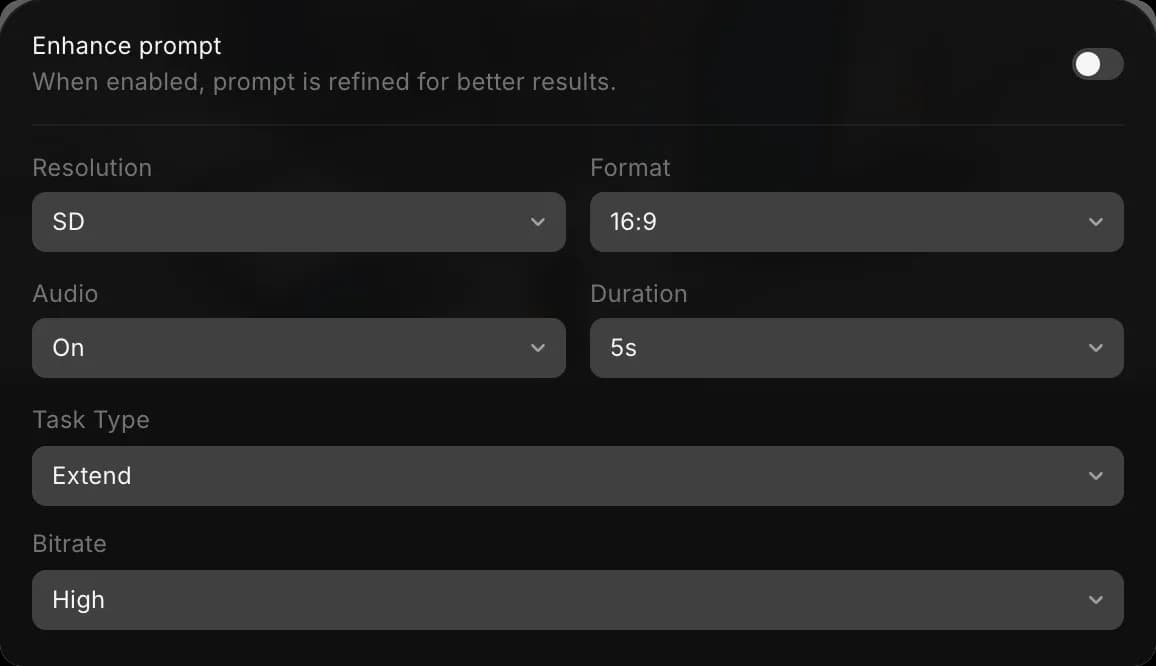
- Klicke auf die Einstellungen-Schaltfläche, z. B. 'SD · 16:9 · On · 5s · Auto · High'. Setze 'Task Type' auf 'Extend' und 'Dauer' auf die Länge des fertigen Clips, also Original plus neues Material. Um einen 5-Sekunden-Clip um 5 Sekunden zu verlängern, wähle 10s
- Schreibe den Prompt mit verlängern oder fortsetzen und nenne den Clip mit @, zum Beispiel
Verlängere @Video 1 nach vorne: Der Reiter erreicht die Hügelkuppe und wird langsamer, als die Stadt in Sicht kommt - Klicke auf die blaue Schaltfläche in der Promptleiste. Sie zeigt, was der Clip kostet
Das Ergebnis ist ein Clip mit dem Original und dem neuen Material, im Seitenverhältnis des angehängten Clips. Um stattdessen Material vor dem Clip hinzuzufügen, sag es: Setze die 5 Sekunden vor @Video 1 fort.
An einem Frame weitermachen
Das funktioniert mit jedem Videomodell, sodass du am Schnitt das Modell wechseln oder die Richtung ändern kannst.
- Klicke mit der rechten Maustaste auf den Clip auf der Canvas und wähle „Letztes Bild auf Canvas extrahieren“. Um an einem früheren Moment weiterzumachen, wähle den Clip aus, bewege den Abspielkopf zum gewünschten Frame, klicke mit der rechten Maustaste und wähle „Bild auf Canvas extrahieren“
- Wähle das extrahierte Frame aus und führe Bild zu Video mit ihm als Startbild aus. Beschreibe, was als Nächstes passiert, zum Beispiel
sie geht im gleichen Tempo weiter und dreht sich zum Fenster - Wiederhole das am Ende jedes neuen Clips, bis die Szene lang genug ist
Hier ist eine kurze Anleitung, wie du in Morphic ein Frame aus einem Video extrahierst:
Die Clips zusammenfügen
Aus Frames erstellte Clips sind einzelne Videos. Füge sie in Compose zusammen:
- Öffne Compose
- Ziehe die Clips in der richtigen Reihenfolge aus dem Tab 'Assets' auf die Timeline
- Klicke oben rechts auf „Exportieren“. Siehe Video exportieren
Tipps
- Nutze Extend, wenn die Einstellung ohne sichtbaren Übergang weiterlaufen soll. Mach an einem Frame weiter, wenn du jeden nächsten Clip selbst steuern möchtest.
- Behalte Modell, Seitenverhältnis und Referenzen über alle Clips bei, damit Figur und Look gleich bleiben.
- Frag Copilot einfach in deinen Worten, zum Beispiel „verlängere diesen Clip um 5 Sekunden“.
So verlängerst du Videos in Morphic. Nutze es immer dann, wenn eine Einstellung oder Szene länger laufen muss als eine Generierung.
Wenn Sie Probleme haben oder Fragen haben, können Sie sich gerne an uns wenden. Wir helfen Ihnen gerne. Schreiben Sie uns an support@morphic.com.
Tag für mehrere Charaktere
Sie können jetzt in Morphic eine Szene mit mehreren Charakteren erstellen. Das ist nützlich für Szenen, die Dialog, Interaktion oder koordinierte Aktionen erfordern, während die Konsistenz zwischen den Charakteren erhalten bleibt.
Storyboard-Erstellung
Wie Sie Szenen, Einstellungen und den visuellen Ablauf in Morphic planen, bevor Sie die finalen Frames generieren.