> For the complete documentation index, see [llms.txt](https://morphic.com/docs/llms.txt). Markdown versions of documentation pages are available by appending `.md` to page URLs; this page is available as [Markdown](https://morphic.com/docs/jp/getting-started/assets/upload-assets.md).

# アセットをアップロード

自分のファイルをMorphicに取り込む4つの方法と、取り込んだ後にどこへ行くのか。

Morphicでは、独自のアセットをアップロードして、プロジェクト全体で使用できます。CanvasでもCopilotでも、キーボードショートカット、アセットパネル、ドラッグ＆ドロップ、または右クリックメニューを使ってファイルを取り込めます。アップロードしたものはすべて、ライブラリに表示されます [studio.morphic.com/library](https://studio.morphic.com/library).

### Morphicでアセットをアップロードする方法は次のとおりです:

Morphicのどこでもアセットを最速でアップロードするには、キーボードショートカットを使います。次を押してください `Cmd + O` (Mac) または `Ctrl + O` (Windows) CanvasまたはCopilotのどちらからでも、ファイルピッカーを開いてアップロードしたいファイルを選択します。

### Canvasから

Canvasで作業しているときにアセットをアップロードする方法は、ほかに3つあります:

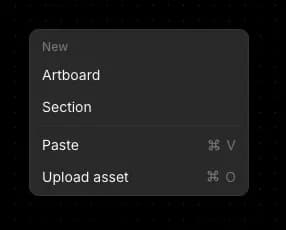
* コンテキストメニュー: Canvasの空白部分を右クリックし、［アセットをアップロード］を選択します。

<div align="left"><figure><img src="https://2982589234-files.gitbook.io/~/files/v0/b/gitbook-x-prod.appspot.com/o/spaces%2FoPhHCbNZdzW70rakoLhf%2Fuploads%2Fklb7yXIZRWarxYBhBJoe%2FCleanShot%202026-05-02%20at%2017.19.19.png?alt=media&amp;token=b0dc4ddf-bd9b-4745-a876-db8359d1dcae" alt=""><figcaption></figcaption></figure></div>

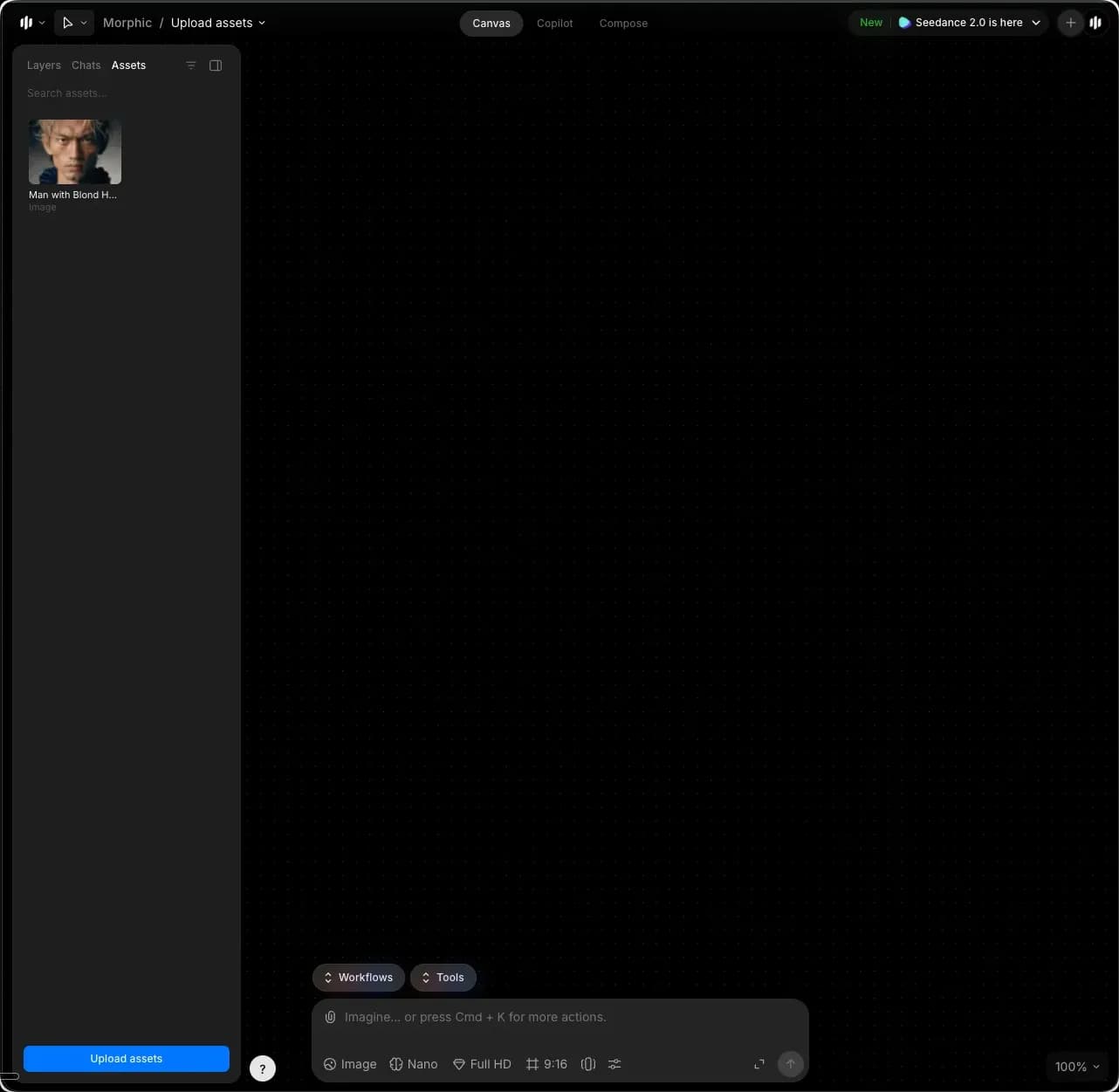
* アセットパネル: 左サイドバーの［アセット］タブをクリックし、パネル下部の［アセットをアップロード］をクリックします。

<figure><img src="https://2982589234-files.gitbook.io/~/files/v0/b/gitbook-x-prod.appspot.com/o/spaces%2FoPhHCbNZdzW70rakoLhf%2Fuploads%2FzjHLYeb2juHDBw3kMXMk%2FCleanShot%202026-05-02%20at%2017.20.19.png?alt=media&amp;token=c7260b36-8af6-4061-b011-140d2f0e7f77" alt=""><figcaption></figcaption></figure>

* ドラッグ＆ドロップ: コンピューター上でファイルが入っているフォルダーを開き、1つ以上選択して、Canvas上にドラッグします。

アップロードしたアセットはCanvas上と、左サイドバーの［アセット］タブに表示されます。

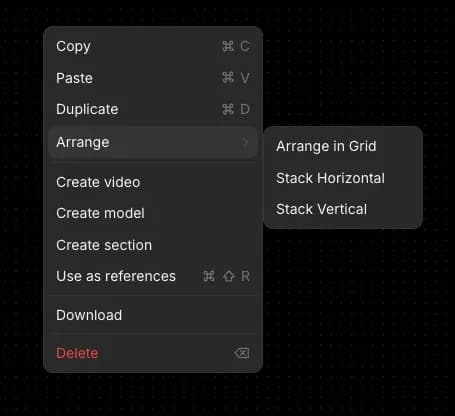
ヒント: アップロードしたアセットをCanvas上で整然と配置するには、すべてのアセットを選択して右クリックし、［整列］にカーソルを合わせます。次の中から選べます:

* グリッドに整列
* 横に積み重ね
* 縦に積み重ね

<div align="left"><figure><img src="https://2982589234-files.gitbook.io/~/files/v0/b/gitbook-x-prod.appspot.com/o/spaces%2FoPhHCbNZdzW70rakoLhf%2Fuploads%2FmLK0jYOr4yUQIhk711Om%2FCleanShot%202026-05-02%20at%2017.22.51.png?alt=media&amp;token=d756ef7a-54ed-43d6-bbf8-7e00d1df04bd" alt=""><figcaption></figcaption></figure></div>

### Copilotから

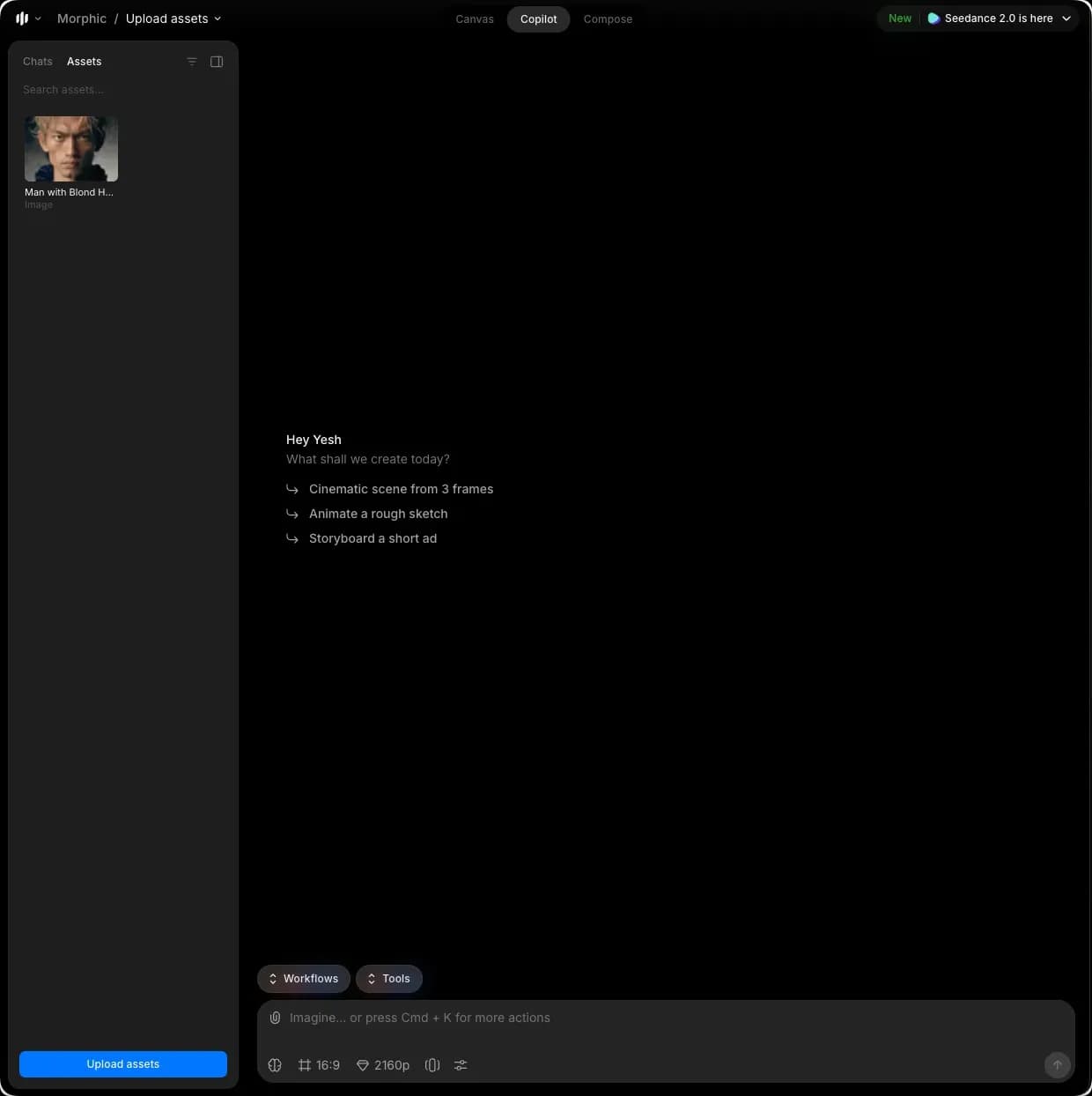
Copilotには、キーボードショートカット以外にアセットをアップロードする追加の方法が1つあります:

* アセットパネル: 左サイドバーの［アセット］タブをクリックし、パネル下部の［アセットをアップロード］をクリックします。

<figure><img src="https://2982589234-files.gitbook.io/~/files/v0/b/gitbook-x-prod.appspot.com/o/spaces%2FoPhHCbNZdzW70rakoLhf%2Fuploads%2FK4VjTRcvLTWKQwH6kIpv%2FCleanShot%202026-05-02%20at%2017.23.35.png?alt=media&amp;token=e12eea6a-24db-4bed-83b2-7a9305b5ab4e" alt=""><figcaption></figcaption></figure>

アップロードしたアセットは、左サイドバーの［アセット］タブに表示されます。

***

ご不明な点やお困りのことがあれば、お気軽にご連絡ください。喜んでお手伝いします。以下までご連絡ください [**support@morphic.com**](mailto:support@morphic.com)**.**


---

# Agent Instructions
This documentation is published with GitBook. GitBook is the documentation platform designed so that both humans and AI agents can read, navigate, and reason over technical content effectively. Learn more at gitbook.com.

## Querying This Documentation
If you need additional information that is not directly available in this page, you can query the documentation dynamically by asking a question.

Perform an HTTP GET request on the current page URL with the `ask` query parameter, and the optional `goal` query parameter:

```
GET https://morphic.com/docs/jp/getting-started/assets/upload-assets.md?ask=<question>&goal=<endgoal>
```

`ask` is the immediate question: it should be specific, self-contained, and written in natural language.
`goal` is optional and describes the broader end goal you are ultimately trying to accomplish on behalf of the user. GitBook uses it to tailor the answer towards what is most useful for that goal.

The response will contain a direct answer to the question and relevant excerpts and sources from the documentation.

Use this mechanism when the answer is not explicitly present in the current page, you need clarification or additional context, or you want to retrieve related documentation sections.