> For the complete documentation index, see [llms.txt](https://morphic.com/docs/llms.txt). Markdown versions of documentation pages are available by appending `.md` to page URLs; this page is available as [Markdown](https://morphic.com/docs/jp/account-and-billing/settings/model-access.md).

# モデルアクセス

ワークスペースでモデルを有効／無効にする方法と、各モデルが出力できる解像度の上限を設定する方法。

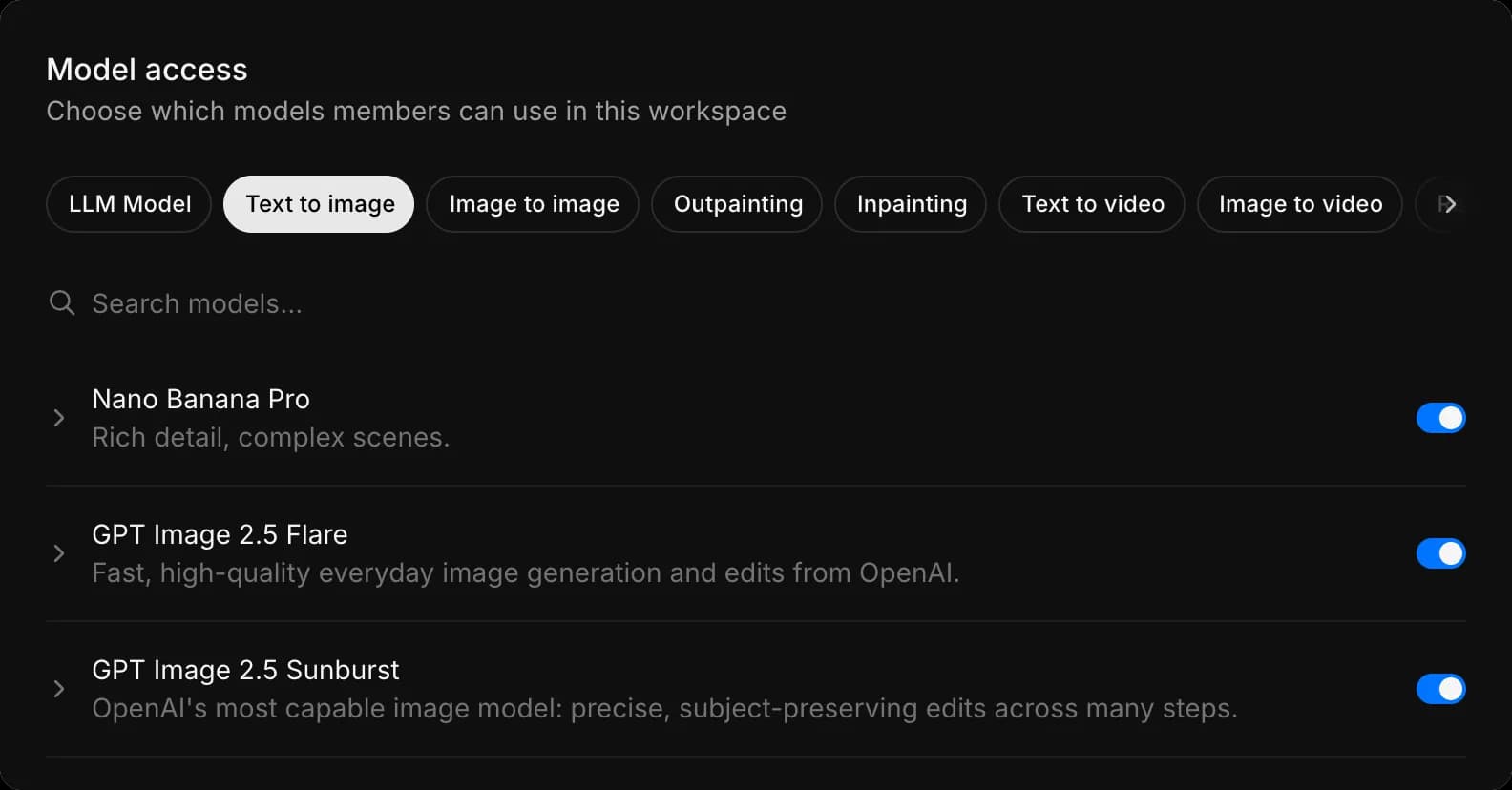
Morphic のモデルアクセスでは、メンバーがワークスペース内でどのモデルを使えるかを選べます。モデルをオフにすると、そのモデルはチームで利用できなくなります。オンにすると、ワークスペース内の誰でも選べるようになります。

同じモデルセットでチームに作業してほしいときや、高コストなモデルへの消費を把握しておきたいときに使います。

Morphic でモデルアクセスを管理する簡単なチュートリアルはこちらです：

{% embed url="<https://youtu.be/MiIRgHhj6j4>" %}

### モデルアクセスへのアクセス

1. ダッシュボード表示で、左上隅にある組織のロゴをクリックします。
2. ドロップダウンから「設定」を選択します。
3. 左サイドバーの「Organization」の下にある「Model access」をクリックします。

または、直接こちらへアクセスしてください: [studio.morphic.com/settings/model-access](https://studio.morphic.com/settings/model-access)

### モデルをオンまたはオフにする

1. 「Model access」を開く
2. 上部で「Text to image」や「Image to video」などのタスクタイプを選びます。各タイプには独自のモデル一覧があります。
3. 使いたいモデルを見つけるか、「Search models...」に名前を入力します。
4. 右側のトグルを使ってオンまたはオフにします

各モデルには、「Best-in-class text rendering and typography」や「Ultra-fast drafts and iterations」のように、そのモデルの得意分野を一行でまとめた説明が付いているので、ページを離れずに判断できます。

### タスクタイプ

モデルは、できることごとにグループ分けされています：

| グループ | タスクタイプ                                                                                  |
| ---- | --------------------------------------------------------------------------------------- |
| 画像   | Text to image、Image to image、Outpainting、Inpainting、Upscale                             |
| 動画   | Text to video、Image to video、Reference to video、Frames to video、Video to video、Lip sync |
| 音声   | Speech、Dialogue、Music、Sound effects、Transcribe                                          |

1つのモデルが複数のタスクタイプに表示されることがあります。あるタイプでオフにしても、別のタイプではオフになりません。必要な各タイプを確認してください。

### モデルの上限を設定する

一部のモデルには独自のオプションがあります。

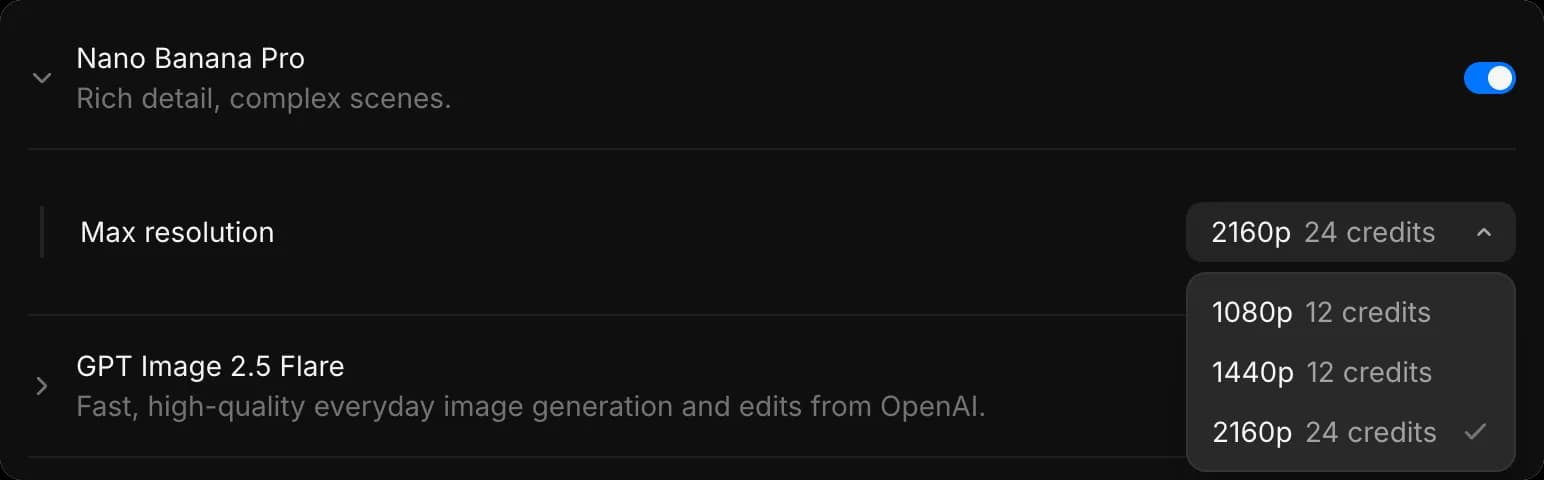
1. モデルの横にある矢印をクリックして展開します
2. 「Max resolution」ドロップダウンを開く
3. モデルが出力できる上限を選びます。各オプションの横にクレジット消費量が表示され、チェックマークが現在有効な設定を示します。

解像度の上限を設定するのは、モデルをオフにするよりもまず試すべき対策であることが多いです。チームは気に入っているモデルを使い続けられ、最も高価な設定は使えなくなります。

これで Morphic のモデルアクセス管理は完了です。チームを使わせたいモデルに誘導しつつ、支払ってもよい設定に保てます。

***

ご不明な点やお困りのことがあれば、お気軽にご連絡ください。喜んでお手伝いします。以下までご連絡ください [**support@morphic.com**](mailto:support@morphic.com)**.**


---

# Agent Instructions
This documentation is published with GitBook. GitBook is the documentation platform designed so that both humans and AI agents can read, navigate, and reason over technical content effectively. Learn more at gitbook.com.

## Querying This Documentation
If you need additional information that is not directly available in this page, you can query the documentation dynamically by asking a question.

Perform an HTTP GET request on the current page URL with the `ask` query parameter, and the optional `goal` query parameter:

```
GET https://morphic.com/docs/jp/account-and-billing/settings/model-access.md?ask=<question>&goal=<endgoal>
```

`ask` is the immediate question: it should be specific, self-contained, and written in natural language.
`goal` is optional and describes the broader end goal you are ultimately trying to accomplish on behalf of the user. GitBook uses it to tailor the answer towards what is most useful for that goal.

The response will contain a direct answer to the question and relevant excerpts and sources from the documentation.

Use this mechanism when the answer is not explicitly present in the current page, you need clarification or additional context, or you want to retrieve related documentation sections.