> For the complete documentation index, see [llms.txt](https://morphic.com/docs/llms.txt). Markdown versions of documentation pages are available by appending `.md` to page URLs; this page is available as [Markdown](https://morphic.com/docs/zh/getting-started/assets/upload-assets.md).

# 上传资源

将你自己的文件导入 Morphic 的四种方式，以及导入后它们会存放在哪里。

Morphic 允许你上传自己的资源，以便在整个项目中使用。无论你是在 Canvas 还是 Copilot 中工作，都可以通过键盘快捷键、资源面板、拖放或右键菜单导入文件。你上传的所有内容都会出现在你的库中，网址为 [studio.morphic.com/library](https://studio.morphic.com/library).

### 以下是在 Morphic 中上传资源的方法：

在 Morphic 的任何位置上传资源最快的方法是使用键盘快捷键。按 `Cmd + O` （Mac）或 `Ctrl + O` （Windows），在 Canvas 或 Copilot 中打开文件选择器，然后选择要上传的文件。

### 来自 Canvas

在 Canvas 中工作时，你还有另外三种上传资源的方法：

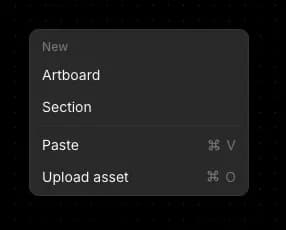
* 右键菜单：在 Canvas 的任意空白区域右键单击，然后选择“上传资源”。

<div align="left"><figure><img src="https://2197859893-files.gitbook.io/~/files/v0/b/gitbook-x-prod.appspot.com/o/spaces%2FoPhHCbNZdzW70rakoLhf%2Fuploads%2Fklb7yXIZRWarxYBhBJoe%2FCleanShot%202026-05-02%20at%2017.19.19.png?alt=media&amp;token=b0dc4ddf-bd9b-4745-a876-db8359d1dcae" alt=""><figcaption></figcaption></figure></div>

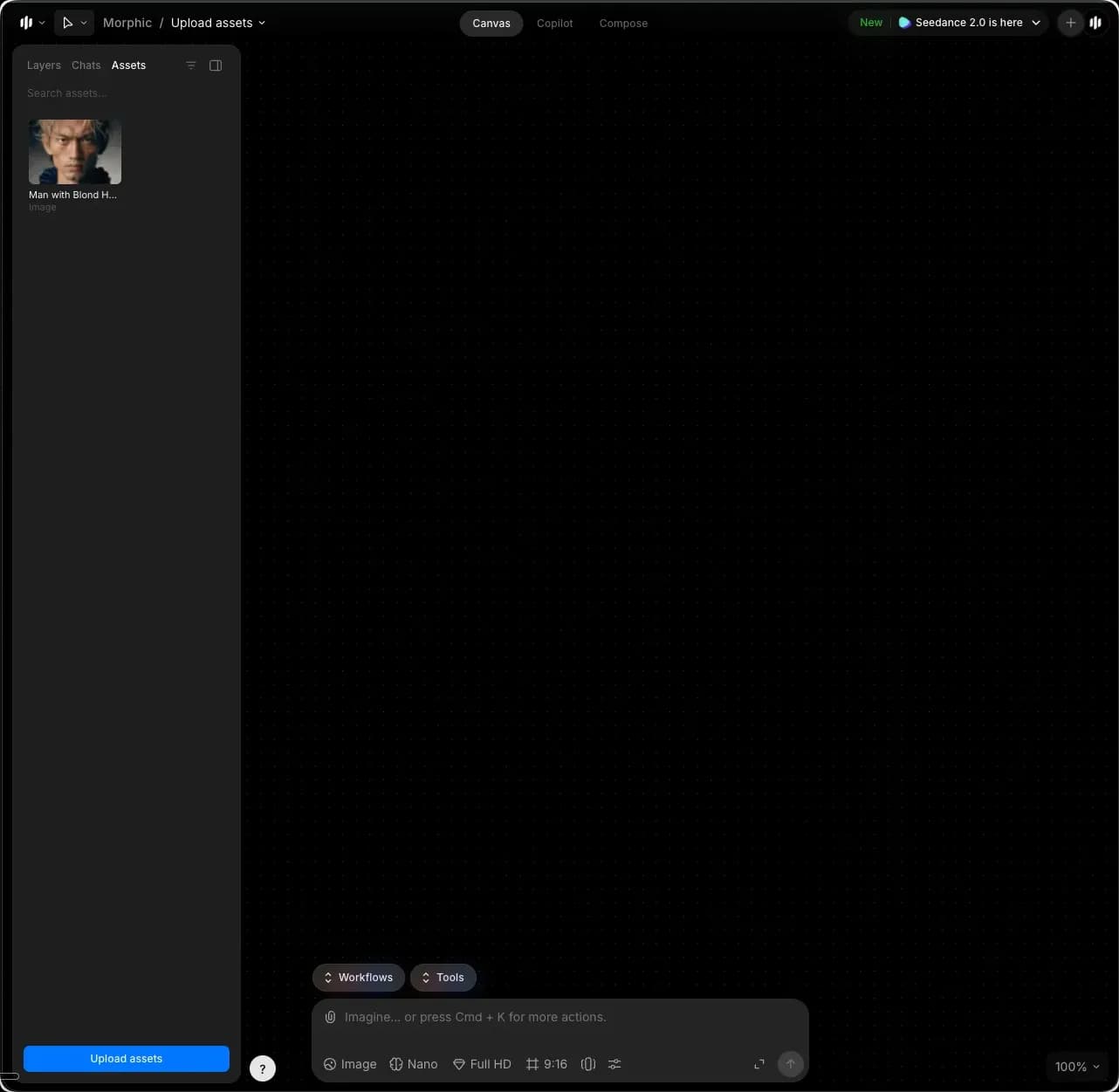
* 资源面板：点击左侧边栏中的“资源”标签，然后点击面板底部的“上传资源”。

<figure><img src="https://2197859893-files.gitbook.io/~/files/v0/b/gitbook-x-prod.appspot.com/o/spaces%2FoPhHCbNZdzW70rakoLhf%2Fuploads%2FzjHLYeb2juHDBw3kMXMk%2FCleanShot%202026-05-02%20at%2017.20.19.png?alt=media&amp;token=c7260b36-8af6-4061-b011-140d2f0e7f77" alt=""><figcaption></figcaption></figure>

* 拖放：打开电脑上包含文件的文件夹，选择一个或多个文件，然后将它们拖到 Canvas 上。

你上传的资源会出现在 Canvas 上，以及左侧边栏的“资源”标签中。

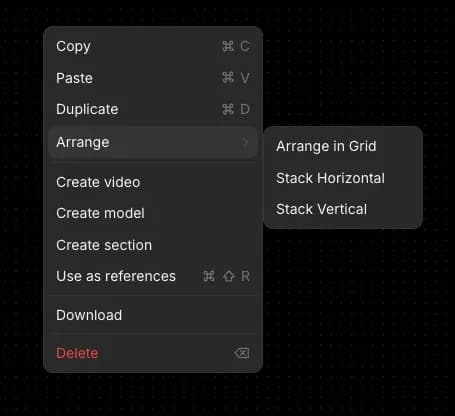
提示：要在 Canvas 上整齐地排列已上传的资源，请选中所有资源，右键单击，然后将鼠标悬停在“排列”上。你可以从以下选项中选择：

* 按网格排列
* 水平堆叠
* 垂直堆叠

<div align="left"><figure><img src="https://2197859893-files.gitbook.io/~/files/v0/b/gitbook-x-prod.appspot.com/o/spaces%2FoPhHCbNZdzW70rakoLhf%2Fuploads%2FmLK0jYOr4yUQIhk711Om%2FCleanShot%202026-05-02%20at%2017.22.51.png?alt=media&amp;token=d756ef7a-54ed-43d6-bbf8-7e00d1df04bd" alt=""><figcaption></figcaption></figure></div>

### 来自 Copilot

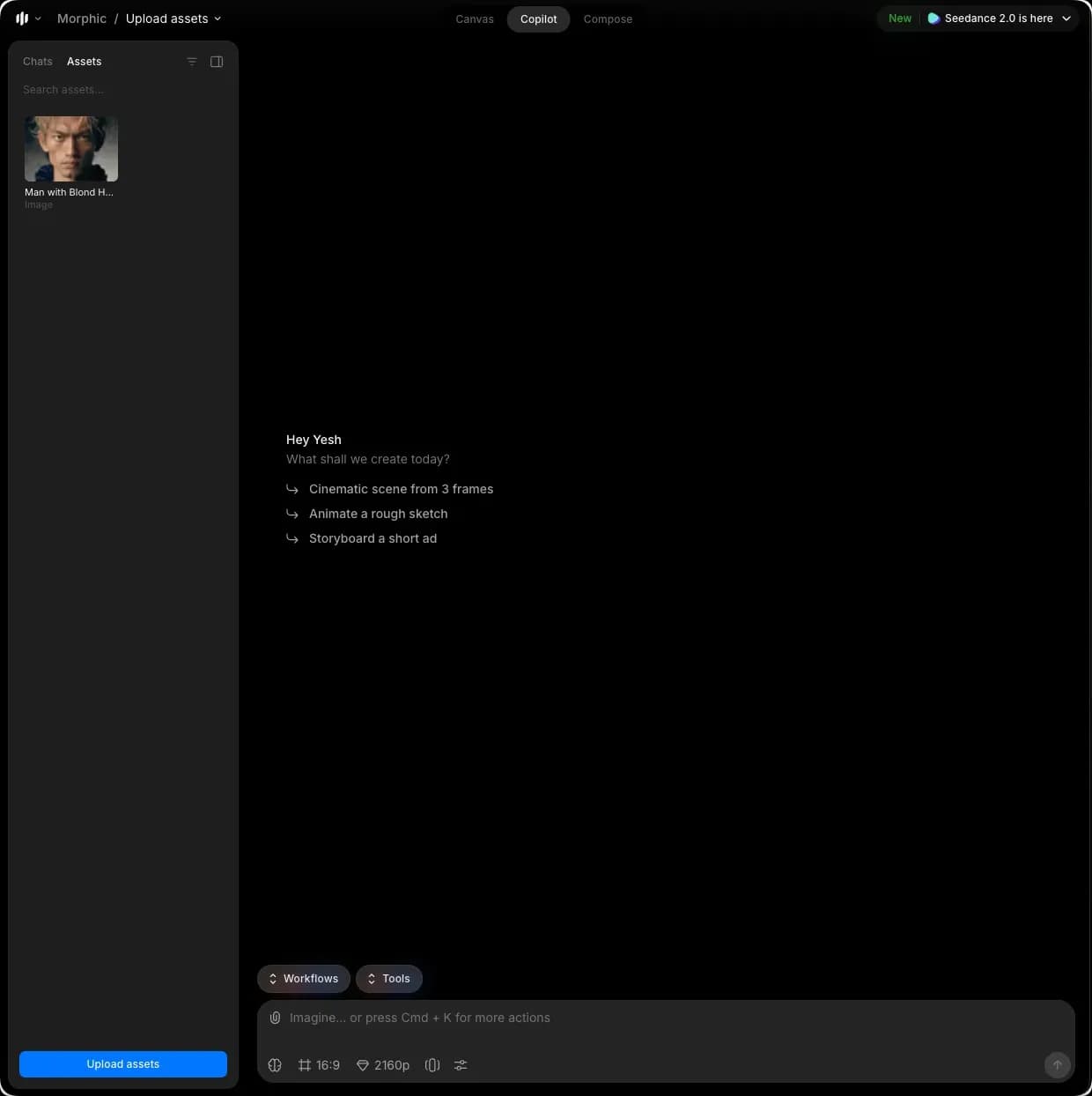
除了键盘快捷键之外，Copilot 还有一种额外的上传资源方式：

* 资源面板：点击左侧边栏中的“资源”标签，然后点击面板底部的“上传资源”。

<figure><img src="https://2197859893-files.gitbook.io/~/files/v0/b/gitbook-x-prod.appspot.com/o/spaces%2FoPhHCbNZdzW70rakoLhf%2Fuploads%2FK4VjTRcvLTWKQwH6kIpv%2FCleanShot%202026-05-02%20at%2017.23.35.png?alt=media&amp;token=e12eea6a-24db-4bed-83b2-7a9305b5ab4e" alt=""><figcaption></figcaption></figure>

你上传的资源会出现在左侧边栏的“资源”标签中。

***

如果您遇到任何问题或有任何疑问，欢迎随时联系我们。我们很乐意为您提供帮助。请写信至 [**support@morphic.com**](mailto:support@morphic.com)**.**


---

# Agent Instructions
This documentation is published with GitBook. GitBook is the documentation platform designed so that both humans and AI agents can read, navigate, and reason over technical content effectively. Learn more at gitbook.com.

## Querying This Documentation
If you need additional information that is not directly available in this page, you can query the documentation dynamically by asking a question.

Perform an HTTP GET request on the current page URL with the `ask` query parameter, and the optional `goal` query parameter:

```
GET https://morphic.com/docs/zh/getting-started/assets/upload-assets.md?ask=<question>&goal=<endgoal>
```

`ask` is the immediate question: it should be specific, self-contained, and written in natural language.
`goal` is optional and describes the broader end goal you are ultimately trying to accomplish on behalf of the user. GitBook uses it to tailor the answer towards what is most useful for that goal.

The response will contain a direct answer to the question and relevant excerpts and sources from the documentation.

Use this mechanism when the answer is not explicitly present in the current page, you need clarification or additional context, or you want to retrieve related documentation sections.