Fight choreography is the plan for every strike, dodge and fall: who moves where, on which beat, and where the camera sits. In Morphic you stage it in 3D, adjust any performer by hand, then generate the shot from the blocking video.
Why fight choreography goes wrong in AI video
A prompt can describe a fight, but it cannot place one. The model guesses who stands where and who moves first, again on every take. A generated fight needs what a stunt team needs: a plan everyone can see.
Stage a fight or a dance in one step, and block a chase by hand
Fights and dances: Group action
Group action adds a whole cast with ready-made fight or dance movement, every performer editable. As a fight choreography app, 3D Scene keeps the fight in one space, so every camera agrees on where everyone is.
Chases: blocked by hand
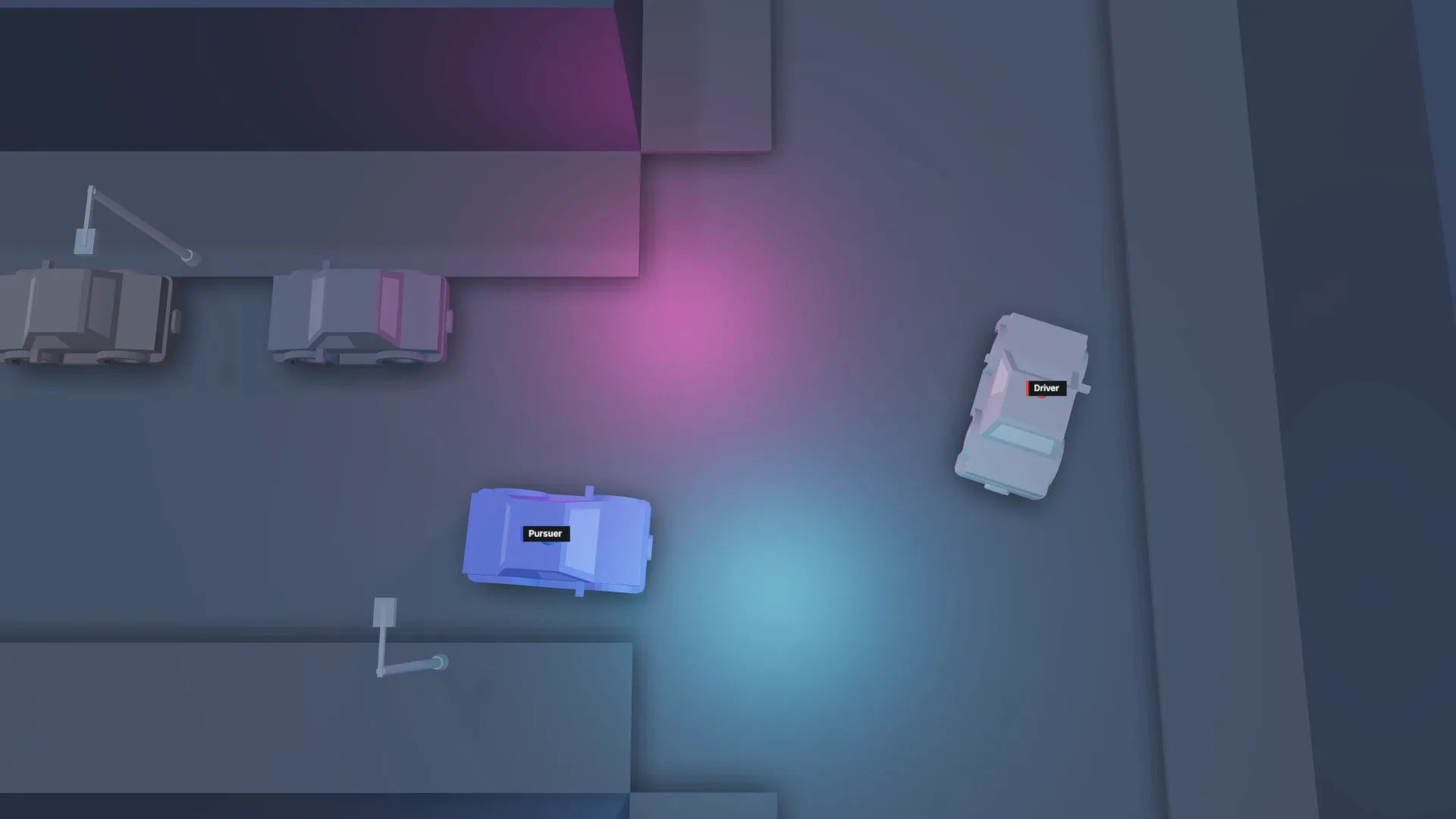
Place a vehicle from the model library, say a dark saloon car, draw its path and attach a rider so the driver travels with it. Set a camera to Follow the car. That covers the classic chase shot, and a car chase scene for an ad in the commercial previs guide.
Start the fight choreography from ready-made movement or a description
There are three ways in, and you can mix them freely. Posing works the way it does in the 3D pose tool.
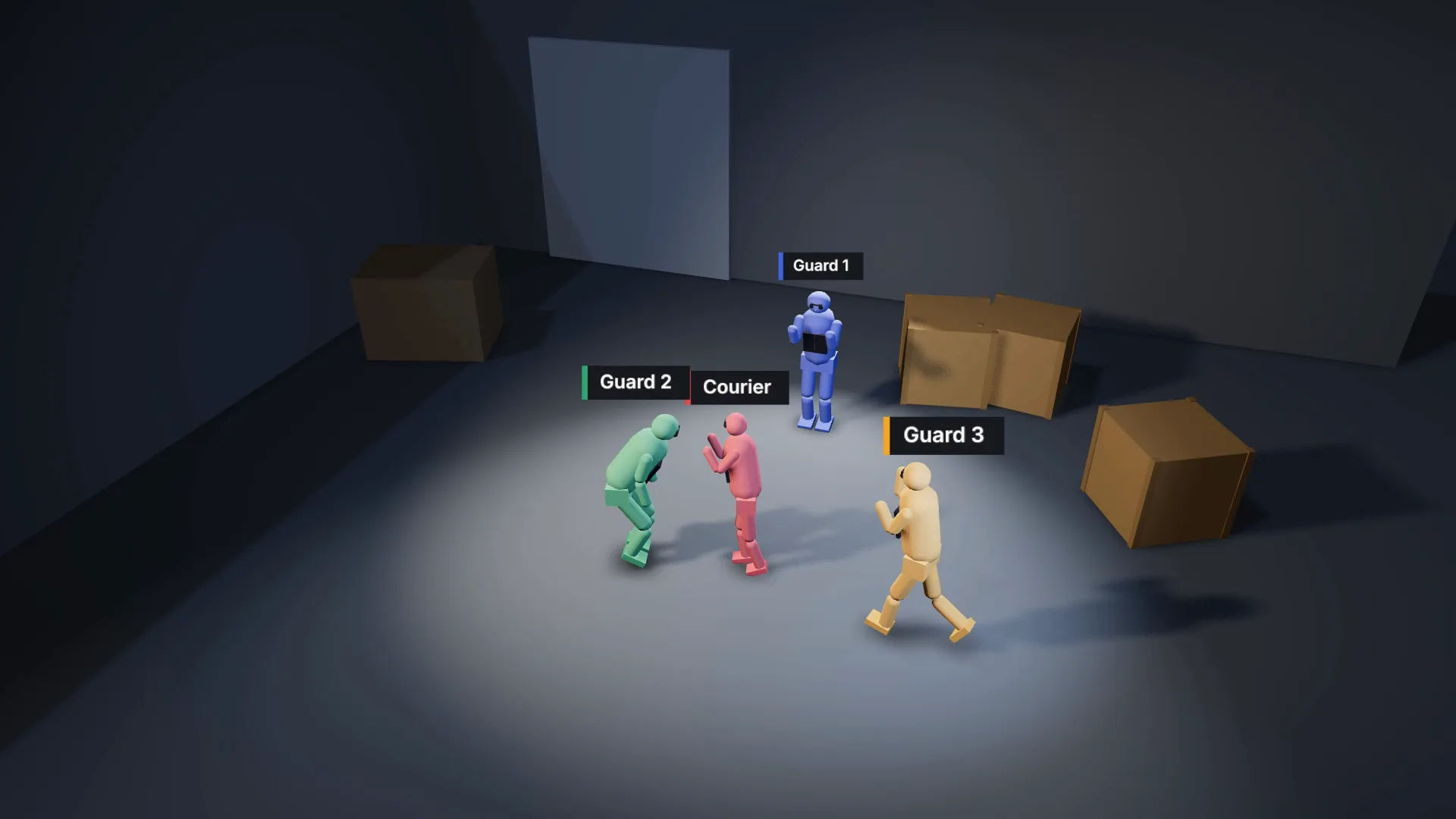
 Describe itTell Copilot "a courier cornered by three guards in a warehouse". It builds the set, cast, action and camera, and Ask mode proposes the staging first.
- Use Group actionReady-made fight movement for the whole cast in one step, every performer editable.
- Pose it yourselfPose presets and per-body-part posing. Save a motion as a clip and reuse it on another guard.
Edit any performer's path, timing and pose in the fight
Click a figure and change only that figure: redraw its path, slide its moves on the timeline, or pose an arm for a block. The timeline zooms to single frames, so a dodge meets the exact frame of a swing. Colour and label each performer so the prompt can cast them later.
Pick a camera style that sells the fight
Set the lens, then a Camera style for the feel of the rig: smooth for a wide that shows the geography, loose and shaky for close exchanges. Follow keeps a camera on one fighter; for coverage across several cameras, see the camera blocking tool.
Check fight speeds before you render
The editor flags performers moving at odd speeds and a camera that crosses the 180-degree line. Both are quick to fix in 3D, and scene edits cost no credits.
Generate the final fight shot from the blocking video
Render the fight blocking video
Set the aspect ratio and Quality under Format, then open Export, choose Video and render. It runs in your browser at no credit cost; choose Add video to canvas.
Cast each fighter by colour
Attach the blocking video as the reference and give every figure one line in the prompt. Add a reference sheet for any character who appears in more than one shot.
The red figure is a courier in a yellow rain jacket. The blue, green and yellow figures are guards in black uniforms. Keep the staging, the timing and the wide, lightly handheld camera from the reference.
Generate the fight and keep the best take
Generate two versions with a video model that accepts a reference video. Dense exchanges can drift, so keep one exchange per shot and cut them together in Compose.
To finish the sequence, the fight effect guide covers impact moments, anime fight scenes show a stylised look, and crowd simulation videos cover action at a larger scale. The full handoff is in how to turn a 3D scene into AI video.
3D blocking: one wide, lightly handheld camera
Generated shot from that blocking