3D pose tool and mannequin

A translucent, softly lit mannequin figure mid-step on a black ground, the cover for the Morphic 3D mannequin and pose tool

Pose a 3D mannequin and frame it. Then use the pose as shot reference.

What is a 3D mannequin, and why pose with one?

A 3D mannequin is a posable figure you can view from any side, used as pose reference for drawing, photography and film. It helps most when your reference photo is from the wrong angle.

In Morphic, the mannequin stands in a 3D scene, so the pose is already a shot: frame it, render it, and attach it as reference for an AI image or video. The mannequin guides where the person stands, which way they face and how they hold themselves. A pose that reads clearly from the camera makes the strongest reference.

Finished low-angle shot in a quiet boxing gym: a young woman in a grey hoodie and black hand wraps holds her guard, left foot forwardGenerated shot
3D Scene mannequin pose from a low camera: a red figure in a boxing guard in an empty gym, fists at chin height, left foot forward3D mannequin pose

Pose, label, cast and frame a 3D mannequin

Pose presets and per-body-part posing

Start from a pose preset, then adjust one body part at a time: tilt the head, raise an arm, plant a foot. Add an idle, a walk or a run, and save a motion as a clip to reuse.
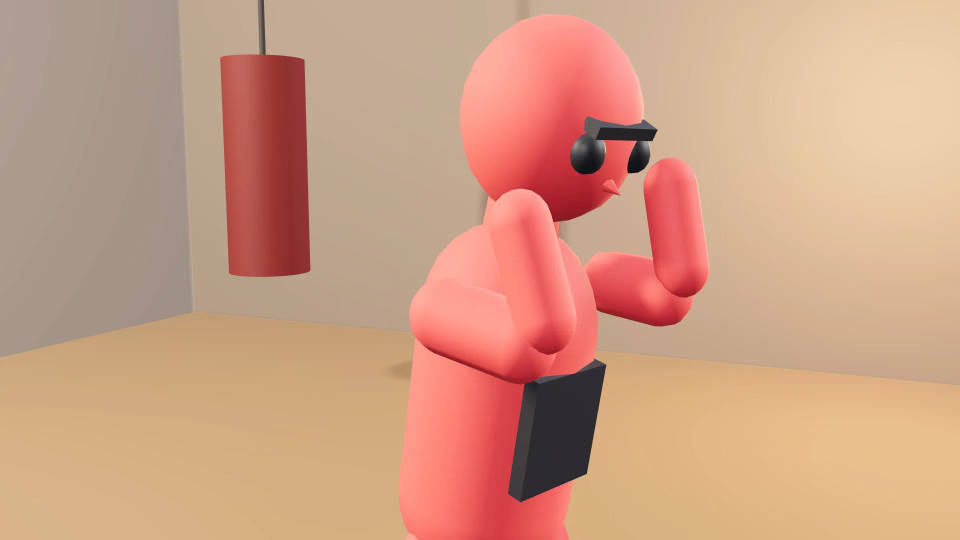
Close camera on a red 3D mannequin in a boxing guard, fists raised near the face, elbows tucked in

Set the mannequin's height, body width and name label

Set height and body width so a tall coach and a shorter boxer read correctly, then add a name label. Figures have faces, so the direction each one looks is easy to read.
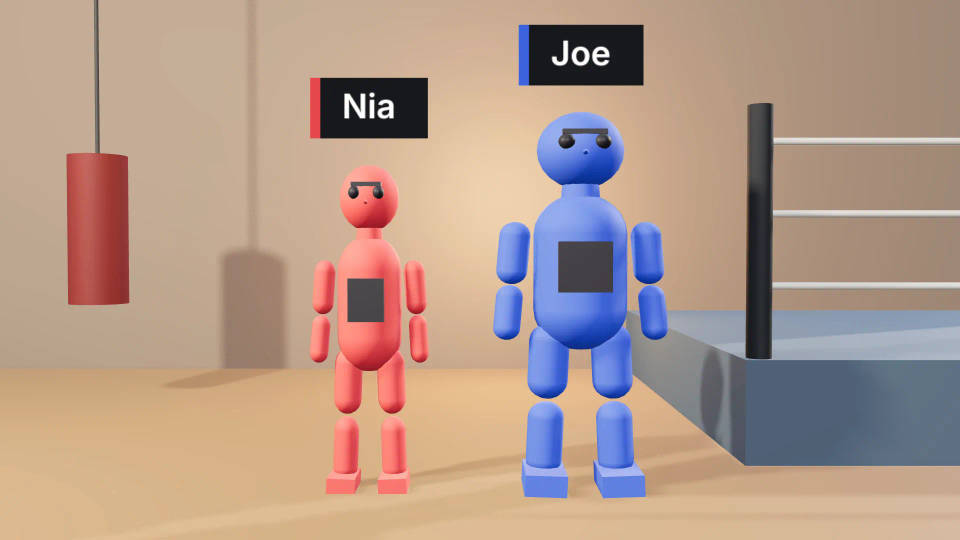
Two 3D mannequins side by side in a boxing gym, a taller blue figure and a shorter red figure, each with a name label above it

Cast by colour so the prompt can name each mannequin

Prompt: the red figure is a young woman in a grey hoodie, the blue figure an older man holding pads. The colour names tell the model who goes where, and the mannequin guides where each person stands and which way they face.
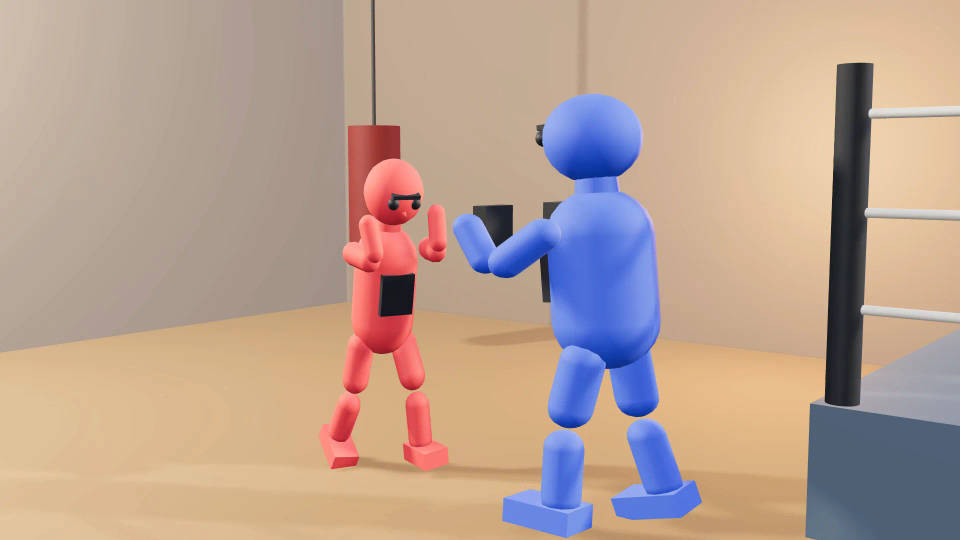
Red and blue 3D mannequins facing each other in a boxing gym, the red figure in a guard and the blue figure holding up pads

Frame the 3D pose from any camera

Walk a camera around the pose: a low angle for strength, an overhead view for the stance, a three-quarter view for classic reference. Or use a one-click angle and compare several cameras.
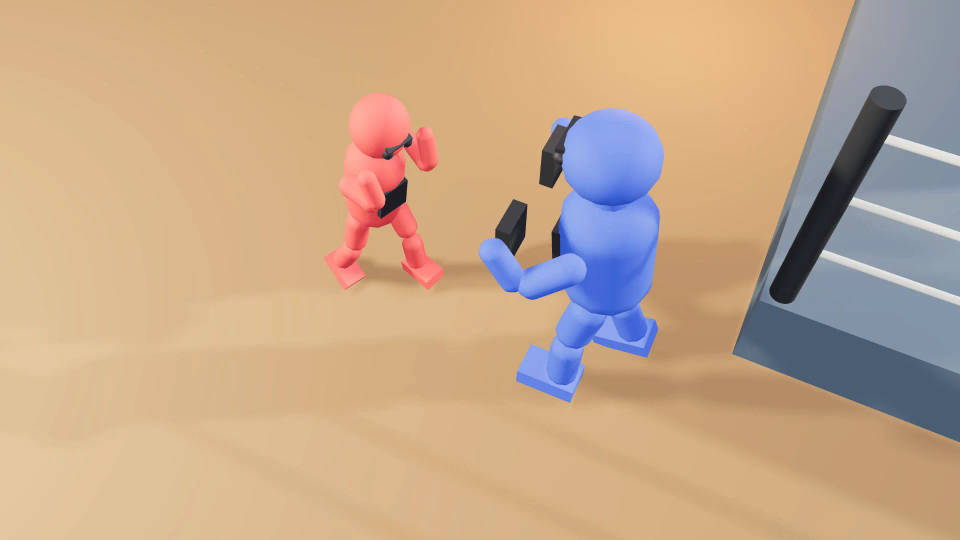
High camera looking down on the red and blue mannequins in the gym, showing the boxer's stance and the coach's position across from her

Use the 3D mannequin pose as reference for an AI image or video

  1. 01

    Pose and frame

    Pose the mannequin, set its colour and label, and place the camera for the shot.

  2. 02

    Render a video or a snapshot

    Render a video in the editor and add it to the Canvas, or press P to save a snapshot.

  3. 03

    Generate from the pose

    Attach the video or snapshot as a reference and name the figure by colour in the prompt.

Pose two or more 3D figures together

Pose a group by hand or with Group action

Pose each figure by hand, or use Group action to add a whole cast with ready-made dance or fight movement, then adjust anyone.

Keep a set-up with Formations

Formations save an arrangement, so the same spacing returns wherever you place a copy.

Give every figure its own colour

With several people in frame, colour names in the prompt tell the model who goes where. See the step-by-step guide and the 3D scene maker for the rest of the scene.

Design who each mannequin becomes

The 3D character generator keeps a character on model across a pose sheet. For drawing practice, the drawing poses library shows figure references at the angle you need.

All on Morphic

From the pose to the shot

Simple pricing

Get started for free today, with the option to upgrade or cancel anytime.

Basic

$19/ month
billed as $228 per year

2400 monthly credits

1 user only

All models

Workflows

Standard

$24/ month
billed as $288 per year

3625 monthly credits

1 user only

All models

Workflows

Pro

$45/ month
billed as $540 per year

6350 shared monthly credits

1 user

+ up to 4 more at extra cost

All models

Workflows

Max

$170/ month
billed as $2040 per year

24650 shared monthly credits

1 user

+ up to 9 more at extra cost

All models

Workflows

Enterprise

For higher limits

Custom

pricing and billing terms

High-volume credits
Custom seat limits
All models
Workflows
Pricing Gradient

Free

For playing around

$0

forever free

Up to 20 credits
1 user only
Limited models
Workflows

FAQs

Can I pose more than one 3D figure?
Yes. Add several figures to one scene and pose each by hand, or use Group action to add a whole cast with ready-made dance or fight movement, then adjust any performer. Give each figure its own colour and name label so the scene stays readable and the prompt can cast each one.
Can I save a 3D mannequin arrangement and reuse it?
Yes. Formations save an arrangement of figures so you can place copies of it at a new position and facing, which keeps a recurring group set-up the same from shot to shot. For a single figure, save its motion as a clip and apply it to another mannequin, and download the scene file to keep the whole posed scene.
Can I export the mannequin pose as an image?
Yes. Export a Still frame to download a PNG of the camera view, at the aspect ratio and Quality set under Format in the Scene tab, or press P to save a snapshot and attach it to Copilot. Render video exports a pose inside an action as an MP4, at no credit cost.
How do I make the generated character match the mannequin?
Attach the render as a reference, name the mannequin by its colour in the prompt, and describe the person it becomes: age, build, clothes and hair. For the same person across several shots, attach a reference sheet of the character alongside the render. The mannequin sets the pose and the sheet keeps the identity.
Does the generated output match the 3D pose exactly?
No, an exact match is not guaranteed. The mannequin guides placement, facing and pose, and the generated person brings their own detail, so small things like finger positions can shift. Frame the pose so its shape reads clearly from the camera, and regenerate any shot that drifts from the reference.
Do I need 3D experience to use the 3D pose tool?
No. Start from a pose preset and adjust one body part at a time, or describe the scene to Copilot and it places the figures for you. Everything stays editable by hand. If you already work in Blender or Maya, switch the viewport navigation to the keys you know.

You might also like