Every image model
Brush it away
Erase anything in three steps
- 01
Open Morphic
Sign up and start creating on a free-flowing, infinite visual canvas.
- 02
Brush over it
Upload a photo and paint a rough stroke across whatever you want gone.
- 03
Generate and export
The model fills the area behind the stroke by inpainting. Rerun if needed, then export.
Use cases
Wipe a blemish or spot in one stroke
Brush over a skin blemish, a dust speck, or a scratch and it lifts off cleanly. The area rebuilds from the surrounding skin or surface, so there is no soft blur where the mark used to be. It is the fastest way to tidy a portrait without opening a full retouching tool.
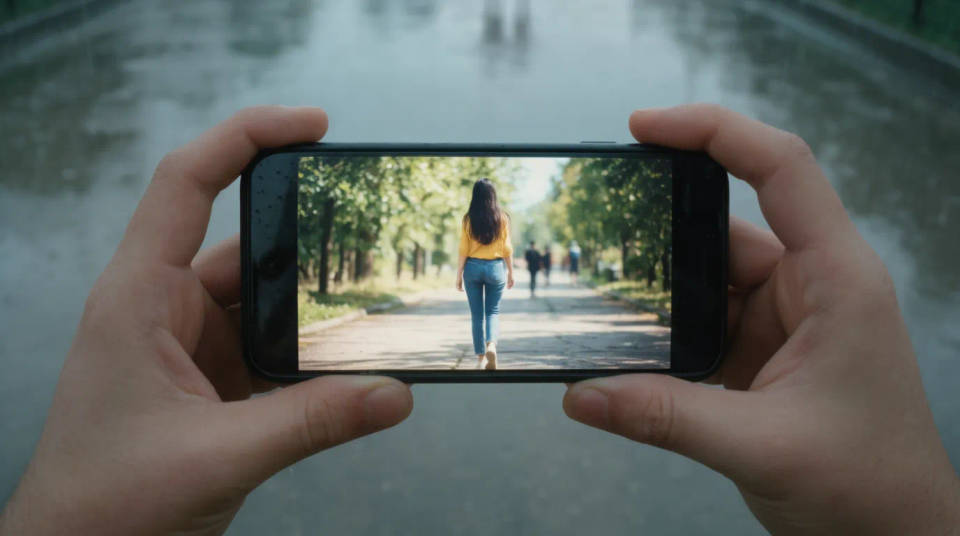
Dab out a small distraction
A stray cup on the table, a coat left on a chair, a light switch on the wall. Paint over the thing that pulls the eye and it disappears into whatever belongs behind it. Because the brush forgives a loose stroke, you can clear a small object in a second or two.
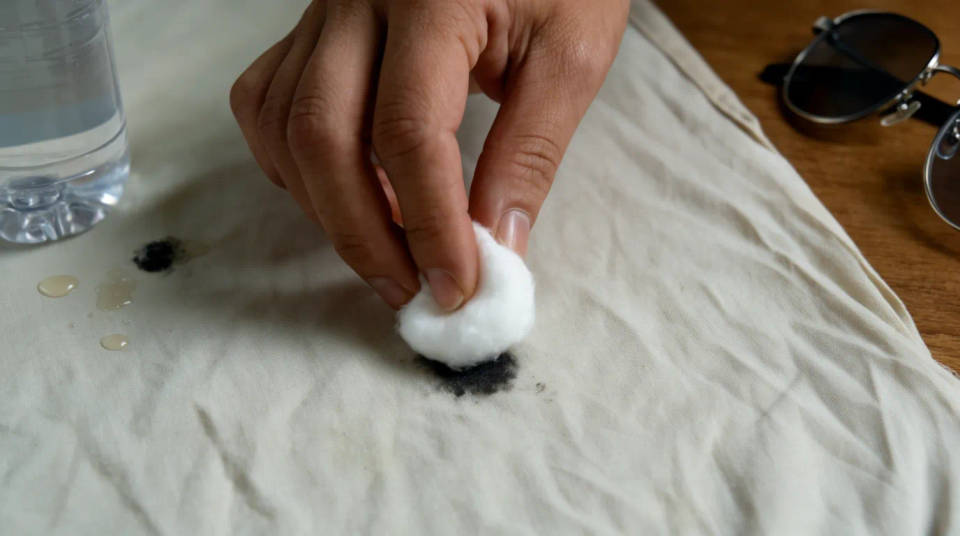
Remove glare and hot spots
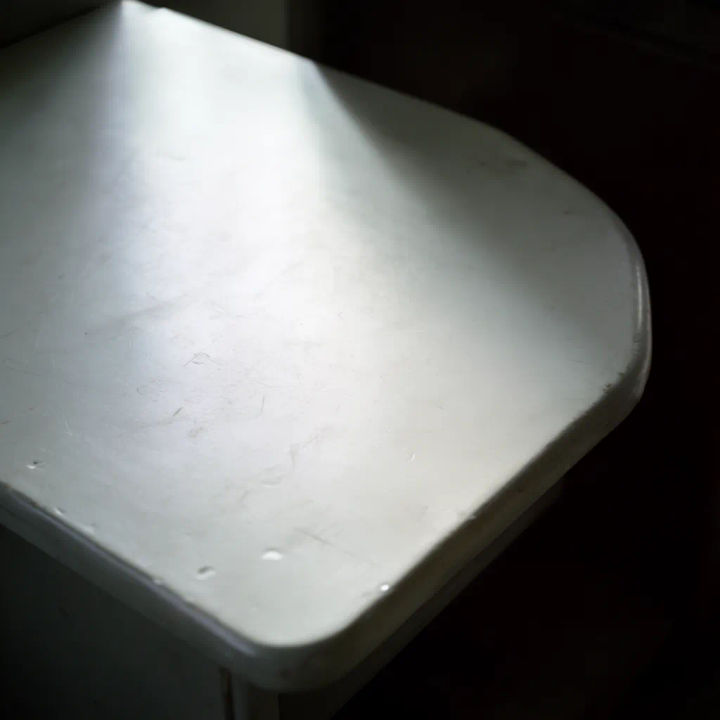
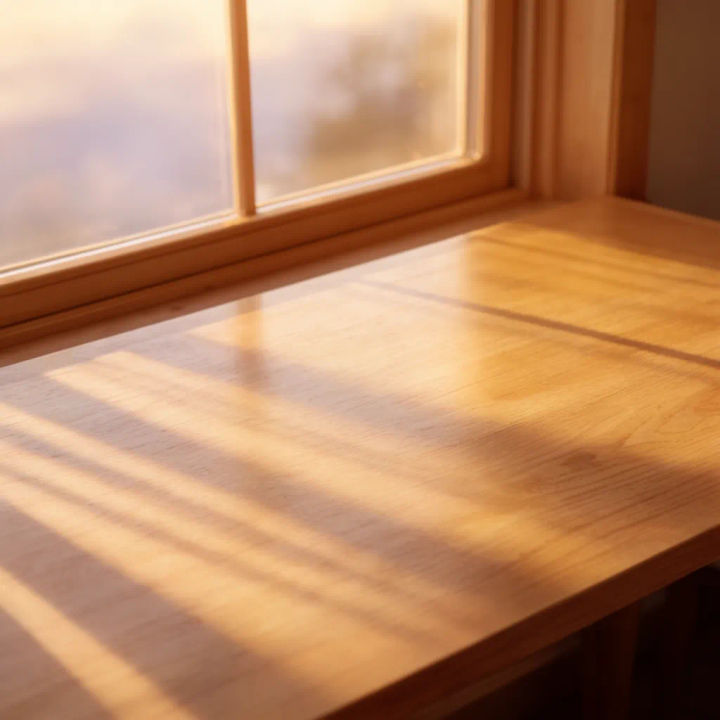
Brush over a reflection on glass, a bright hot spot from a lamp, or a lens flare across the frame. The model rebuilds the surface underneath rather than dimming the whole area, so the colour and detail come back where the glare had washed them out.
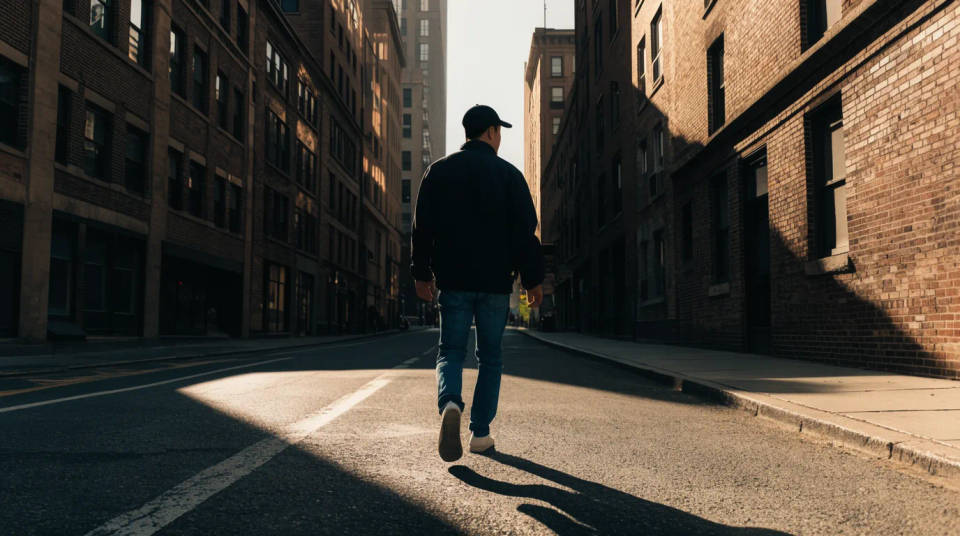
Paint over what you cannot reshoot
When a moment is gone and the shot is the only one you have, a rough brush over the problem often saves it. Clear a passer-by, a bin, or a fingerprint on the lens, and keep the rest of the frame exactly as you captured it. No reshoot, no starting over.
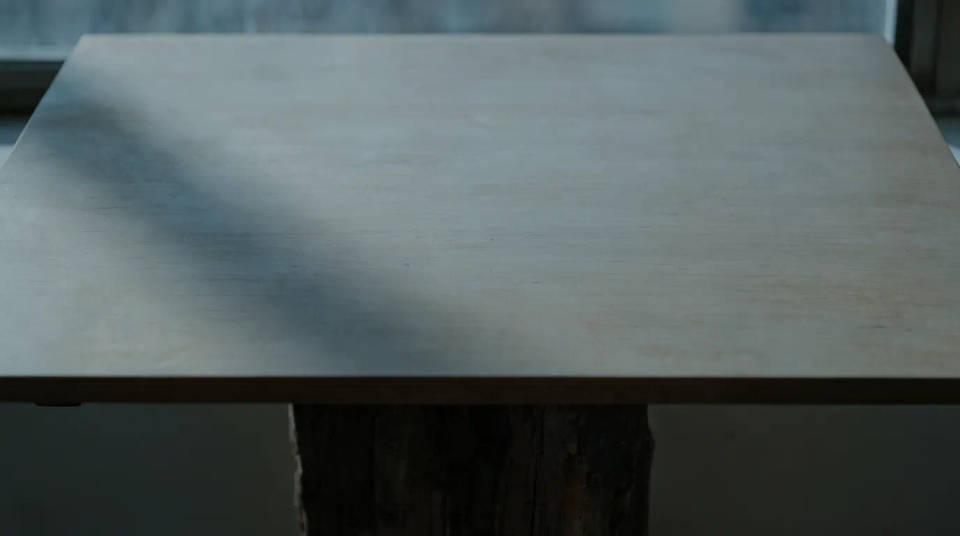
Prompt examples
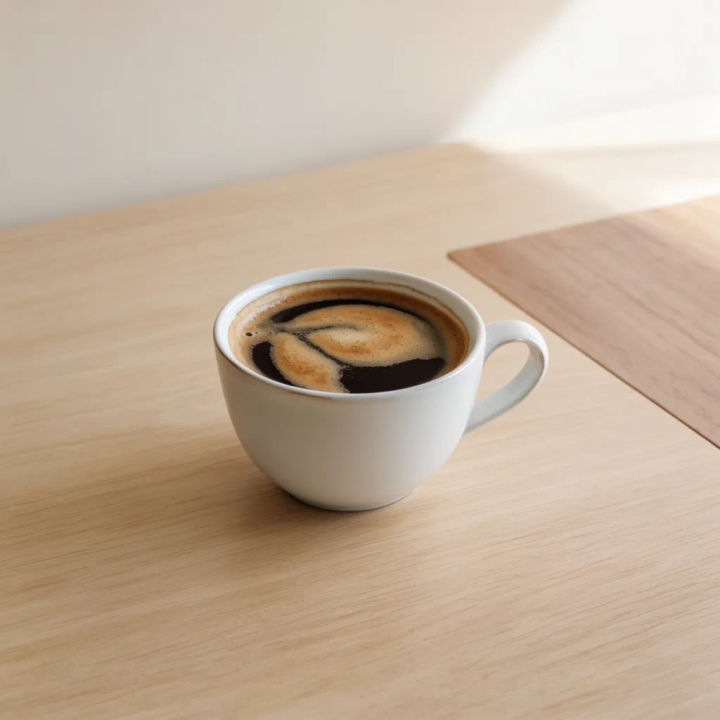
Erase the object
Brush over the coffee cup on the desk and rebuild the wood surface underneath
Edit prompt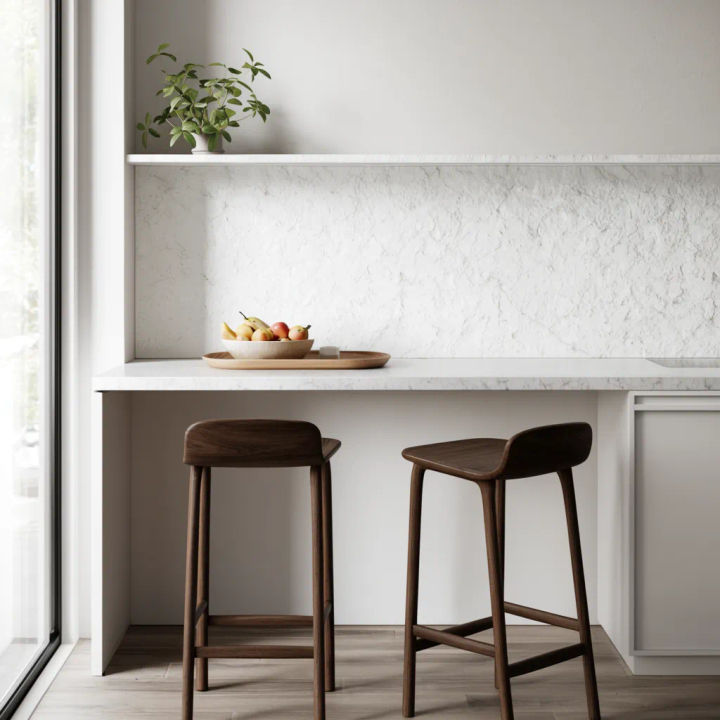
Clear the blemish
Remove the spot on the cheek and match the surrounding skin tone and texture
Edit prompt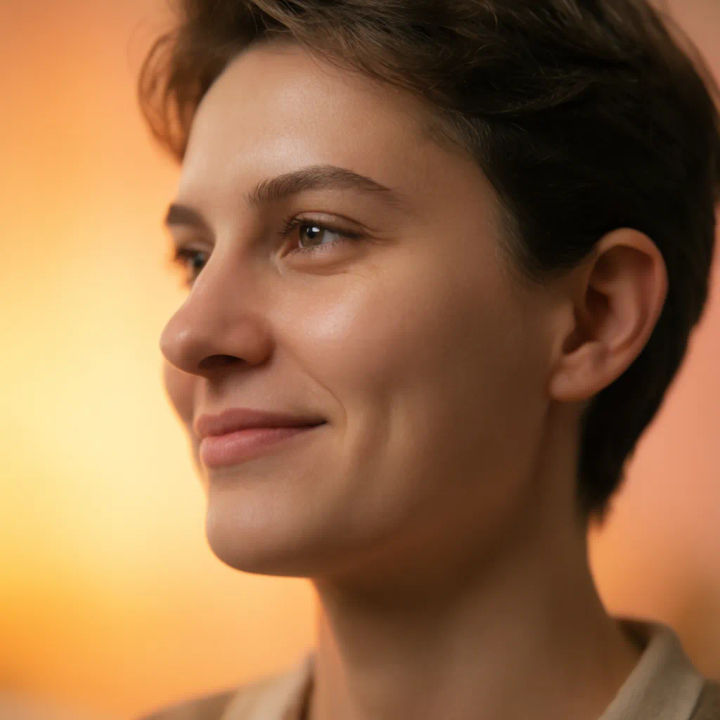
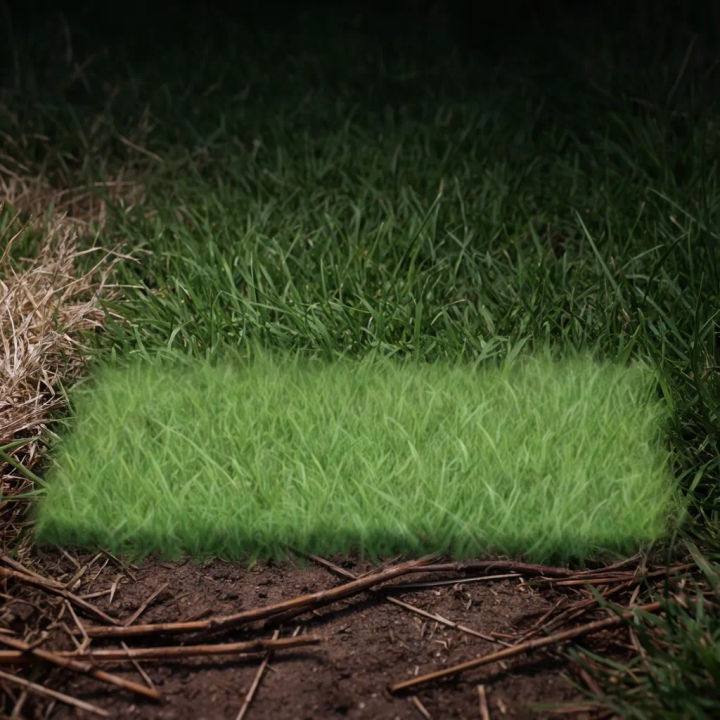
Dab out the passer-by
Remove the person walking behind the subject and continue the street
Edit prompt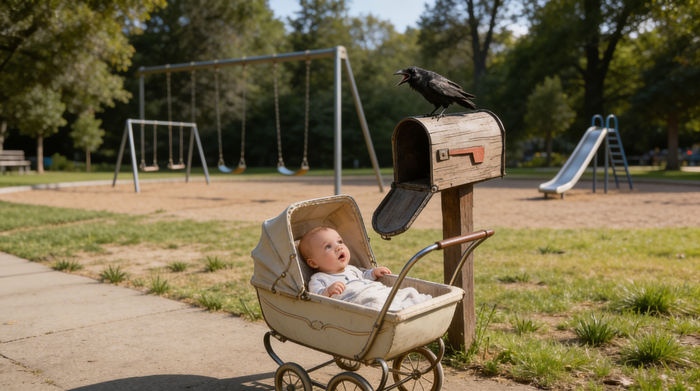
Cinematic storyboard
Share a scene description with character references. Get a full storyboard with shot angles and mood.

Messages to cinematic scene
Dramatize any text conversation into a cinematic multi-shot video.
Title sequence
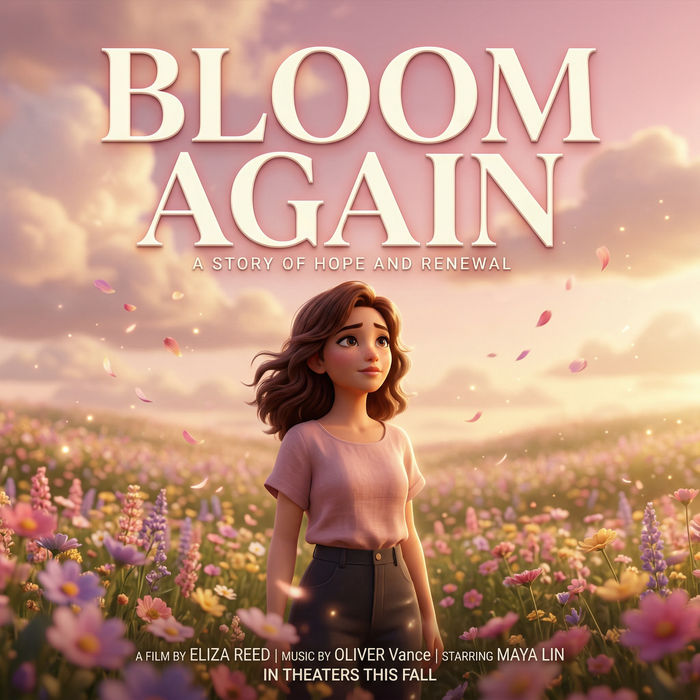
Generate a professional film title card from scratch, with optional cinematic animation.
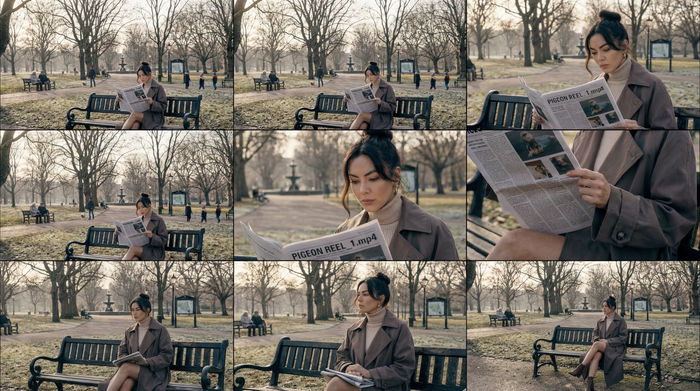
3x3 storyboard
Feed in a single image. Get 9 cinematic beats laid out as a 3x3 storyboard grid.
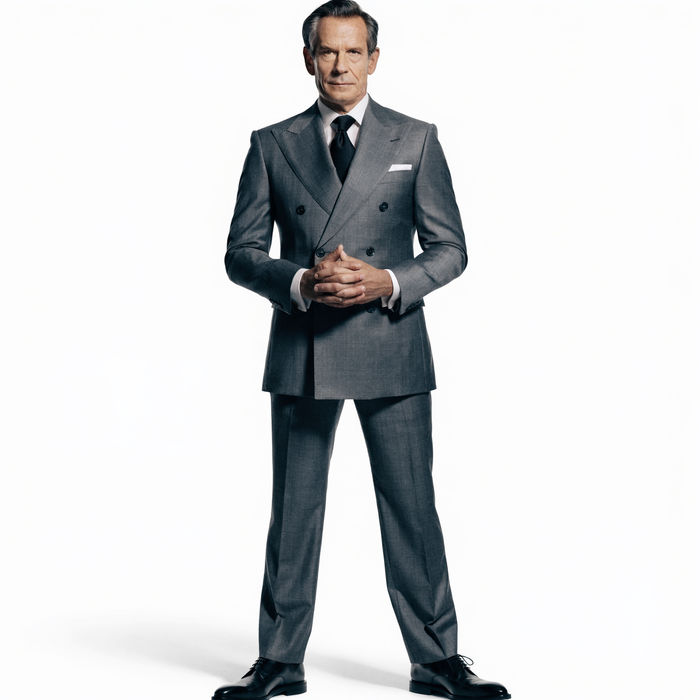
Chibi sprite animation
Turn any photo or description into an animated chibi sprite. Dance, jump, wave, attack, and more.
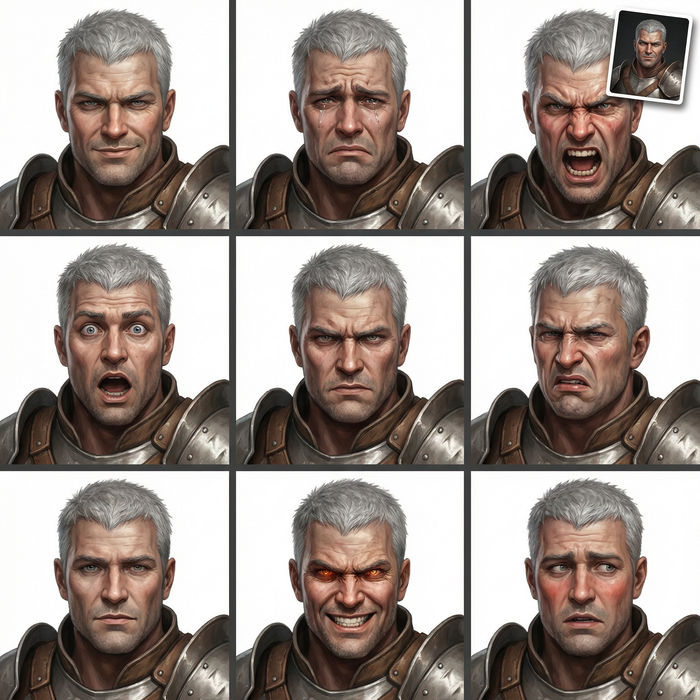
Expressions
Take any character image and generate 6 distinct facial expressions on a single reference sheet.
All on Morphic
Models
Nano Banana 2, Flux 2 Pro, ChatGPT Images, Grok Imagine, Recraft, Seedream, and more. Switch models when a patch needs a cleaner fill.
Object remover
Point at a whole object and clear it in one go, when you would rather select than brush over the area.
Generative fill
The opposite move, paint new elements into empty space or extend a photo past its original edges.
Image to image
Restyle or rebuild any photo through inpainting, the same method that powers the eraser.
