Every image model
Recolour the backdrop
Recolour a background in three steps
- 01
Open Morphic
Sign up and start creating on a free-flowing, infinite visual canvas.
- 02
Upload and name the colour
Drop in your photo and say what colour the background should be, by name or by shade.
- 03
Generate and export
Morphic recolours the backdrop and relights the subject to match. Rerun to compare shades, then export.
Use cases
Headshots on a consistent backdrop
Put a set of team headshots on the same background colour so they read as one gallery. Change each photo to a shared studio grey or a brand shade, and Morphic relights each subject so the light matches even when the originals were shot in different rooms. The edges around hair stay clean instead of showing a halo.

Product shots on brand colour
Swap the background behind a product to a brand colour so a listing or a catalogue looks consistent. The recolour rebuilds the surface behind the item and matches the light on it, so the product does not look pasted onto a swatch. Rerun to test a few shades against the product before you commit.

Portraits that pop for a poster
Change a portrait background to a bold colour or a gradient for a poster, a cover, or a social graphic. Because the subject is relit to the new backdrop, a deep colour behind the face adds contrast without leaving a hard cut-out line. Keep the subject and add the drama behind them.

Pet photos on a clean colour
Move a pet photo onto a clean studio colour where fine fur usually defeats a manual cut-out. Morphic reads the soft edge of the fur and recolours behind it, so the coat keeps its wispy outline against the new background. Pick a colour that sets off the coat and export a tidy portrait.

Prompt examples
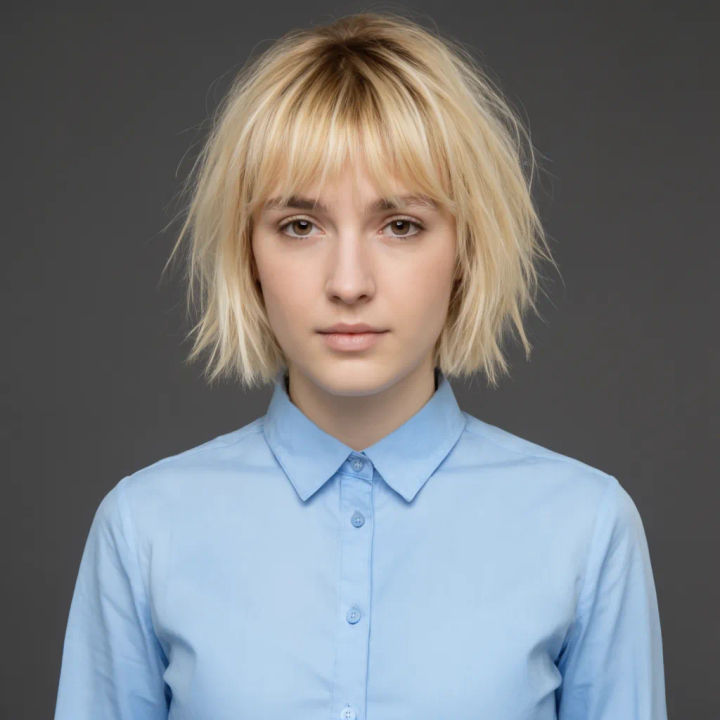
Studio grey backdrop
Change the background behind this portrait to a deep studio grey, keep the hair edges clean, relight the subject to match
Edit prompt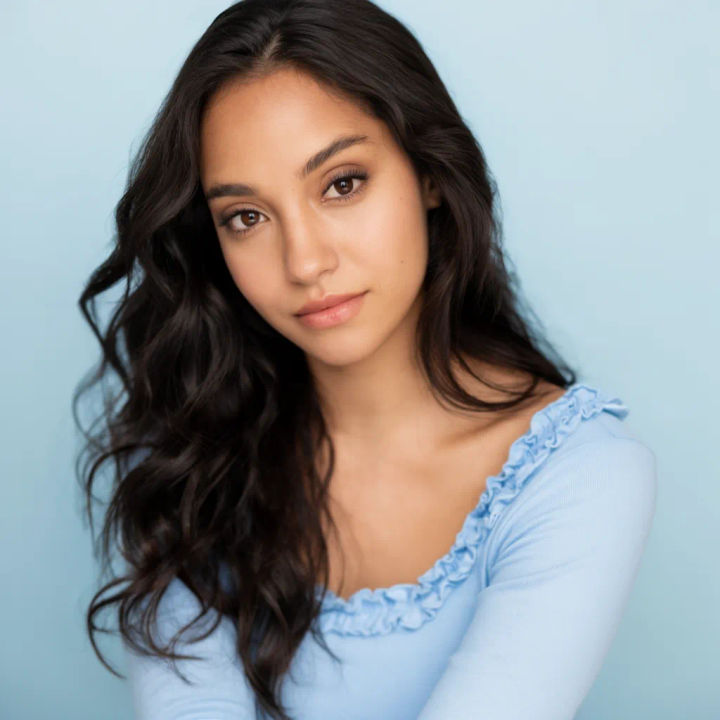
Pastel blue wall
Recolour the background of this headshot to a soft pastel blue, even tone, natural light falling on the face
Edit prompt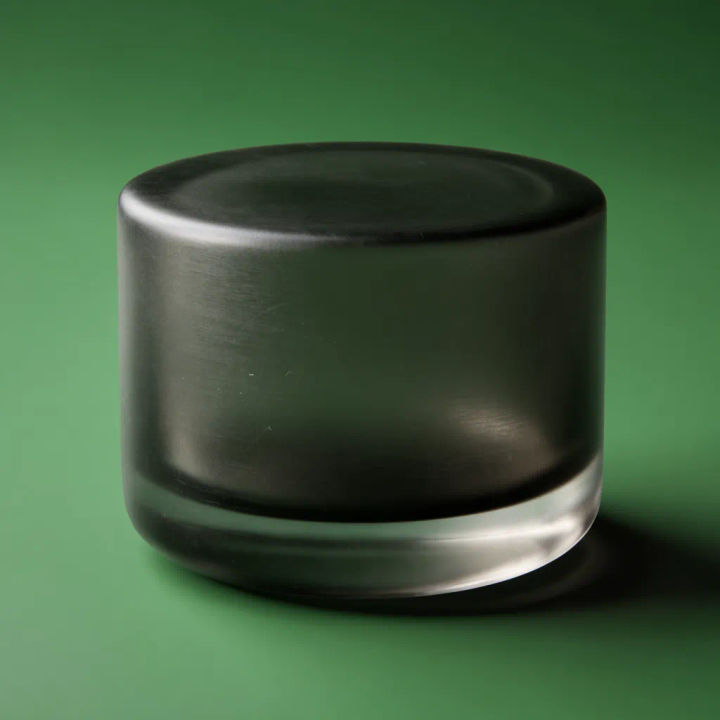
Brand colour for product
Replace the background behind this product with a flat brand green, match the light and reflections on the product
Edit prompt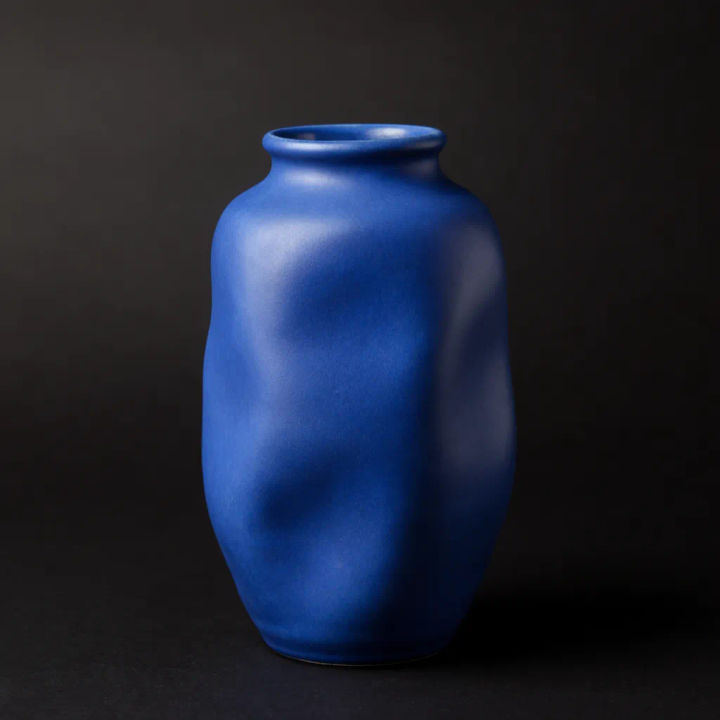
Bold black for contrast
Change this portrait background to a deep black, deepen the contrast on the subject so it reads as a studio shot
Edit prompt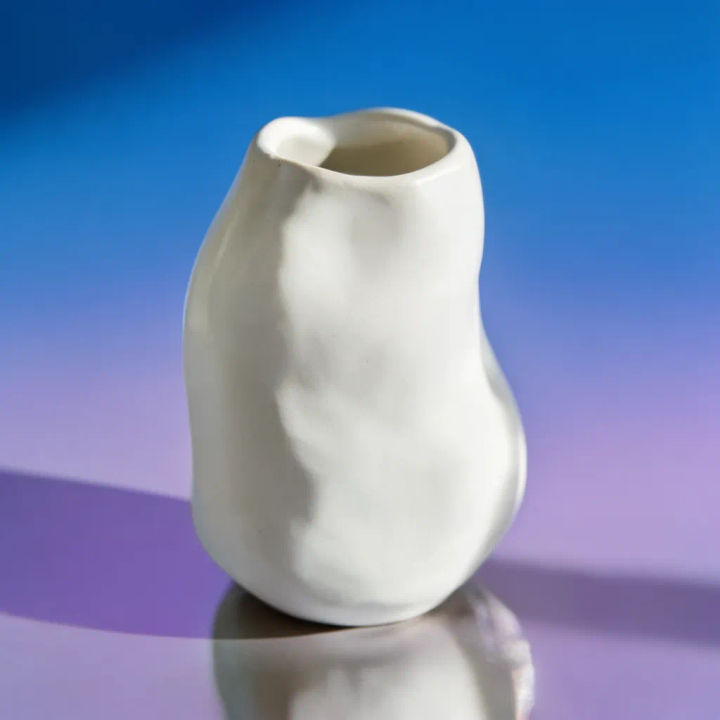
Gradient backdrop
Recolour the background to a smooth blue-to-purple gradient behind the subject, soft falloff, edges kept clean
Edit prompt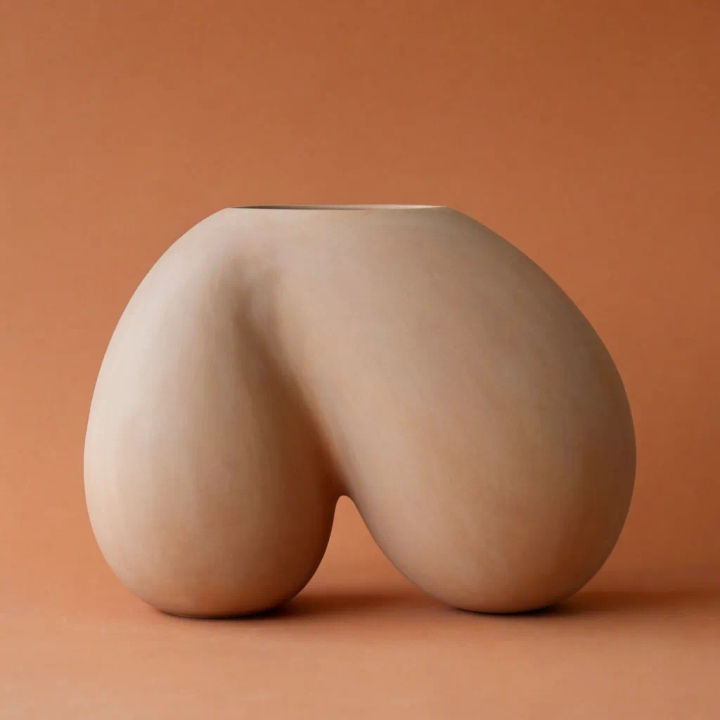
Warm terracotta wall
Swap the background to a warm terracotta, let a little of the warmth fall onto the subject edges to blend it
Edit prompt
Cinematic storyboard
Share a scene description with character references. Get a full storyboard with shot angles and mood.
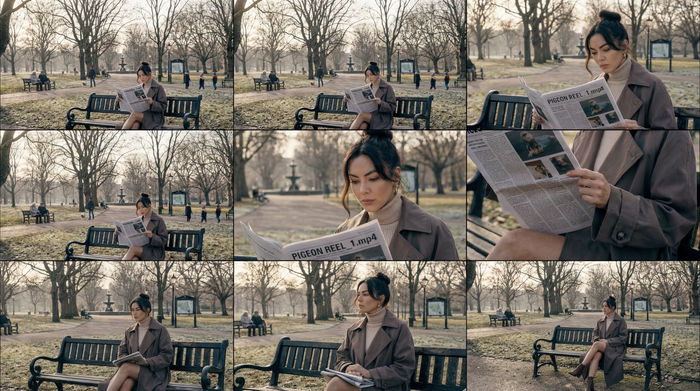
3x3 storyboard
Feed in a single image. Get 9 cinematic beats laid out as a 3x3 storyboard grid.

Messages to cinematic scene
Dramatize any text conversation into a cinematic multi-shot video.
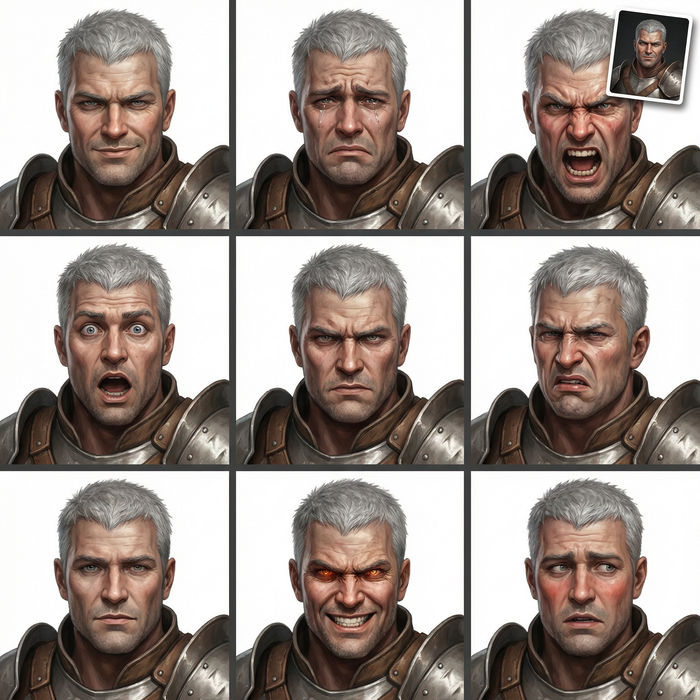
Expressions
Take any character image and generate 6 distinct facial expressions on a single reference sheet.

Title sequence
Generate a professional film title card from scratch, with optional cinematic animation.
Chibi sprite animation
Turn any photo or description into an animated chibi sprite. Dance, jump, wave, attack, and more.
All on Morphic
Models
Nano Banana 2, Flux 2 Pro, ChatGPT Images, Grok Imagine, Recraft, Seedream, and more. Switch models when an edge needs a cleaner separation.
Background remover
Drop the background out entirely to a transparent edge, when you want to place the subject rather than recolour behind it.
Background generator
Go past a flat colour and build a whole new scene behind the subject, from a studio set to an outdoor location.
Image to image
Recolour the backdrop through inpainting and relight the subject, the method that keeps the change reading as real.
