Every image model
One workspaceBackdrops you can swap
Remove a background in three steps
- 01
Open Morphic
Sign up and start creating on a free-flowing, infinite visual canvas.
- 02
Upload and point at the subject
Smart Select isolates it from the background, fine edges included.
- 03
Describe the new background
Name the backdrop you want, compare versions, and download in HD.
Use cases
Product shots on any backdrop
Shoot once on a kitchen table and ship on a white sweep, a marble slab, and a sunlit shelf. The same product, the same angle, three listings, no studio hire and no reshoot between them.

Headshots that match across a team
Twelve people photographed in twelve different rooms end up on one backdrop. Point at each subject, name the same background, and the about page stops looking like a collage.

Cut the clutter out of a good photo
The shot is right and the room behind it is wrong. Keep the subject, replace the parked cars, the laundry, the exit sign, and keep the moment you actually caught.

One asset, every placement
A single cut-out subject drops onto a banner, a thumbnail, and a story frame with a backdrop generated to fit each one. The creative team stops waiting on a retoucher for the resize.

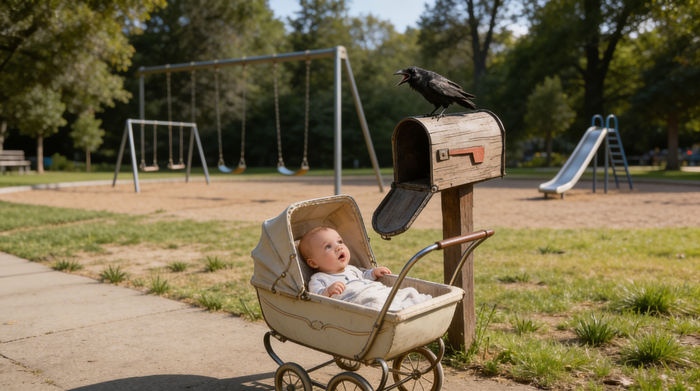
Cinematic storyboard
Share a scene description with character references. Get a full storyboard with shot angles and mood.

Messages to cinematic scene
Dramatize any text conversation into a cinematic multi-shot video.
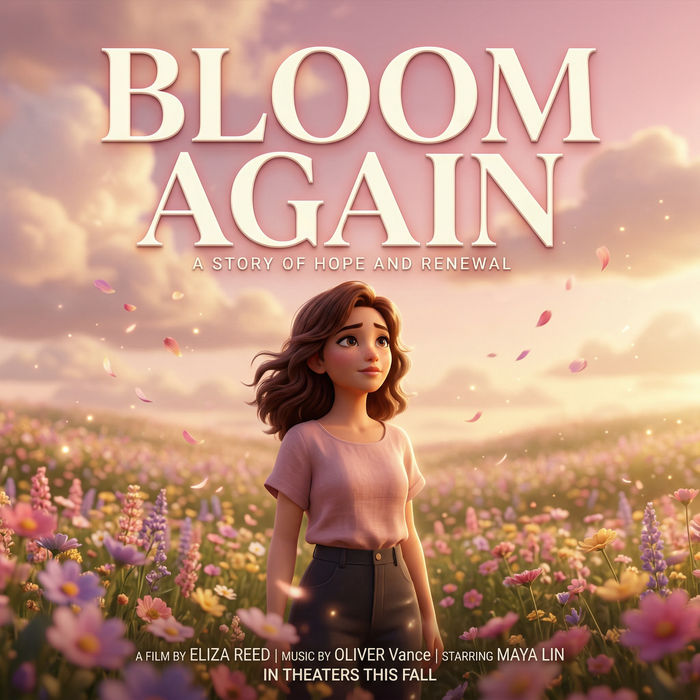
Title sequence
Generate a professional film title card from scratch, with optional cinematic animation.
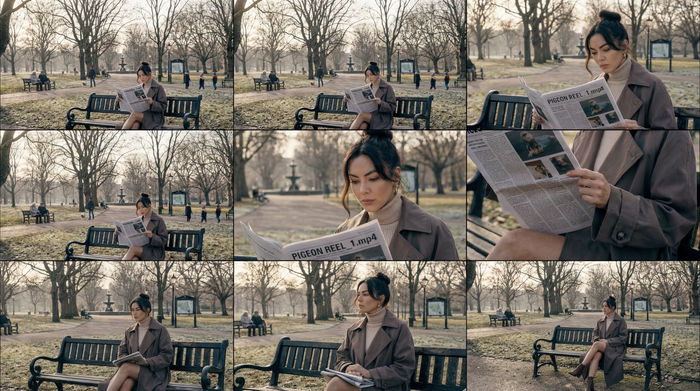
3x3 storyboard
Feed in a single image. Get 9 cinematic beats laid out as a 3x3 storyboard grid.
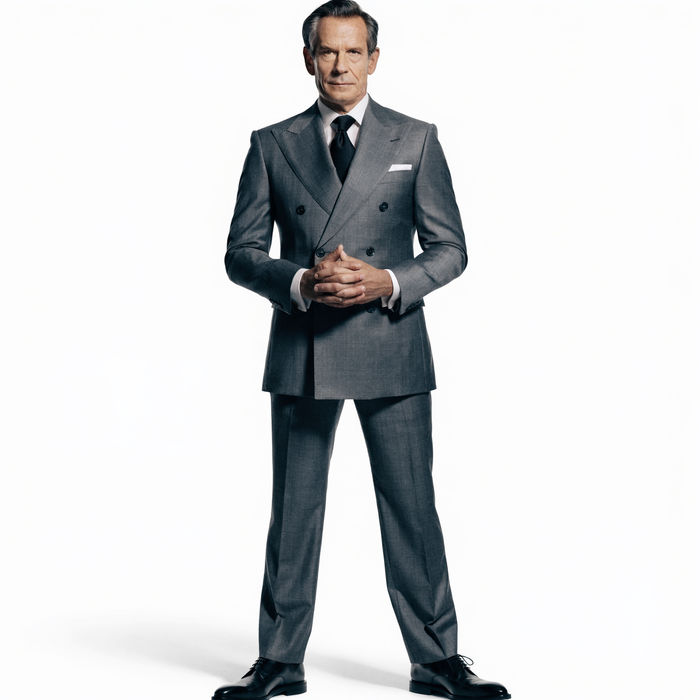
Chibi sprite animation
Turn any photo or description into an animated chibi sprite. Dance, jump, wave, attack, and more.
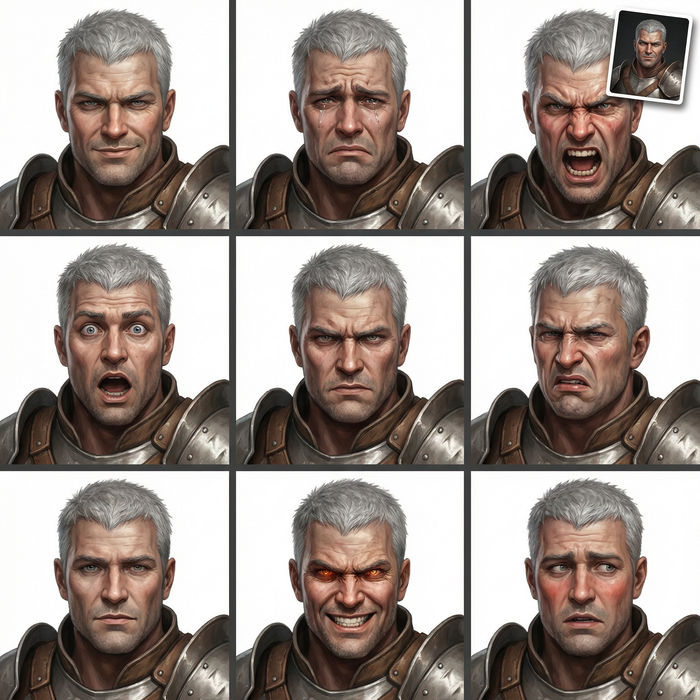
Expressions
Take any character image and generate 6 distinct facial expressions on a single reference sheet.
All on Morphic
Everything the cut-out is forModels
Seedream 5 Pro, Nano Banana Pro, Flux 2 Pro, Krea 2, and more. Compare backdrops from different models on the same subject.
Generative fill
Paint out a distraction or fill the gap where the old background was, region by region.
Outpainting
Need more background instead of less. Extend the frame past the edges of the original shot.
Product photos
Take the isolated product further and stage a full shot around it, lighting and set included.
AI photo editor
Once the cut-out is done, keep going on the same photo. Change the colour, the light, or anything else by describing it.
