Every image model
One workspaceFrom low-res to HD
Convert to HD in three steps
- 01
Open Morphic
Sign up and start creating on a free-flowing, infinite visual canvas.
- 02
Upload your picture
Drop in the low-resolution image you want enlarged and choose how far to scale it.
- 03
Generate and export
The model rebuilds detail as it scales up. Rerun at a different scale if needed, then export.
Use cases
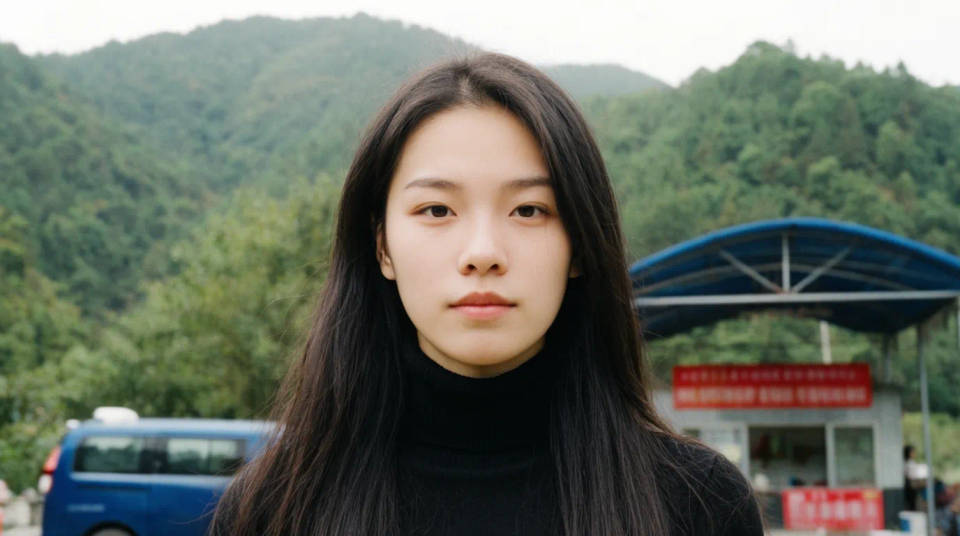
Rescue an old low-res photo
An early phone snap or a small file saved years ago rarely holds up on a modern screen. Convert it to HD and the soft edges tighten while lost texture comes back, so a treasured shot can be viewed large or printed without looking blocky. Start from the best copy you have for the cleanest result.
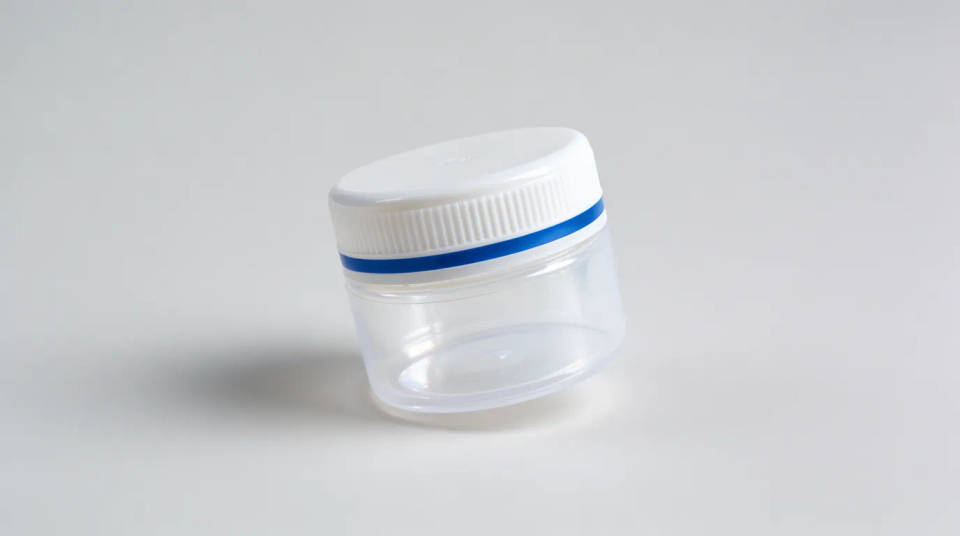
Make product images listing-ready
A supplier photo that is too small for a store often looks soft the moment it fills a product tile. Scale it to HD and the packaging text, edges, and material detail sharpen up, so the listing image reads as crisp at full size. Swap in the exact product and rerun when a catalogue grows.
Enlarge for print without the blur
A photo that looks fine on screen can turn soft when blown up for a poster, a banner, or a frame. Converting to HD first rebuilds the fine detail at the larger size, so the print holds its sharpness instead of showing the stretch. Push the scale gradually and check each pass before you send it out.

Clean up screenshots and graphics
A screen grab or a shrunken graphic often arrives blurry with jagged text. The converter sharpens the edges and lifts the resolution, so a slide, a thumbnail, or a UI capture reads clearly when placed larger. It is a quick way to reuse an asset you no longer have the original file for.
Prompt examples

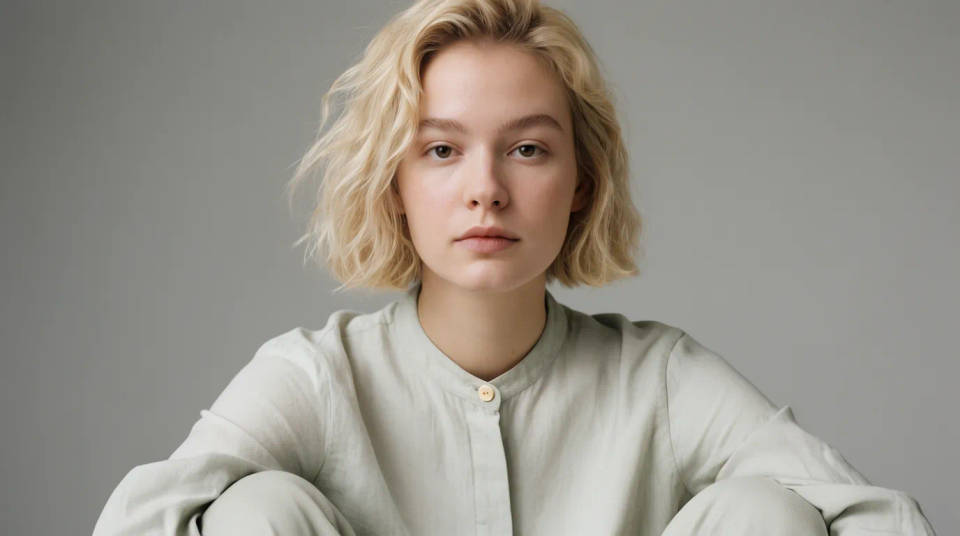
Portrait to HD
Convert this small portrait to HD, sharpen the eyes and hair, keep skin natural
Edit prompt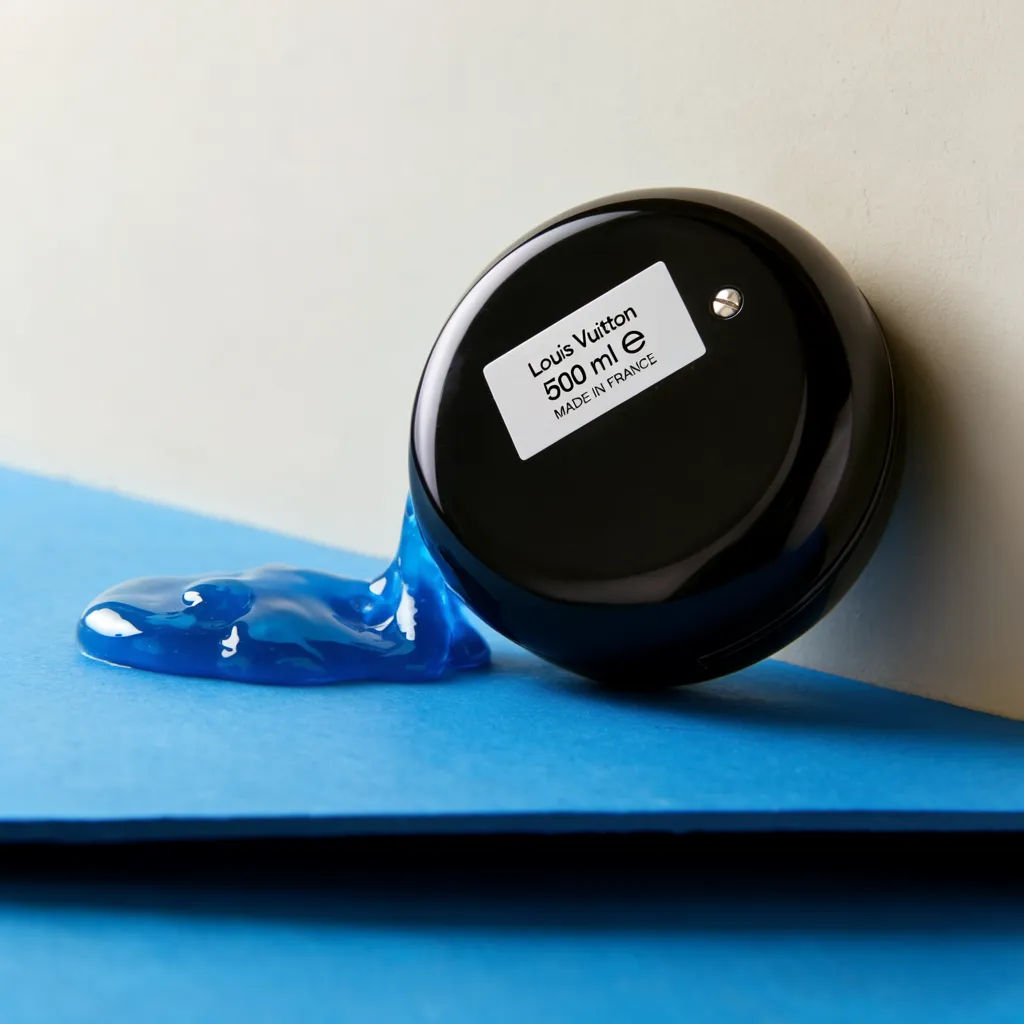
Product photo up
Scale this product photo to HD and rebuild the label text and edge detail
Edit prompt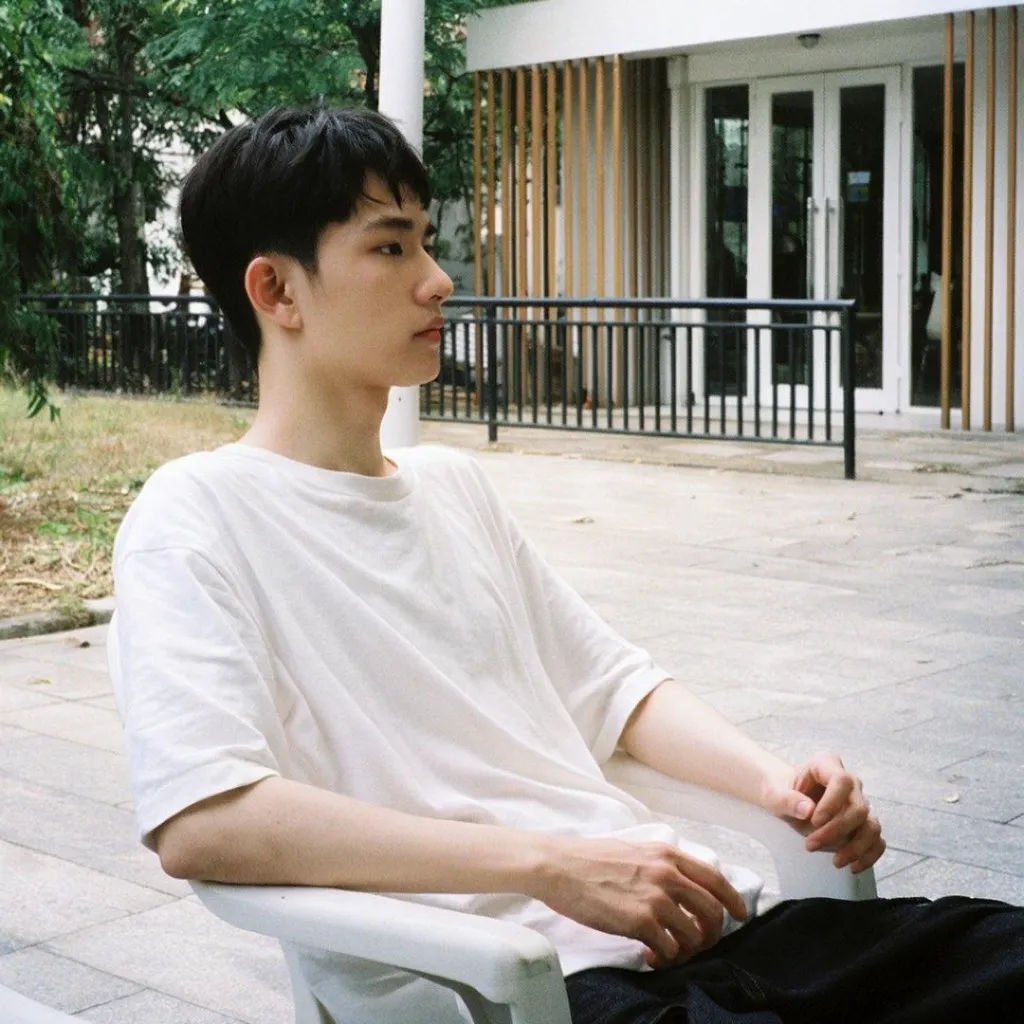
Old snapshot
Turn this old low-resolution phone snapshot into a clean HD image without changing the scene
Edit prompt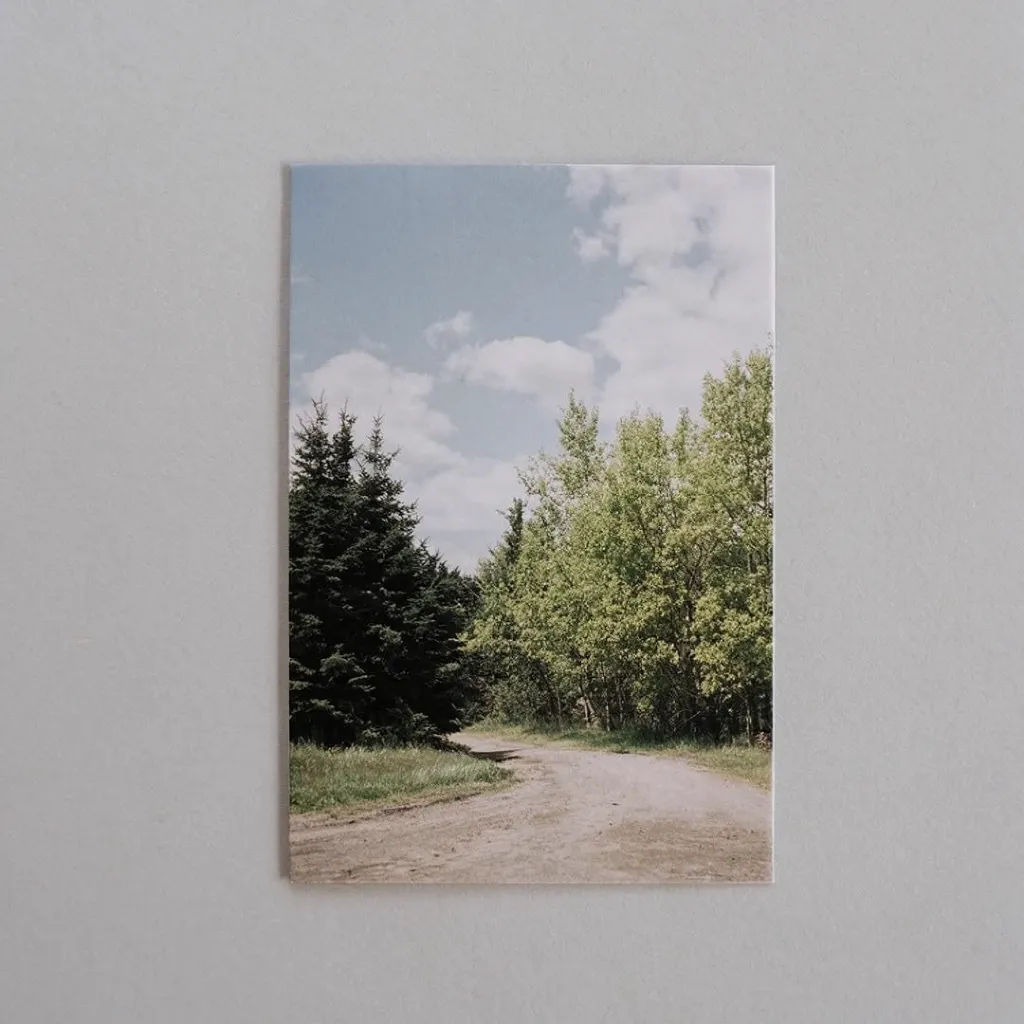
Landscape enlarged
Convert this small landscape to HD and recover the fine detail in the trees and sky
Edit prompt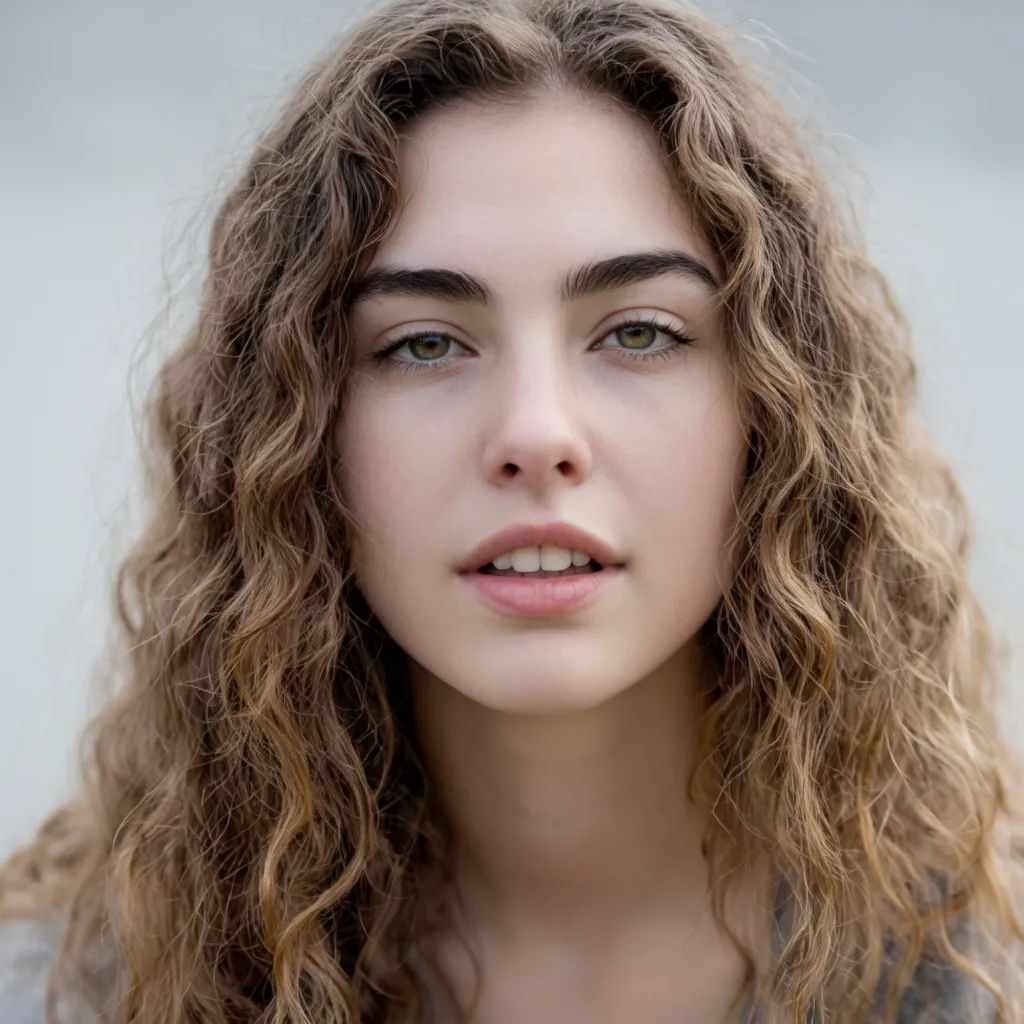
Clean the noise
Enlarge this JPEG to HD and clear the compression noise while keeping the colours the same
Edit prompt
Sharpen a screenshot
Convert this blurry screenshot to HD and make the text and icons crisp
Edit prompt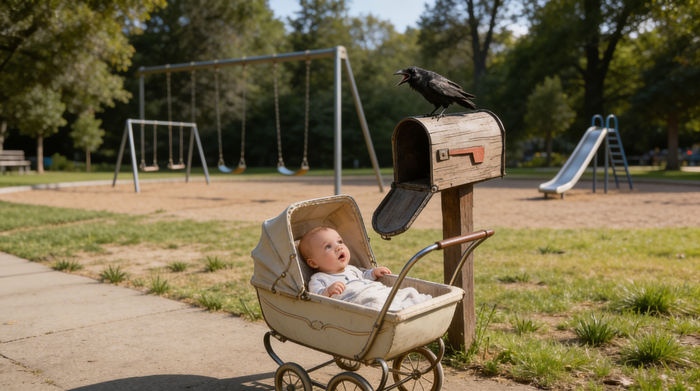
Cinematic storyboard
Share a scene description with character references. Get a full storyboard with shot angles and mood.
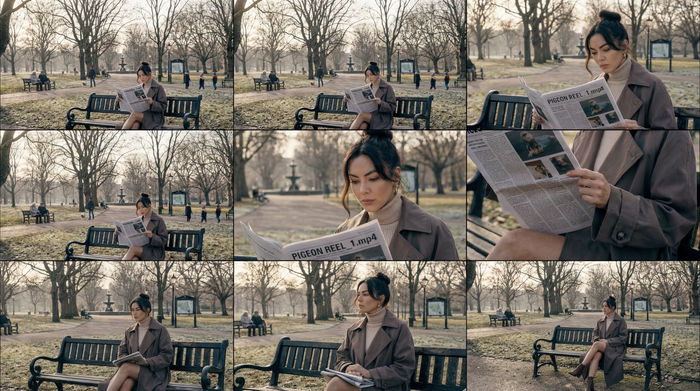
3x3 storyboard
Feed in a single image. Get 9 cinematic beats laid out as a 3x3 storyboard grid.

Messages to cinematic scene
Dramatize any text conversation into a cinematic multi-shot video.
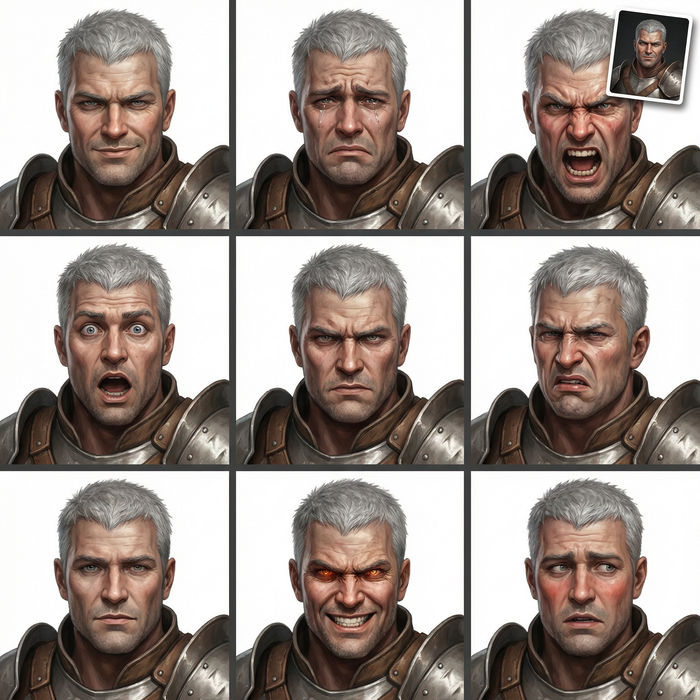
Expressions
Take any character image and generate 6 distinct facial expressions on a single reference sheet.
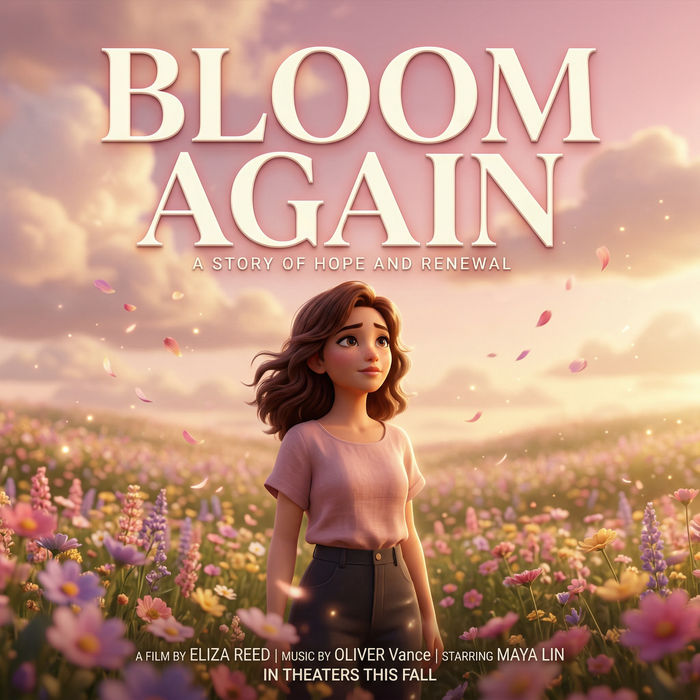
Title sequence
Generate a professional film title card from scratch, with optional cinematic animation.
Time-freeze effect
Cinematic time-freeze short film for any scene
All on Morphic
Your image quality toolkitModels
Nano Banana 2, Flux 2 Pro, ChatGPT Images, Grok Imagine, Recraft, Seedream, and more. Switch models when a photo needs a cleaner, more faithful rebuild.
AI photo enhancer
Lift sharpness, colour, and clarity on a photo that is already the right size but looks flat.
Upscale
Push an image to a much larger size for print or big screens while holding its detail.
Image to image
Rebuild any photo through the model, the same method that powers the HD conversion here.
