Ein Modell auswählen
Wie Sie auswählen, welches Modell einen Copilot-Chat ausführt, wofür jedes geeignet ist und wo Sie festlegen, womit neue Chats starten.
Copilot läuft auf einem Sprachmodell, und du kannst auswählen, welches. Es ist das Modell, das deine Anfrage liest, die Arbeit plant und dir antwortet. Welches Bild- oder Videomodell die Medien erzeugt, ist eine separate Einstellung unter „Model preferences“ in der Promptleiste.
Die Modelle
| Modell | Geeignet für |
|---|---|
| Auto | Wählt für jede Aufgabe das beste Modell aus. Die Standardeinstellung |
| Sonnet 4.6 | Ausgewogene Intelligenz und Geschwindigkeit für die meisten Aufgaben |
| Sonnet 5.5 | Ausgewogene Intelligenz und Geschwindigkeit für die meisten Aufgaben |
| Haiku 5.5 | Schnell und günstig für kurze, fokussierte Aufgaben |
| Grok 4.6 | Schnelle, direkte Antworten für alltägliche Aufgaben |
| Grok 4.7 | Schnell wie Grok 4.6 und stärker bei langen, mehrstufigen Aufgaben |
| GPT 6 Sol | Tiefes Schlussfolgern für komplexe, mehrstufige Aufgaben |
| GPT 6.1 Sol | Leistungsfähiges, effizientes Schlussfolgern für komplexe, mehrstufige Projekte |
| GPT 5.6 Terra | Ausgewogene Intelligenz und Kosten für anspruchsvolle Alltagsarbeit |
| Fable 5.1 | Kreative, ausgereifte Antworten für Storytelling und Ideengenerierung |
| Opus 5.5 | Starkes Schlussfolgern und kreatives Urteilsvermögen für anspruchsvolle Projekte |
Lass es auf „Auto“, wenn du keinen Grund hast, es nicht zu tun. GPT 6 Sol, GPT 5.6 Terra, Fable 5.1 und Opus 5.5 benötigen einen kostenpflichtigen Plan. Einige Modelle sind aufgeführt, aber ausgegraut; diese können noch nicht ausgewählt werden.
Credits
Jede Antwort verbraucht Credits, und das Modell legt den Tarif fest. Auto verbraucht am wenigsten. Für ein von dir gewähltes Modell werden immer Credits berechnet, was das Dropdown unter der Liste vermerkt: „Der Wechsel von Auto zu einem bestimmten Modell kostet dich die entsprechenden Credits“. Auto kann je nach Konto ebenfalls kostenpflichtig sein.
Wenn du das Modell mitten in einem Chat änderst, wirst du zuerst um Bestätigung gebeten: Das neue Modell liest den gesamten Chat, bevor es antwortet, daher kostet seine erste Antwort mehr. Wähle das Modell beim Start eines Chats aus, um das zu vermeiden.
Die typischen Credits pro Antwort für jedes Modell findest du unter Copilot-Antwortkosten.
Wähle eines für einen Chat aus
- Öffne Copilot
- Klicke auf die Schaltfläche unten rechts in der Promptleiste. Sie zeigt zuerst den Modus und dann das Modell an, sodass „Auto · Sonnet 4.6“ automatische Generierung bedeutet, die auf Sonnet 4.6 läuft
- Unter „Modell“ öffne das Dropdown und wähle eines aus. Ein Häkchen markiert das aktive Modell
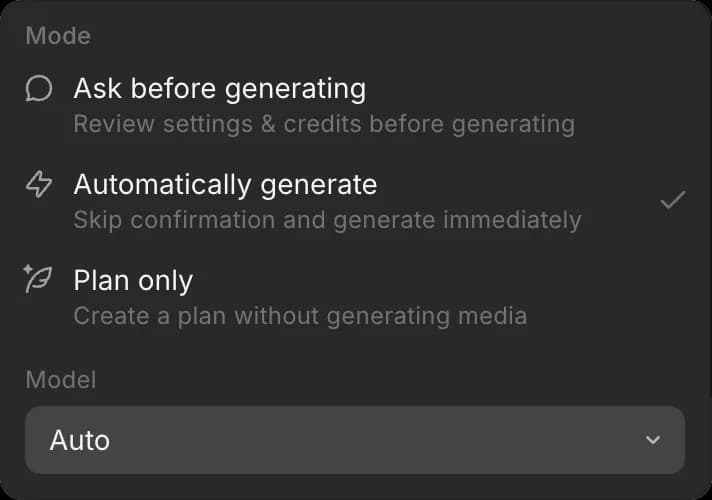
Die Auswahl gehört zum Chat, sodass Chats gleichzeitig auf unterschiedlichen Modellen laufen können, und sie bleibt bestehen, bis du sie änderst.
Die Standardeinstellung für neue Chats festlegen
- Öffne „Einstellungen“
- Neben „Standard-Chatmodus“ das Dropdown öffnen
- Wähle unter „Modell“ das Modell aus und dabei unter „Modus“ den Modus
Neue Chats starten mit diesem Modell. Das Ändern des Modells eines Chats ändert die Standardeinstellung nicht.
So wählst du ein Modell in Morphic aus. Für die meiste Arbeit ist „Auto“ völlig ausreichend; wähle selbst eines aus, wenn ein Chat Geschwindigkeit oder mehr Denkleistung erfordert.
Wenn Sie Probleme haben oder Fragen haben, können Sie sich gerne an uns wenden. Wir helfen Ihnen gerne. Schreiben Sie uns an support@morphic.com.
Chatmodi
Die drei Modi, in denen ein Copilot-Chat laufen kann, was jeder Modus mit Ihren Credits macht und wie Sie den gewünschten einstellen.
In einem neuen Chat fortsetzen
Wie Sie einen Copilot-Chat bei einer beliebigen Nachricht aufteilen, was in den neuen Chat übernommen wird und wann das Aufteilen am meisten hilft.