> For the complete documentation index, see [llms.txt](https://morphic.com/docs/llms.txt). Markdown versions of documentation pages are available by appending `.md` to page URLs; this page is available as [Markdown](https://morphic.com/docs/jp/account-and-billing/settings/billing-and-usage.md).

# 請求と使用状況

請求タブでは、プランの管理、支払い情報の確認と変更、請求書履歴の確認、プランと更新の詳細の概要確認ができます。

「請求と利用状況」では、サブスクリプションに関するすべてを管理します。ここから、プランの確認やアップグレード、サブスクリプションのキャンセル、支払い方法の更新、クレジットの購入、クレジット使用状況の追跡、メンバーごとのクレジット上限の設定、請求書のダウンロードができます。

### 請求と利用状況へのアクセス

1. ダッシュボード表示で、左上隅にある組織のロゴをクリックします。
2. ドロップダウンから「設定」を選択します。
3. 左側のサイドバーで、「請求と利用状況」を探してください。

「請求と利用状況」には4つの画面があり、それぞれに独自のリンクがあります：

| 画面                                                            | 内容                     |
| ------------------------------------------------------------- | ---------------------- |
| [プラン詳細](https://studio.morphic.com/settings/billing/plans)    | 現在のプラン、お支払い方法、キャンセル    |
| [クレジット](https://studio.morphic.com/settings/billing/credits)  | クレジットの購入とクレジットのアクティビティ |
| [クレジット上限](https://studio.morphic.com/settings/billing/limits) | 各メンバーが使用できるクレジット上限     |
| [請求書](https://studio.morphic.com/settings/billing/invoices)   | 請求書履歴                  |

### 有効なプラン

* 現在のプランと請求サイクルを表示します。
* プランをアップグレードするには、「アップグレード」をクリックします。

### 支払い方法の管理

* 開く [プラン詳細](https://studio.morphic.com/settings/billing/plans).
* 次に、「有効なプラン」>「現在のプラン」>「Stripeで管理」に進みます。
* 支払い方法を追加または削除します。

<figure><img src="https://2982589234-files.gitbook.io/~/files/v0/b/gitbook-x-prod.appspot.com/o/spaces%2FoPhHCbNZdzW70rakoLhf%2Fuploads%2FPHeW0DLgtZs25n3IdsIe%2FPayment%20method.gif?alt=media&amp;token=990fbc47-397f-433d-b255-5246ea304795" alt=""><figcaption></figcaption></figure>

### プランのキャンセル

* サブスクリプションのキャンセル：キャンセルするには、現在のプランの横にある支払いプロバイダー経由で「管理」をクリックし、キャンセル手順に従ってください。

<figure><img src="https://2982589234-files.gitbook.io/~/files/v0/b/gitbook-x-prod.appspot.com/o/spaces%2FoPhHCbNZdzW70rakoLhf%2Fuploads%2FUH97oxXD8GJQHF8G4b8g%2FCancel%20Plan.gif?alt=media&amp;token=74f292a7-85ae-40c2-bd8c-97b9e9b0b20a" alt=""><figcaption></figcaption></figure>

### メンバー

* プランに含まれる追加メンバーの人数を表示します。
* このセクションからメンバーのアクセス権と役割を管理します。

### クレジットを購入

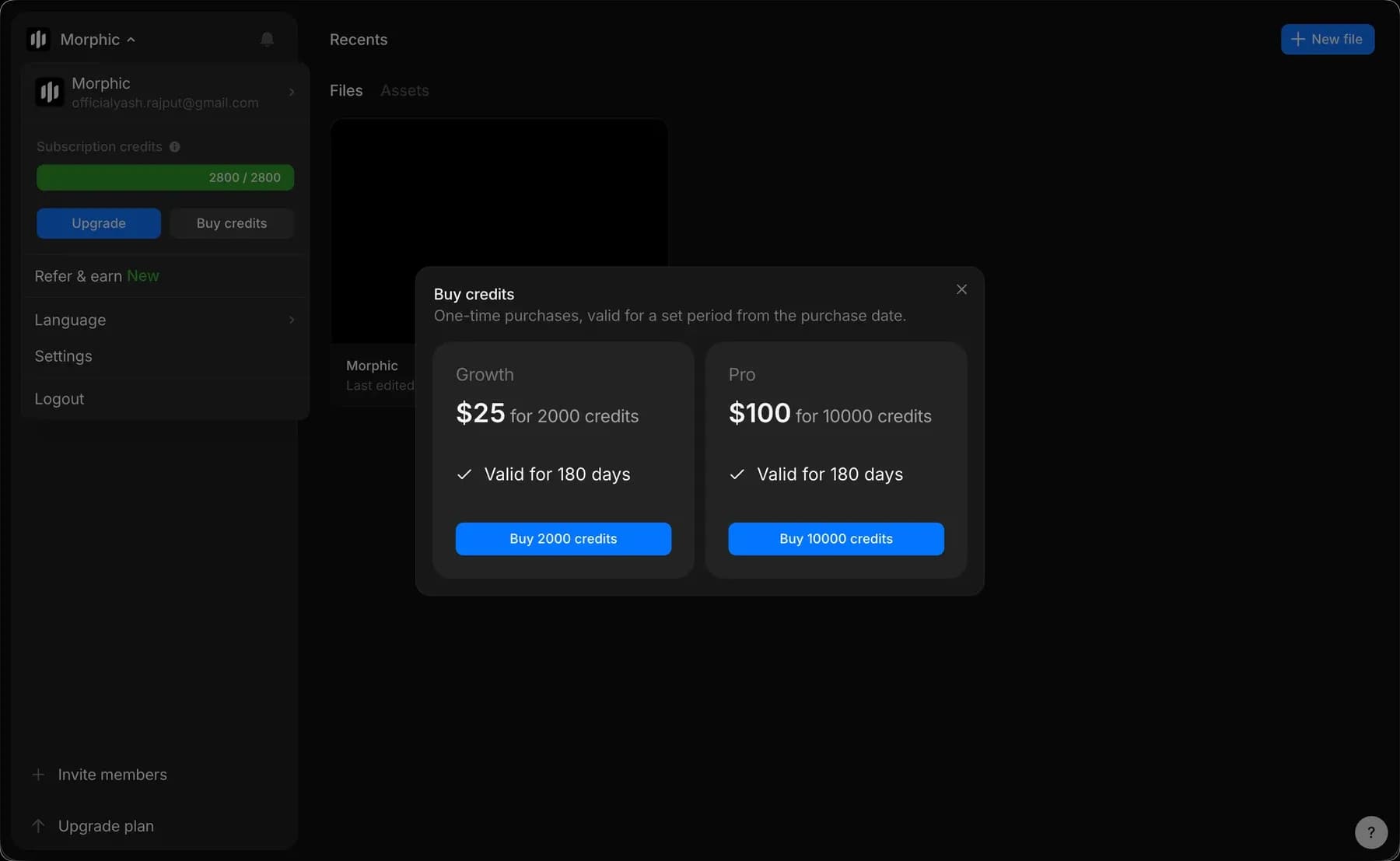
クレジットはいつでも [クレジット](https://studio.morphic.com/settings/billing/credits)から、または組織/アカウントのドロップダウン（左上のMorphicロゴをクリック）から購入できます。

1. 組織/アカウントのドロップダウンを開きます。
2. 「クレジットを購入」をクリックします。
3. 利用可能なプランを含むポップアップが表示されます。
4. 希望するプランの下にある「購入」をクリックして、購入を完了します。

<figure><img src="https://2982589234-files.gitbook.io/~/files/v0/b/gitbook-x-prod.appspot.com/o/spaces%2FoPhHCbNZdzW70rakoLhf%2Fuploads%2FVPj40Mfmvs1mp5RLzmWX%2FBuy%20Credits.gif?alt=media&amp;token=d5c7939b-2d38-4dab-a3c8-561faaf0ad00" alt=""><figcaption></figcaption></figure>

<figure><img src="https://2982589234-files.gitbook.io/~/files/v0/b/gitbook-x-prod.appspot.com/o/spaces%2FoPhHCbNZdzW70rakoLhf%2Fuploads%2Ffa8IYdLtRAyEfmnPFeQo%2FCleanShot%202026-03-20%20at%2015.03.31%402x.png?alt=media&amp;token=83e70554-e86c-4b20-ad84-0971c12b7af2" alt=""><figcaption><p>クレジットを購入</p></figcaption></figure>

### 請求書履歴

開く [請求書](https://studio.morphic.com/settings/billing/invoices).

* 過去の請求書を表示してダウンロードできます。
* プランのアップグレードやクレジットの追加購入などは、ここに表示されます。

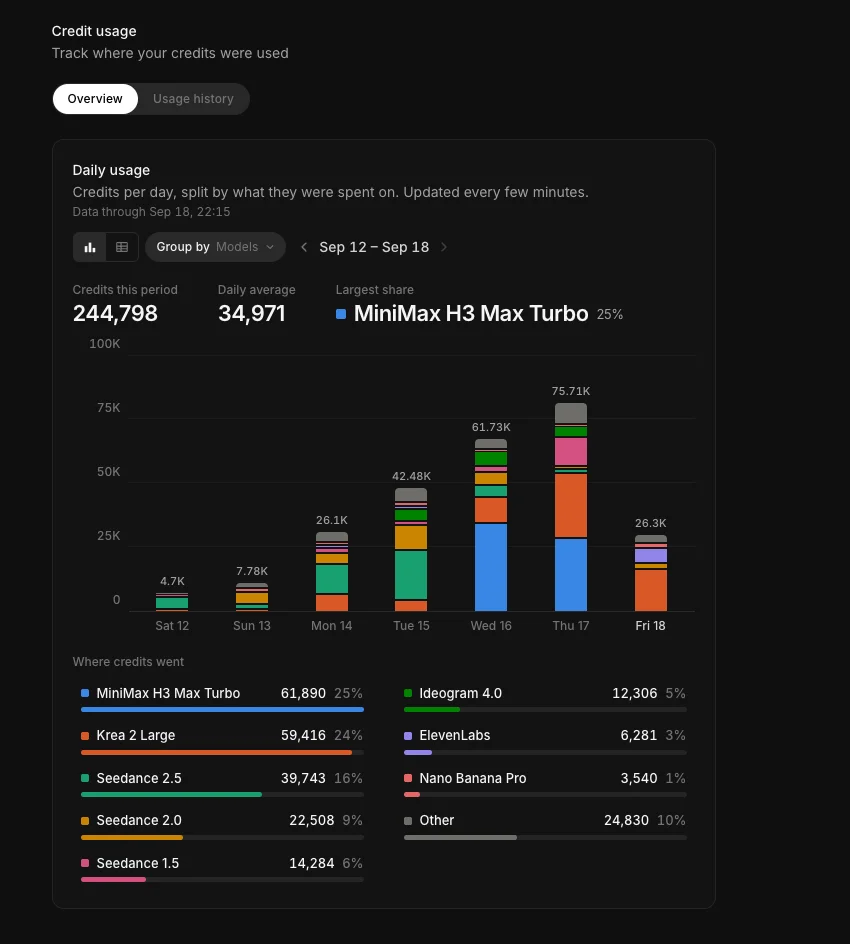
### クレジットのアクティビティ

組織アカウントの管理者は、Morphicでクレジットの使用状況とアクティビティを追跡できます。アクセス方法は次のとおりです。

開く [クレジット](https://studio.morphic.com/settings/billing/credits)、または［設定］に移動して、左側のサイドバーにある「請求と利用状況」の下の「クレジット」をクリックします。

<figure><img src="https://2982589234-files.gitbook.io/~/files/v0/b/gitbook-x-prod.appspot.com/o/spaces%2FoPhHCbNZdzW70rakoLhf%2Fuploads%2Ffcko8LVWYrsZgZRRX9A2%2FCleanShot%202026-05-01%20at%2014.34.14.png?alt=media&amp;token=bcfe3613-b926-4f53-abb4-f1c84eb31268" alt=""><figcaption></figcaption></figure>

* 各エントリには、日付、メンバー、アセットタイプ、使用したクレジット数、ステータスが表示されます。
* 日付、メンバー、ステータス、プロジェクトでフィルタできます。
* 「すべて」、「プロジェクト別」、「メンバー別」の表示を切り替えます。
* 「CSVをダウンロード」をクリックして使用状況をエクスポートします。

これで、Morphicでの請求と利用状況の管理方法は以上です。プラン、クレジット、そしてそれらがどこで使われたかの記録を一か所で確認できます。

***

ご不明な点やお困りのことがあれば、お気軽にご連絡ください。喜んでお手伝いします。以下までご連絡ください [**support@morphic.com**](mailto:support@morphic.com)**.**


---

# Agent Instructions
This documentation is published with GitBook. GitBook is the documentation platform designed so that both humans and AI agents can read, navigate, and reason over technical content effectively. Learn more at gitbook.com.

## Querying This Documentation
If you need additional information that is not directly available in this page, you can query the documentation dynamically by asking a question.

Perform an HTTP GET request on the current page URL with the `ask` query parameter, and the optional `goal` query parameter:

```
GET https://morphic.com/docs/jp/account-and-billing/settings/billing-and-usage.md?ask=<question>&goal=<endgoal>
```

`ask` is the immediate question: it should be specific, self-contained, and written in natural language.
`goal` is optional and describes the broader end goal you are ultimately trying to accomplish on behalf of the user. GitBook uses it to tailor the answer towards what is most useful for that goal.

The response will contain a direct answer to the question and relevant excerpts and sources from the documentation.

Use this mechanism when the answer is not explicitly present in the current page, you need clarification or additional context, or you want to retrieve related documentation sections.