> For the complete documentation index, see [llms.txt](https://morphic.com/docs/llms.txt). Markdown versions of documentation pages are available by appending `.md` to page URLs; this page is available as [Markdown](https://morphic.com/docs/zh/video/lip-sync.md).

# 口型同步

如何让角色的嘴型与音轨同步，以及如何处理音频和视频长度不一致的情况。

以下是在 Morphic 上使用 Lip Sync 的快速教程：

1. 前往 Morphic。
2. 打开一个现有文件，或点击“New file”在某个项目下创建一个新文件。
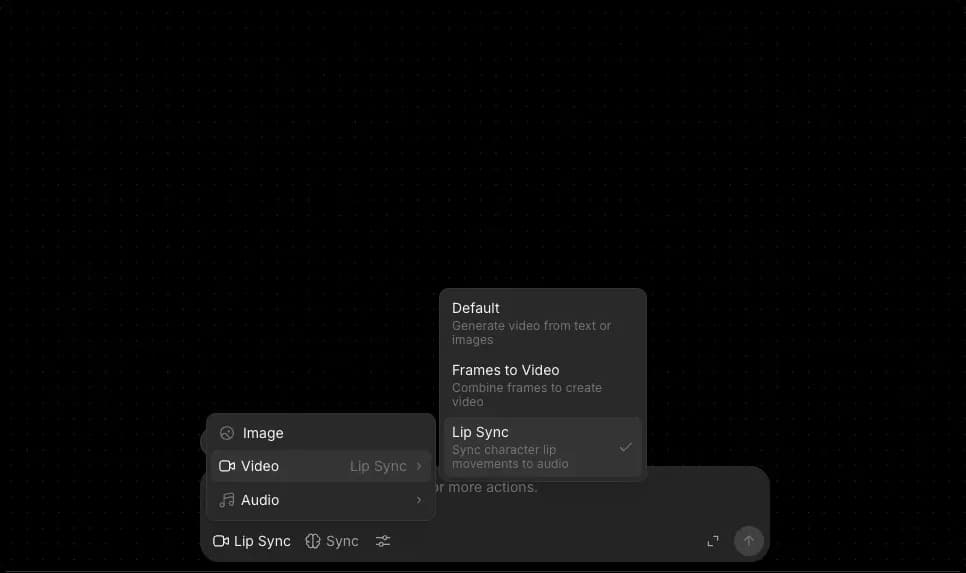
3. 前往 Canvas 底部的全局提示栏，将模式切换为 Video，然后选择 Lip Sync。

<figure><img src="https://2197859893-files.gitbook.io/~/files/v0/b/gitbook-x-prod.appspot.com/o/spaces%2FoPhHCbNZdzW70rakoLhf%2Fuploads%2FphR686IhIdP84BABX9eU%2FCleanShot%202026-04-14%20at%2019.24.47.png?alt=media&amp;token=c0391088-6fc8-4155-a1f9-016df7c2a052" alt=""><figcaption></figcaption></figure>

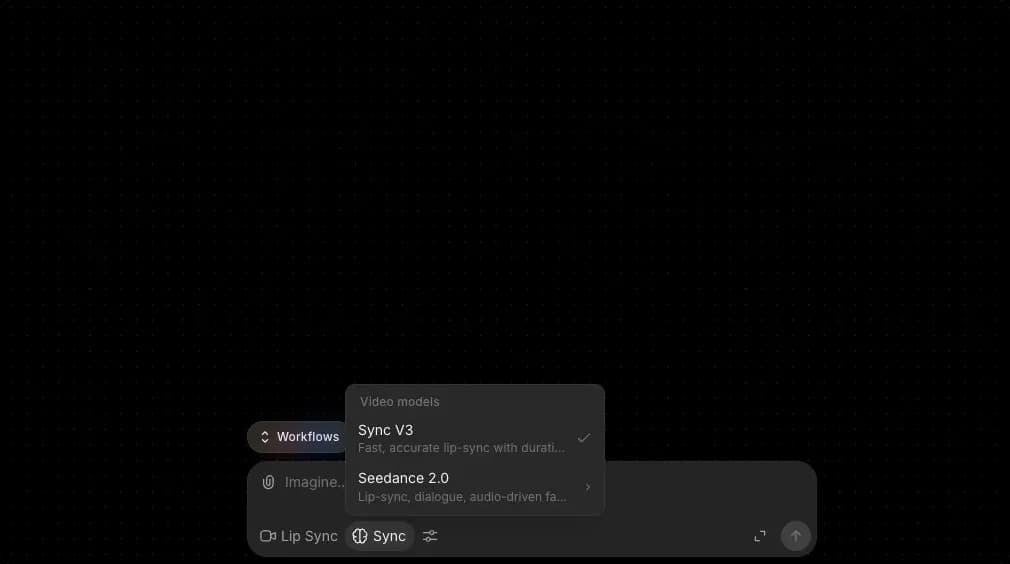
4. 选择你的口型同步模型。你能看到哪些模型取决于你的组织为 lip sync 启用了哪些功能，因此列表可能与你的队友不同。参见 [模型访问权限](/docs/zh/account-and-billing/settings/model-access.md).

<figure><img src="https://2197859893-files.gitbook.io/~/files/v0/b/gitbook-x-prod.appspot.com/o/spaces%2FoPhHCbNZdzW70rakoLhf%2Fuploads%2FwAt8cForpcqGRFgQFDBy%2FCleanShot%202026-04-14%20at%2019.25.11.png?alt=media&amp;token=ba457e20-d6d9-4bc2-bdaf-47f29239b911" alt=""><figcaption></figcaption></figure>

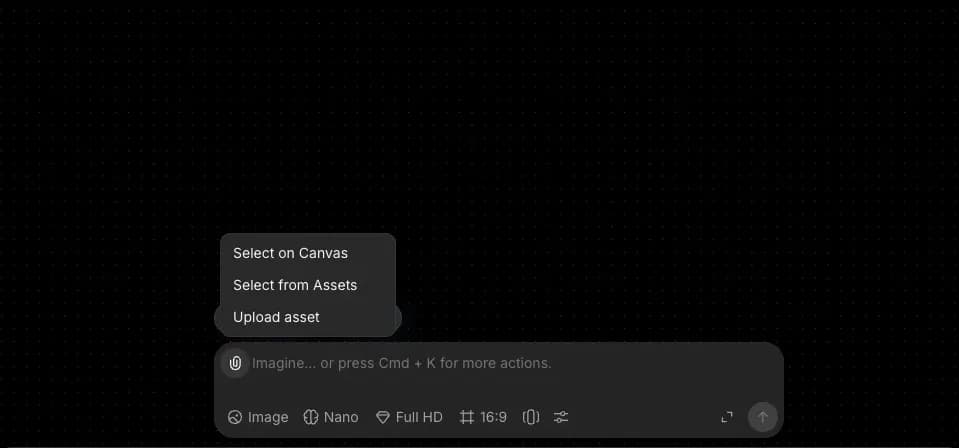
5. 点击回形针图标以附加你的参考素材。你可以：

<figure><img src="https://2197859893-files.gitbook.io/~/files/v0/b/gitbook-x-prod.appspot.com/o/spaces%2FoPhHCbNZdzW70rakoLhf%2Fuploads%2FGXFLRIWRRfplbdZL8XoD%2FCleanShot%202026-04-14%20at%2019.35.50.png?alt=media&amp;token=7ed62e7c-1b05-4497-81c8-9db40c70a054" alt=""><figcaption></figcaption></figure>

* 在 Canvas 上选择 - 选择已放置在你的 Canvas 上的参考素材
* 从 Assets 中选择 - 从你的 Assets 资源库中选择
* 上传资产 - 从你的设备上传文件

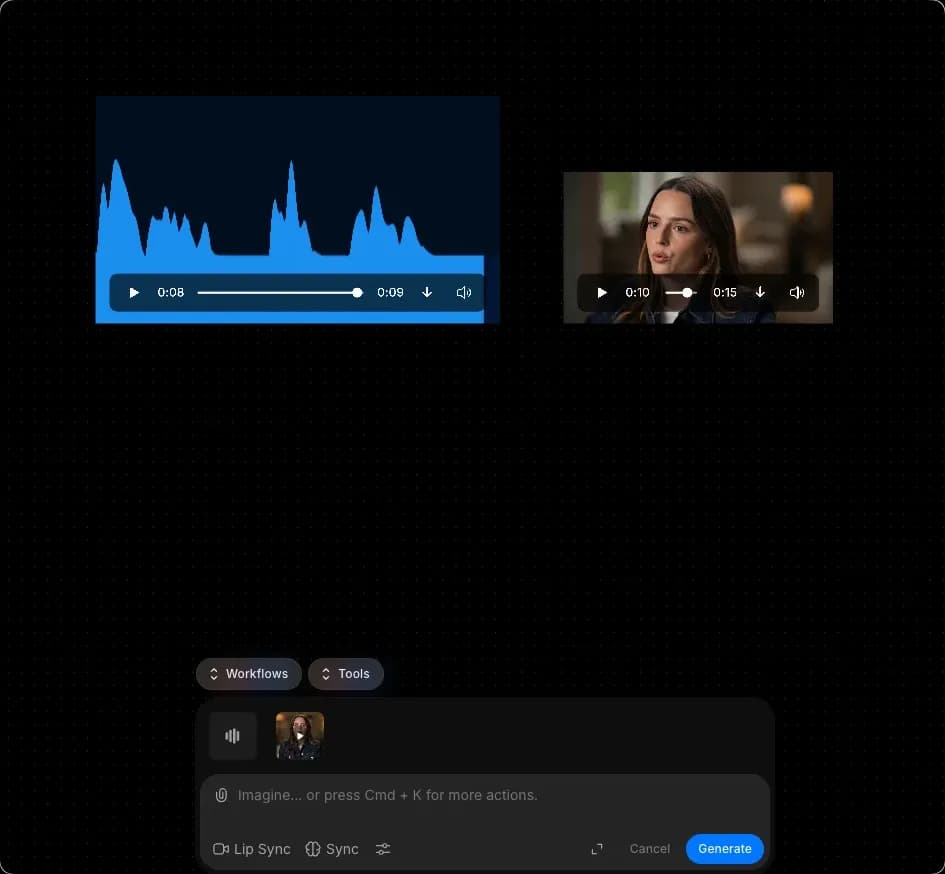
6. 附加一个视频，以及你想让它同步的音频文件。

<div data-full-width="false"><figure><img src="https://2197859893-files.gitbook.io/~/files/v0/b/gitbook-x-prod.appspot.com/o/spaces%2FoPhHCbNZdzW70rakoLhf%2Fuploads%2FXGoZGANTG2mRVZko60MB%2FCleanShot%202026-04-14%20at%2019.38.09.png?alt=media&amp;token=725a3565-3e3b-4202-a59e-405e90b6ed49" alt=""><figcaption></figcaption></figure></div>

7. 可选地，添加包含任何额外指令的提示词，或者将提示栏留空。
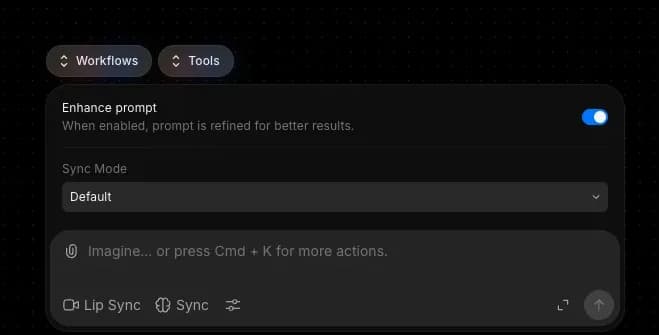
8. 可选地，点击 Preferences 图标以设置 Morphic 如何处理你音频和视频之间的长度不匹配。
9. 点击提示栏中的蓝色按钮。

注意：某些模型不会在空提示下运行。如果没有任何内容开始运行，请添加几个方向性词语，例如“创建口型同步”。

### 获得更好效果的提示

* 使用一个视频，其中角色的脸部清晰入镜，并且在你想同步的整个片段中嘴部都可见。
* 提供干净的音频。背景噪音、重叠的人声，或对话后面的重音乐都可能削弱同步效果。
* 让音频语气与角色匹配。即使口型同步完美，静止、中性的肖像配上高能量的声音也会显得不协调。
* 让音频和源片段的长度尽量接近。较大的差距会迫使 Morphic 拉伸、循环或裁剪，这会削弱最终效果，即使已经设置了合适的 Preferences。
* 尽量减少源视频中的头部移动。适度、自然的动作能让同步效果最自然；快速剪辑和极端角度会让它更难处理。

### 了解 Preferences

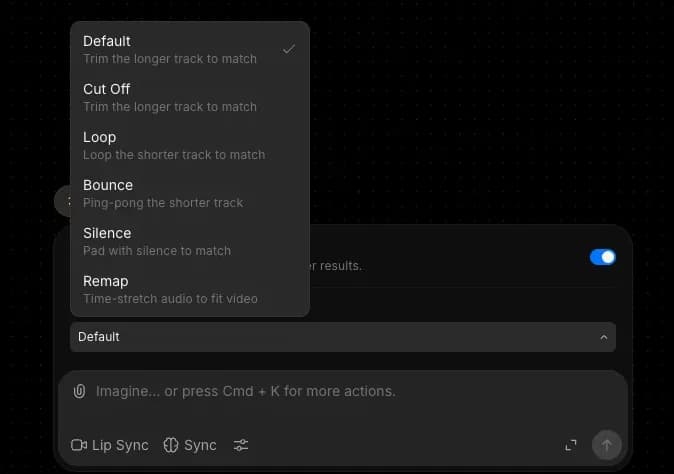
音频和视频的长度通常并不相同。Preferences 控制输出中如何处理这种不匹配。

<div><figure><img src="https://2197859893-files.gitbook.io/~/files/v0/b/gitbook-x-prod.appspot.com/o/spaces%2FoPhHCbNZdzW70rakoLhf%2Fuploads%2FH0HHWxtMPMr6ZXfGBqqQ%2FCleanShot%202026-04-14%20at%2019.29.27.png?alt=media&amp;token=55b1fbe6-0465-46e9-8a6f-f5e4530d5b7b" alt="" width="375"><figcaption></figcaption></figure> <figure><img src="https://2197859893-files.gitbook.io/~/files/v0/b/gitbook-x-prod.appspot.com/o/spaces%2FoPhHCbNZdzW70rakoLhf%2Fuploads%2FwpbnY5Skk1ptVk7A5C6U%2FCleanShot%202026-04-14%20at%2019.29.34.png?alt=media&amp;token=f947e33b-469b-495f-a3d5-2e1c54871506" alt="" width="375"><figcaption></figcaption></figure></div>

| 选项   | 作用                                        |
| ---- | ----------------------------------------- |
| 截断   | 将音频或视频中较长的部分裁剪掉，以匹配较短的部分。                 |
| 循环   | 当视频比音频短时，循环播放视频以匹配音频。                     |
| 往返   | 当视频比音频短时，先正向播放视频，再反向播放以匹配音频。              |
| 静音补齐 | 当视频比音频长时，用静音填充音频以匹配视频。                    |
| 重映射  | 放慢或加快视频速度，使其与音频时长完全一致。通过调整播放速度来保留两者的完整内容。 |

### 费用

不同的 lip sync 模型定价各不相同，而且大多数按输出秒数计费。每个 lip sync 模型的当前费率位于 [Plans & Credits 中的 Lip sync 表](/docs/zh/pricing/plans-and-credits.md).

这就是在 Morphic 上使用 Lip Sync 功能的方法。它非常适合希望为角色、广告和以对白驱动的场景生成 AI 口型同步视频的电影制作者、动画师和营销人员。

***

如果您遇到任何问题或有任何疑问，欢迎随时联系我们。我们很乐意为您提供帮助。请写信至 [**support@morphic.com**](mailto:support@morphic.com)**.**


---

# Agent Instructions
This documentation is published with GitBook. GitBook is the documentation platform designed so that both humans and AI agents can read, navigate, and reason over technical content effectively. Learn more at gitbook.com.

## Querying This Documentation
If you need additional information that is not directly available in this page, you can query the documentation dynamically by asking a question.

Perform an HTTP GET request on the current page URL with the `ask` query parameter, and the optional `goal` query parameter:

```
GET https://morphic.com/docs/zh/video/lip-sync.md?ask=<question>&goal=<endgoal>
```

`ask` is the immediate question: it should be specific, self-contained, and written in natural language.
`goal` is optional and describes the broader end goal you are ultimately trying to accomplish on behalf of the user. GitBook uses it to tailor the answer towards what is most useful for that goal.

The response will contain a direct answer to the question and relevant excerpts and sources from the documentation.

Use this mechanism when the answer is not explicitly present in the current page, you need clarification or additional context, or you want to retrieve related documentation sections.