Every image model
New words, same design
Edit text in an image in three steps
- 01
Open Morphic
Sign up and start creating on a free-flowing, infinite visual canvas.
- 02
Mark the text and type the new words
Upload the image, point at the words you want to change, and enter the new wording.
- 03
Generate and export
Morphic renders the new text in the same font, colour, and perspective. Review, then export.
Use cases
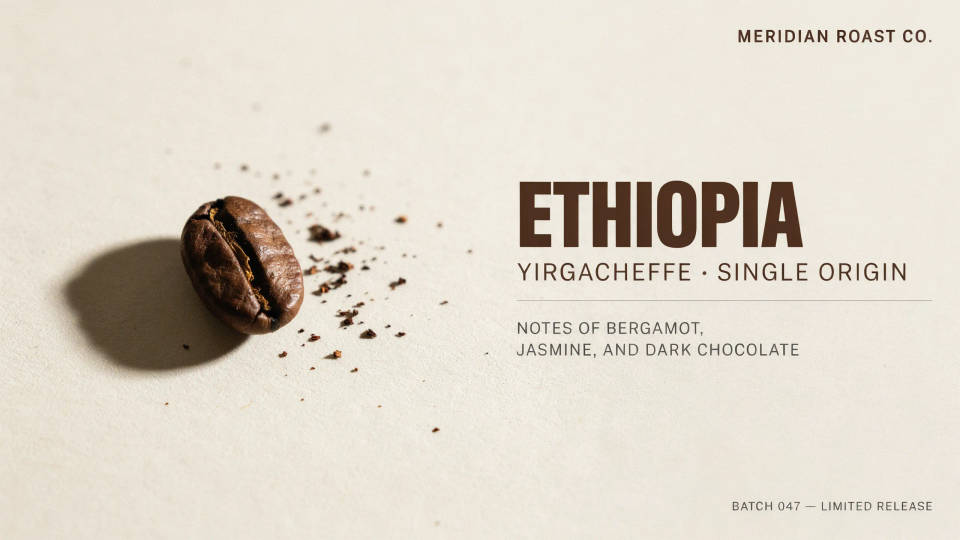
Fix a typo without rebuilding the file
A finished graphic with one wrong word usually means digging out the source file, or reworking it from scratch. Editing the text in place fixes the wording while keeping the exact font and layout. You correct the slip and export, without touching the rest of the design.
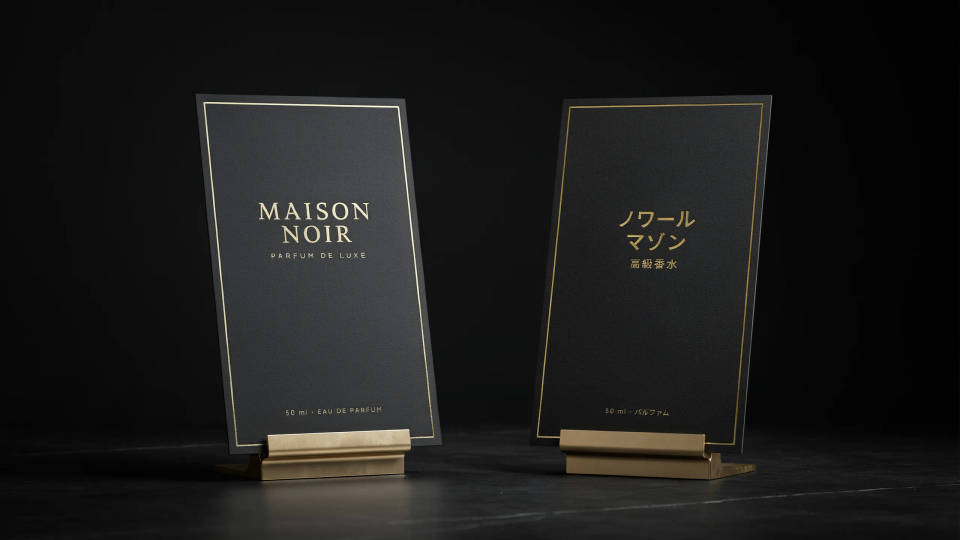
Localise a sign or label
Swap the wording on a sign, pack, or poster into another language while the type, colour, and placement stay put. It is a fast way to see how a design reads in a new market before committing to a full redraw, and to produce mockups that look real rather than pasted over.
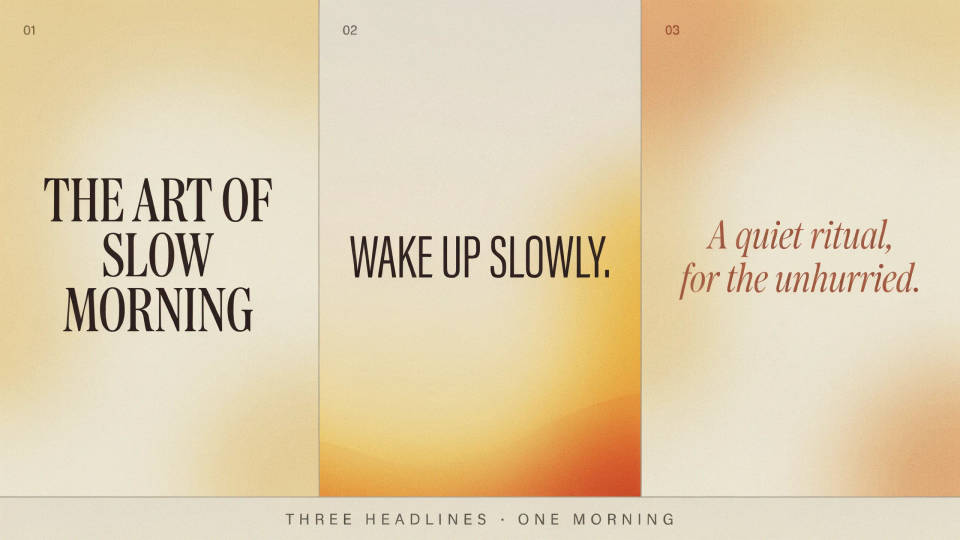
Try alternative headlines on a design
Test a few versions of a headline, a tagline, or a call to action directly on the artwork. Because the type style carries over, each variant looks like a finished layout, not a rough. Compare wording options side by side and pick the one that lands before handing anything off.
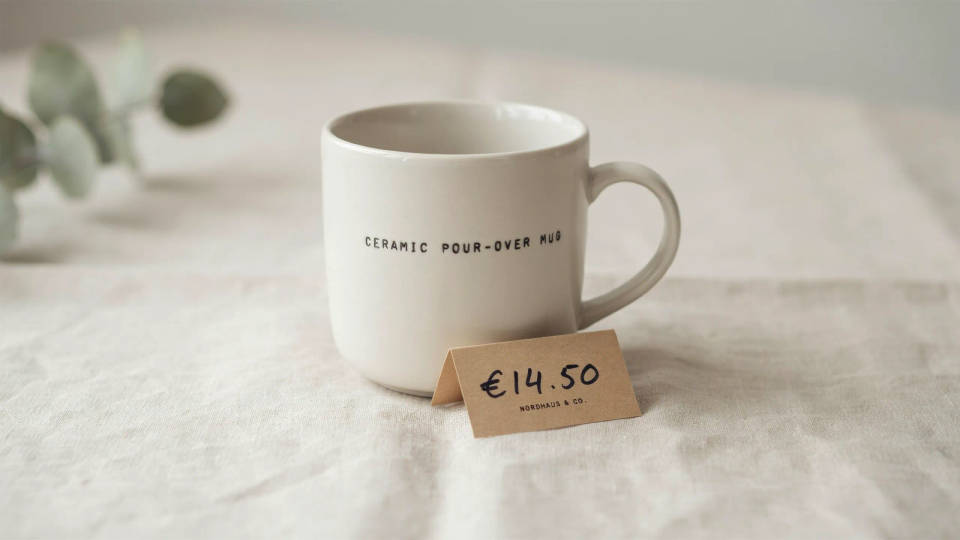
Update a price, date, or detail
A menu price, an event date, a model number on packaging: the small text that changes often. Rewrite just that detail and keep the surrounding design intact. It saves re-exporting a whole template every time one figure moves, and the edit sits naturally in the original type.
Prompt examples
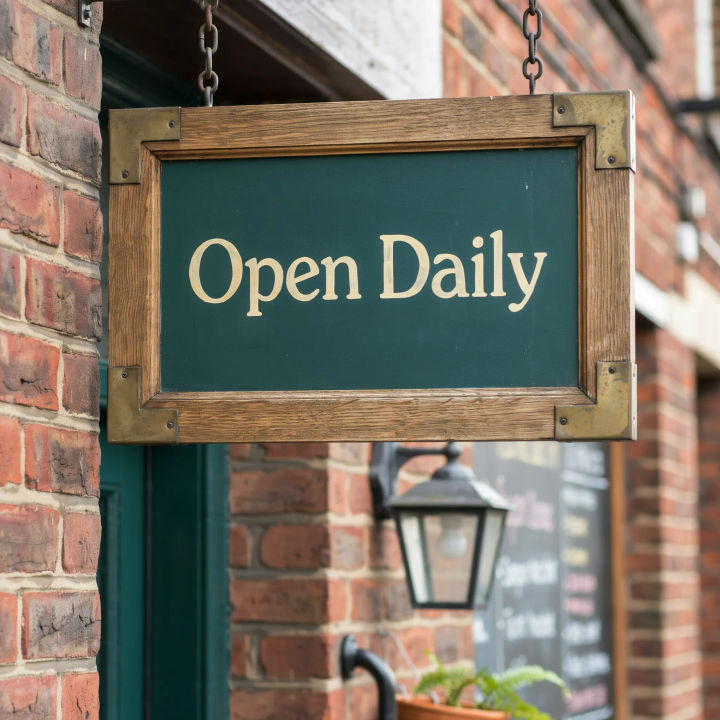
Reword a shop sign
Change the text on this shop sign to read Open Daily, keep the font and colour
Edit prompt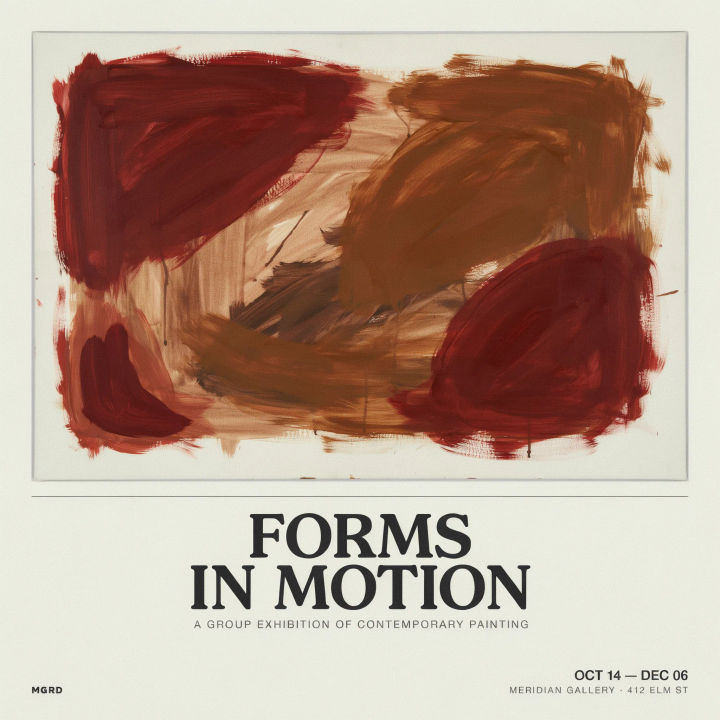
Swap a poster headline
Replace the poster headline with new copy in the same bold type and layout
Edit prompt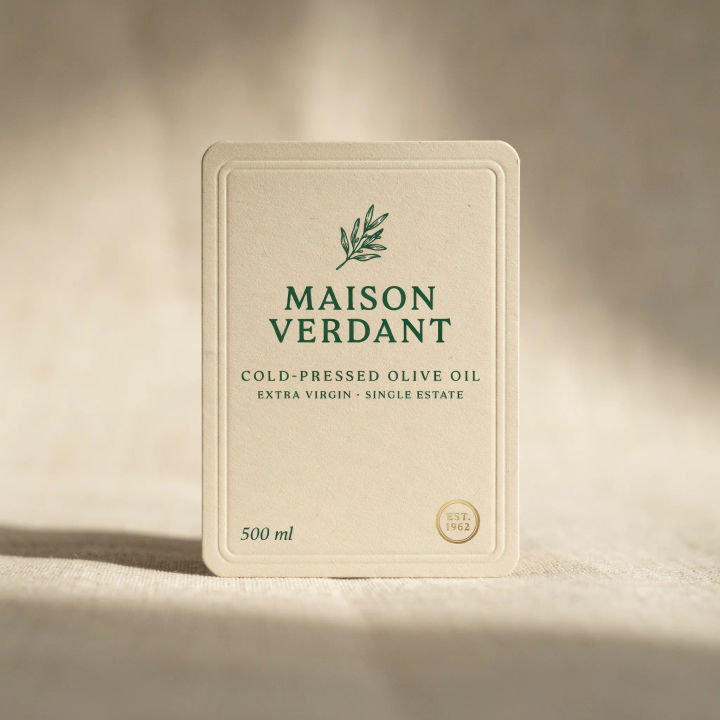
Fix a label typo
Correct the spelling on this product label without changing anything else
Edit prompt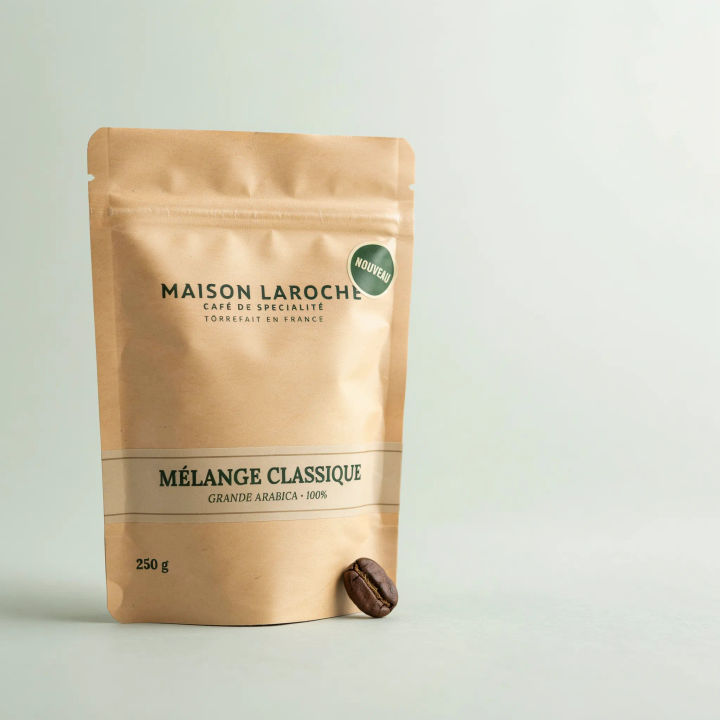
Localise packaging
Change the front-of-pack wording into French, keep the type style and colour
Edit prompt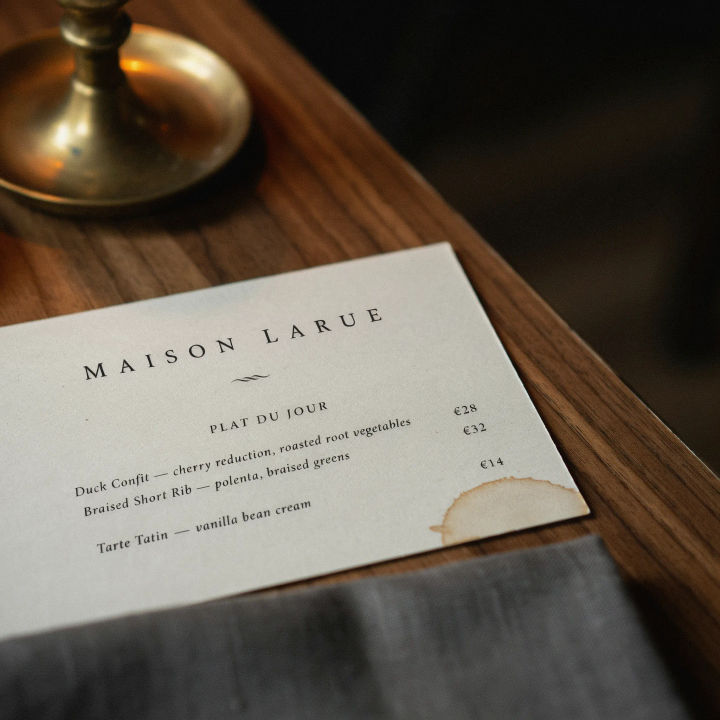
Update a menu price
Change the price next to the dish to a new figure in the same menu font
Edit prompt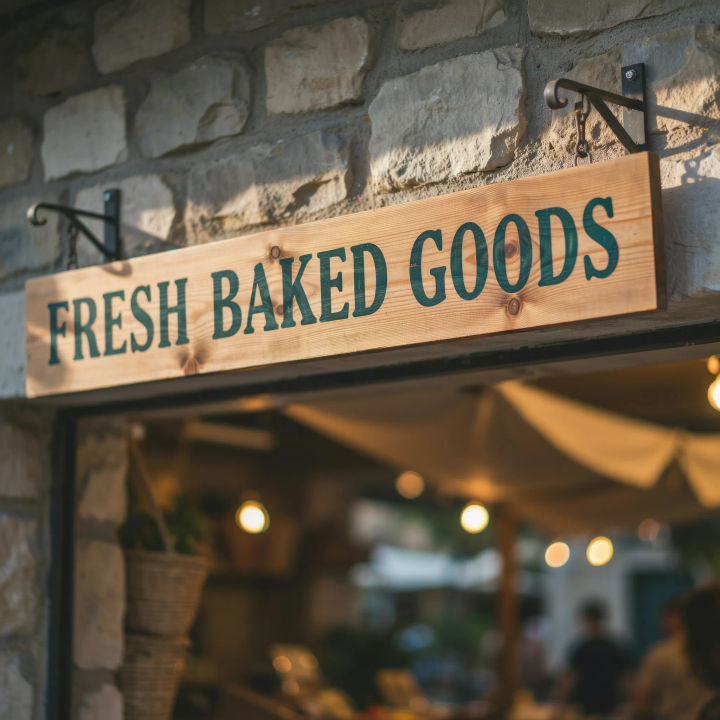
Edit angled text
Rewrite the text on this angled banner and follow the original perspective
Edit prompt
Messages to cinematic scene
Dramatize any text conversation into a cinematic multi-shot video.
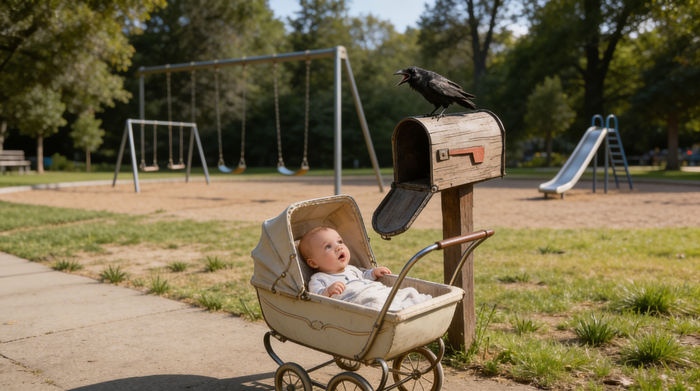
Cinematic storyboard
Share a scene description with character references. Get a full storyboard with shot angles and mood.
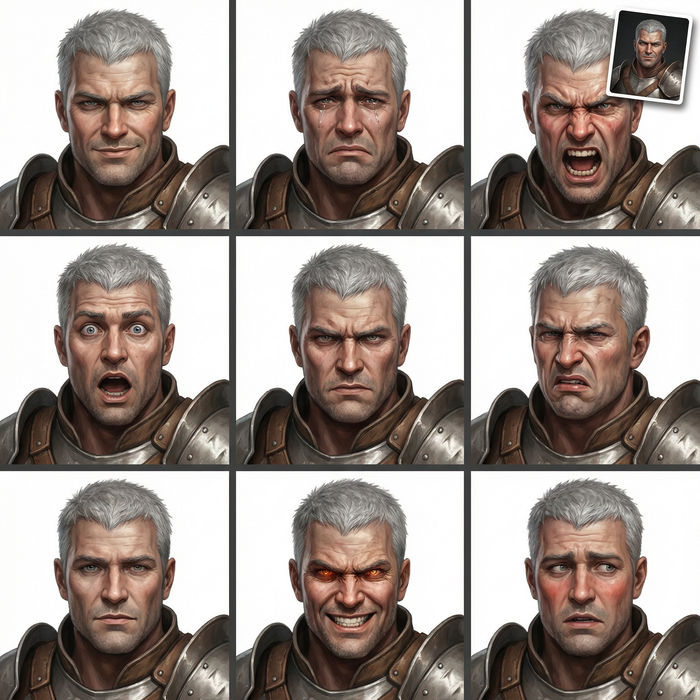
Expressions
Take any character image and generate 6 distinct facial expressions on a single reference sheet.
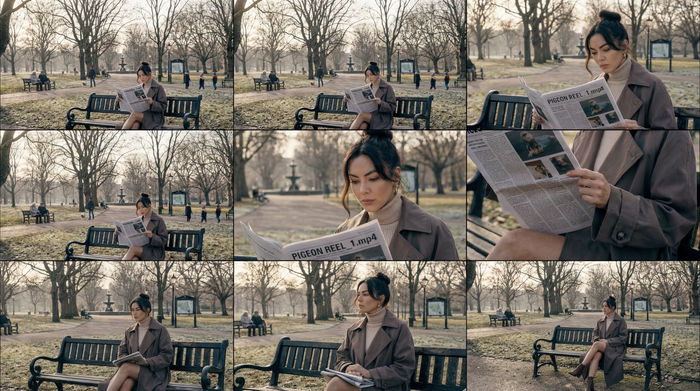
3x3 storyboard
Feed in a single image. Get 9 cinematic beats laid out as a 3x3 storyboard grid.
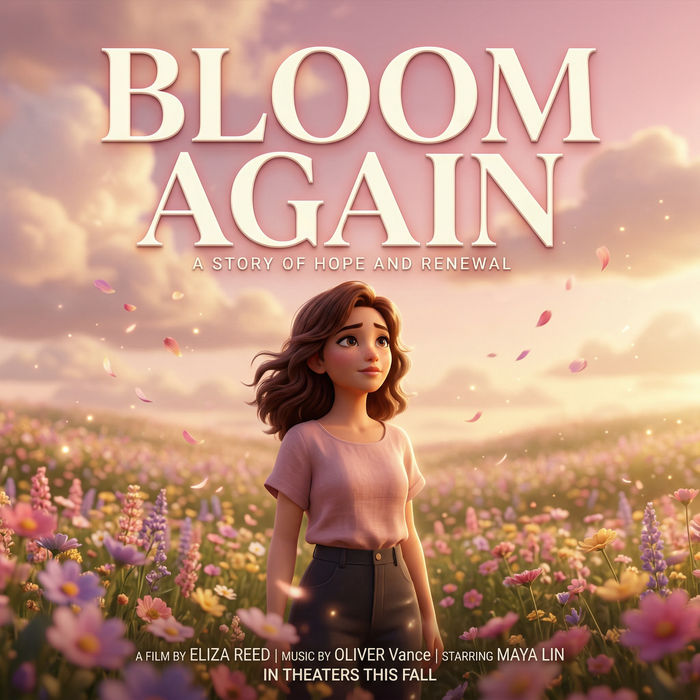
Title sequence
Generate a professional film title card from scratch, with optional cinematic animation.
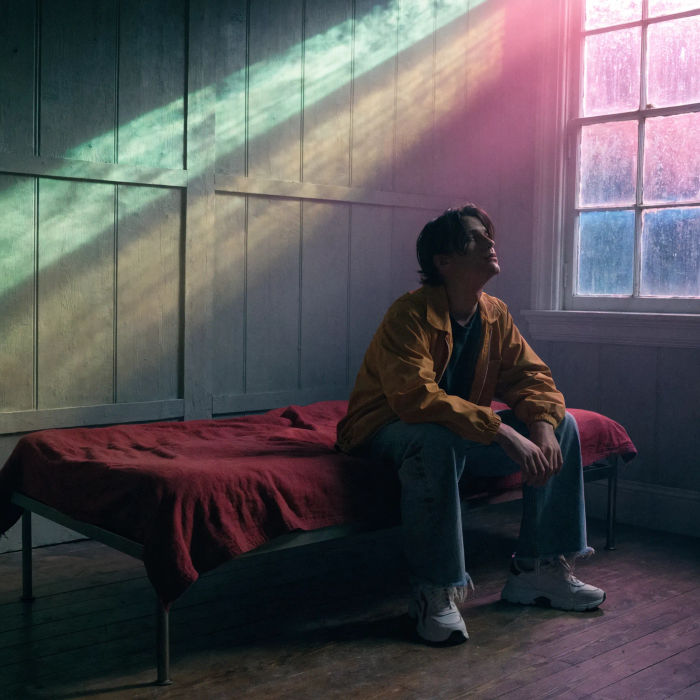
Movie poster
Cinematic poster compositions from your key art, in any genre tone.
All on Morphic
Models
Nano Banana 2, Flux 2 Pro, ChatGPT Images, Grok Imagine, Recraft, Seedream, and more. Swap models when text needs a cleaner render.
AI image editor
Change any part of a photo with a prompt, the broader edit tool behind in-place text changes.
Generative fill
Paint new elements into a design or extend it past its edges, beyond editing the words alone.
Image to image
Edit, restyle, and rebuild any image in the same workspace that powers in-place text edits.
