Every image model
Face edits you can make
Edit a face in three steps
- 01
Open Morphic
Sign up and start creating on a free-flowing, infinite visual canvas.
- 02
Mask the area to change
Upload the photo and paint over just the eyes, mouth, or face region you want to adjust.
- 03
Describe the edit and generate
Morphic inpaints only the masked area, so the rest of the frame is untouched. Rerun until it reads right, then export.
Use cases
Fix a blink or a flat expression
Rescue an otherwise perfect shot where someone blinked or the smile fell flat. Mask the eyes or the mouth and ask for open eyes or a warmer expression, and only that region changes. The pose, the background, and everyone else stay put. It is the quickest save for a photo you cannot retake.
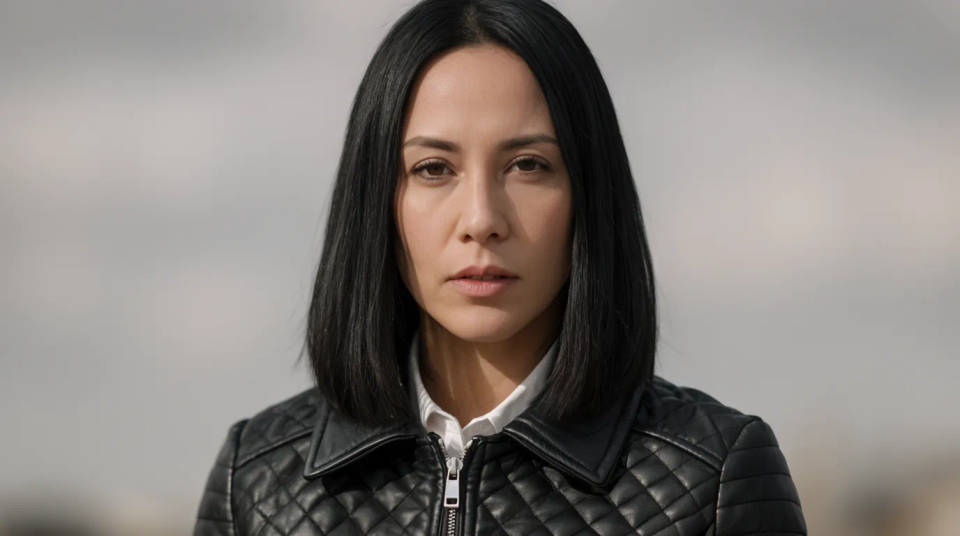
Relight a face that fell into shadow
When the scene is right but the face is too dark, mask it and describe softer, more even light. The model relights the masked region and blends it into the neck and hair so there is no hard seam. Add a catchlight to the eyes for life. Keep it subtle so the edit matches the rest of the frame.
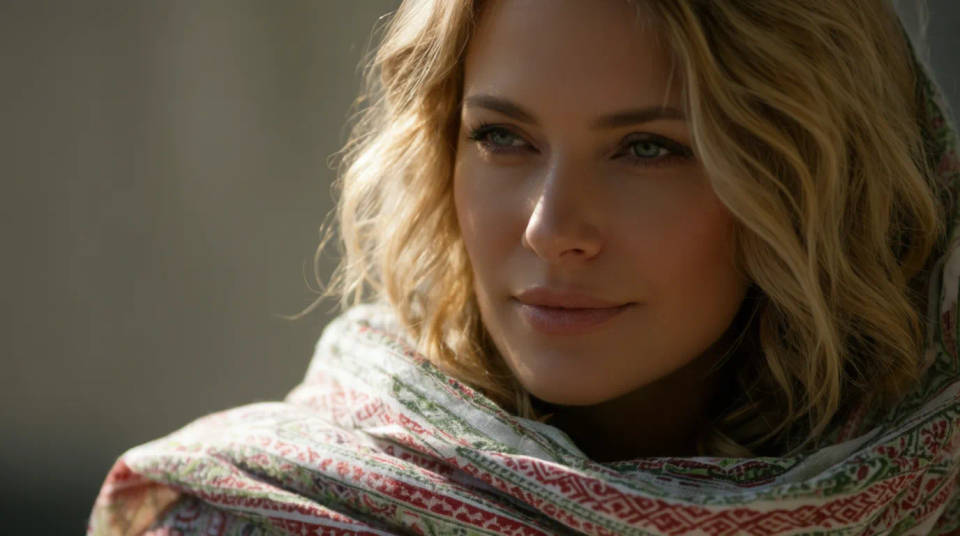
Subtle portrait retouch
Smooth a distracting blemish, tidy stray detail, or even skin tone without over-processing the whole photo. Because the edit is confined to the mask, the texture elsewhere stays natural. It suits a headshot or a profile where you want a clean but honest result. Rerun with a lighter touch if a pass looks too smooth.
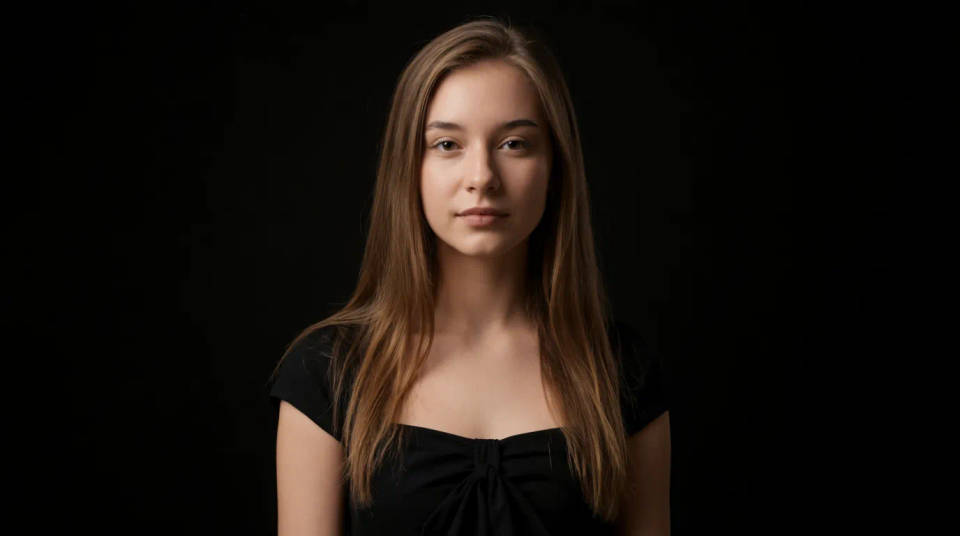
Consistent faces across a set
Even out expression and light across a batch of portraits so a team page or a cast card reads as one session. Edit each face inside its mask while leaving the framing alone, and the set lines up. It saves rebooking a shoot when a few frames are off. Compare them on the Canvas to keep the look uniform.
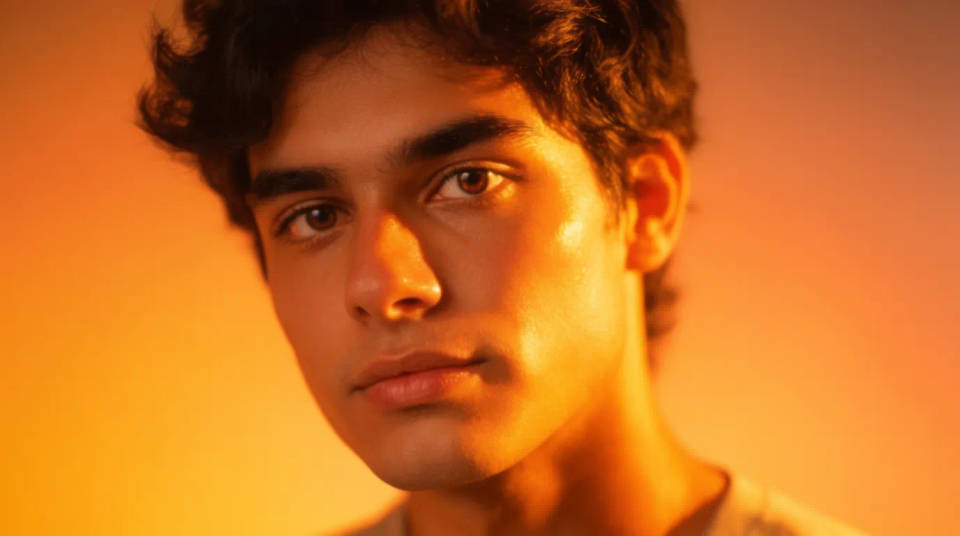
Prompt examples
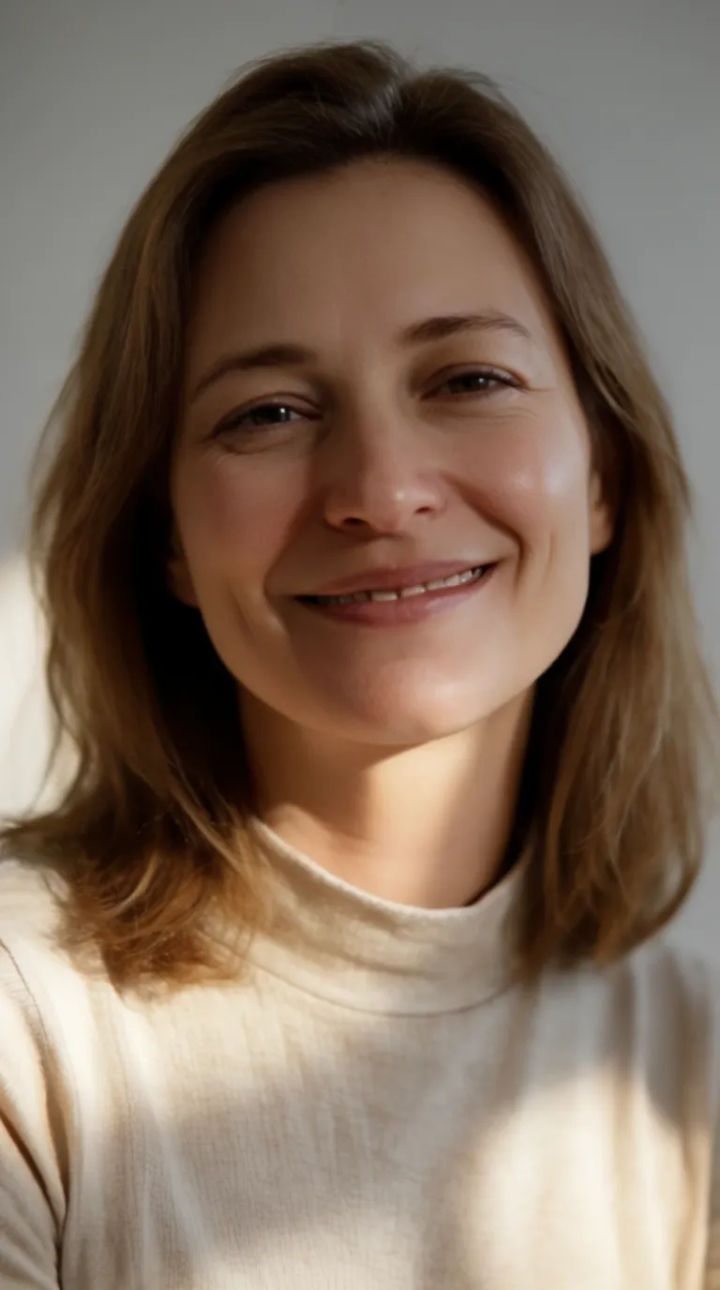
Open the eyes
Mask the eyes and open them naturally, match the gaze to camera, keep the smile and the rest of the frame
Edit prompt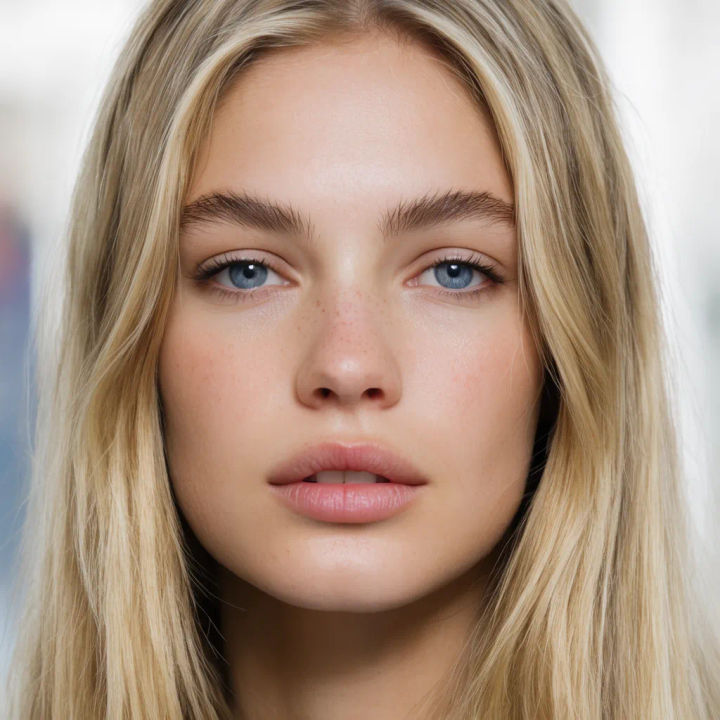
Warm the smile
Mask the mouth and give a relaxed, natural smile, keep the teeth realistic and the eyes as they are
Edit prompt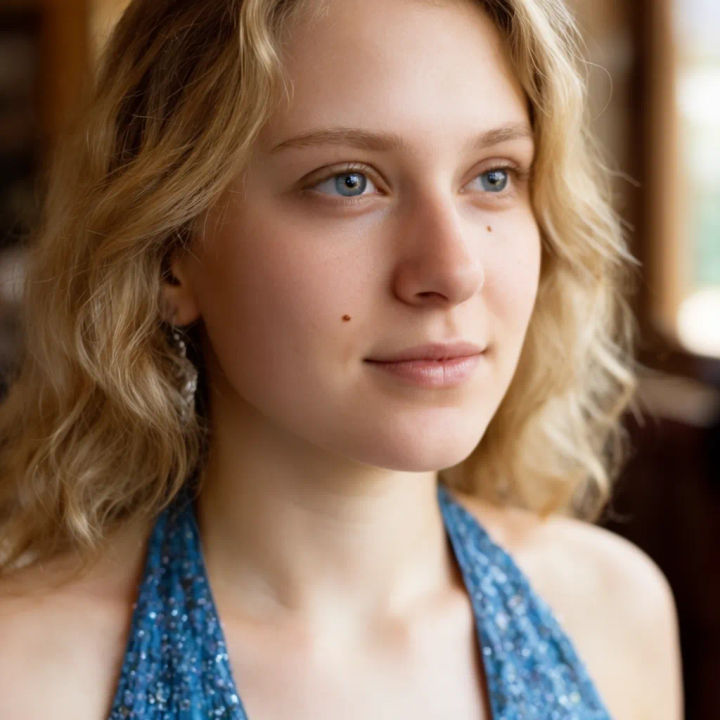
Soften the light
Mask the face and relight it with soft even light, lift the shadow under the eyes, add a subtle catchlight
Edit prompt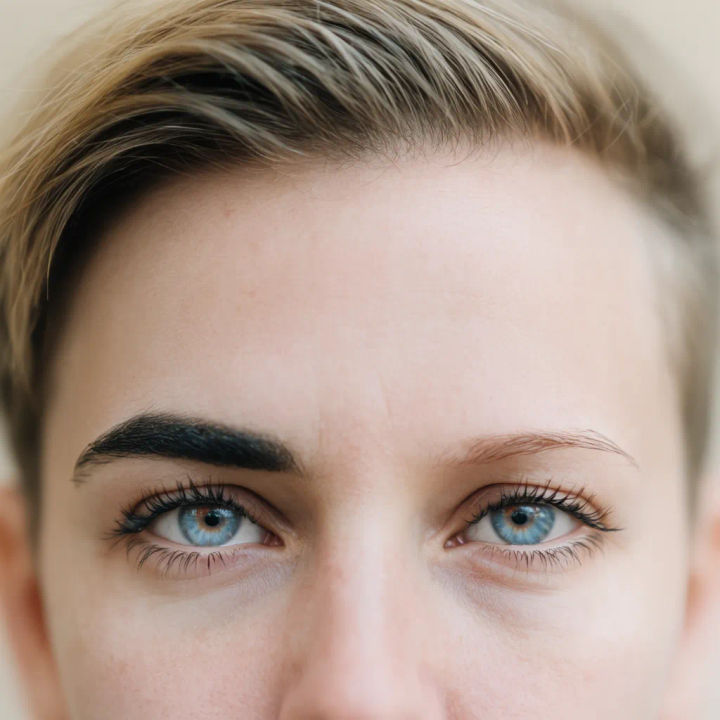
Relax the brow
Mask the forehead and brow, relax the frown into a neutral expression, keep the identity and skin texture
Edit prompt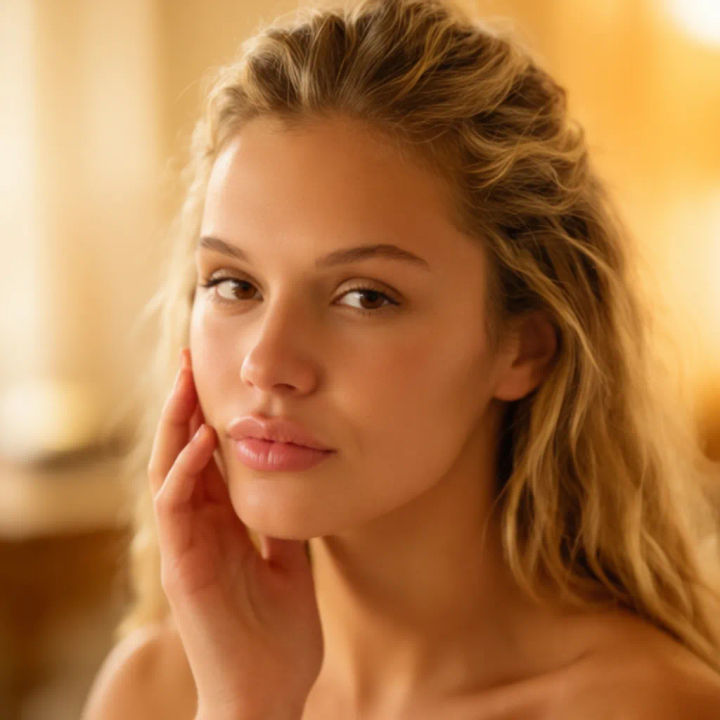
Even the skin
Mask the cheek and remove the blemish, keep pores and texture natural, do not smooth the whole face
Edit prompt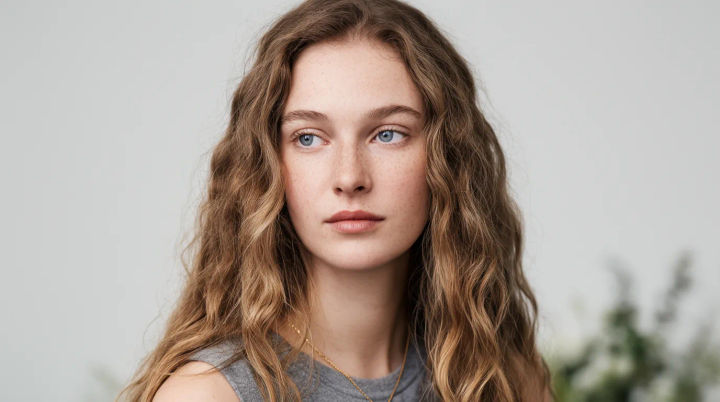
Fix one face in a group
Mask the face on the left who blinked, open the eyes to match the others, leave everyone else untouched
Edit prompt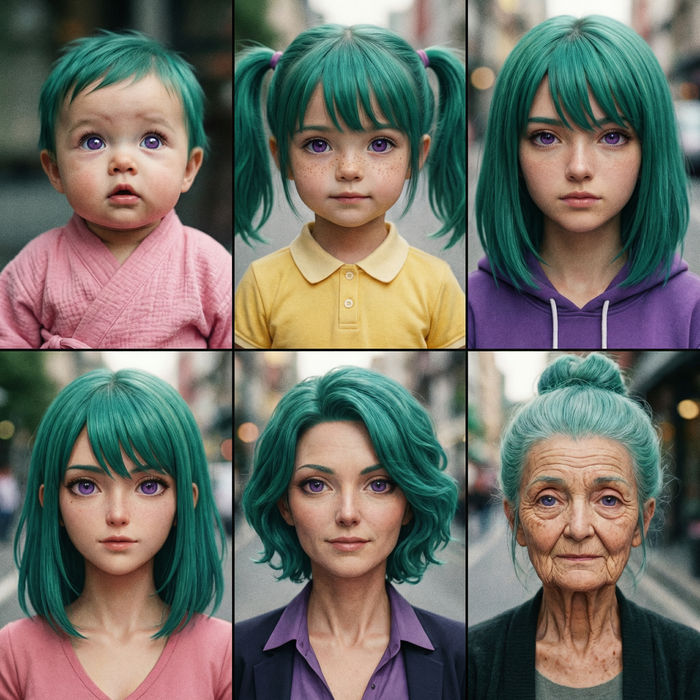
Character age progression
Upload a photo of a person or character and get a single grid image showing them at different life stages, from baby to elderly.
Skin enhancer
Fix plastic-looking AI skin. Adds natural texture, pores, and imperfections for realism.
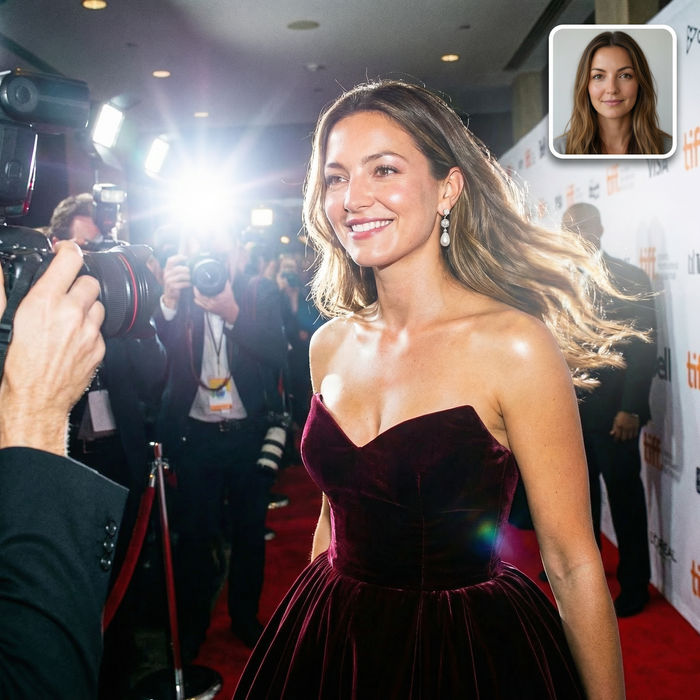
Paparazzi scene
Put anyone on a red carpet with paparazzi flashes, animated into a celebrity entrance video.
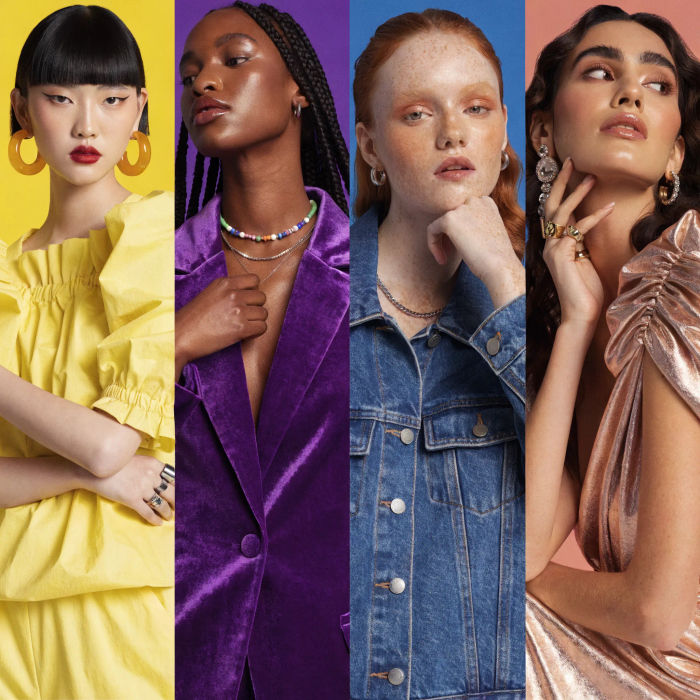
Female AI influencer
Generate a female AI influencer. Vertical output, ready for socials.
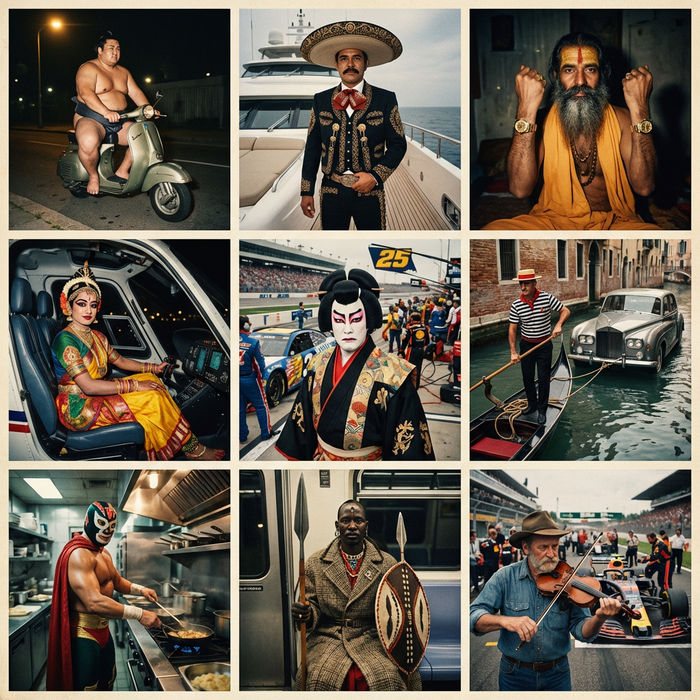
Paradox frames
Flash paradox photographs — any collision, any country
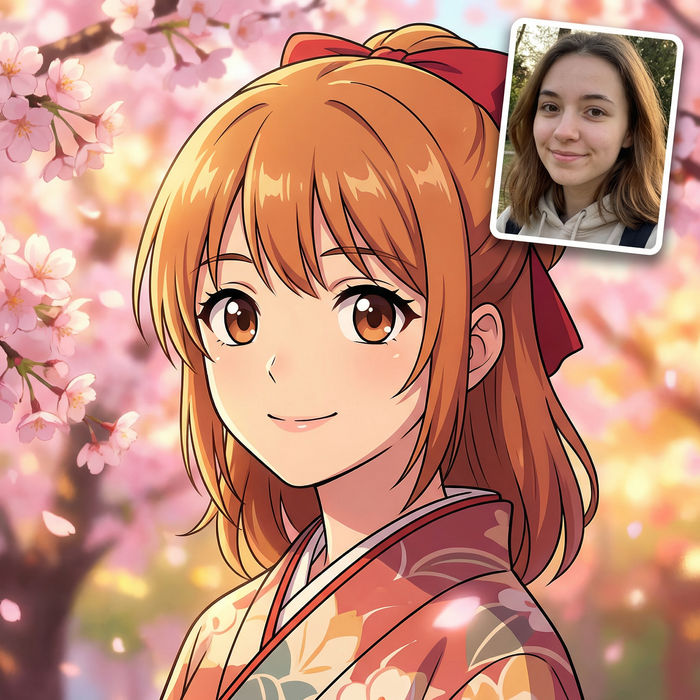
Anime style transfer
Pick any anime illustration as your style guide. Apply its look to any image.
All on Morphic
Models
Nano Banana 2, Flux 2 Pro, ChatGPT Images, Grok Imagine, Recraft, Seedream, and more. Swap models when a masked edit needs to blend cleaner.
AI photo editor
Edit anything in a photo, not just a face, by masking the region and describing the change.
AI face swap
Replace one identity with another instead of adjusting the same person's expression or light.
Image to image
Mask and inpaint any photo, the method that edits only the face region you paint.
