Every image model
One workspaceGrain gone
Denoise in three steps
- 01
Open Morphic
Sign up and start creating on a free-flowing, infinite visual canvas.
- 02
Upload the noisy photo
Drop in the grainy or speckled shot you want cleaned up.
- 03
Generate and export
The model lifts the noise while holding real texture. Rerun if it goes too soft, then export.
Use cases
Clean up low-light and night photos
Shots taken at high ISO come back full of grain and colour speckle, especially in the shadows. Denoising lifts that noise while keeping faces and surfaces looking real rather than smoothed. It turns a usable-but-messy night shot into something you can actually publish.
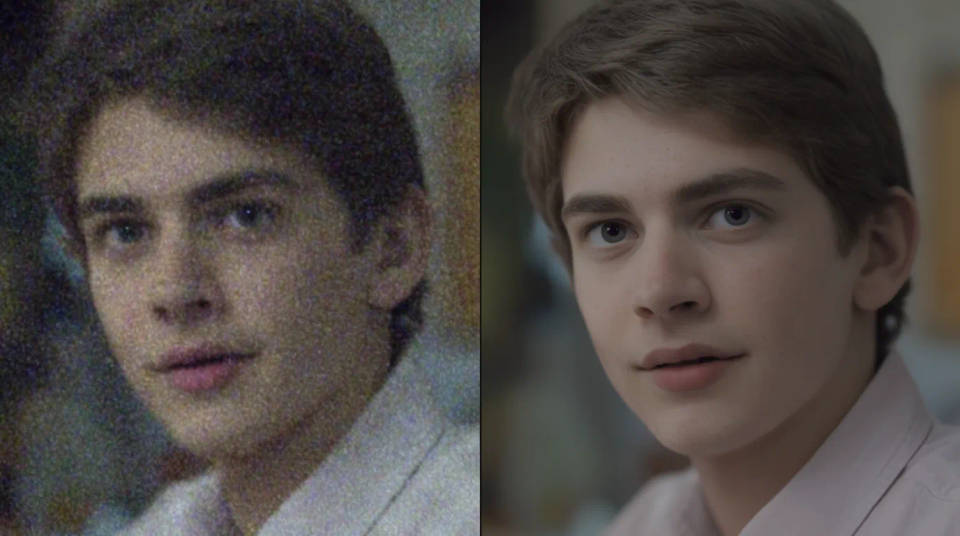
Rescue phone photos shot in the dark
Phone cameras lean hard on noise reduction indoors and at night, which often leaves a mushy, speckled result. Running it through the denoiser clears the grain and rebuilds a cleaner surface underneath. Faces and text come back readable instead of muddy.
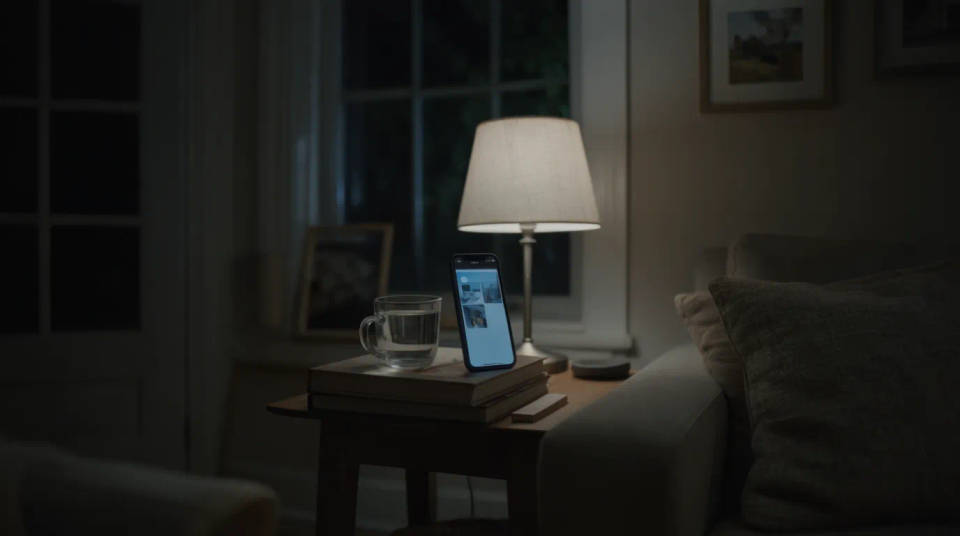
Tidy product shots before a listing
A product photo taken in a dim room shows grain across flat surfaces that should look smooth. Denoising evens those areas out while keeping the material and label sharp, so the item looks clean on the page. It saves a reshoot when the lighting was less than ideal.
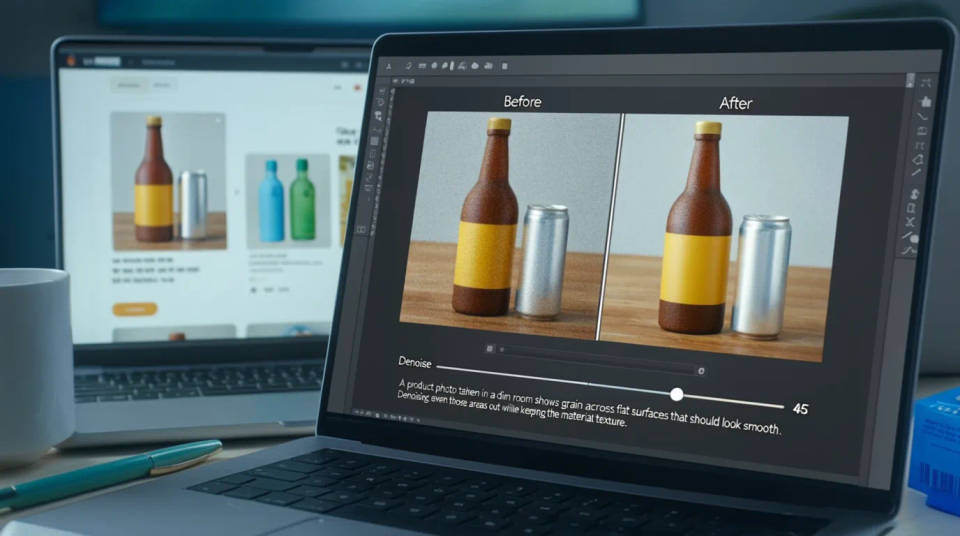
Fix compression grain on saved images
Images that have been saved and reshared many times pick up blocky artefacts and speckle. The denoiser smooths those out and reconstructs cleaner edges without wiping the detail. Handy for a picture you only have in a heavily compressed copy.
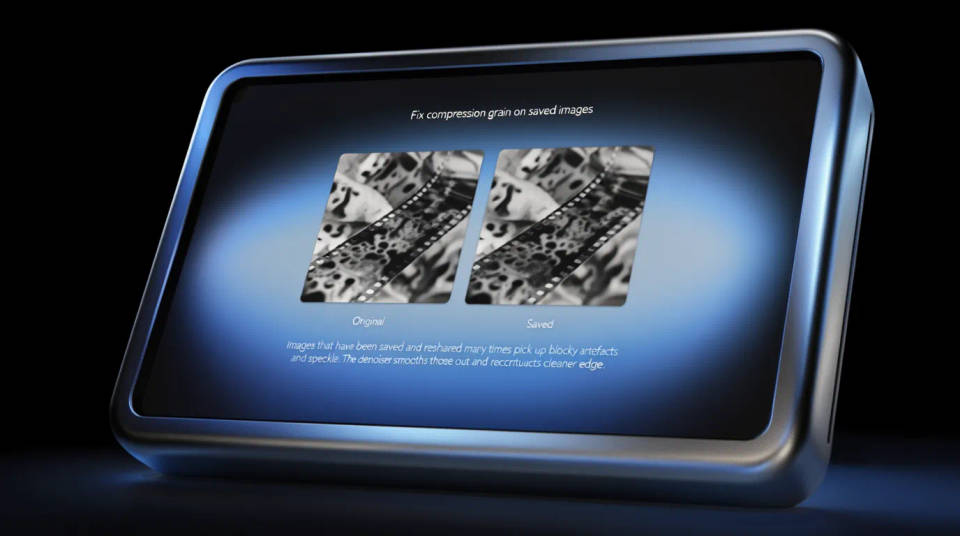
Prompt examples
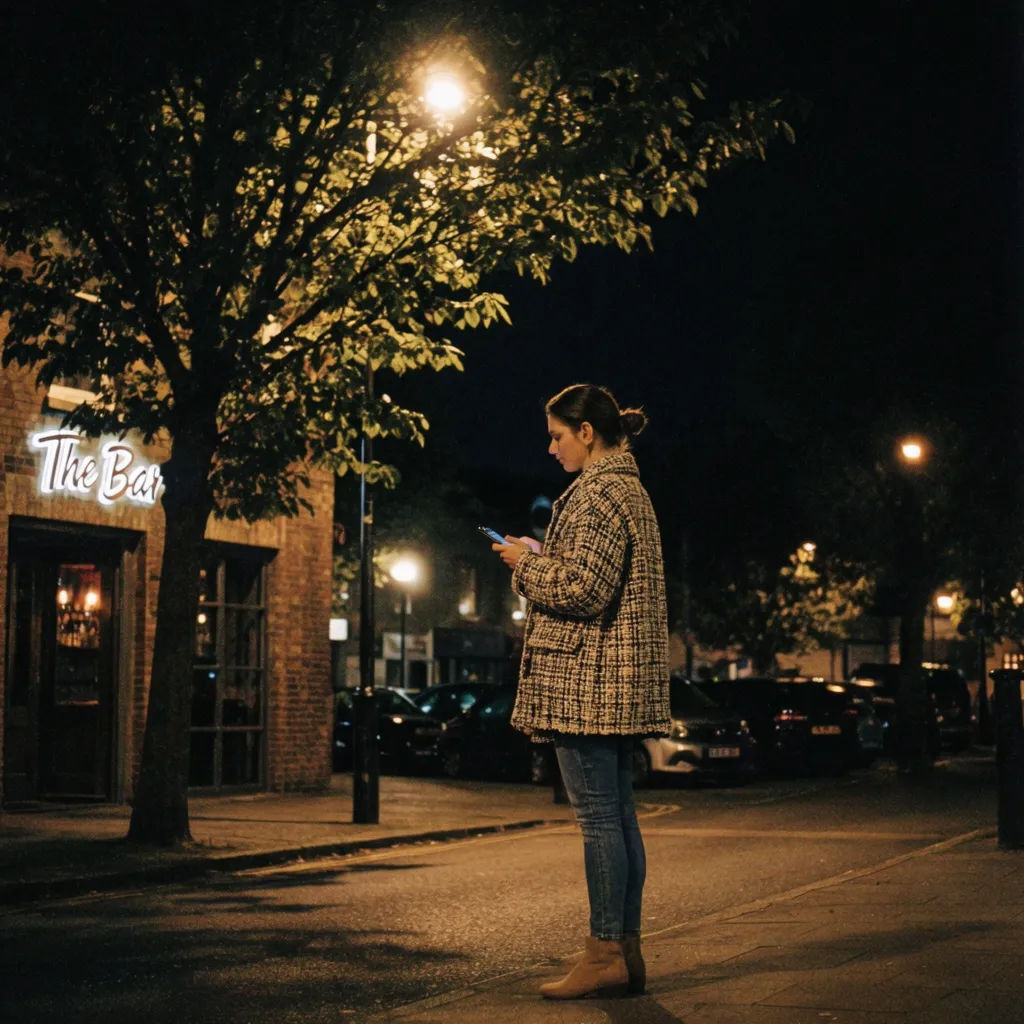
Clean a night shot
Remove the high-ISO grain from this night street photo and keep the surfaces natural
Edit prompt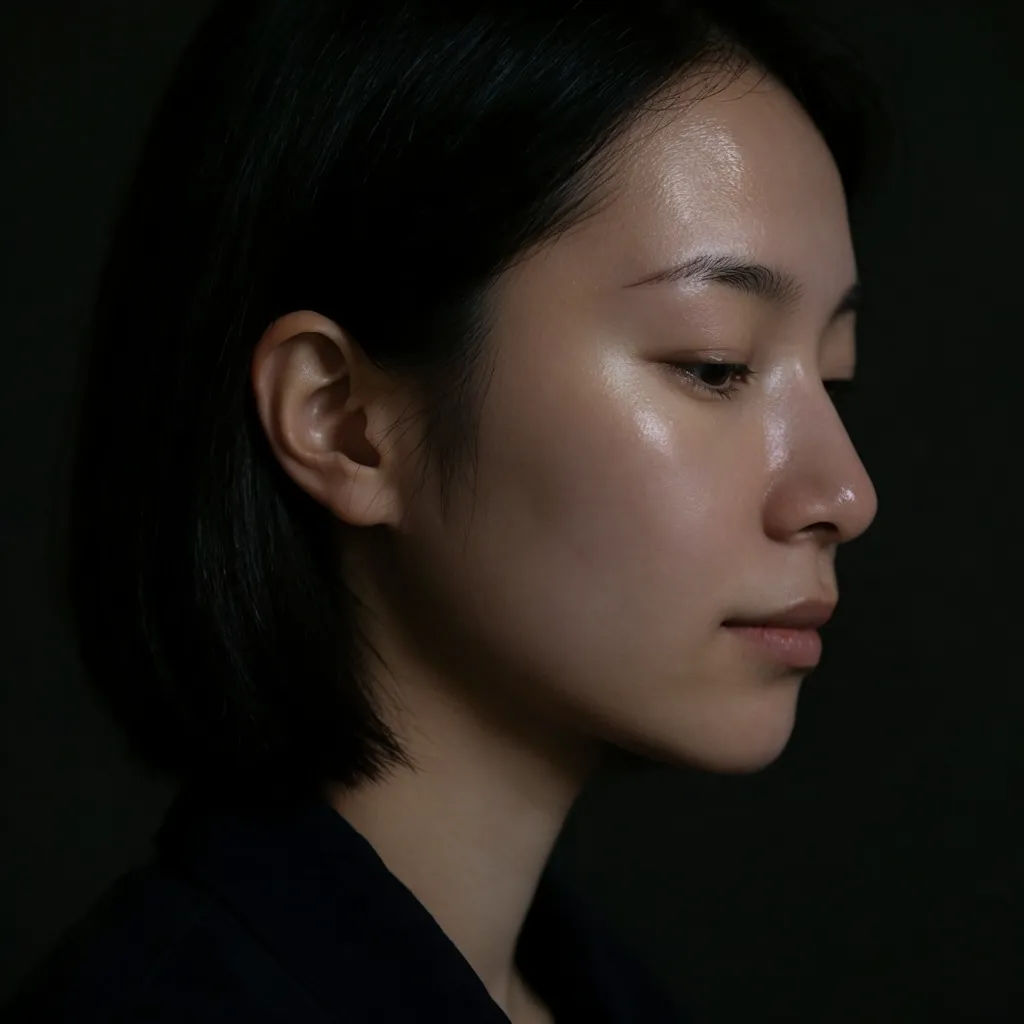
Denoise a portrait
Clear the noise from this low-light portrait and keep the skin texture, not a plastic look
Edit prompt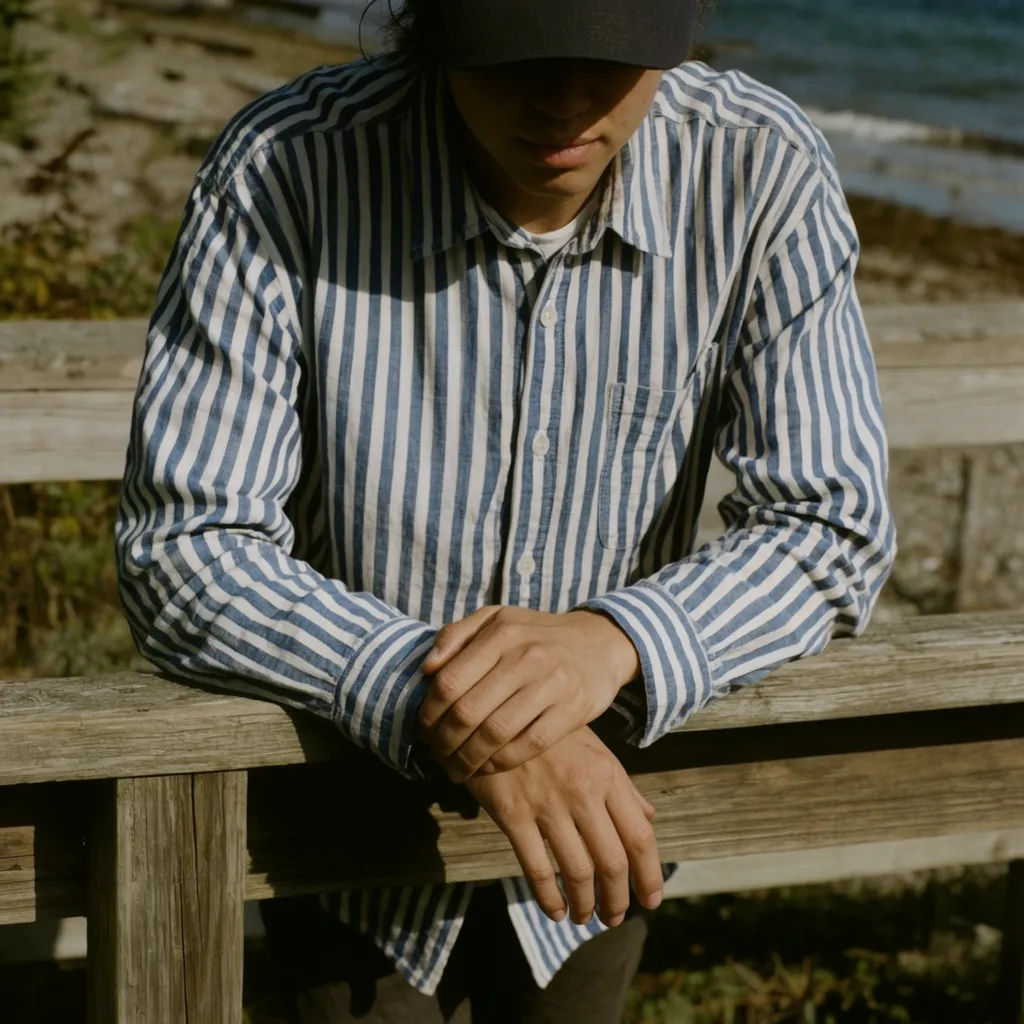
Lift shadow speckle
Remove the colour speckle from the shadows in this photo without dimming the image
Edit prompt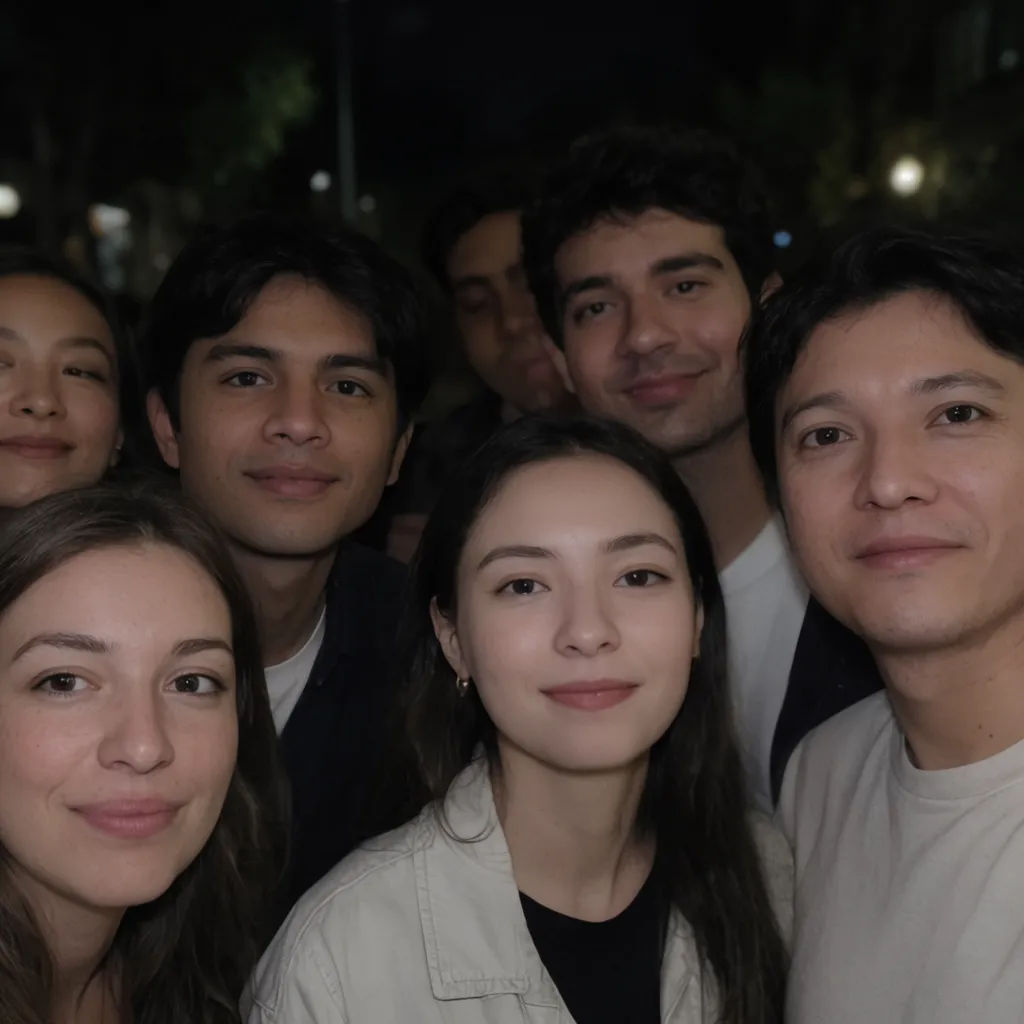
Fix a phone night photo
Clean up the mushy noise in this phone night photo and make the faces readable again
Edit prompt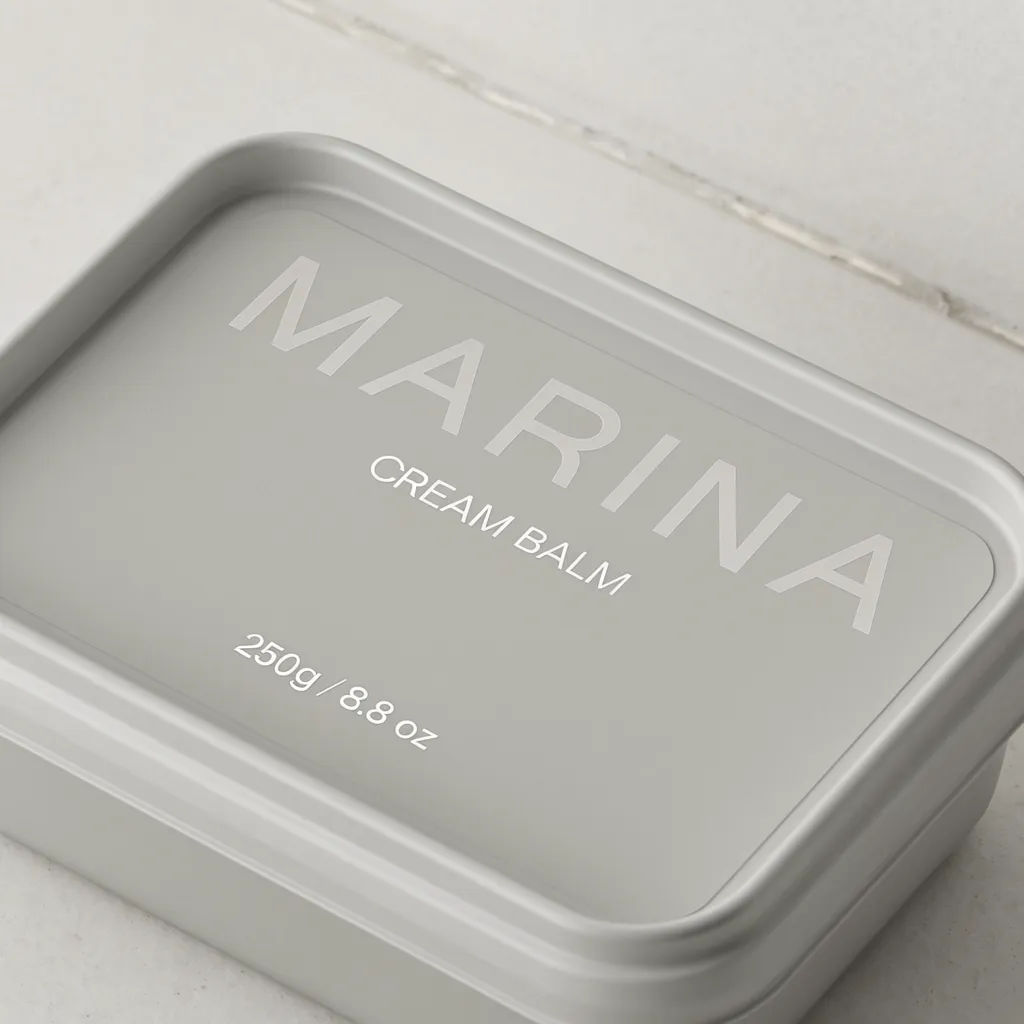
Smooth a product shot
Remove the grain from the flat surfaces in this product photo but keep the label sharp
Edit prompt
Clear compression noise
Remove the blocky compression artefacts from this saved image and rebuild clean edges
Edit prompt
Cinematic storyboard
Share a scene description with character references. Get a full storyboard with shot angles and mood.
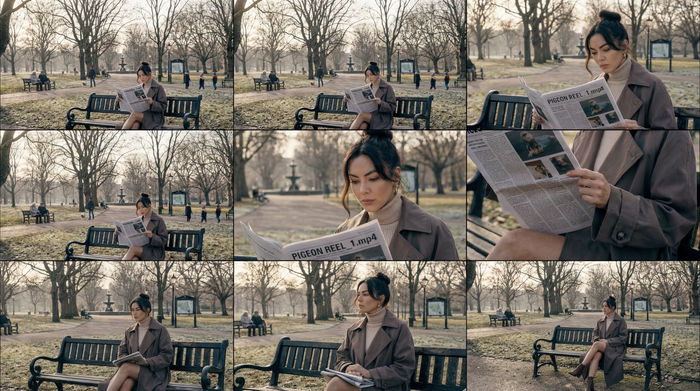
3x3 storyboard
Feed in a single image. Get 9 cinematic beats laid out as a 3x3 storyboard grid.

Messages to cinematic scene
Dramatize any text conversation into a cinematic multi-shot video.
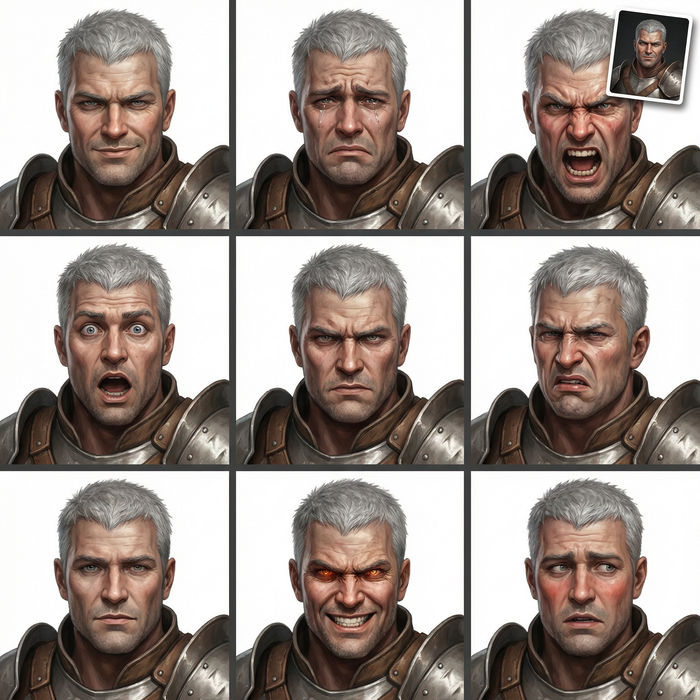
Expressions
Take any character image and generate 6 distinct facial expressions on a single reference sheet.

Title sequence
Generate a professional film title card from scratch, with optional cinematic animation.

Chibi sprite animation
Turn any photo or description into an animated chibi sprite. Dance, jump, wave, attack, and more.
All on Morphic
Your photo-cleanup toolkitModels
Nano Banana 2, Flux 2 Pro, ChatGPT Images, Grok Imagine, Recraft, Seedream, and more. Switch models when one keeps texture better than another.
Photo enhancer
Sharpen, correct, and lift overall quality when a shot needs more than noise removed.
Photo restoration
Repair old, faded, or damaged photos where grain is only part of the problem.
Image to image
Rebuild or clean any photo through the same generative engine that powers the denoiser.
