Every image model
What a mask can do
Inpaint an image in three steps
- 01
Open Morphic
Sign up and start creating on a free-flowing, infinite visual canvas.
- 02
Mask an area
Upload an image, paint a mask over the region to change, and describe what should be there.
- 03
Generate and export
Only the masked area regenerates. Rerun or switch models until it blends, then export.
Use cases
Change one thing, keep the rest
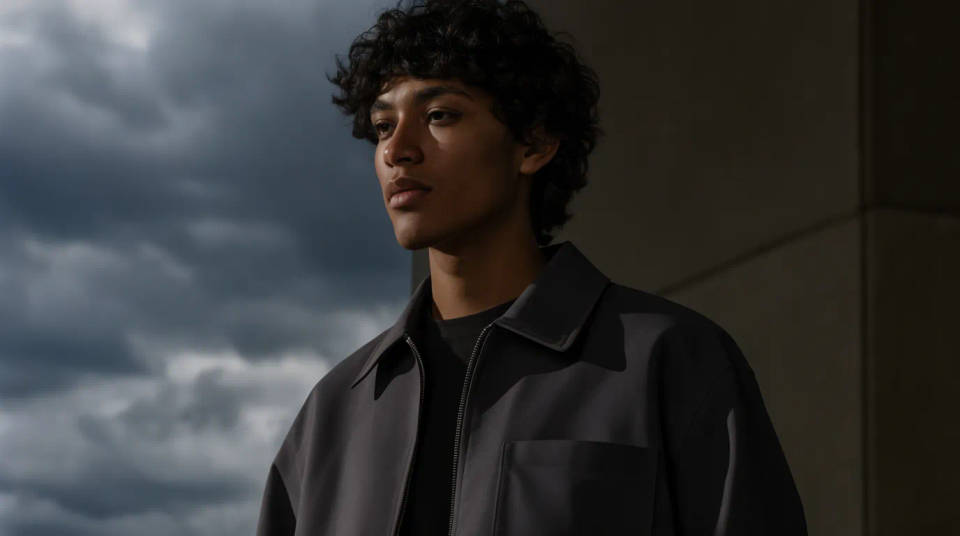
Recolour a jacket, swap a sky, or change a sign while every other pixel stays put. Masking is what makes that safe, the model only touches what you painted, so the parts of the shot you already liked do not shift. It is precise editing without risking the whole frame.
Add something that was not there
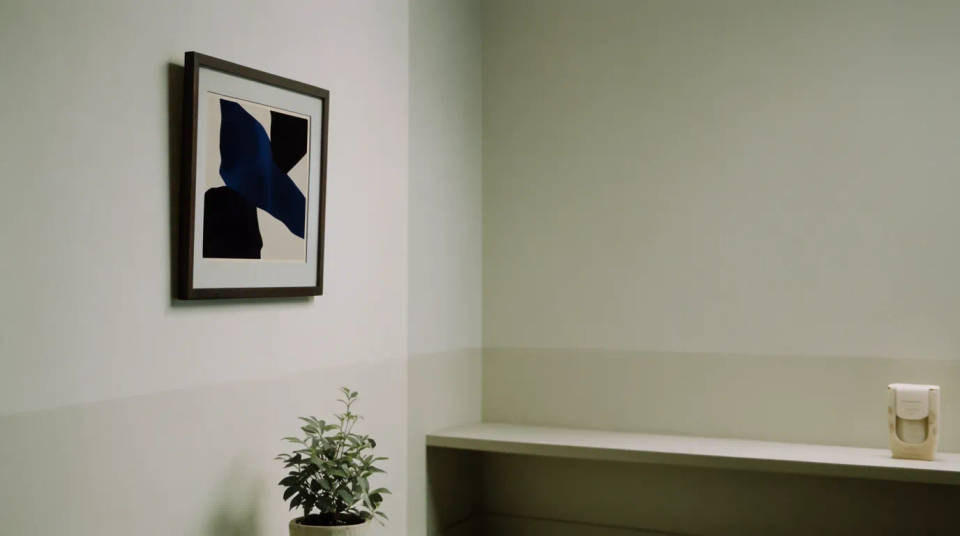
Paint a mask over empty space and describe what belongs, a framed picture on a bare wall, a plant in the corner, a product on a shelf. The model generates it inside the mask, matched to the room's light and perspective, so the new element reads as part of the original photo.
Replace an object cleanly
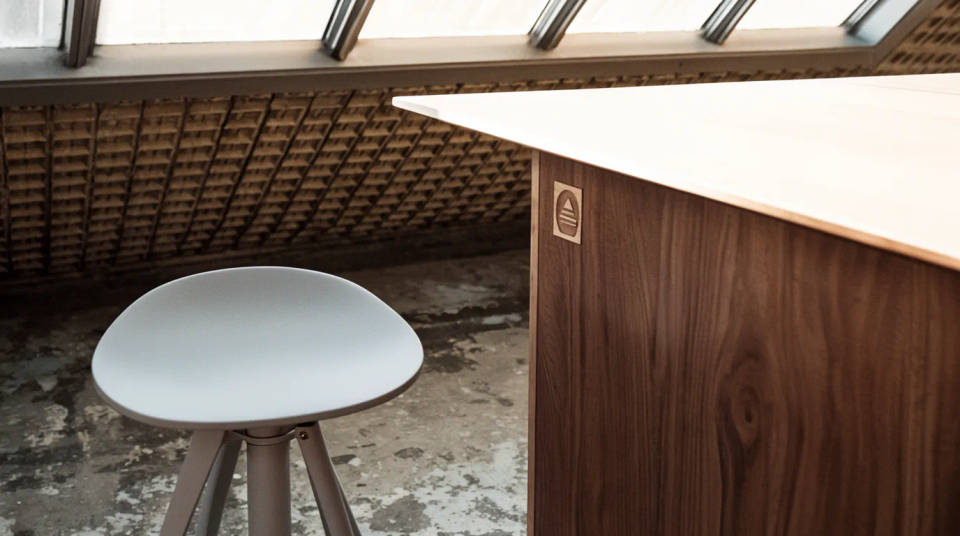
Mask an object and prompt for a different one in its place, a chair swapped for a stool, an old logo for a new mark. Because the region regenerates to fit the surroundings rather than pasting a cutout, the replacement sits in the scene with the right scale and shadow instead of floating on top.
Fix the frame, then take it to video
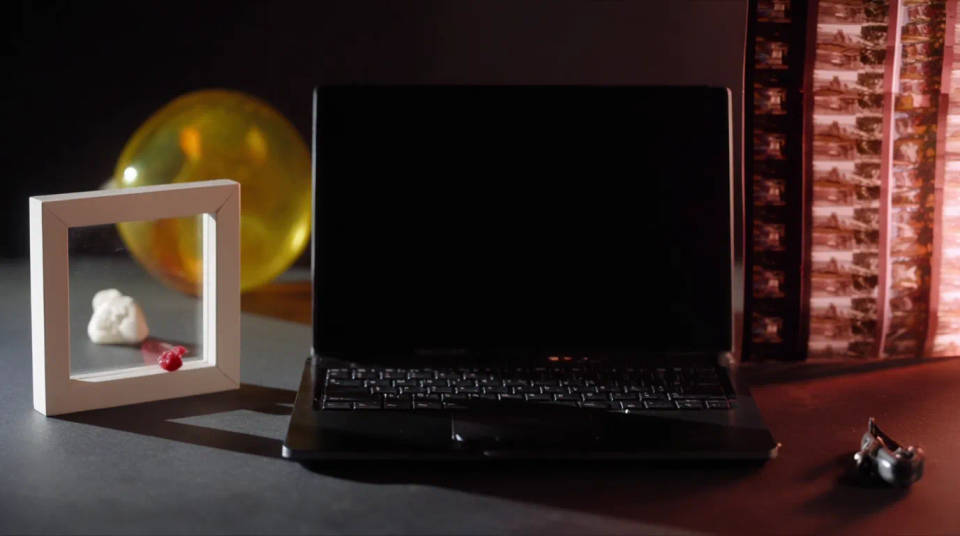
Inpaint a still until it is exactly right, remove a flaw, replace a detail, clean an edge, then carry that frame into image-to-video on Morphic to animate it. The shot you just corrected becomes the opening frame of a clip, so the edit follows through from a fixed still to motion in one workspace.
Prompt examples
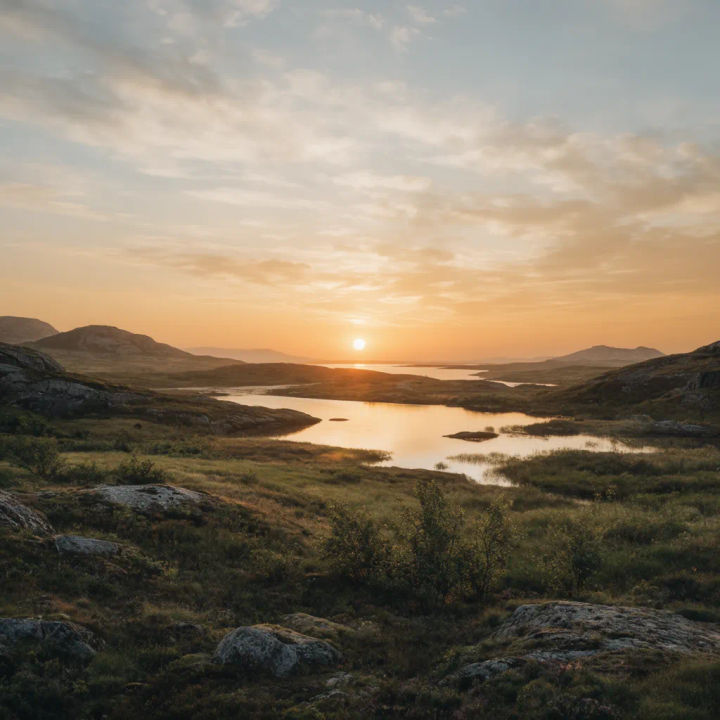
Swap the sky
Mask the sky and regenerate it as a clear golden-hour sunset, keep the foreground unchanged
Edit prompt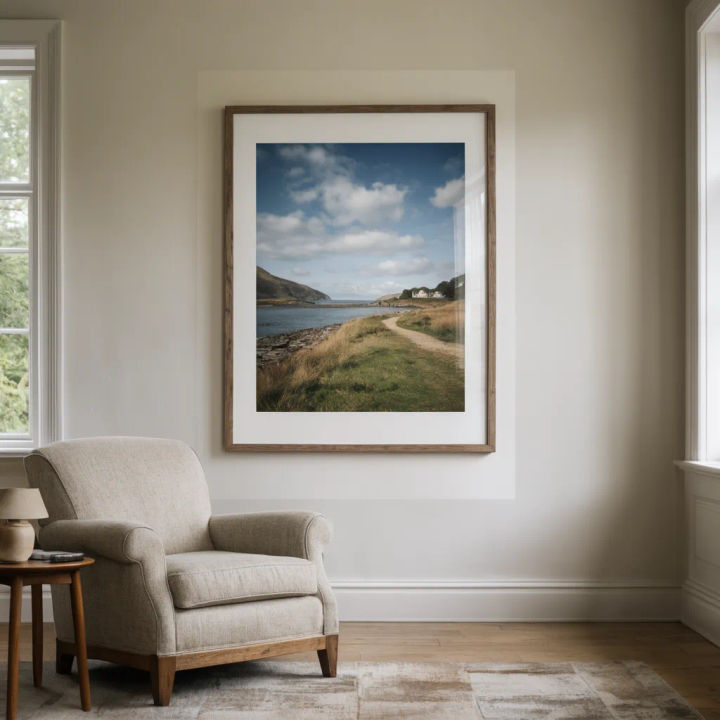
Add an element
Mask the empty wall and add a large framed print that matches the room's lighting
Edit prompt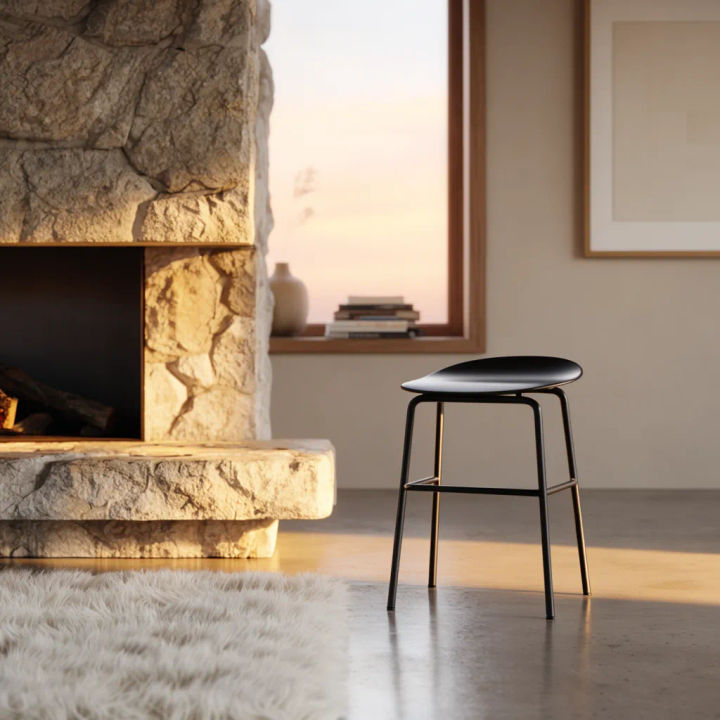
Replace the object
Mask the wooden chair and replace it with a modern black stool at the same scale
Edit prompt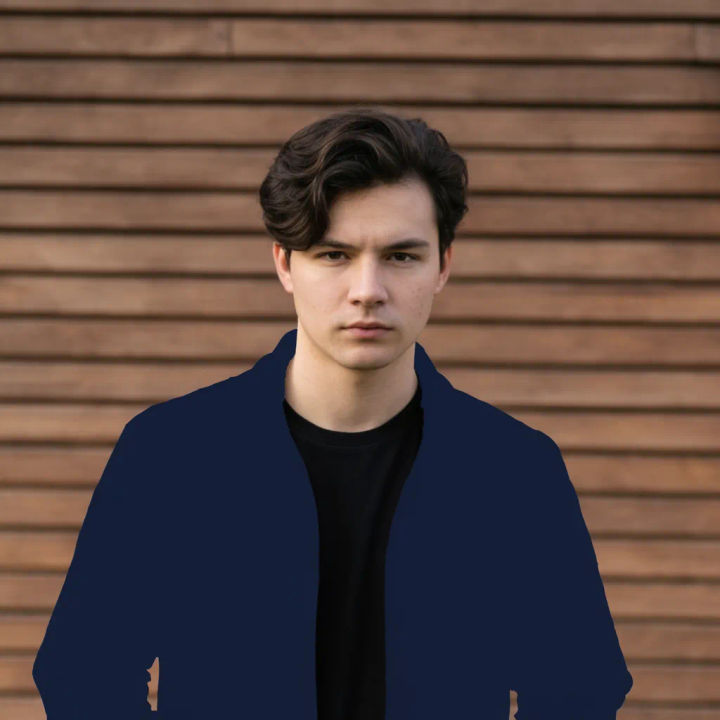
Recolour a region
Mask the jacket and regenerate it in deep navy while keeping the fabric folds
Edit prompt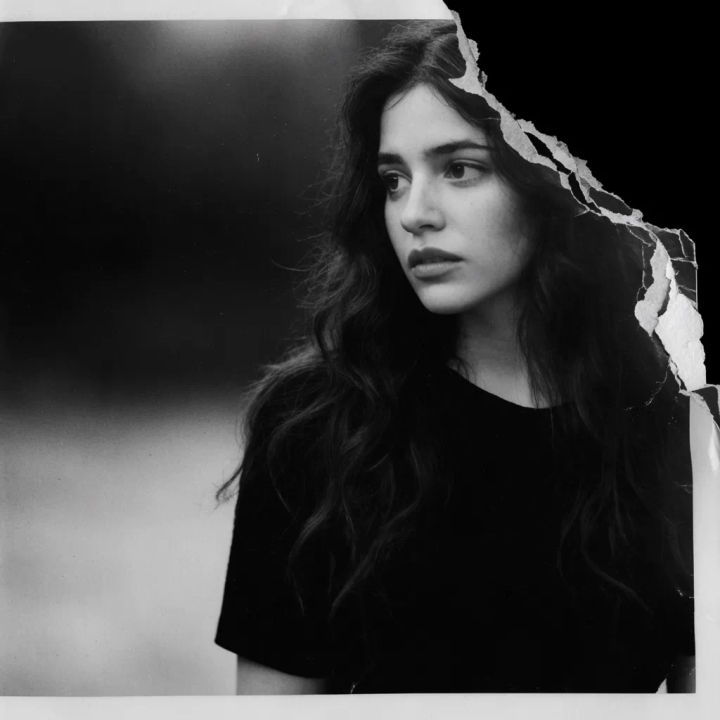
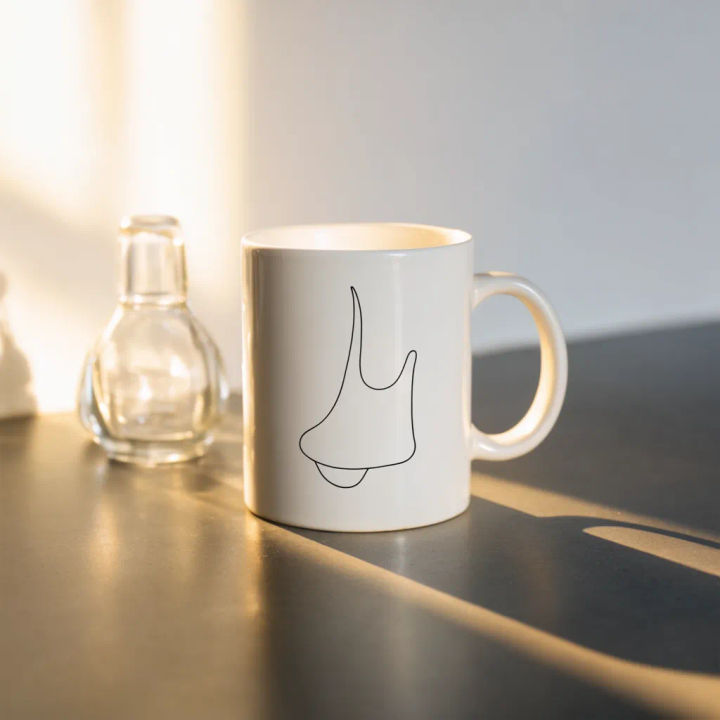
Change a detail
Mask the blank mug and add a simple line drawing without touching the rest of the shot
Edit prompt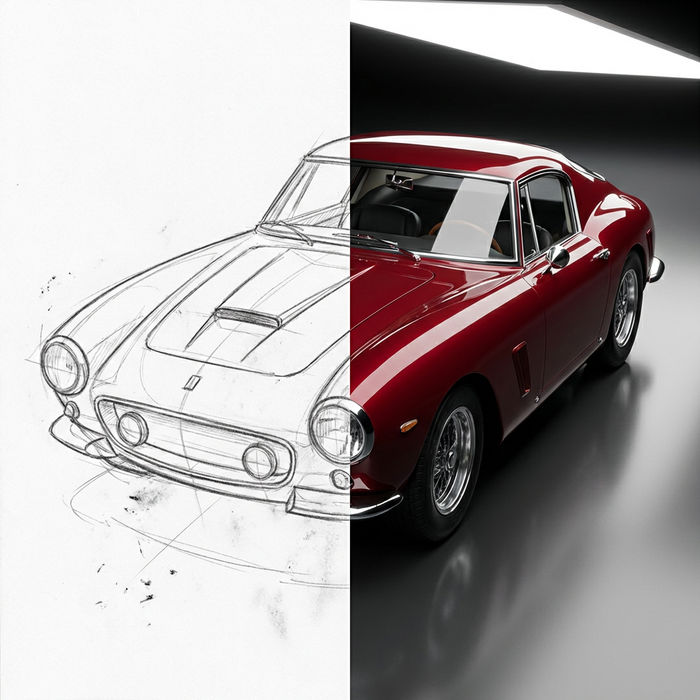
Sketch to render
Turn any sketch or drawing into a finished render.
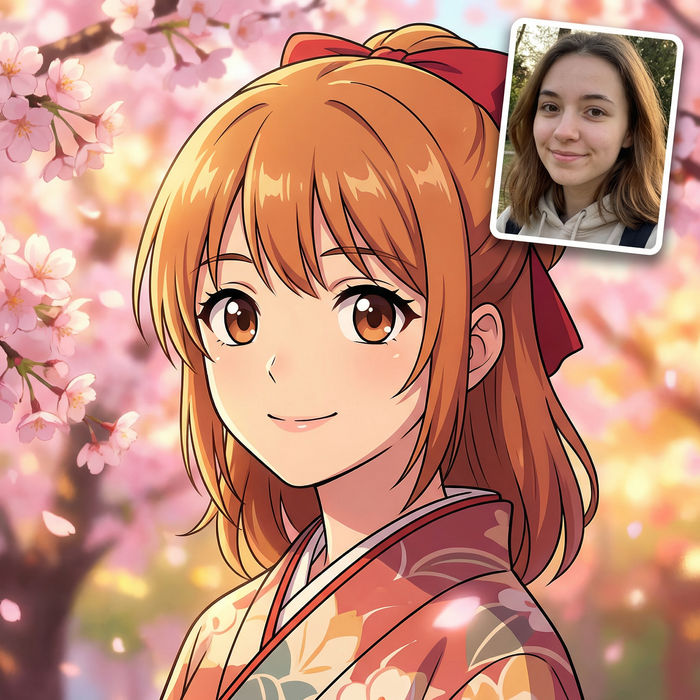
Anime style transfer
Pick any anime illustration as your style guide. Apply its look to any image.
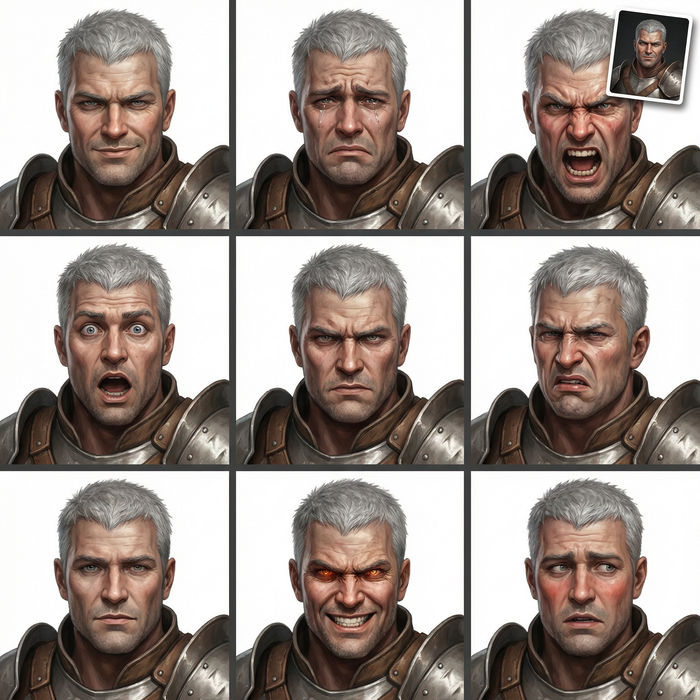
Expressions
Take any character image and generate 6 distinct facial expressions on a single reference sheet.
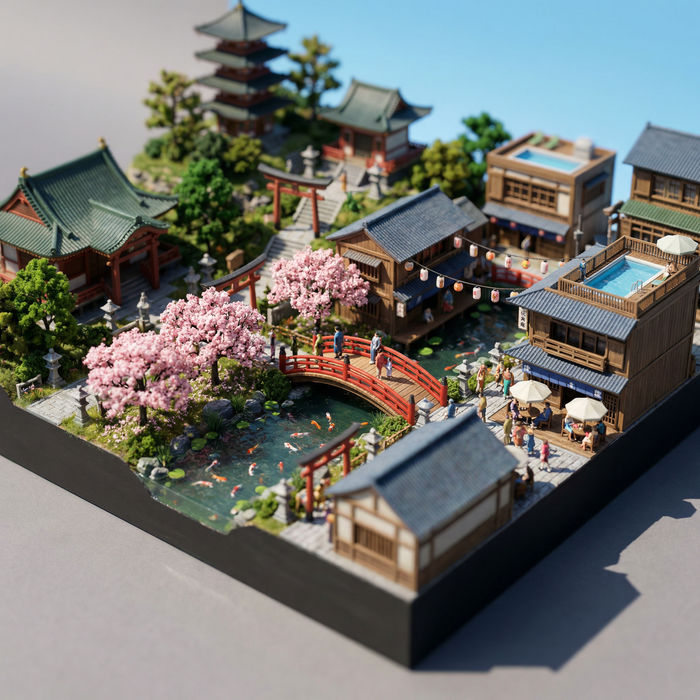
Miniature city
Generate immersive miniature city worlds in tilt-shift, clay, isometric, snow globe, and more.
Art style transfer
Pick a reference image, apply its visual style to your own photo or artwork.
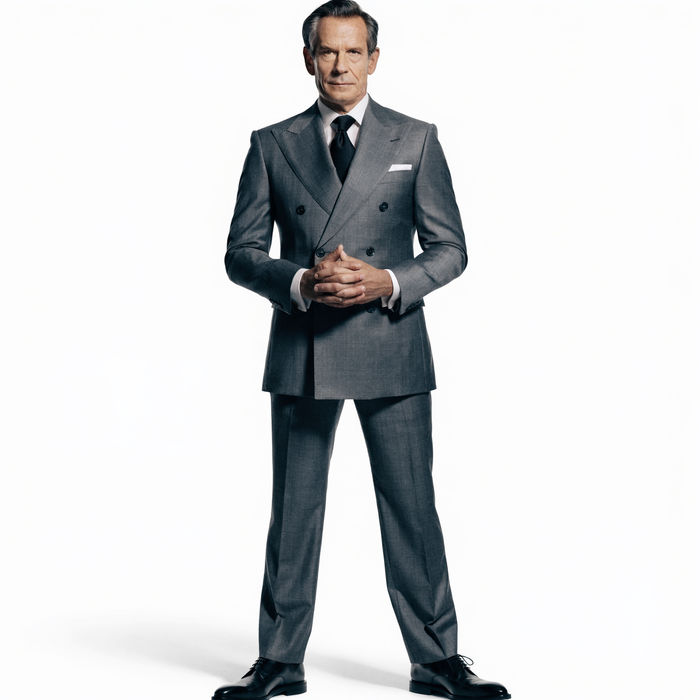
Chibi sprite animation
Turn any photo or description into an animated chibi sprite. Dance, jump, wave, attack, and more.
All on Morphic
Models
Nano Banana 2, Flux 2 Pro, ChatGPT Images, Grok Imagine, Recraft, Seedream, and more. Switch models when a masked region needs a cleaner blend.
Generative fill
Inpainting aimed at empty space, extend a photo past its edges or paint new elements into a gap.
Image editor
Recolour, retouch, and rework a photo end to end, with masking as one tool in the set.
Image to image
The studio tool where masking lives, edit any region and carry the frame on to video.
