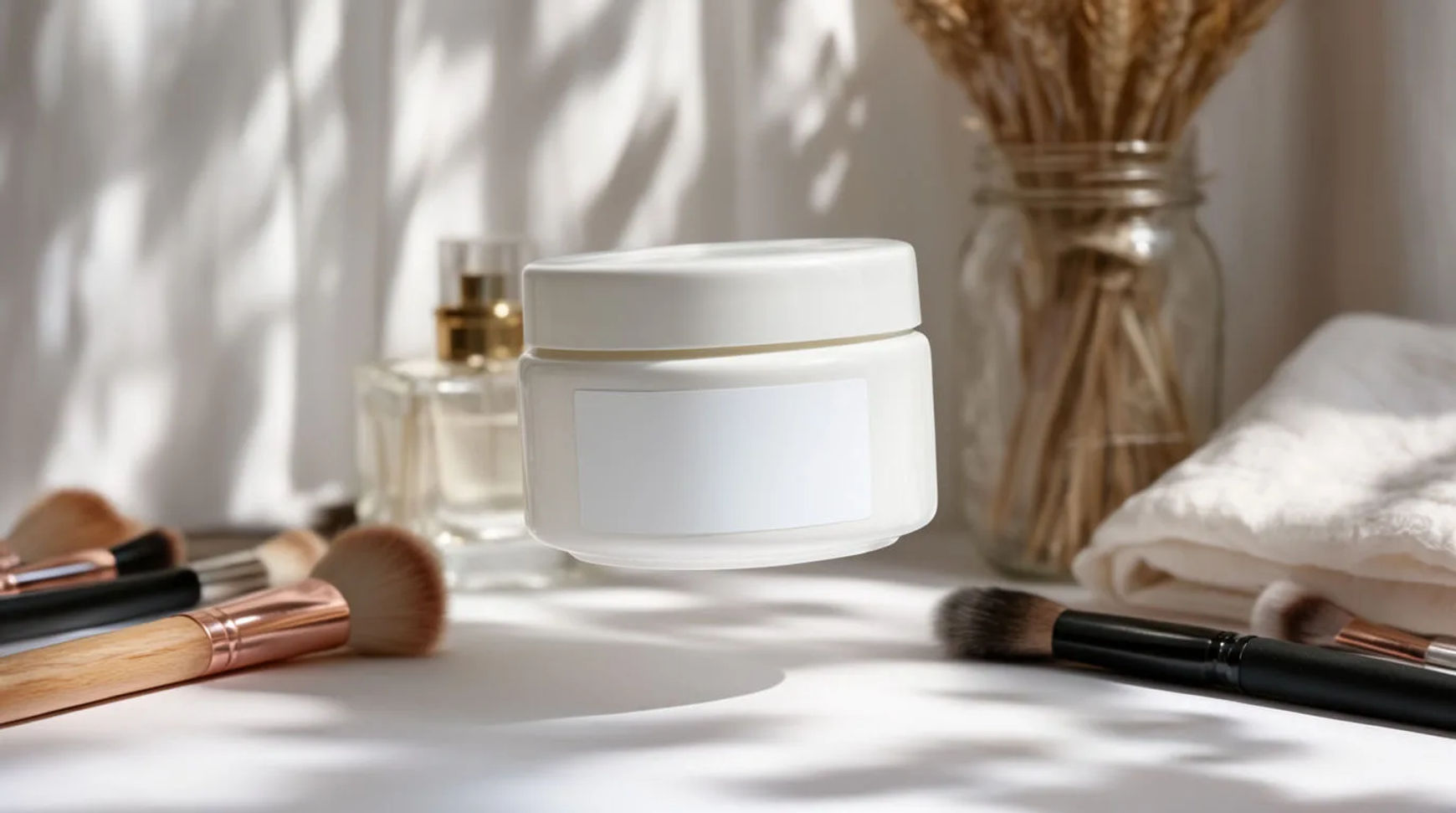
Backgrounds you can generate
Generate a product background in three steps
- 01
Open Morphic
Sign up and start creating on a free-flowing, infinite visual canvas.
- 02
Lift the product off its background
Use Smart Select to separate the real product as a layer, label and shape intact.
- 03
Generate the new scene
Describe or pick a setting and generate the background around the real product.
Use cases
A new scene without a reshoot
Lift the product and drop it into a generated lifestyle scene. The label stays exact while the setting changes, so one clean shot covers a season of backgrounds.
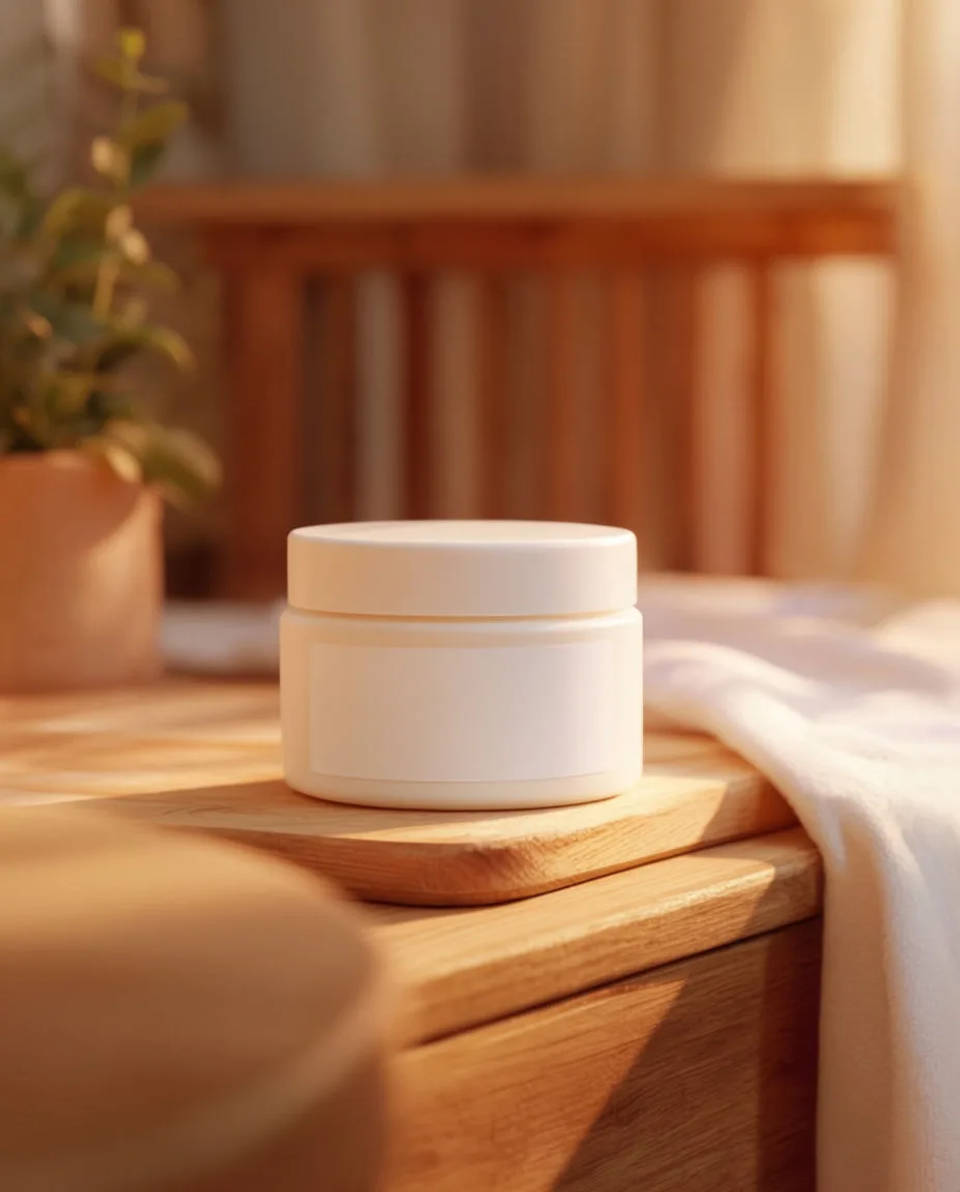
A consistent catalogue
Save one scene as a reference and reuse it across the whole range, so every product shares a setting and the catalogue reads as a set instead of shots from different days.
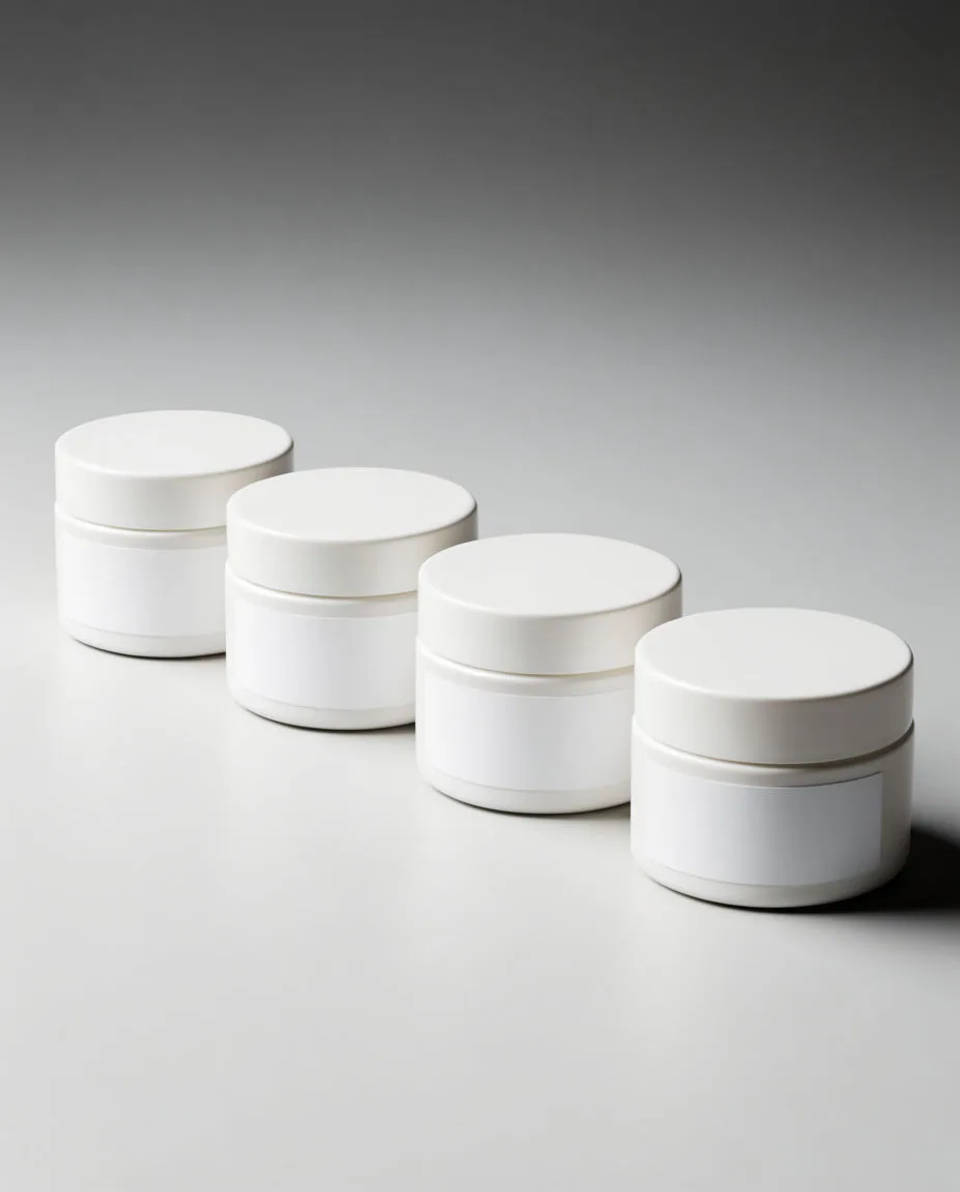
Every placement from one scene
Make the background once, then reframe it to a feed square, a story and a banner so the set matches across placements rather than being rebuilt per size.
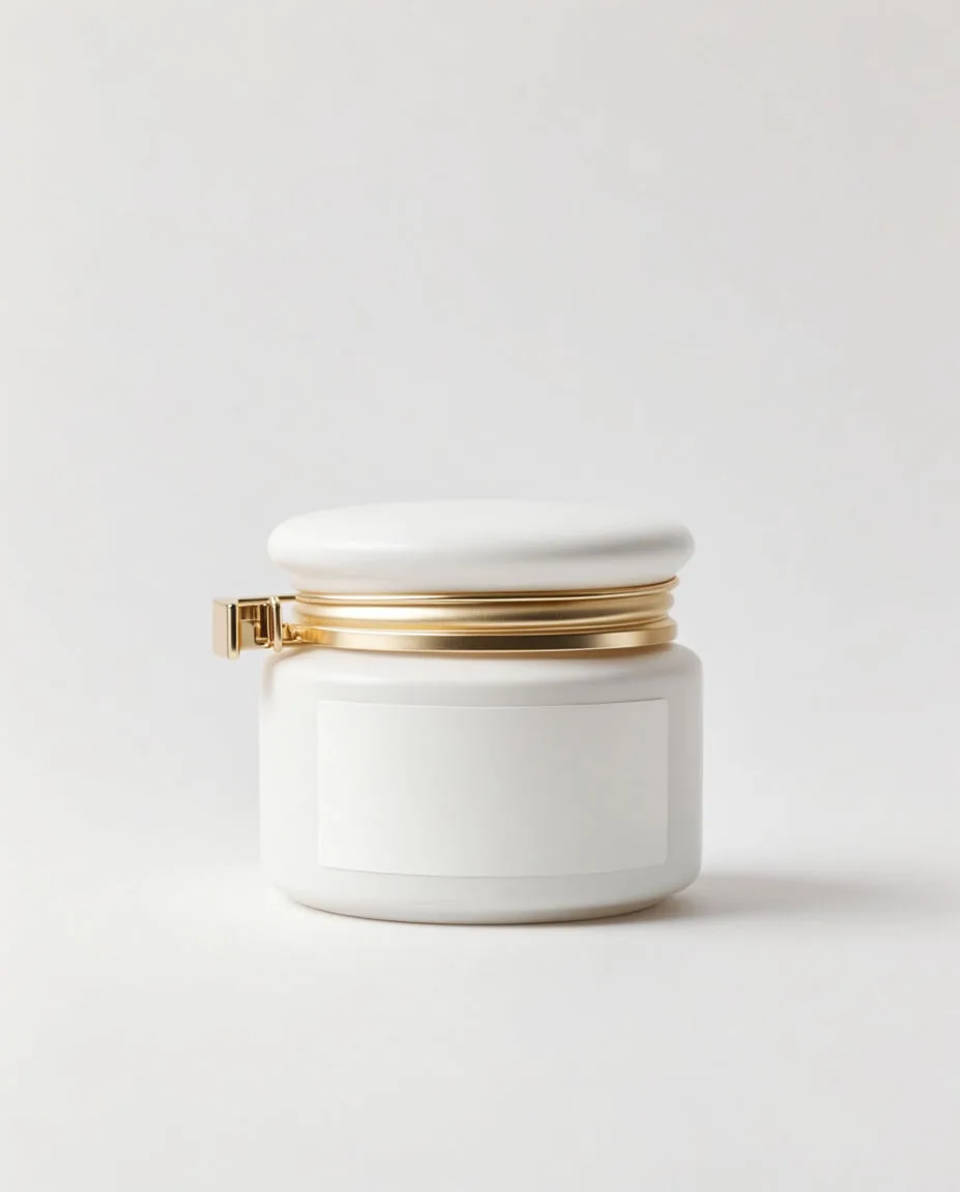
Scenes you can generate
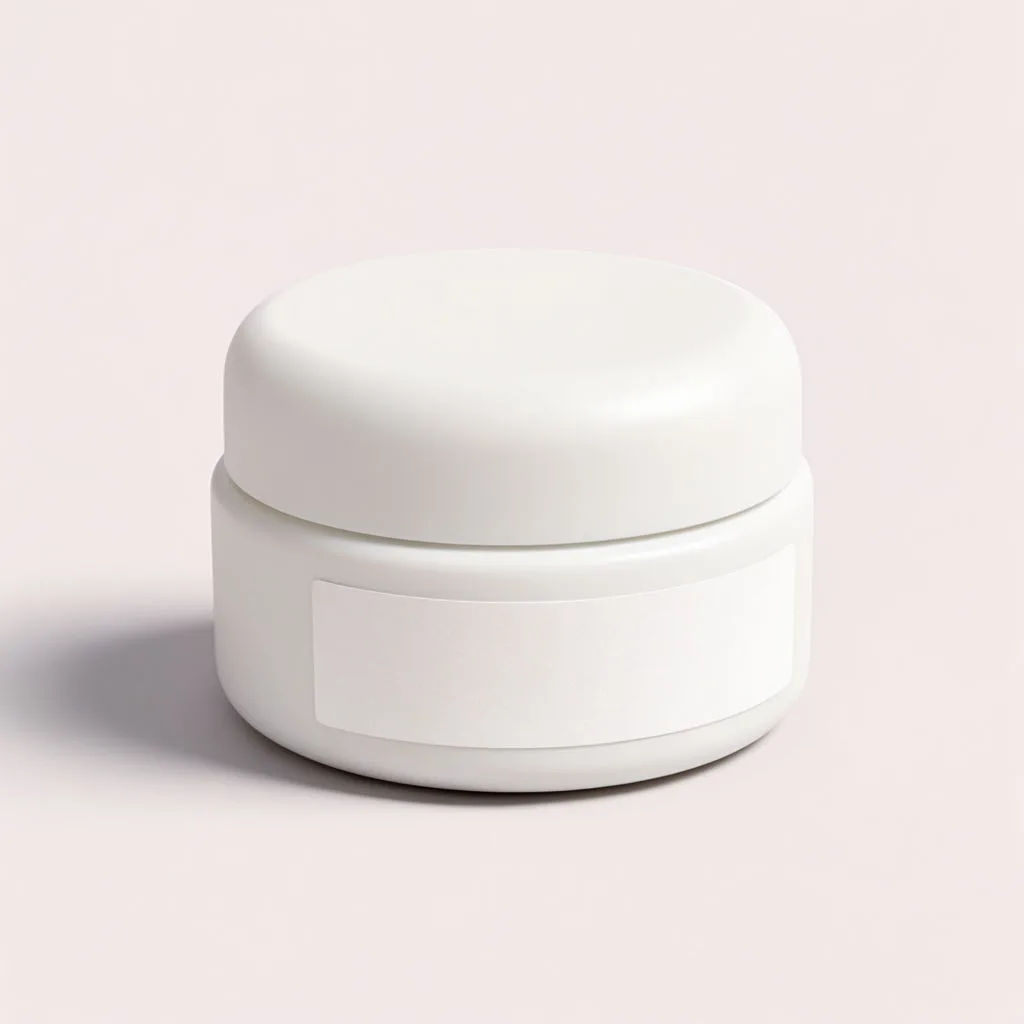
Each keeps your real product and changes only the background. Open any prompt to tweak it and generate your own.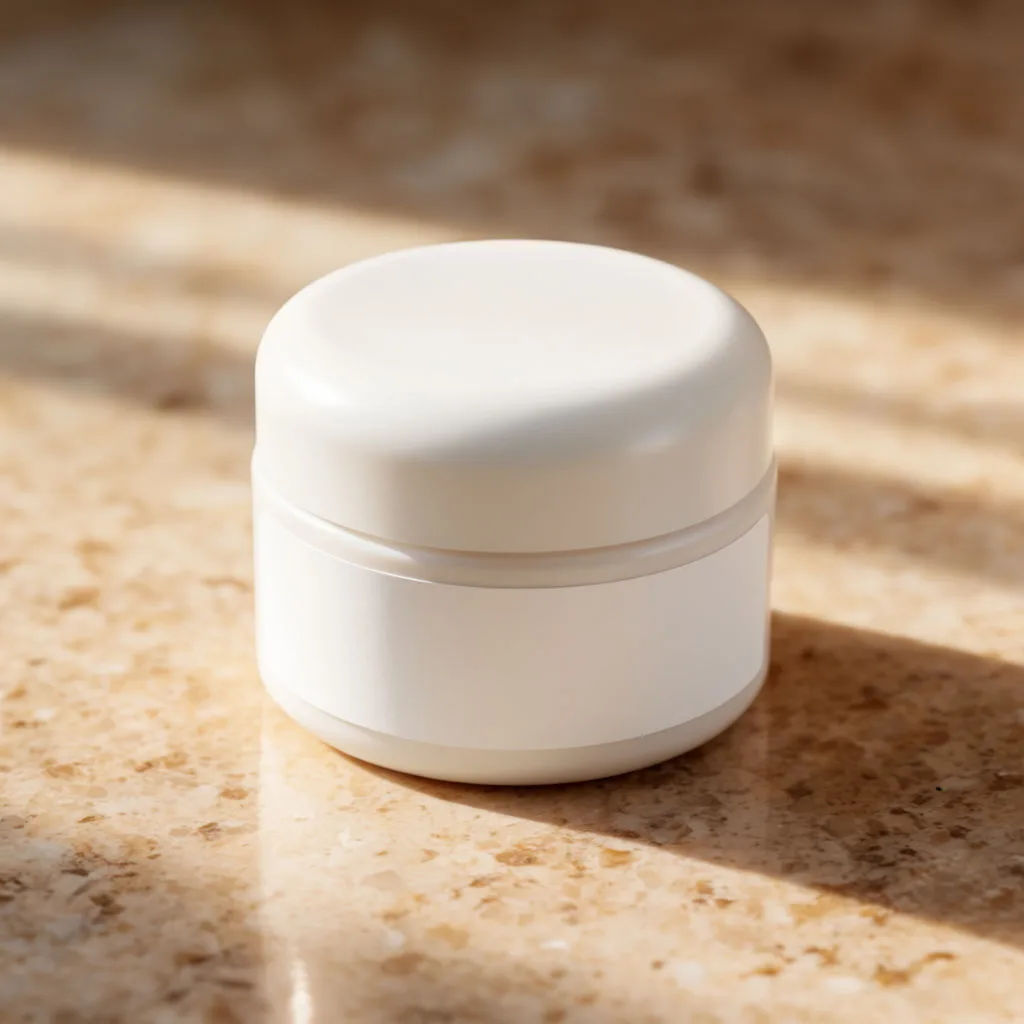
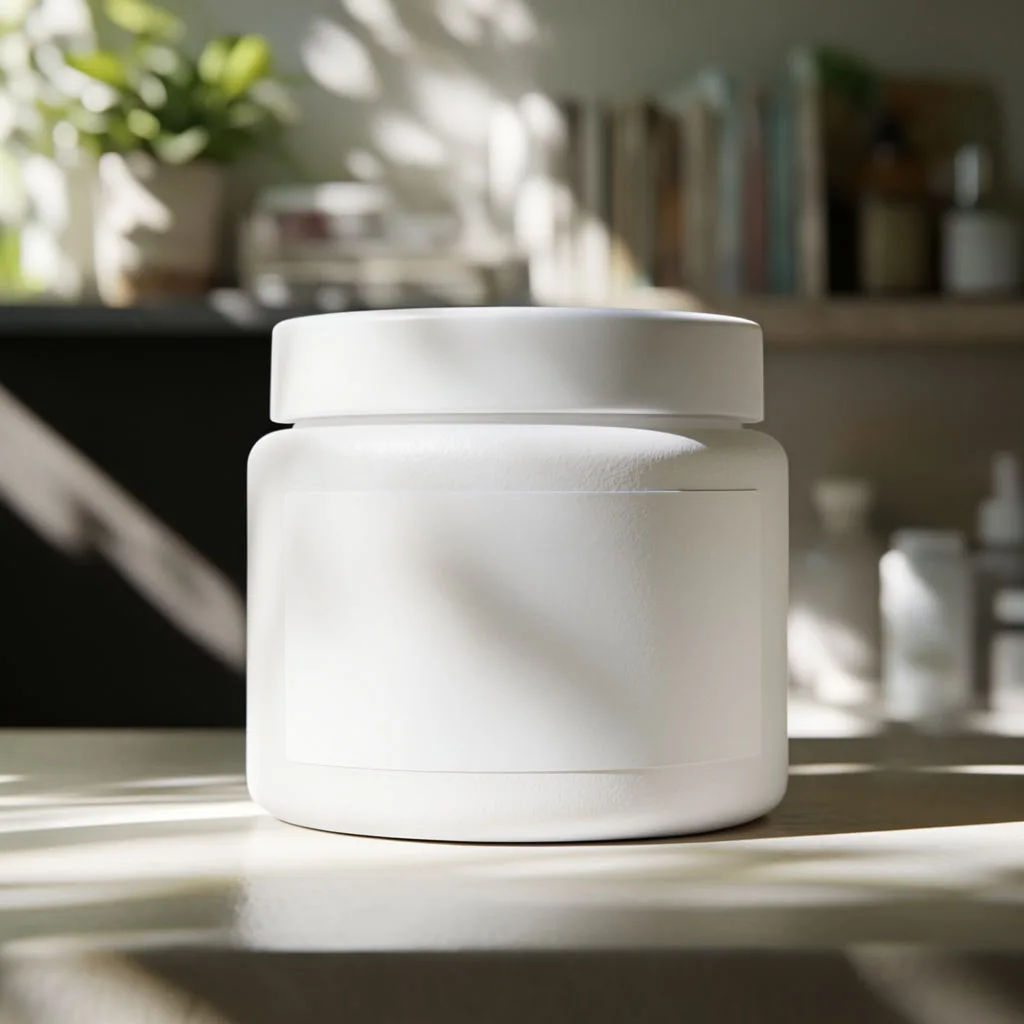
Lifestyle room
Product on a styled shelf in a sunlit room, plants and books softly blurred behind
Edit prompt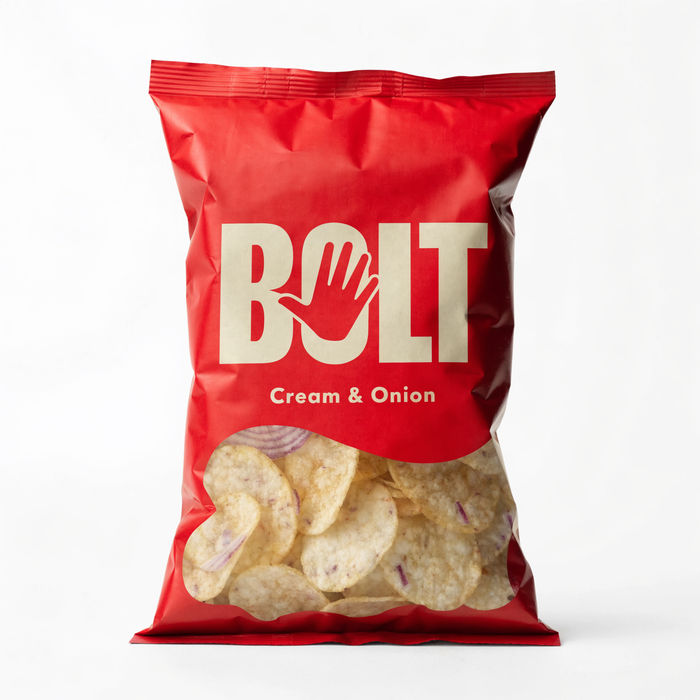
Product explosion ad
Dramatic 5-second product reveal video with audio.
UGC product pitch
Multi-shot product pitch video from a still, a person, and a script.
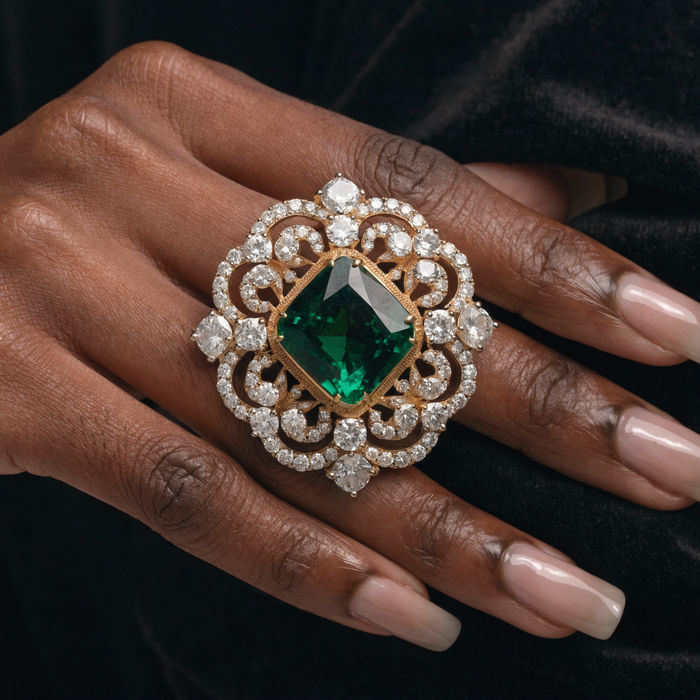
Jewelry campaign
One product shot becomes a full campaign pack with hero shots, angles, and format variations.

Anime sticker pack
Turn any image into anime-style stickers in PNG. Ready for messaging apps or social media.
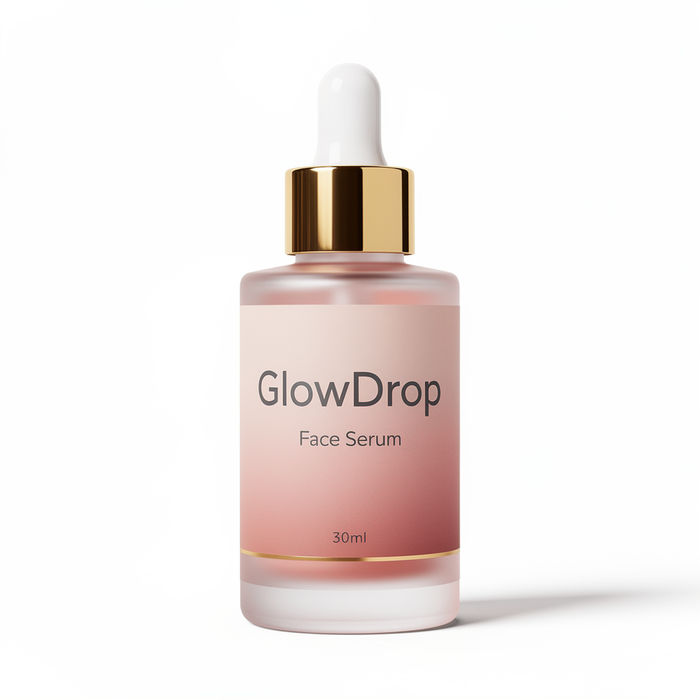
Product mockup generator
Upload a product photo and get studio-quality shots on any surface with configurable lighting, angles, and aspect ratios.
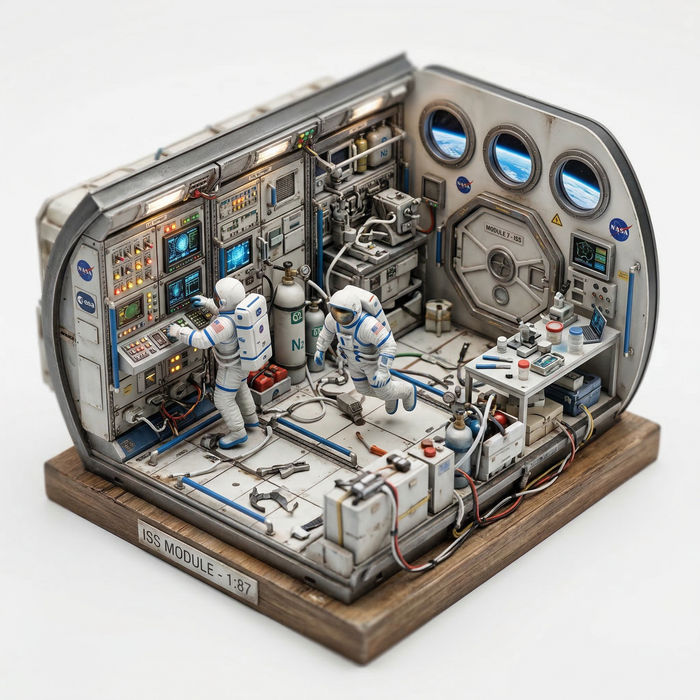
Isometric diorama
Turn any space or environment into a hyper-realistic isometric miniature diorama.
All on Morphic
Your complete product scene toolkitReal product, new scene
The product is your real cut-out, so the label and shape are untouched. Only the background is generated, which keeps the product the product.
Lift it on the Canvas
Smart Select separates the product as a layer, so you remove the old background and generate a new scene in one place.
Consistent across a range
Save the scene as a reference and reuse it across every product, so the whole catalogue shares one setting.
Workflows
Lock your scene and framing into a Workflow and rerun it for the next product. Share the link or favourite it.
